"Which screen recording app should I actually install on my Mac?"
How to choose a Mac screen recording app: 4 checkpoints
There may be a lot of apps, but there are only four things worth checking. Here they are at a glance:
- Can it capture system audio?
- Does it work without setup?
- Is it free and watermark-free?
- Does it handle sharing and notes afterward?
Nail these and you can skip reading every ranking top to bottom. Let's go through each.
1. Can it capture system audio?
macOS's built-in tools can't record system audio (more on why later). "The video's fine, but the sound I needed isn't there" almost always comes down to this. If you're recording meetings or anything with audio, check for system audio support first.
2. Does it work without setup?
3. Is it free, and is it watermark-free?
4. Does it handle sharing and notes afterward?
7 best Mac screen recording apps for 2026
Here are seven picks based on the four criteria above. If you already know your use case, jump to the comparison table or "Which one is right for you."
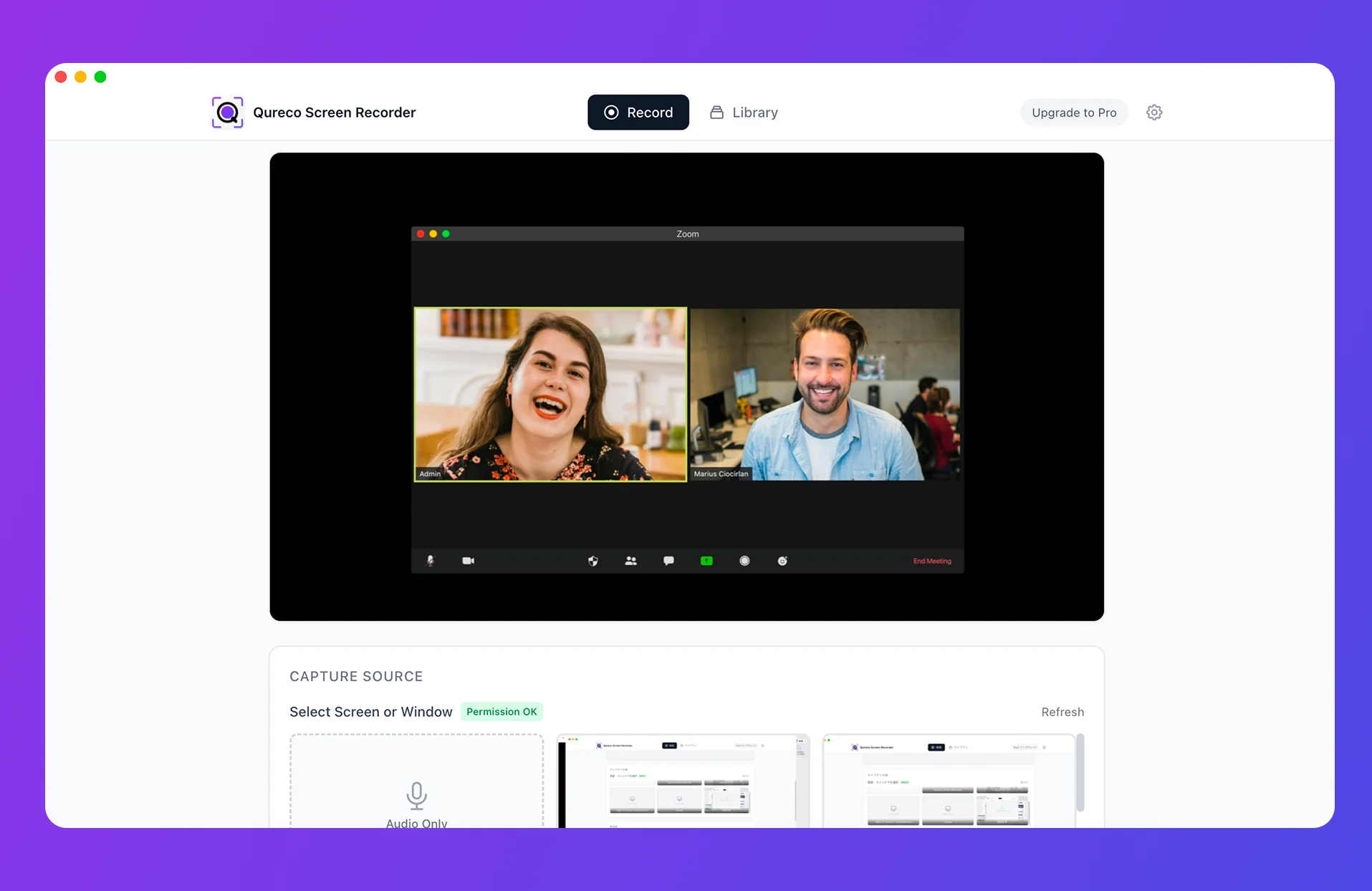
1. Qureco — from meeting recording to AI notes in one app
If your goal is recording meetings — and you'd like the notes written for you — Qureco is the cleanest fit.
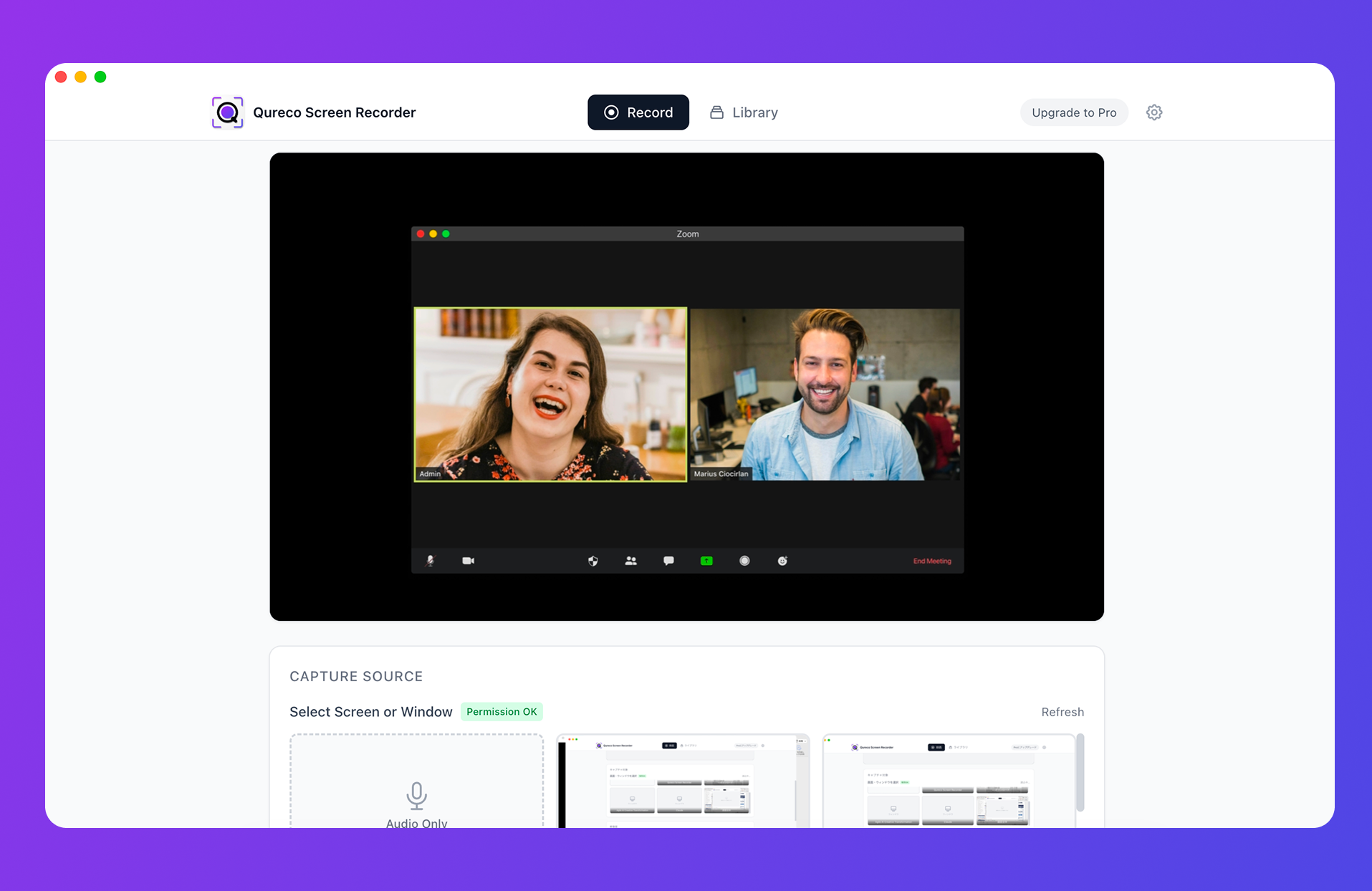
- Works the moment you install it (no virtual audio driver)
- Captures system audio and your mic at the same time
- No watermark and no time limit, even on the free tier
- Pro generates AI meeting notes from the recording and syncs to Notion in one click
- Zero config — hit record and system audio is captured
- "Record → AI notes → share" all in one app
- Records a meeting as your own screen and audio even when you're not the host
- Already updated for macOS Sequoia's monthly recording-permission prompt
- Mac only (no Windows)
- AI notes and Notion sync are Pro (free tier is recording only)
2. Mac built-in (QuickTime / Command + Shift + 5) — free and instant

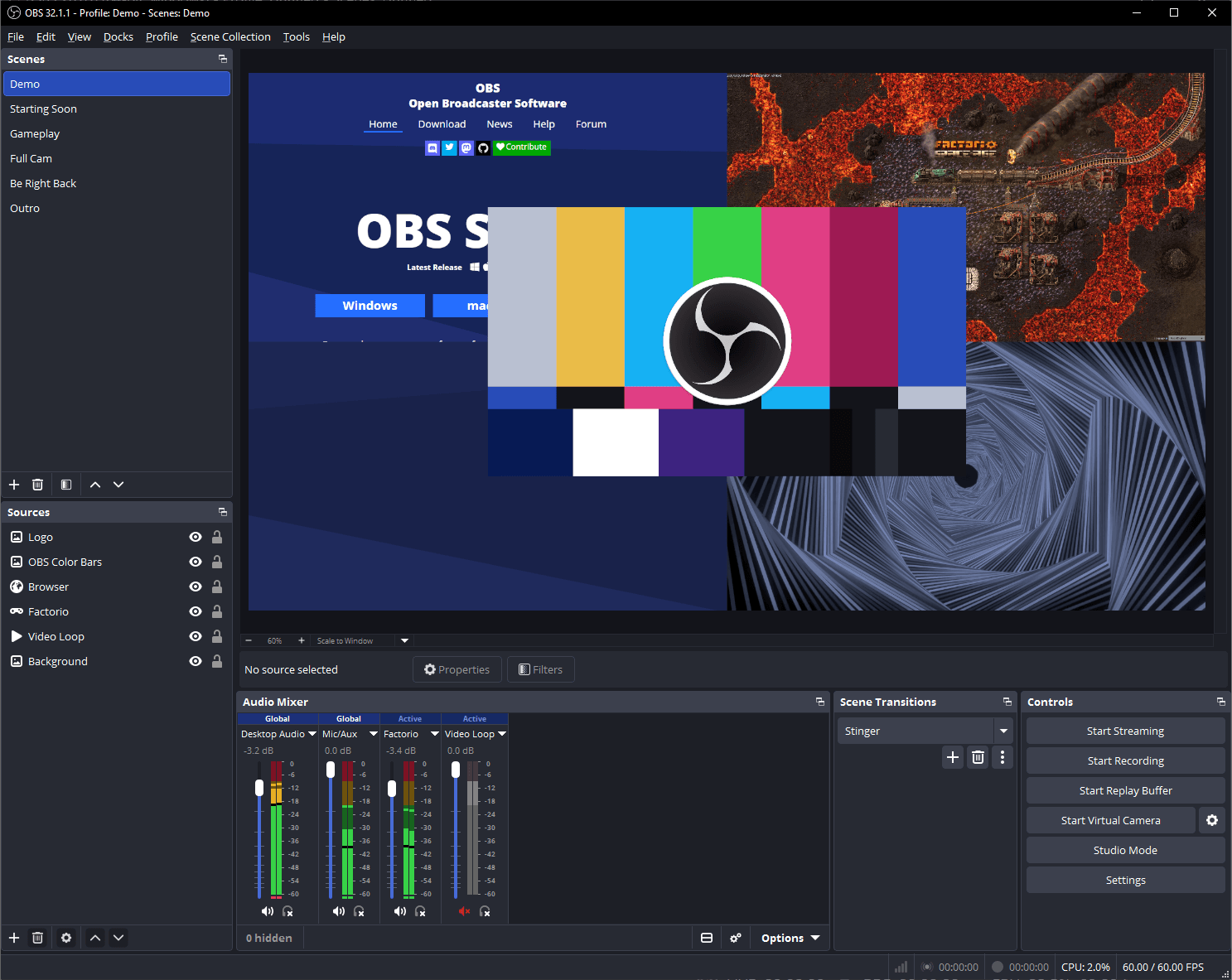
3. OBS Studio — the most powerful free option
The default among streamers and YouTubers. A remarkable feature set for free software.
4. Loom — record and share a link in seconds
Built around async sharing: stop recording, get a shareable URL instantly.
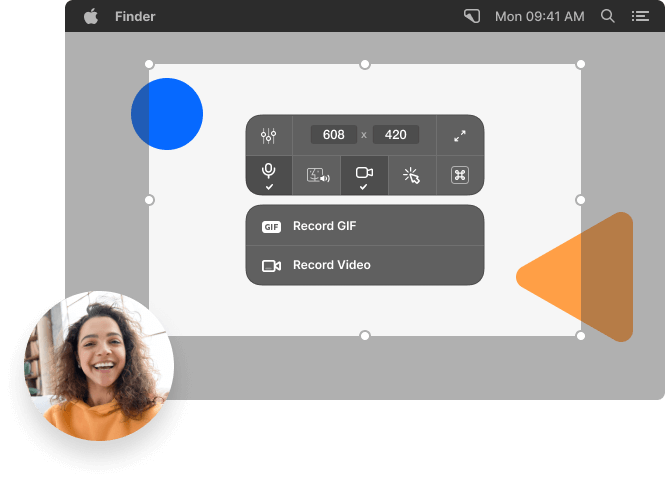
5. CleanShot X — all-in-one screenshots and recording
A favorite among Mac power users, covering screenshots and recording in one tool.
6. ScreenFlow — recording plus serious editing
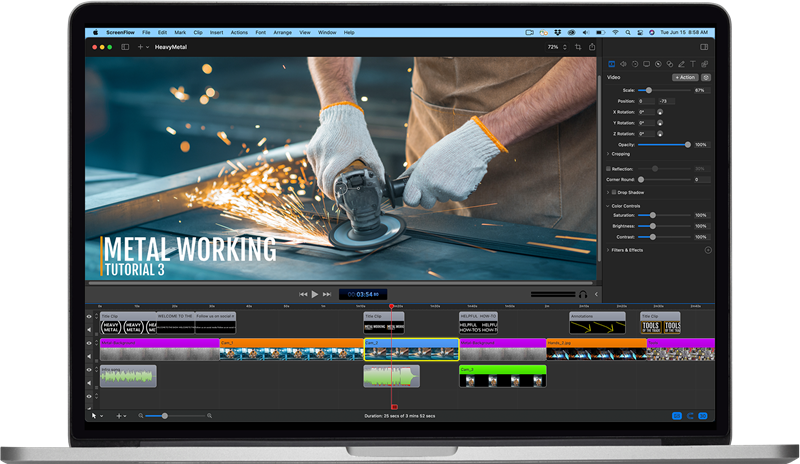
A Mac staple that combines screen recording with a full video editor.
7. Bandicam for Mac — high-quality, stable classic
The Mac version of a long-established recording brand known for quality and stability.

Comparison table: 7 Mac screen recording apps at a glance
| App | Price | System audio | Easy setup | Sharing | AI notes | No watermark |
|---|---|---|---|---|---|---|
| Qureco | Free+ | Yes | Best | Yes | Yes | Yes |
| Built-in | Free | No | Best | No | No | Yes |
| OBS Studio | Free | Yes* | Hard | No | No | Yes |
| Loom | Free+ | Yes | Yes | Best | No | Limited |
| CleanShot X | $29 | Yes | Yes | Yes | No | Yes |
| ScreenFlow | $169 | Yes | Yes | OK | No | Yes |
| Bandicam | Paid | Yes | Yes | OK | No | Limited |
*OBS needs BlackHole on top to capture system audio.
Two more that come up often
Neither made the table, but both get searched by name. We reviewed each on its own, so if either is on your shortlist, start there.
- QuickRecorder: a free, open-source app that captures system audio with no driver. Transcription and notes are out of scope, and it isn't notarized by Apple (Is QuickRecorder Enough for Your Mac? What It Does Well and Where It Stops)
- Clipchamp: Microsoft's video editor. On a Mac it runs in the browser only, recordings cap at 30 minutes, and system audio is never captured (Clipchamp on a Mac: 3 Limits Before You Record)
How to record your screen with Mac's built-in tool (try it free)
If you want to try free first, here's the built-in method. Checking it covers your needs before installing anything saves time.
Using the screenshot toolbar (Command + Shift + 5)
On macOS Mojave (10.14) or later, one shortcut does it.
- Press
Command + Shift + 5 - Choose "Record Entire Screen" or "Record Selected Portion"
- To capture your mic, pick it under "Options"
- Click "Record" to start
- Stop from the button in the top-right menu bar
By default the file saves to your Desktop as "Screen Recording [date] at [time].mov".
Recording with QuickTime Player
QuickTime uses the same engine.
- Open QuickTime Player
- Choose File → New Screen Recording
- Select the area and click record
Same mechanism, different entry point.
Why the built-in tool can't record the other person's voice
Which Mac screen recording app is right for you?
When in doubt, pick the one closest to your goal.
- Record meetings and handle notes + sharing → Qureco. No setup, system audio, plus AI notes and Notion sync end to end.
- Quickly record your own screen for free → Mac built-in. Unmatched for a single-shortcut start (when you don't need system audio).
- Stream or build elaborate scenes → OBS Studio. The most powerful free option.
- Share a video with your team fast → Loom. Instant shareable link.
- Edit and annotate too → ScreenFlow / CleanShot X.
- Highest quality, long recordings → Bandicam for Mac.
Summary
There are plenty of Mac screen recording apps, but the criteria are simple:
- Can it capture system audio (the other person's voice, app sounds)?
- Does it work without setup?
- Is it free and watermark-free?
- Does it cover sharing and notes?
By use case:
- Meeting recording + notes: Qureco
- Quick and free: Mac built-in
- Streaming and power features: OBS Studio
- Team sharing: Loom
- Editing too: ScreenFlow / CleanShot X
- High quality, long recordings: Bandicam for Mac
Qureco Screen Recorder
Powerful screen recording app for Mac
Record meetings, let AI handle the notes, just read what arrives in Notion.
Try all features free for the first two weeks.