You can't focus on a candidate while typing notes — but if you wait until after the interview to fill out the scorecard, the details you needed have already slipped away. If your team is running more and more online interviews, you've probably hit this wall.
This guide assumes you're a recruiter or interviewer on macOS, and that you always record with the candidate's consent. We cover how to ask for consent later in the article.
Why recording an online interview is harder than it sounds
Taking notes means you stop facing the candidate
Online interviews already make it harder to read facial expressions and pauses than in-person ones. When an interviewer looks down at the keyboard to take notes, the candidate on the other side of the screen reads it as disinterest or an awkward silence. You want to protect the candidate experience, but note-taking lowers the quality of the conversation — exactly backwards.
Relying on memory makes evaluations drift
The same problem appears with multiple evaluators: anyone who couldn't attend has to judge from secondhand summaries. An accurate record reduces this drift and over-reliance on individuals.
Three walls that stop you from recording
Even when you know records matter, three walls get in the way:
- The host-permission wall: if the candidate or an agency created the link, you aren't the host and the record button may not appear (or requires approval).
- The bot wall: inviting a meeting bot shows "[Bot] has joined" on the candidate's screen — impersonal and awkward in a near one-on-one setting.
- The cost wall: dedicated AI interview platforms are powerful but expensive, and hard to justify at a small company or startup.
The way past all three is to record on your own device, which we'll cover next.
Four ways to record an online interview — and what each is good for
There are roughly four ways to record an online interview, each with its own strengths.
| Method | Records without host rights | No bot needed | Mac support | Rough cost | Evaluation memo |
|---|---|---|---|---|---|
| ① Built-in meeting recorder | △ (host/plan) | ◯ | ◯ | Plan-based | Manual |
| ② Bot-based note tools | ◯ | ✕ | ◯ | Mid–high | AI-assisted |
| ③ Dedicated AI interview tools | ◯ | △ | ◯ | High | AI-assisted |
| ④ Record on your own Mac | ◯ | ◯ | ◯ | Free–low | AI-assisted (integration) |
① Built-in meeting recorder
② Bot-based note tools
③ Dedicated AI interview tools
④ Record on your own Mac
Step-by-step: record on a Mac → AI notes & evaluation → Notion
Here are the five steps to capture an interview on your Mac and turn it into something you can actually evaluate from.
STEP 1 — Get consent before recording (required)
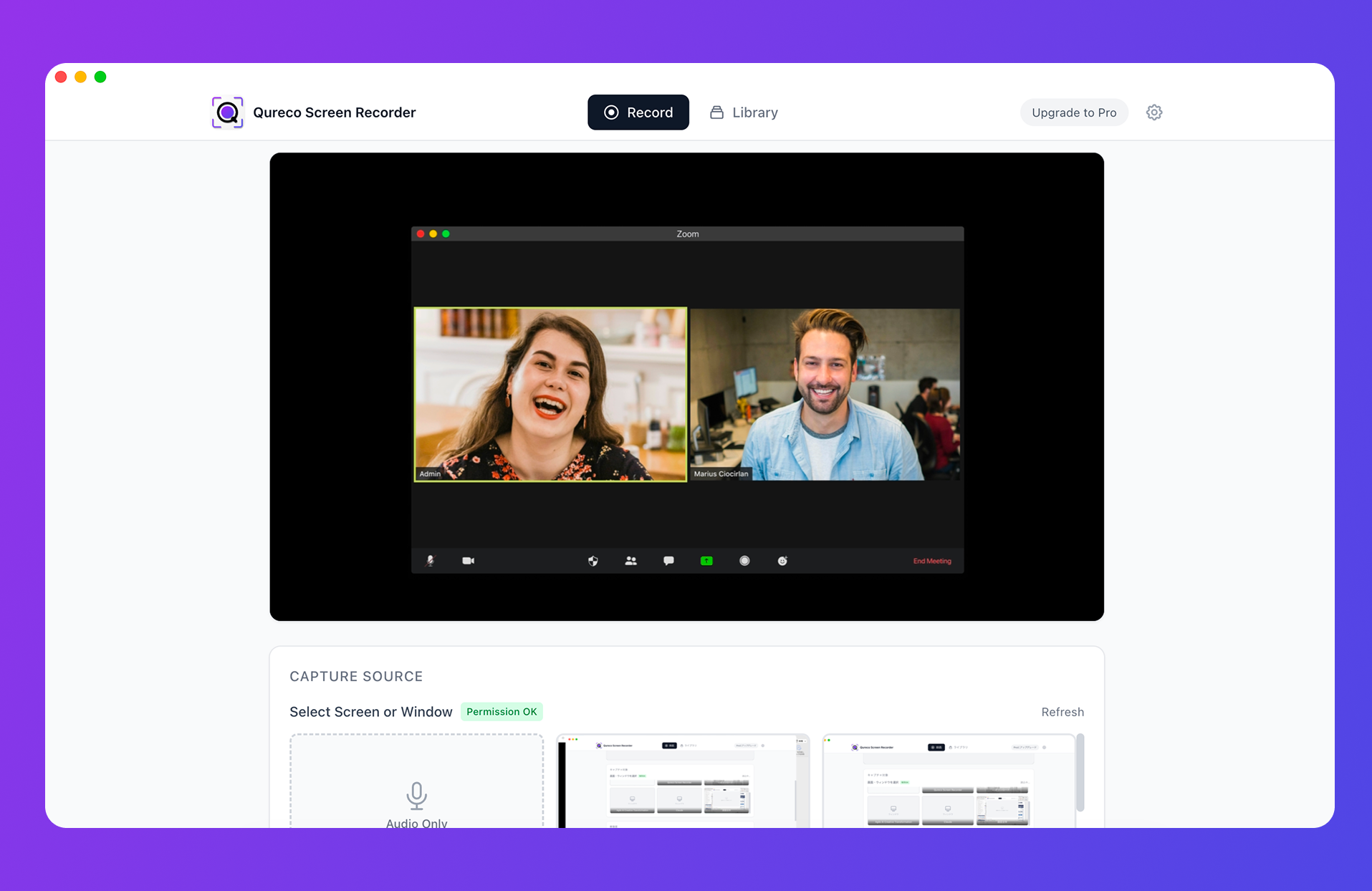
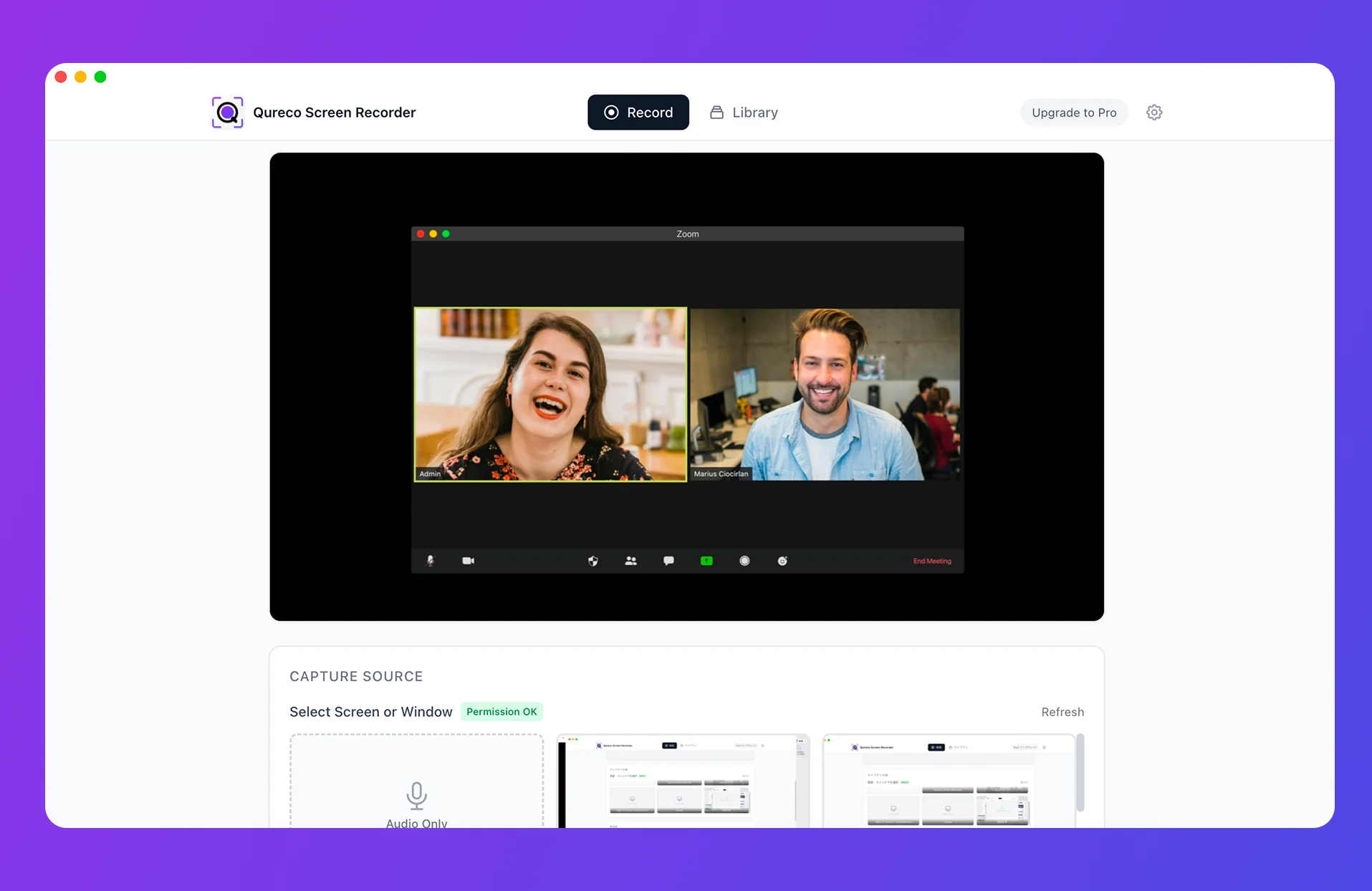
STEP 2 — Record the screen and audio on your Mac
The Mac's built-in screen recording (Shift+Command+5) is handy, but by design it only captures the microphone — it can't record the other person's voice (system audio). You can route system audio with a virtual audio driver like BlackHole, but the setup is fiddly. An app that captures mic and system audio together with no setup lets you skip the part that trips most people up.
STEP 3 — Generate AI notes and a transcript from the recording
STEP 4 — Turn the notes into an evaluation memo
Once you have the notes, pull out the points you need for evaluation. Ask the AI to "list the motivation, reason for leaving, strengths, and concerns as bullet points," and you've got a first draft of the scorecard in one shot. Decide your criteria in advance (e.g., communication / expertise / culture fit) so you can compare candidates on the same axis and reduce drift.
STEP 5 — Save each candidate to a Notion recruiting database
Finally, save the recording, notes, and evaluation memo to a Notion recruiting database, one entry per candidate. With properties like "name / position / interview date / score / next action," your records stay organized no matter how many interviews pile up, and you can share them directly with colleagues who couldn't attend. A tool with Notion integration lets you send notes to the database in one click.
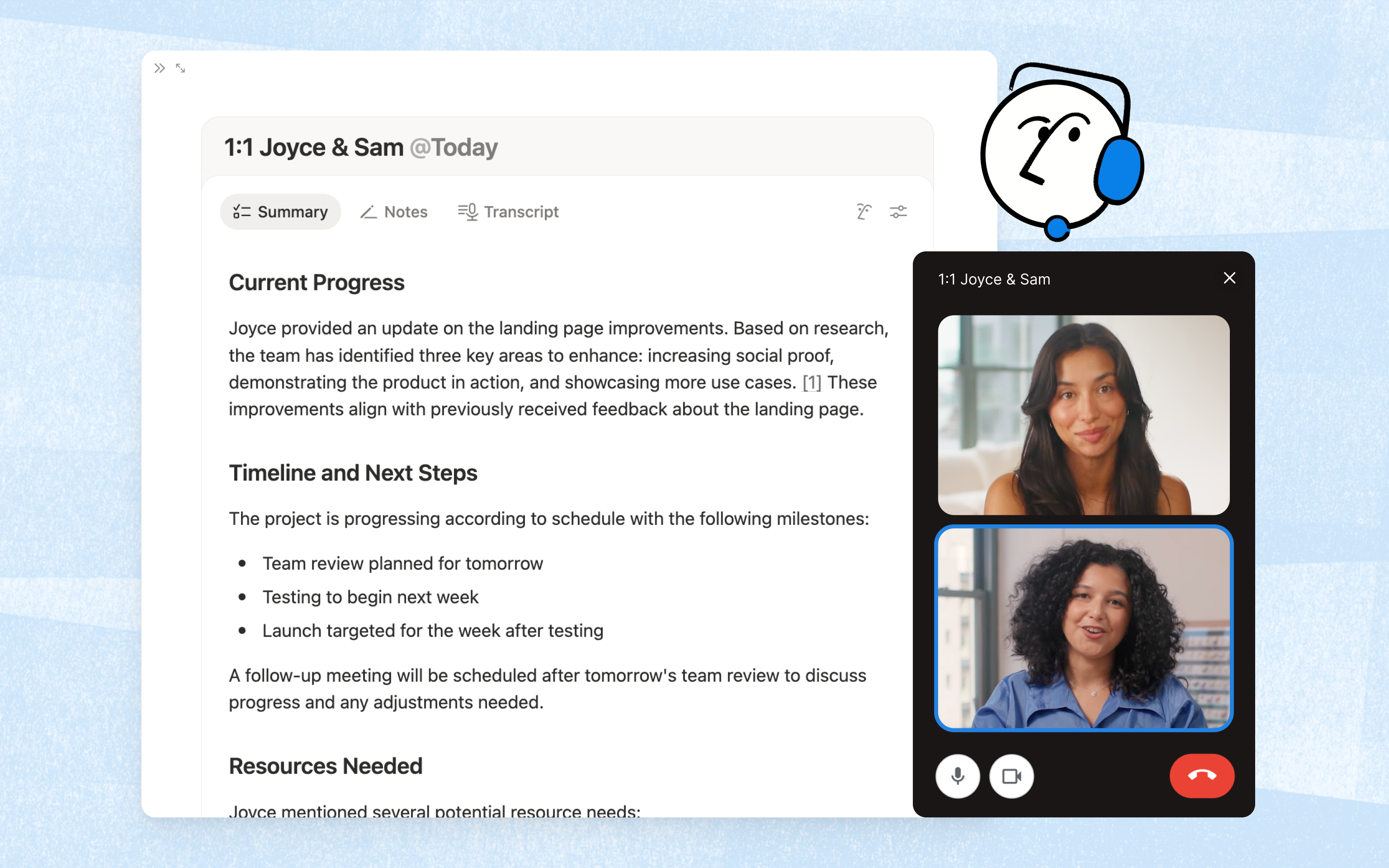
How interview recordings change your evaluations — making records a hiring asset
Records aren't valuable just for existing. They earn their keep when they improve the quality of your hiring.
Evaluators who couldn't attend can review later
Less evaluation drift (subjective bias)
Train interviewers and review your questions
Watching your own interview afterward shows you objectively where "I should have asked it this way" or whether "my intent came across." Sharing a strong interviewer's logs as training material prevents skills from being locked in one person and raises the whole team's bar.
A must-read on consent and privacy before you record
Precisely because it's convenient, this part deserves care. The minimum points for protecting a candidate's trust:
Never record without permission — what to tell them
- That you'll record, and the purpose (a record for hiring evaluation)
- That it will not be used outside hiring and not shared with third parties
- That agreeing to be recorded is optional
- How the personal data / recording is managed
"We'll record today's interview to keep our evaluation accurate and to share it internally. The recording will be used only for our hiring process and never provided externally. Are you comfortable with that?"
A brief note in your scheduling email beforehand is even more considerate.
Storing recordings securely
Building this into a system with Qureco
- No host rights, no bot: you record on your own Mac, so it works with the candidate's link and any meeting tool. You don't add a participant (a bot) to the call, so candidates never feel watched.
- No setup: capture the microphone (your voice) and system audio (the candidate's voice) at the same time, with no virtual-audio configuration.
- Free recording, no watermark: recording is free with no time limit. You can start at zero cost.
- AI notes & Notion integration (Pro): AI auto-generates notes from the recording (with speaker identification), you can regenerate around your evaluation criteria, and send it straight to your Notion recruiting database.
Even without the budget for a dedicated AI interview platform, you can systematize your interview records starting today. Pro is free for the first two weeks with no credit card required, so try it from your next interview.
Qureco Screen Recorder
Powerful screen recording app for Mac
Record meetings, let AI handle the notes, just read what arrives in Notion.
Try all features free for the first two weeks.
Summary
- Record: with the candidate's consent, capture the screen and audio on your Mac
- Take notes: let AI handle transcription and notes (speaker identification keeps it readable)
- Evaluate: pull out points by criteria and compare candidates on the same axis
- Store in Notion: save per candidate to a recruiting database and share with the team
Once this flow is in place, you can focus on the conversation during the interview, and your evaluations stay fair because they're grounded in the record. As a first step toward turning records into a hiring asset, try one piece of this from your next interview.