You searched "automate meeting notes with the Notion API," and what came back was a wall of code: generate a token, hit an endpoint, build a JSON payload. Somewhere in the middle of it, you quietly closed the tab.
What can the Notion API actually automate about meeting notes?
Before you pick a route, let's get one thing straight. Misunderstand this, and you'll end up with "I set up the API, but the notes are empty."
The Notion API only handles "delivering finished notes"
- Create a new page (one set of meeting notes) in a database
- Add blocks like headings and bullet lists inside that page
- Fill in properties (date, attendees, tags, etc.)
| What you want | Possible with Notion API? |
|---|---|
| Record the meeting (audio/video) | ✕ No |
| Transcribe the audio | ✕ No |
| Summarize the transcript into notes | ✕ No |
| Save finished notes to Notion | ◯ This is its job |
Recording a meeting, transcribing it, and summarizing the key points — that whole "creating the content of the notes" part is outside the Notion API's scope. You need a separate mechanism (a transcription tool or AI) for it.
So "automation" is really two jobs
Once you see that, it's clear that automating meeting notes is two separate jobs:
- Creating the content: record → transcribe → summarize into notes
- Delivering it: save the finished notes to Notion
The Notion API can only take on job 2. Most "automate notes with the Notion API" articles blur jobs 1 and 2 together, so when you actually set things up, you end up with an empty box and no contents.
Three routes to auto-post notes to Notion
Here's the heart of it. There are three broad routes. Let's look at the whole picture in a table first.
| Route | Typical tools | Tech skill | Setup time | Rough cost | Best for |
|---|---|---|---|---|---|
| ①No-code | Zapier / Make | Low–Medium | 1–3 hours | From ~$10/mo | You already have transcribed notes and just want to automate saving them |
| ②Custom code | GAS / Python + Notion API | High | Half a day to several days | Mostly free (self-hosted) | Developers who want to build something tailored |
| ③All-in-one | Record → AI notes → Notion app | None | ~5 minutes | Free–low | People who want to hand off the content creation too, no code |
Let's go through them one at a time.
Route 1: Connect tools with no-code (Zapier / Make)
This is for people who'd rather not write code but are comfortable wiring tools together by clicking. Using a connector like Zapier or Make, you build a flow — "when X happens, create a page in Notion" — with mouse clicks.
How it works: triggers and actions
No-code tools run on a combination of a "trigger" and an "action." For meeting notes, it looks like this:
- Trigger: a transcription tool finishes the notes / a file lands in a specific folder
- Action: create a new page in your Notion notes database and pour in the text
A classic recipe is to use Notion's "New Database Item" as a trigger and fire a Slack notification — for example, posting to a channel whenever new meeting notes are created so attendees get notified, killing one piece of recurring manual work.
Who it fits, and where people get stuck
A few caveats, though:
- You still need the content separately: Zapier/Make don't record or transcribe anything. "Creating the content" has to be filled by another tool.
- Quirks via the Notion API: writing to Notion through a no-code connector can strip rich text down to plain text, and multi-select tags will fail silently if they don't match exactly.
- Cost: there are free tiers, but running it for real means a paid plan. Zapier starts around $9.99/month, Make around $16/month. Make tends to be cheaper per task and stronger at detailed conditional logic.
Route 2: Write your own code against the API (GAS / Python)
The most flexible route is calling the Notion API directly from your own code. With Google Apps Script (GAS) or Python, you send requests and create pages in exactly the format you want.
The flow and how long it takes
Roughly, the steps are:
- Create a Notion "integration" and get its secret token
- Connect (authorize) that integration to the database where you want notes
- From GAS/Python, send a page-creation request to the API using the token
- (For real use) build scheduling or trigger monitoring
Getting a single page created takes a few hours. Putting it into real operation is another story. A practical setup like "auto-generate that day's meeting note pages every morning and post to Slack when done" means standing up scheduled execution yourself (e.g., Google Cloud Functions).
The common trap is step 2. People grab the token and stop there, forgetting to connect the integration to the target database — then get stuck on permission errors (like a 401) forever.
Who it fits, and the operating cost
To be honest, though, the operating cost isn't small:
- You host the server/scheduler yourself
- You handle API changes and errors yourself
- "Creating the content" (transcription/summarization) is still needed separately
Route 3: Go from recording to notes in Notion, all in one app
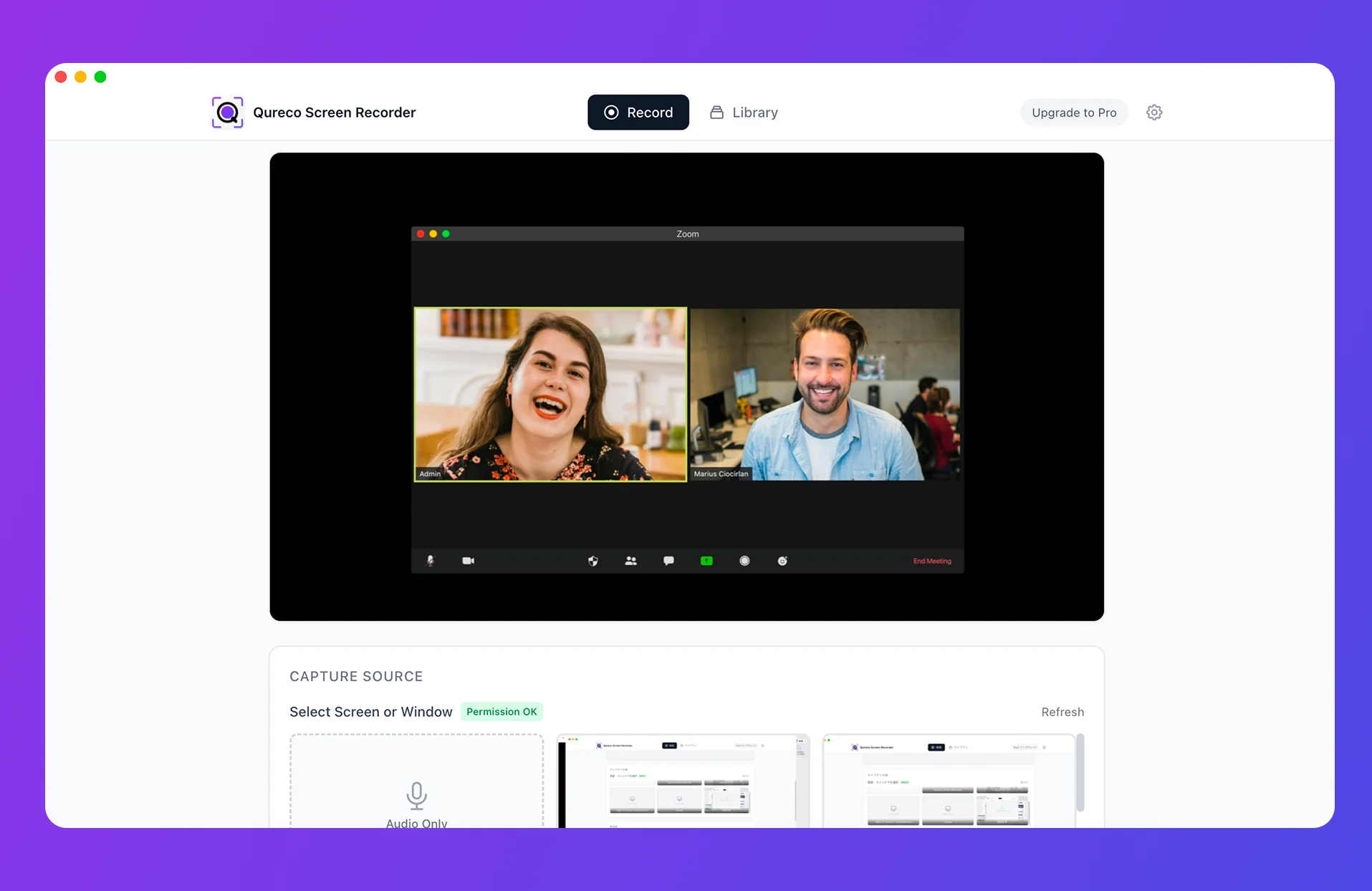
The third route doesn't touch the API at all. It completes everything — recording, generating notes, and saving to Notion — inside a single app.
Record → AI notes → one-click Notion sync
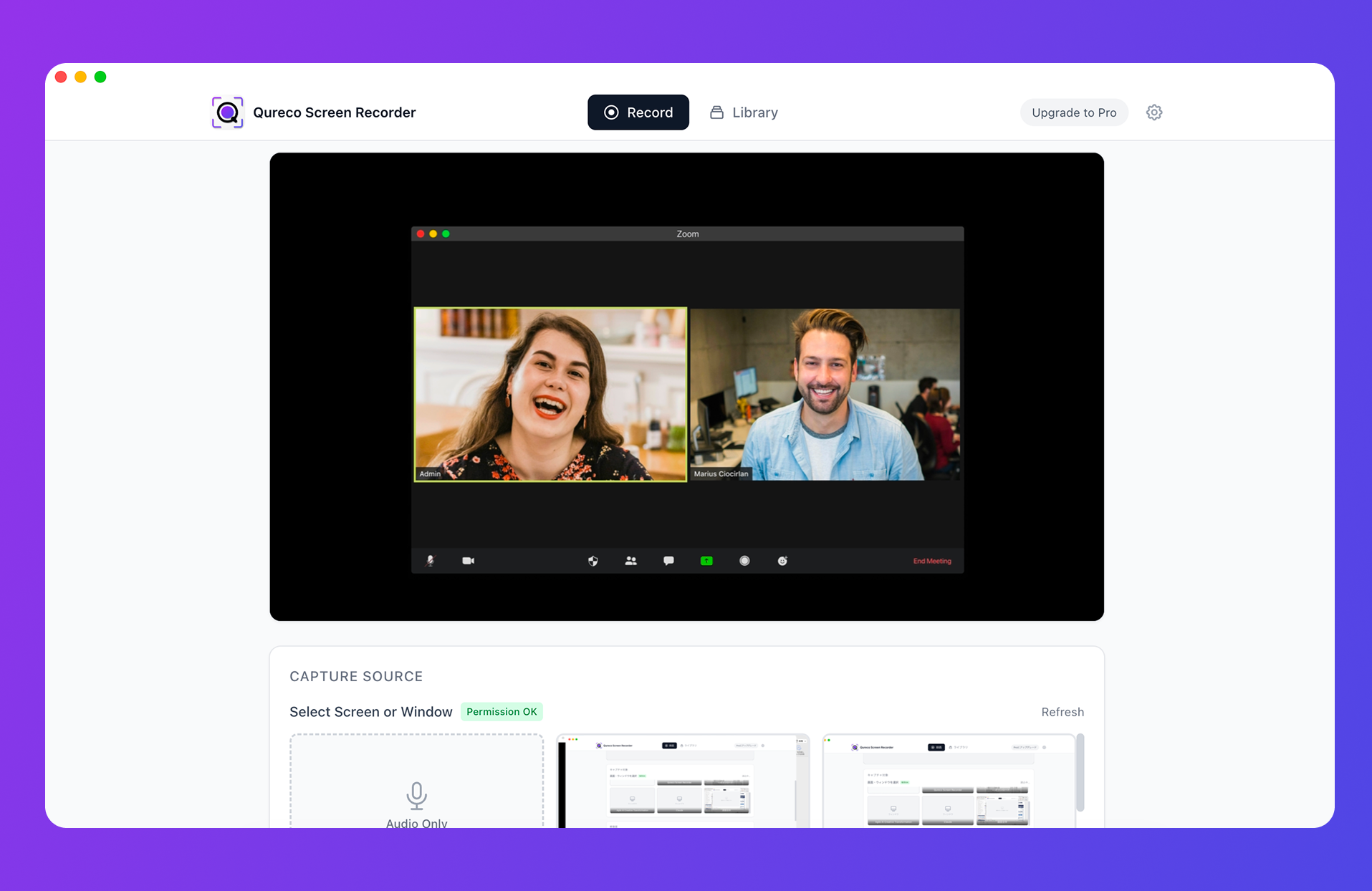
- Record the meeting (just install it — no virtual audio setup needed)
- AI auto-generates the notes from the recording (with speaker identification and customizable formats)
- Sync the finished notes to Notion with one click
No API token to issue, no Zapier to configure, no code. Press record, finish the meeting, and the notes are created and delivered to the right database in your Notion. It quietly handles both "creating the content" and "delivering it" from earlier — with no setup.
Where it sits among the three routes
| Create content (record/transcribe/summarize) | Deliver to Notion | |
|---|---|---|
| ①No-code | Needs a separate tool | ◯ |
| ②Custom code | Needs a separate tool | ◯ |
| ③All-in-one | ◯ Handled by the app | ◯ One click |
It's not magic, of course. The Notion-syncing notes feature is part of the Pro plan ($9/month, first two weeks free with no card required), and it's currently macOS only. That said, your recordings and notes also stay on your local machine, so you're never locked into Notion.
If your goal is "just get meeting notes into Notion," this route skips both the API learning curve and the monthly connector fee, and gets you to the finish line fastest.
So which one should you pick? By type
We've covered all three routes. For anyone still on the fence, here's a by-type breakdown:
- You already have transcribed notes and just want to automate saving/notifying → Route 1 (no-code). Wire up "save → Slack notify" in Zapier/Make.
- You're a developer who wants full control over format and connections → Route 2 (custom code). Maximum flexibility, but you own the operations.
- You just want to record a meeting and get the notes into Notion — no code, no tool wiring → Route 3 (all-in-one). Handing off the content creation too is the fastest path.
Whichever route you choose, these related reads help with the surrounding pieces:
- To get your note format right → The Complete Guide to Notion Meeting Note Templates
- To understand Notion AI's own note features → How to Manage Meeting Notes with Notion AI Meeting Notes
- To save Zoom notes to Notion → How to Record Zoom Meetings and Auto-Save Notes to Notion
- To pull tasks out of your notes → How to Auto-Extract Action Items from Meeting Notes into Notion
Wrapping up
When you decide you want to "auto-post meeting notes to Notion," getting the premise straight before diving into code saves you a lot of detours.
- The Notion API only handles the "delivering" job. The "creating the content" job — recording, transcribing, summarizing — has to be arranged separately.
- There are three routes. No-code (Zapier/Make) suits automating the saving step, custom code (GAS/Python) suits developers who want to build, and all-in-one suits people who want to hand off content creation too.
- If you "just want meeting notes in Notion," the all-in-one route skips both the API and the tool setup — it's the fastest.
Pick the route that matches your skill level and the effort you can spare, and you'll finally be free of copy-pasting notes by hand after every single meeting.
Qureco Screen Recorder
Powerful screen recording app for Mac
Record meetings, let AI handle the notes, just read what arrives in Notion.
Try all features free for the first two weeks.