Do you read back through your meeting notes after every call, hunting for "wait, whose job was that?" and typing each one into Notion by hand?
While you're typing, the next meeting starts. Put it off, and a week later you're asking "hey, what happened with that?" Every meeting adds another round of manual transcribing — and another chance to miss something.
Why meeting tasks slip through the cracks
Before changing the system, it's worth naming why tasks get lost in the first place. It almost always comes down to three causes.
Confusing "decisions" with "to-dos"
The single easiest thing to mix up in meeting notes is decisions versus to-dos.
| Decision | To-do (action item) | |
|---|---|---|
| Meaning | What was agreed on | What someone will do next |
| Example | "We'll switch to the new flow next month" | "Tanaka writes the new flow's manual" |
| State | Already settled | Not done yet |
| Needs tasking? | No | Yes (with owner & due date) |
Write both as the same kind of "note," and the to-dos get buried inside the decision text. When you read back, you can't tell whether a given line is something to do or just an explanation of what was decided — so it slips. That confusion is usually the root of dropped tasks.
Action items missing "who, what, by when"
Even when you do extract them, an action item only works when three pieces are all present.
- Who: the owner
- What: the specific action
- By when: the due date
"I'll check the doc" has no owner and no deadline, so no one picks it up as theirs. "Tanaka: revise the quote doc and send it to the reseller by Friday" works as a task precisely because all three are there. The 30 seconds spent making it specific saves the week of back-and-forth that would otherwise happen.
Meeting notes and task management live in different places
Notes in Notion, but tasks in your head or another app — that split is what creates the transcribing work and the misses.
The moment you think "I'll batch-transfer these later," the odds of dropping one go up. When notes and tasks are connected inside the same Notion workspace, the transcribing step disappears entirely.
Three ways to extract action items from meeting notes
So how do you actually pull action items out of your notes? There are three realistic options.
Option 1: Add an "Action Items" field manually (the baseline)
The most reliable approach is to build separate "Decisions" and "Action Items" fields into your meeting template from the start.
Option 2: Auto-extract with Notion AI Meeting Notes
Notion has an "AI Meeting Notes" feature that handles transcription, summarization, and action-item extraction all at once. Record the call, and the AI picks up lines like "Tanaka, by next week..." as to-dos and lists them out.
Option 3: Keep "record → AI notes → action items" on your own device
The third way: record the meeting on your own device, and have AI generate the notes and action items from that recording.
- When the host won't grant recording permission in someone else's meeting, you record on your own Mac
- No need to invite a third-party note-taking bot, so you don't make external participants uncomfortable
- The extracted action items and notes go straight into Notion
The three options side by side:
| Method | Auto-extract | Requirement | Best for |
|---|---|---|---|
| Manual action field | No (by hand) | Template only | People with few meetings |
| Notion AI extraction | Yes | Notion Business+ | Orgs already paying for Notion |
| Record → AI notes | Yes | Recording app (Mac) | Anyone who doesn't want plan or bot constraints |
If you'd rather not upgrade your Notion plan or bring a bot into the call, the third option is the realistic one for most people.
Designing Notion so action items become "working tasks"
Extraction isn't the finish line. You need a design that turns those action items into tasks that actually move inside Notion.
Set up a Tasks DB and connect it with a Relation
In Notion, create a separate "Meeting Notes DB" and "Tasks DB," then link them with a Relation property.
- Meeting Notes DB: one page per meeting (date, attendees, decisions, recording URL)
- Tasks DB: one row per action item (owner, due date, status)
- Link the two with a Relation so you can trace "the tasks that came from this meeting"
Line up owner, due date, and status properties
Your Tasks DB needs at least three properties:
- Owner: a person property, @-mentioned
- Due date: a date property
- Status: Not started / In progress / Done
The "who, what, by when" from earlier maps directly onto these. Holding them as properties lets you filter to "only tasks due this week" or "only mine."
Three steps to polish the raw to-dos
Here's the part most articles skip. The action items AI extracts are often too coarse, or missing owners and dates. Don't leave it all to AI — spend ten seconds at the end to clean each one up.
- @-mention the owner: lock in the "who"
- Add the due date: lock in the "by when"
- Split the granularity: if "make the doc and share it" is too big, break it into "draft" and "request review"
The difference between a raw to-do the AI produced and a polished task is night and day:
| Field | Raw AI output | After 10 seconds of polish |
|---|---|---|
| Content | "Handle the doc thing" | "Revise the quote doc and send to reseller" |
| Owner | (blank) | @Tanaka |
| Due date | (blank) | 5/30 (Fri) |
| Will it move? | No one picks it up | Started that day |
Let AI handle extraction, and have a human do only the three finishing steps. That's the dividing line between tasks that actually get done and tasks that don't.
A real-world flow that's been working
To make this concrete, here's how a five-person team typically runs this loop. End of every meeting:
- The recording finishes; AI generates the notes and a list of action items
- The notetaker spends 60 seconds doing the three polish steps (owner, due date, granularity)
- Tasks land in the shared Tasks DB and the owner gets a notification
- Stand-up the next morning starts with "let's look at the Tasks DB filtered to 'mine, due this week'"
The whole pipeline takes about a minute of human time per meeting, and tasks stop slipping through. The first meeting after switching to this flow feels redundant ("isn't this what we used to do by hand?"). By the third or fourth, the realization hits: you used to spend 15 minutes after each meeting reconstructing the action items from notes. Now that's a minute.
Connecting record-to-Notion end to end with Qureco
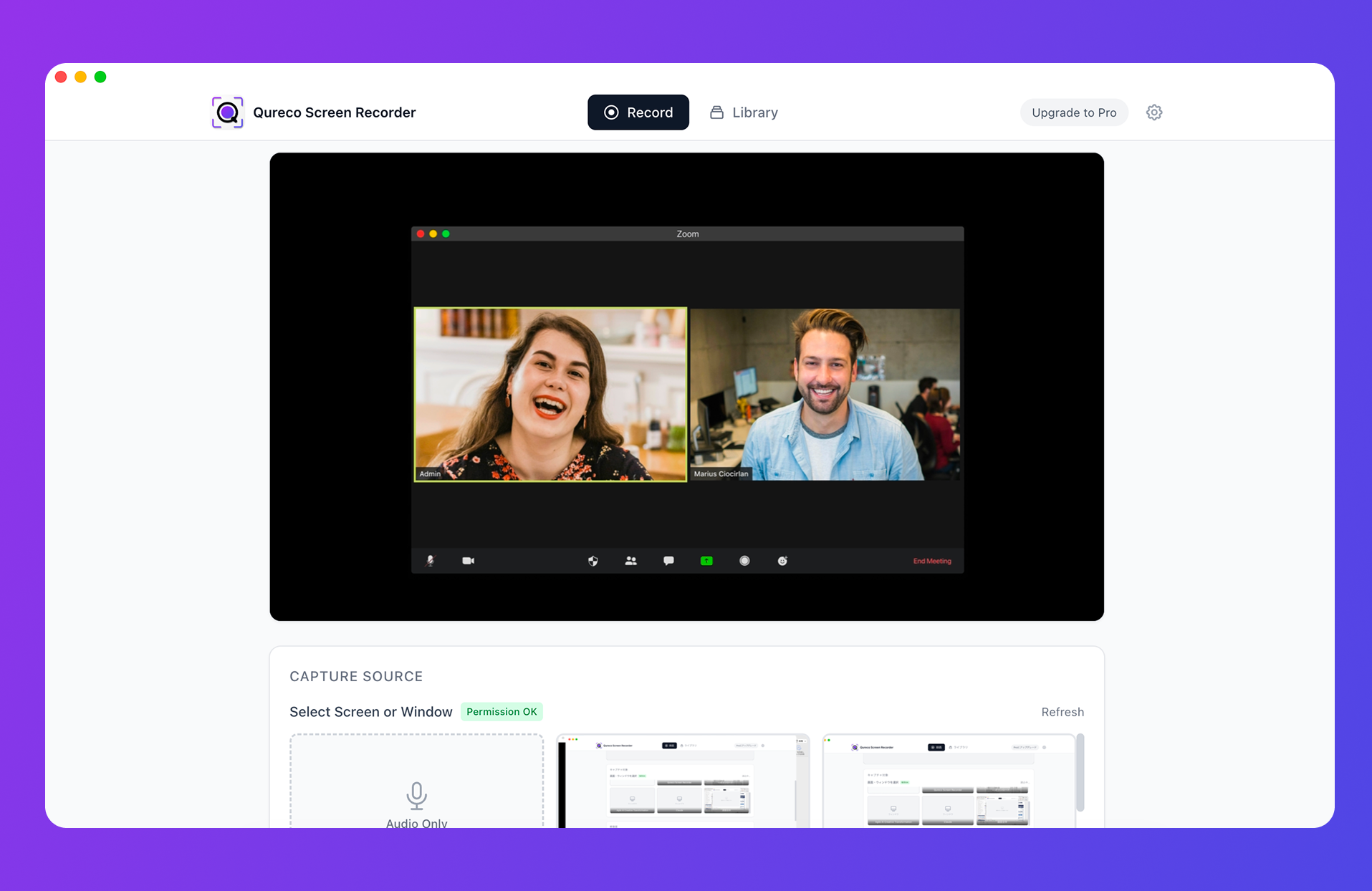
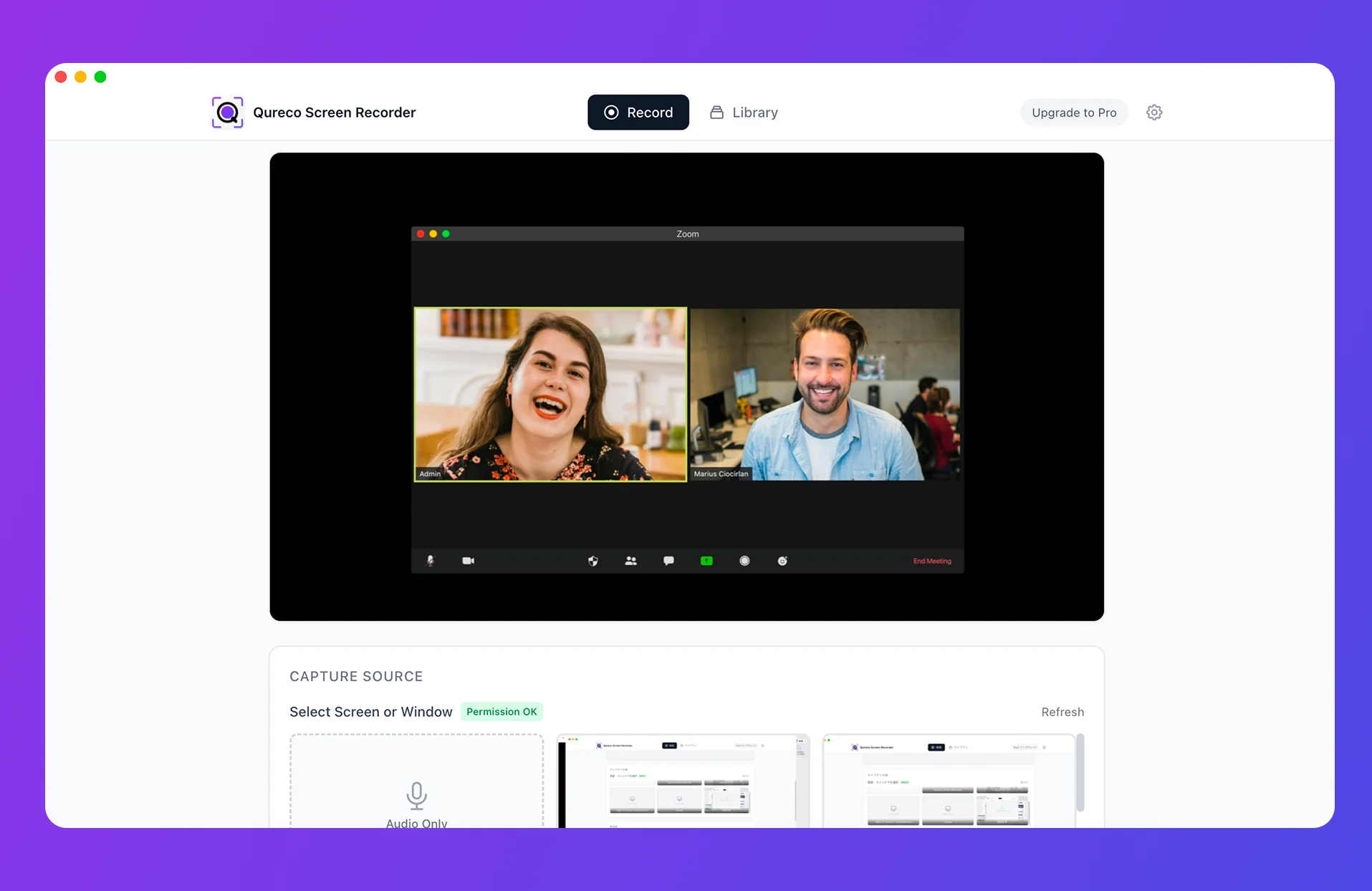
Qureco Screen Recorder runs the whole "record → AI notes → action items → Notion" flow end to end, right on your Mac.
- A screen recorder for Mac: no virtual audio setup needed; records the moment you install it
- AI generates the notes: produces notes from the recording, and organizes decisions and action items separately
- One-click Notion sync: sends the notes and recording URL straight to your Notion database
- No bot, no plan wall: because you record on your own device, you bring nothing into the meeting and aren't tied to a Notion plan
Even when someone else hosts the meeting, you record on your Mac and by the time the call ends you'll have both notes and action items ready. All that's left is setting owners and due dates in Notion. The back-and-forth of hand-transcribing disappears.
The free version records with no time limit and no watermark. The Pro plan — which includes AI notes and Notion sync — is free for the first two weeks, no card on file.
FAQ
What if action items get phrased indirectly during the call ("someone should...")?
AI extraction picks up "explicit" action items reliably (anything with a verb + a name + a timeframe). Indirect or implicit ones — "we really should look at the pricing" — often get classified as discussion, not action. The fix: at the end of the call, take 30 seconds to scan the implicit list and either commit them as real tasks or explicitly drop them. AI handles 80% of the extraction; that 30 seconds covers the other 20%.
Can I extract action items from a recording I already have?
Yes. Qureco's AI notes feature accepts pre-existing recordings in addition to live capture. Upload the file, generate notes, and the action items extract the same way. Useful for recordings that were captured before you set up the automation.
How does this work for multilingual meetings?
The AI handles the major languages well (English, Japanese, Spanish, French, German, etc.). For meetings that switch languages mid-conversation, the transcript stays in the original language but the action items can be generated in whichever language you set as the template language.
What if the action item involves multiple people?
Notion's Person property allows multiple owners on a single task. The polish step is to decide who's the primary owner — the one accountable for the outcome — vs supporting cast. In practice, "everyone owns it" usually means "nobody owns it," so picking one is what makes the task move.
Wrapping up
Boiled down, meeting tasks slip for three reasons:
- Confusing "decisions" with "to-dos"
- Action items missing "who, what, by when"
- Notes and task management living in different places
Start with your next meeting: record it, and move one AI-extracted action item into a Notion task. Once that single task starts moving, you won't want to go back to hand-transcribing.

Qureco Screen Recorder
Powerful screen recording app for Mac
Record meetings, let AI handle the notes, just read what arrives in Notion.
Try all features free for the first two weeks.