Do you paste a transcript into ChatGPT after every meeting and then keep nudging it — "hmm, make that part shorter…" — rewriting the prompt each time?
The output drifts every time. Decisions and to-dos get blended together. Owners and due dates go missing. So you add another instruction, paste again, and repeat. "ChatGPT can write meeting minutes," sure — but you're spending all your time on the tweaking.
What you actually need is a template you can paste once and get a consistent result every time.
Two routes to meeting minutes with ChatGPT
Before the prompts, a quick lay of the land. There are two ways to make minutes with ChatGPT.
Route A: paste a transcript and shape it with a prompt (any plan, any OS)
The most universal approach: paste your meeting transcript into ChatGPT and have a prompt turn it into clean minutes. Works on any plan and any OS.
Route B: ChatGPT Record Mode (Mac + paid only)
Record Mode, introduced in 2025, lets ChatGPT record, transcribe, and summarize in one go.
Start here: the all-purpose base prompt (copy-paste)
A template that works regardless of meeting type. Save this one and it covers most of your minutes.
You are an excellent meeting-minutes writer.
Based on the [TRANSCRIPT] below, write minutes that follow the [CONSTRAINTS] and [OUTPUT FORMAT].

Let someone who missed the meeting understand what happened and what to do next in 5 minutes.

# Constraints
- Remove fillers ("um," "uh") and restarts; keep only the substance
- Always separate "Decisions" from "To-dos (next actions)"
- Every to-do must include owner, task, and due date. If the transcript doesn't say, mark it "(to confirm)"
- Don't fill unclear points with guesses; write "(not stated in transcript)"
- Use clear, concise sentences

# Output format
■ Meeting name / date
■ Attendees
■ Key points per agenda item (topic → discussion → conclusion)
■ Decisions (bullet points)
■ Next actions (format: owner: task: due date)
■ Open items / carried over to next time

[TRANSCRIPT]
(paste the transcript here)
Why this template works
- Goal: defining "for whom and for what" lets the AI decide what to keep and what to cut
- Constraints: spell out the rules you don't want broken ("separate decisions from to-dos," "don't guess")
- Output format: specify the order of headings and you get the same structure every time — no more drift
If "just summarize it nicely" gives you a different result each time, it's because those three are missing. Lock them down and consistency jumps.
Prompts by meeting type (copy-paste)
These build on the base prompt, optimizing the constraints and output format per meeting type. Paste whichever matches.
Standups / progress meetings
Progress meetings live and die by "who, what, by when." Have the AI organize decisions and actions in a table.
From the [TRANSCRIPT] below, write minutes for a progress meeting.

# Output format
1. Meeting name / date / attendees
2. Progress by member (per person: done / in progress / blocked)
3. Decisions (bullets)
4. Next actions (use the table below)
   | Owner | Task | Due |
5. Blockers and how they'll be addressed

# Constraints
- Mark items with no owner or due date as "(to confirm)"
- Never drop delays or blockers — always capture them

[TRANSCRIPT]
(paste here)
Sales calls / client meetings
For sales calls, capturing the client's needs, your action items, and their level of interest pays off later.
From the [TRANSCRIPT] below, write a sales call note.

# Output format
1. Client / date / attendees
2. The client's challenges and requests (specific, based on what was said)
3. What we presented or answered
4. Agreements reached
5. Next actions before the follow-up (split into our side / their side: owner: task: due)
6. Risks or blockers to closing (if any)

# Constraints
- Record figures like price, deadlines, and terms exactly as stated (no guessing)
- Don't mix up who said what (client vs. our side)

[TRANSCRIPT]
(paste here)
Brainstorms / ideation
In a brainstorm, "don't lose any ideas" matters more than "reach a conclusion." Have the AI group scattered ideas by theme.
The [TRANSCRIPT] below is a brainstorming session.
Organize it so no ideas are lost.

# Output format
1. Theme / date / attendees
2. List of ideas (grouped by theme/angle, as bullets)
3. The most promising ideas (up to 3, with reasons)
4. Open questions / things to look into next

# Constraints
- Don't drop minority or seemingly-rejected ideas
- Don't force a conclusion; label undecided items "open"

[TRANSCRIPT]
(paste here)
1-on-1s / check-ins
1-on-1s contain sensitive information. Focus on key points and next actions, and instruct the AI to keep evaluations and personal details to a minimum.
From the [TRANSCRIPT] below, write a 1-on-1 note.

# Output format
1. Date / person
2. Topics discussed
3. The person's situation and concerns (factual and concise)
4. What we agreed on / support to provide
5. Next actions before the next session (person / manager each: task: due)

# Constraints
- Don't write subjective judgments that could feed into a performance review
- Keep sensitive personal matters to key points only; omit details

[TRANSCRIPT]
(paste here)
Two follow-up prompts that take your minutes further
Once the minutes exist, you can spin up shareable artifacts from the same material. Send these as follow-ups in the same chat.
Turn the minutes you just wrote into an internal email.
- Add a subject line
- In the first 3 lines, lead with just the "decisions" and "each person's to-dos"
- Put details in bullets below
- Use a natural business tone, not overly formal
Extract just the next actions from the minutes you just wrote, as this table:
| Owner | Task | Due | Status (Not started) |
The part that matters most: how to get the transcript before you paste
Three ways to get a transcript, and their pitfalls
| Method | Cost | Pitfall |
|---|---|---|
| Built-in meeting tool (Zoom/Teams transcription) | Often no extra cost | Accuracy varies by language; may be unavailable on your plan or role |
| Transcribe by hand | Free | Hours for a one-hour meeting — not realistic |
| Dedicated transcription app | Free–paid | Accuracy, speaker ID, and supported scenarios vary by tool |
The "who said what" problem: without speaker labels, ChatGPT guesses
When you don't host the call, there may be no record button at all
Tips to boost accuracy, and what to avoid
Four tips to improve accuracy
- Always state the goal — specifying the reader ("for those who missed it," "a report for my manager") stabilizes the level of summary
- Lock the output format — keep the heading order identical every time and the output stops drifting
- Let the AI strip fillers — "um" and "uh" can stay in the transcript; tell the prompt to remove them and they're gone
- Split long meetings, or summarize first — ChatGPT has a limit on how much you can paste at once. If a meeting runs past 1–2 hours, generate minutes for the first and second halves separately and then have it merge them
Prevent information leaks
Meetings contain confidential and personal information. Before pasting into ChatGPT, cover the basics at minimum.
- Turn off training use: disable chat-history training in settings (or use a plan where data isn't used for training)
- Mask proper nouns: replace company and personal names with "Company A," "Mr. X," etc., before pasting
- Check your company policy: confirm whether putting meeting content into generative AI is allowed in the first place
Assume hallucinations: always cross-check proper nouns, figures, and dates
What ChatGPT minutes are good and bad at
| Aspect | Good at | Needs a human (weak) |
|---|---|---|
| Summarizing / structuring | ◎ Organizes long text with headings | — |
| Removing fillers | ◎ Strips them automatically | — |
| Identifying speakers | △ OK with labels | × Guesses without labels |
| Proper nouns / figures | △ | × Risk of fabrication; cross-check |
| Processing audio directly | × | Text input needs a transcript first |
Skip the prompt entirely: record → AI minutes → Notion, end to end (Qureco)
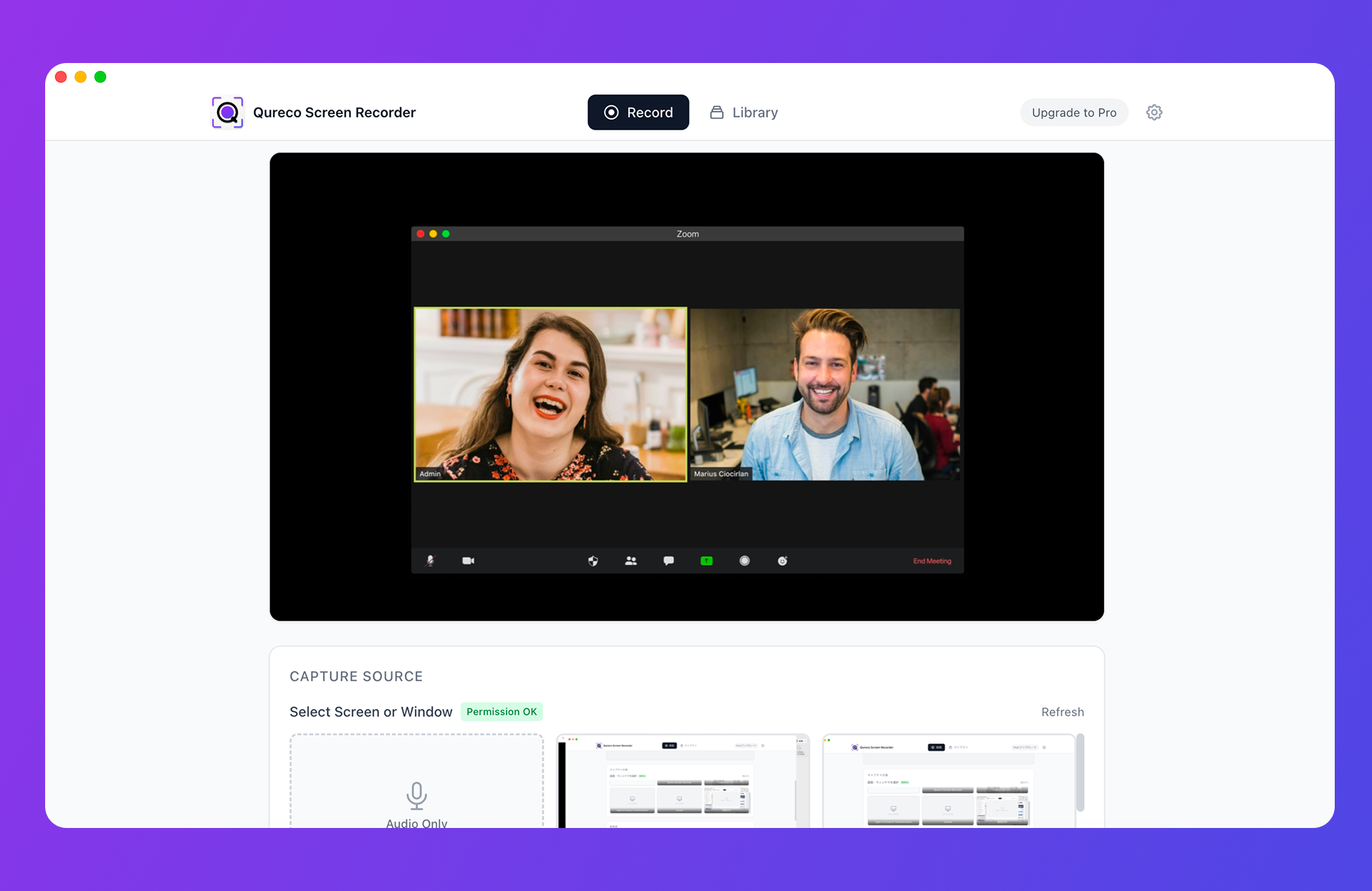
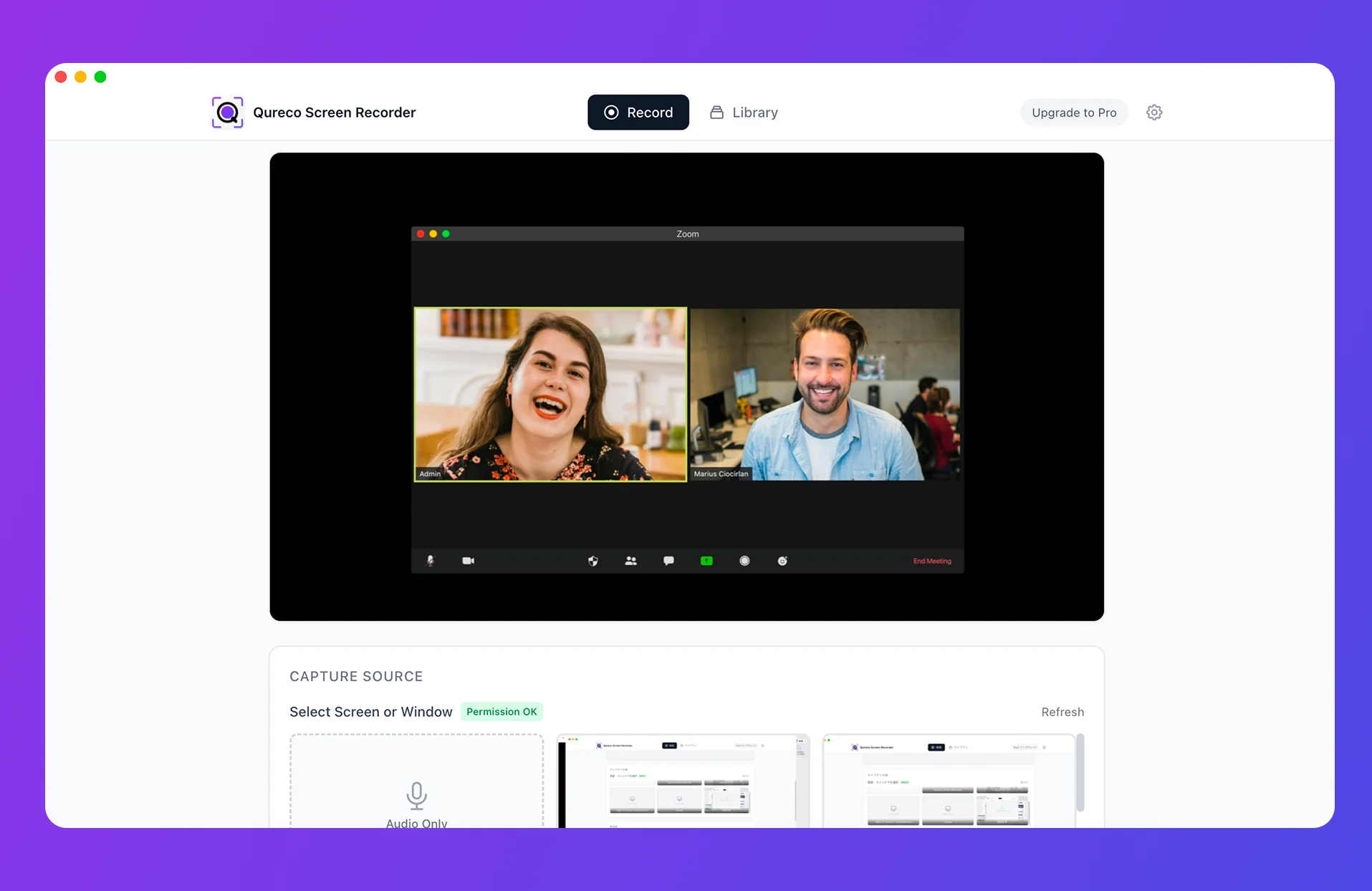
If reading this far made you think "honestly, the prompt isn't the problem — prepping the transcript is," that's exactly what Qureco Screen Recorder takes off your plate.
- Mac screen recorder, zero setup: no virtual-audio. Record the moment you install it
- AI minutes with speaker labels: produces a speaker-separated transcript and minutes — raising the quality of the material you hand to ChatGPT
- One-click Notion integration: send minutes and the recording URL straight to Notion
- No bot, no plan wall: you record on your own device, so no inviting a tool to the meeting and no being blocked by host permissions
Free tier records with no time limit and no watermark. The Pro plan, which includes AI minutes and Notion integration, is free for the first two weeks with no card on file.
Wrap-up
Three points make ChatGPT minutes consistent:
- Lock down "goal, constraints, output format" in your prompt. Paste the base prompt and the by-type ones, and the output is consistent every time
- What decides quality is the transcript before you paste. Without speaker labels especially, ChatGPT can only guess who said what
- Treat leaks and hallucinations as givens and prepare for them. Always cross-check proper nouns, figures, and due dates against the original
Flip that around: as long as you can prepare a clean, speaker-separated transcript, the rest is just pasting it into a prompt you copied. Start by saving the base prompt here and pasting your next meeting's transcript. And when "prepping the transcript every time" starts to wear on you, recording it with speakers separated from the start is the fastest way through.

Qureco Screen Recorder
Powerful screen recording app for Mac
Record meetings, let AI handle the notes, just read what arrives in Notion.
Try all features free for the first two weeks.