Why having a bot join the call feels awkward
- A prospect feels they have to ask, "is this being recorded?"
- Otter has been known to auto-join meetings it wasn't invited to, which raised privacy concerns (comparison of tool behavior)
- The bot launches even when you didn't need it, and you scramble to remove it (a tl;dv experience report)
What's the difference between "bot-based" and "bot-free" recording?
Before picking an alternative, it helps to understand the two methods.
How bot-based recording works — strengths and weaknesses
It connects to your calendar and a bot auto-joins scheduled meetings to record and transcribe.
- Strengths: auto-join means fewer missed recordings, strong speaker identification, feature-rich SaaS
- Weaknesses: the bot appears in the meeting; free-tier and plan limits (e.g., Notta's free tier caps at 120 min/month and 3 minutes per recording)
How bot-free recording works (record on your own device)
A key principle — "no bot" does not mean "record secretly"
The recommendation: add one sentence in the first five seconds of the call.
"I'd like to keep minutes, so I'll record this on my end."
Instead of a visible bot, that one line secures consent. That's the right move for anyone who wants to skip the bot but still be straightforward about it.
Options for people who don't want a bot in the call
Lining the major tools up by "does a bot join the call?" makes the choice clearer.
| Tool | Bot joins the call | Bot-free recording | Free tier | Minutes → Notion | OS |
|---|---|---|---|---|---|
| Notta | Yes (calendar-based) | No | 120 min/mo, 3 min/recording | Yes | Web/mobile |
| tl;dv | Yes + bot-free via desktop app | Partial (desktop) | Relatively generous video | Yes | Win/Mac |
| Otter | Yes (uninvited-join concerns) | No | Limited | Yes | Web/mobile |
| Qureco | No (record on your Mac) | Yes | Unlimited recording, no watermark | One click on Pro | Mac only |
A simple way to choose:
- Want cross-platform with auto-join above all → bot-based (Notta / tl;dv / Otter)
- Mac-centric, don't want a bot in the call, and want recording-to-minutes in one place → native recording (Qureco)
Recording on Mac without a bot — the Qureco option
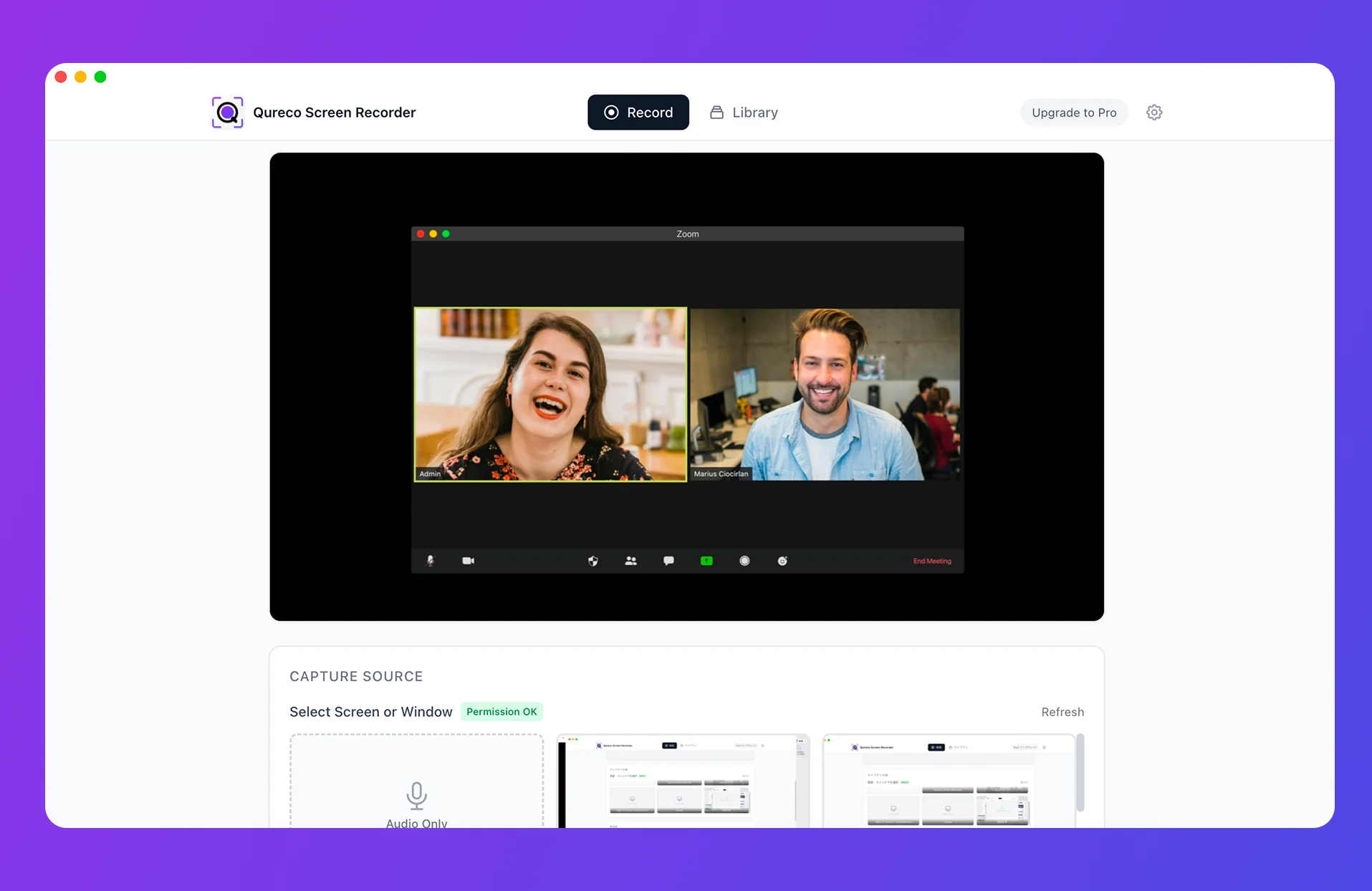
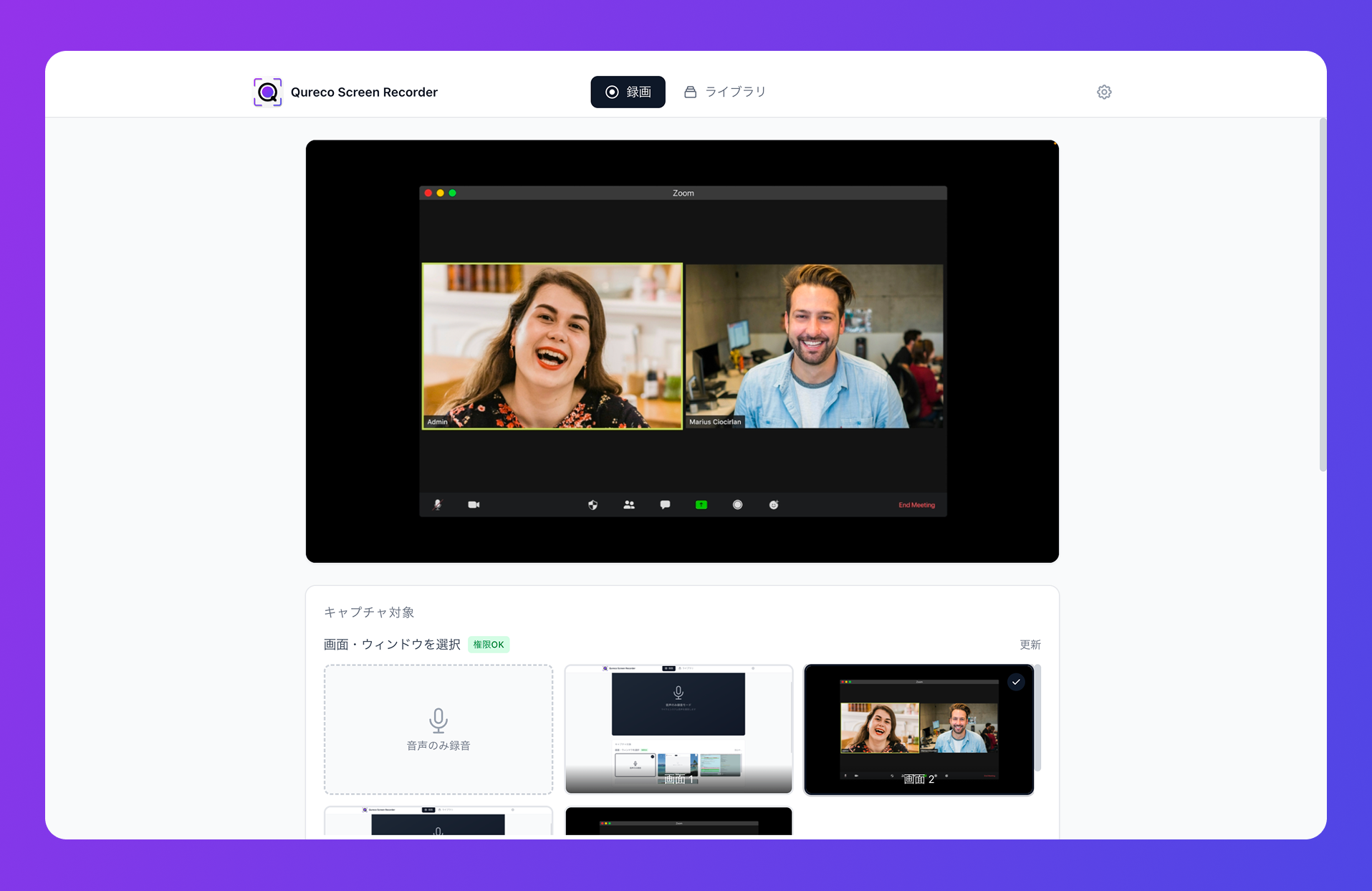
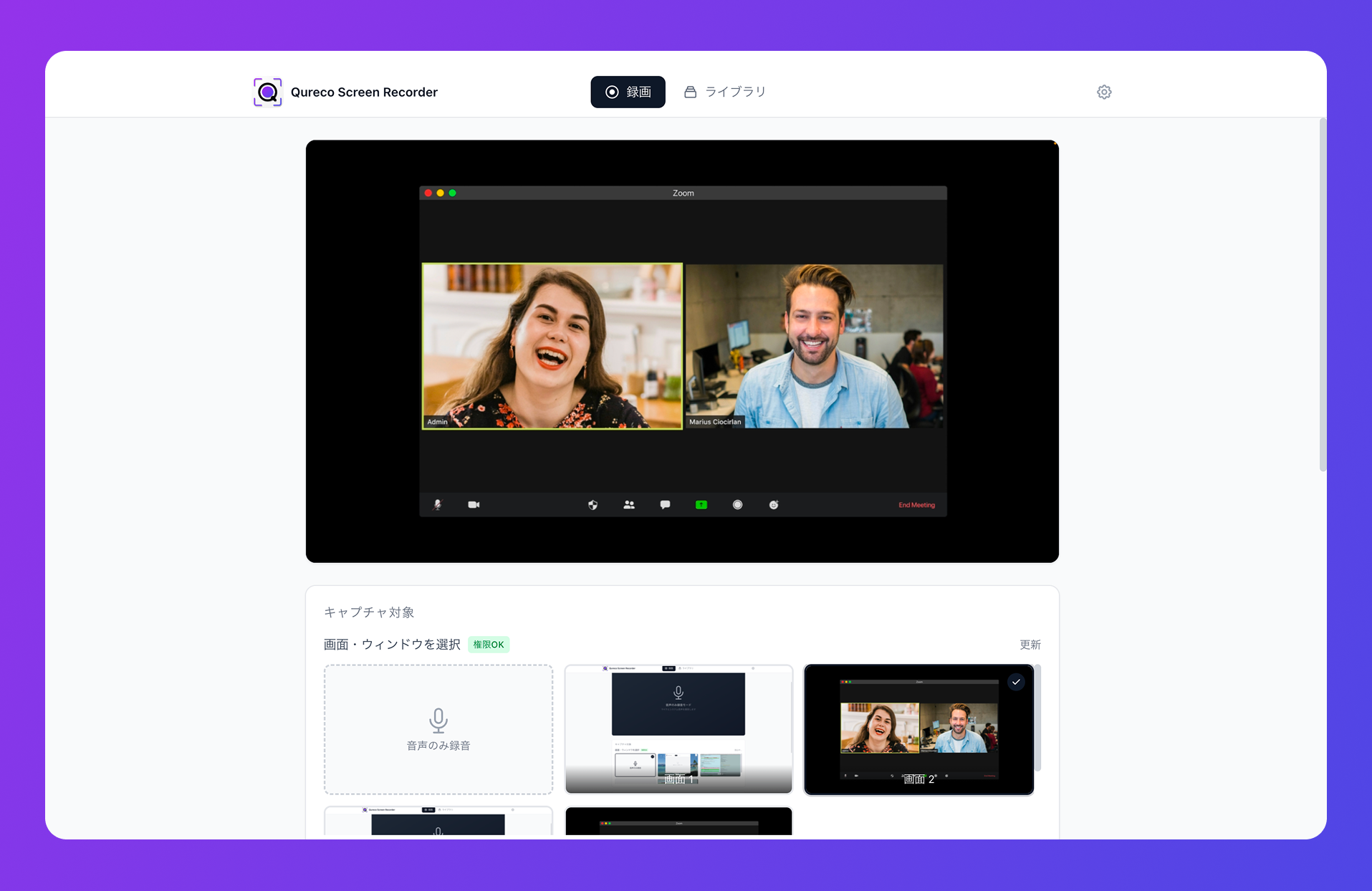
The only people in the meeting are the usual participants — no bot appears (just say a word up front that you're recording). Right after installing, it captures both your microphone and your Mac's internal audio (the other person's voice), so there's no virtual-audio setup.
FAQ
Q1: Does "no bot" mean the other person won't know?
Q2: Won't the minutes be less accurate than bot-based tools?
Accuracy depends on recording quality. Qureco captures your Mac's internal audio cleanly, so it supports minutes generation with speaker identification. You can also refine the output by entering extra instructions and regenerating as many times as needed.
Q3: Can I use it alongside Notta or tl;dv?
Q4: Does it work on Windows?
Qureco is currently Mac only. For bot-free recording on Windows, tl;dv's desktop app is one option.
Summary — the answer to "I want minutes, but not a bot in the call"
To wrap up:
- Bot-based tools (Notta/tl;dv/Otter) are convenient, but appearing as a third party in the call is the source of the awkwardness
- The fix is "say a word, skip the bot, record on your own device." No bot ≠ secret recording
- If you're Mac-centric and want recording, minutes, and Notion in one place, native recording with Qureco is the practical answer
- You don't have to switch everything — only the calls where you'd rather not show a bot is enough to feel the difference
That small awkwardness you felt every meeting can disappear with one choice of tool. From your next bot-averse call, try "record → minutes → Notion" with Qureco.
Qureco Screen Recorder
Powerful screen recording app for Mac
Record meetings, let AI handle the notes, just read what arrives in Notion.
Try all features free for the first two weeks.