You hit play on the recording, and only your own voice was there.
The important meeting you thought you'd captured — the screen is right there, but the other person's voice is completely gone. Your next call is tomorrow morning, and you want to be sure that "this time it records" before then.
The confusing part: your microphone was on the whole time, yet the other person's voice still didn't make it. This isn't a settings mistake on your end — it's how macOS works. On a Mac, the other person's voice (internal audio) not recording is the single most common snag, and once you know why, you can capture it reliably from your next recording on.
This article first shows the fastest way to record the other voice right now, then explains why macOS can't record it by default. After that, it covers the other cases where audio goes missing — including total silence, where your own voice is gone too — symptom by symptom.
If You Can't Record the Other Voice (Internal Audio) | Qureco, No Setup Needed
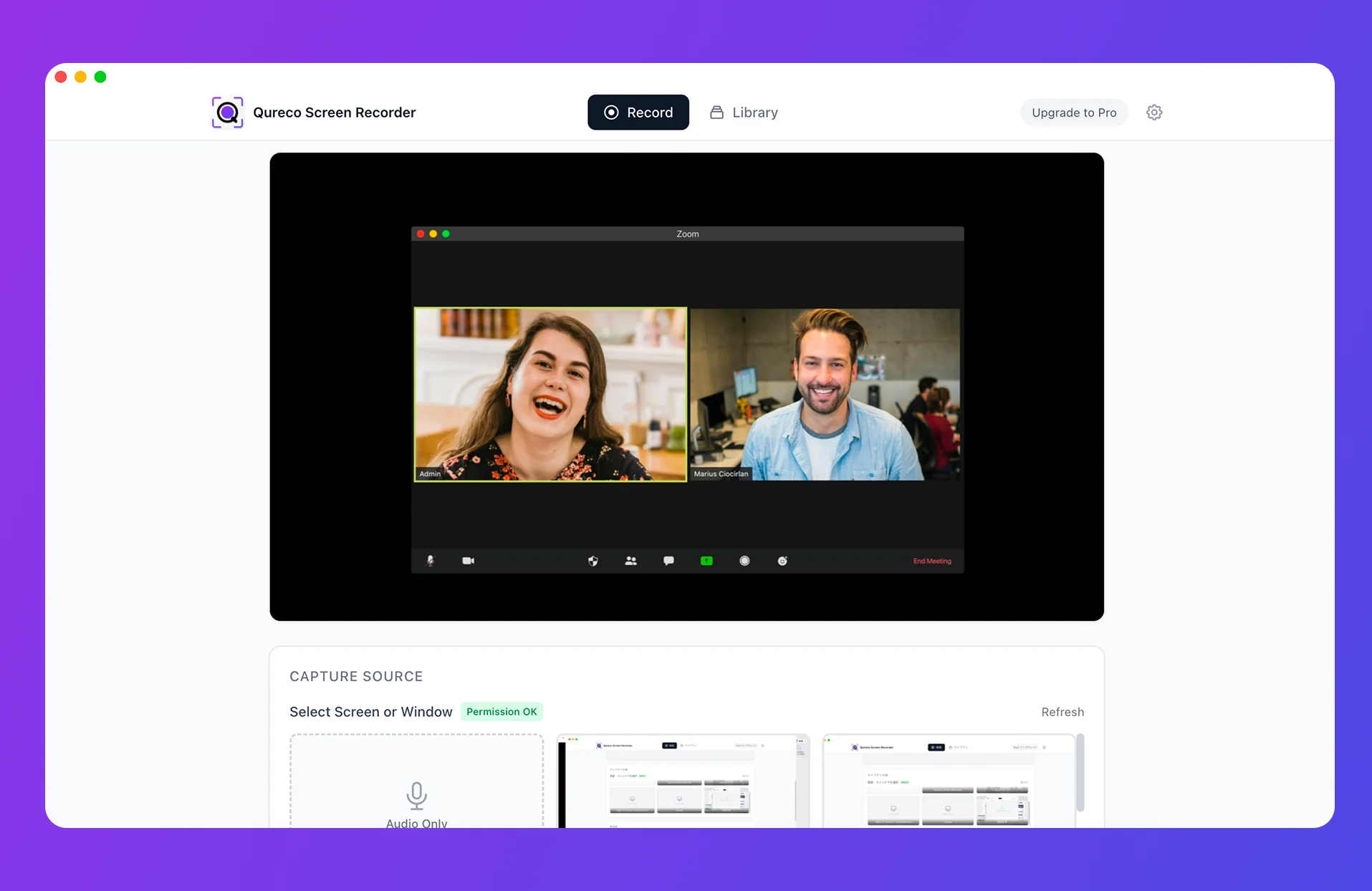
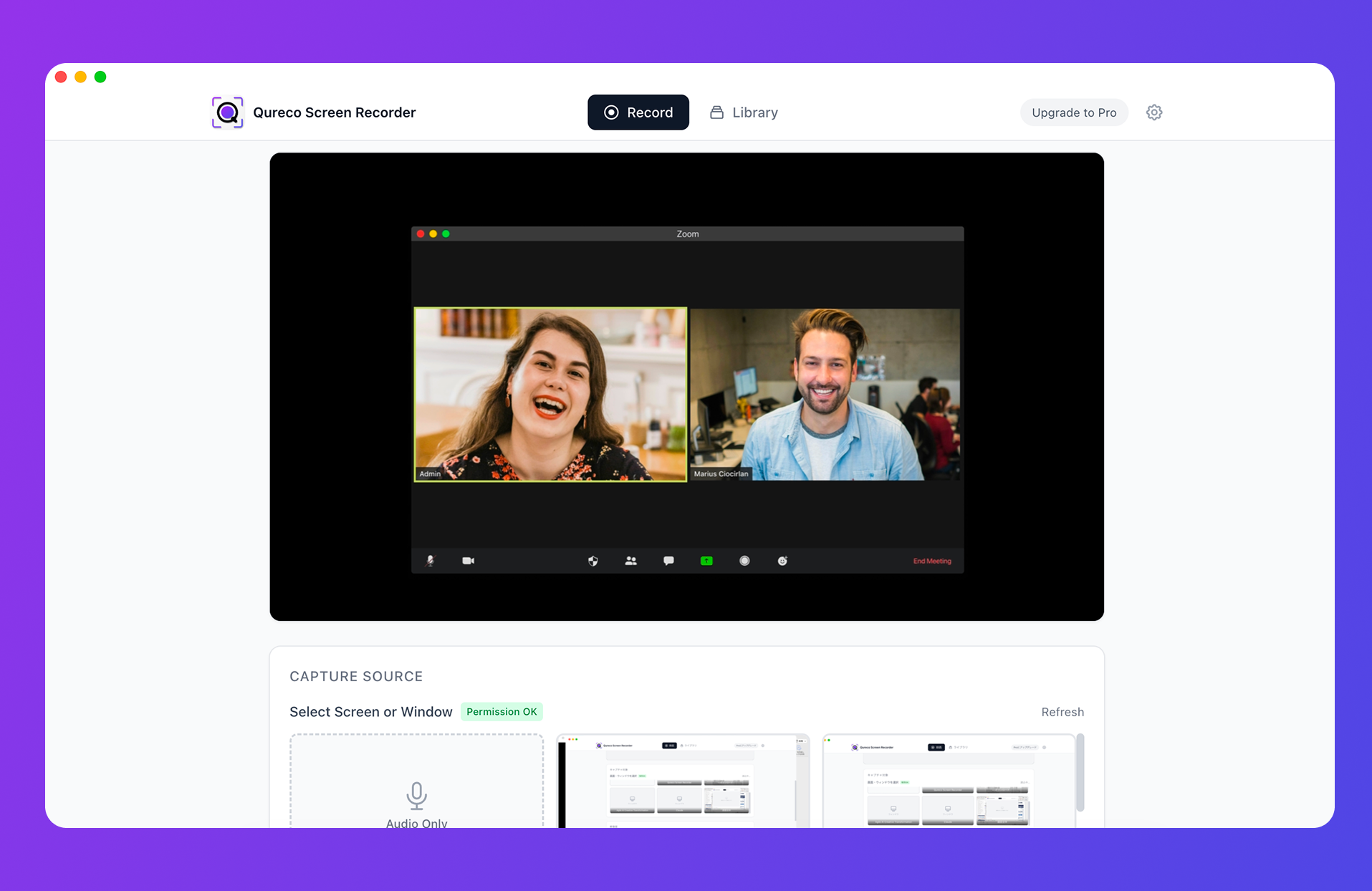
If you want a Mac that "just records reliably without fiddling with settings before your next meeting," the fastest route is an app that records internal audio natively. Qureco is a screen recording app for macOS that captures both internal audio (the other person's voice and your Mac's sound) and your microphone — with no virtual audio driver setup. It's designed to work the moment installation finishes, so you're free from the "I might not be ready in time" panic.
Why you won't get lost in settings
- Internal audio recording works right after install: no BlackHole or other virtual audio driver, no Audio MIDI Setup
- Mic / system audio toggles live in the UI: each has a level meter, so you can confirm the sound is being picked up before you record
- Free, with no time limit and no watermark: try it casually, and walk away if it's not for you
No headaches after recording, either
For meeting recordings, the hardest part is often what comes after — writing the minutes. With Qureco's Pro plan, AI generates minutes automatically from the recording, templates keep every set of notes in the same format, and the finished minutes export to Notion in one click. It's end to end — not "record and you're done," but "turn what you recorded into an asset." The Pro plan is free for the first two weeks, no credit card required.
Why a Mac Can't Record the Other Person's Voice (Internal Audio)
Shift + Command + 5 or QuickTime, the other person's voice alone won't record (still true on macOS Sequoia as of 2026). It's not a misclicked setting, so don't blame yourself.If you want to do it manually, you can install a virtual audio driver like BlackHole and build a "Multi-Output Device" in Audio MIDI Setup. But you have to switch the output destination every time you record, and rebuild it when you change devices. If you record often, an app that supports internal audio out of the box (mentioned at the top) is faster and more reliable.
The Best Mac Screen Recording Tools That Capture Internal Audio
| App | Price | Internal audio | Watermark | Ease of setup | Notes |
|---|---|---|---|---|---|
| Qureco | Free | Yes (no setup) | None | ◎ Install & toggle on | Unlimited length. Just turn on System Audio to capture the other voice |
| OBS Studio | Free | Yes (macOS 13+, no driver) | None | △ Learning curve | Popular high-powered tool among streamers |
| Loom | Free+ (limited free tier) | Yes (auto-installs its own driver) | None | ◯ Easy | Free tier caps you at 25 videos / 5 min each, and downloads are paid |
| CleanShot X | Paid (from $29 one-time) | Yes (no driver) | None | ◯ Easy | All-in-one screenshot, recording, and annotation tool for Mac |
| ScreenFlow | Paid ($199 one-time) | Yes (no driver in 10.5+) | Trial exports watermarked | △ Full editing suite | Mac-only; recording plus video editing in one |
| Bandicam | Paid (limited free tier) | Yes (no driver) | Free tier limited | ◯ Fairly easy | A long-standing, feature-rich recorder |
| EaseUS RecExperts | Paid (limited free tier) | Yes (built-in virtual sound card) | Free tier limited | ◯ Fairly easy | An easy-to-use, multi-feature recorder |
1. Qureco (Free, No Setup)
A free app that records internal audio without any virtual audio—just turn on System Audio (the other person's voice). Screen recording is unlimited with no watermark, and it doesn't change your Mac's sound settings. If you want the fastest fix for "can't record the other person's voice," this alone is enough.
2. OBS Studio (Free, High-Powered)
A free, open-source staple popular with streamers. On macOS 13+, it captures system audio natively through the OS screen-capture source — no BlackHole needed. That said, the learning curve for scenes and sources is on the higher side—it's best for people who want to stream seriously, not just record.
3. Bandicam (Feature-Rich, Leans Paid)
A long-standing recorder with rich capture features. The Mac version records system audio + mic without BlackHole. The free tier limits recording time and adds a watermark, so full use means a paid plan.
4. EaseUS RecExperts (Feature-Rich, Leans Paid)
An easy-to-use, multi-feature recorder. It records system audio through a built-in virtual sound card, so no manual BlackHole install is needed. It also has free-tier limits, so serious use requires a paid plan.
5. Loom (Free Tier, Built for Sharing)
A popular tool that lets you share a recording instantly via a link. Turn on "Use system audio" in the desktop app and it captures internal audio too (via Loom's own bundled driver, not BlackHole). One quirk: you may need to switch your macOS output to "Loom Background Sound" after recording starts. There's no watermark, but the free plan caps you at 25 videos of 5 minutes each, and downloading the files requires a paid plan.
6. CleanShot X (One-Time Purchase, All-in-One)
A Mac tool that handles screenshots, recording, annotation, and sharing in one place. It captures the sound playing on your Mac (internal audio) with no extra driver. At $29+ one-time it's affordable and watermark-free, but it's a paid app, not free.
7. ScreenFlow (Mac-Only, Editing Included)
Mac-only software that combines recording with a full video editor. It captures system audio and suits tutorials and course videos (version 10.5+ records internal audio with no driver install). It is a $199 one-time purchase, and trial exports carry a watermark.
Why Qureco Is Still the Pick
If Your Own Voice (External Audio) Won't Record | Symptom Check
Up to here we've covered the other person's voice (internal audio). From here, let's organize the causes when your own voice (external audio) won't record — or when it's completely silent, including your own voice. "No sound" covers several symptoms, so first get a rough sense of which one is yours.
| Your symptom | Likely cause | Fix |
|---|---|---|
| Your voice records, but sound from the Mac (the other person, video audio) doesn't | "Internal audio" can't be captured structurally | Qureco / tools at the top |
| Neither your voice nor the other person's is recorded | The mic is "off" in your recording tool | Cause 1 |
| Pressing record does nothing / you're stuck on a permission prompt | The OS hasn't granted mic / screen recording permission | Cause 2 |
| It recorded fine until yesterday, then suddenly went silent today | The input/output device selection has shifted | Cause 3 |
| Settings look on, but somehow it won't record | The audio track in the app/tool is disabled | Cause 4 |
If only the other person's voice (internal audio) is missing, the tools at the top are the shortest path, as covered above. Let's go through the rest.
Cause 1 | The Mic Is "Off" in Your Recording Tool (Most Common)
Shift + Command + 5) defaults to "no microphone."
- Press
Shift + Command + 5to show the toolbar - Click "Options"
- Under "Microphone," select the mic you want to use
Before you press record, always check that the level meter responds. If you talk and it doesn't move, the recording will be silent.
Cause 2 | The OS Hasn't Granted Mic / Screen Recording Permission
System Settings → Privacy & Security and confirm your app is checked under both "Microphone" and "Screen Recording." After checking the box, fully quit and relaunch the app. On macOS Sequoia and later, a monthly dialog re-confirms screen recording permission — keep hitting "Later" and recording won't work properly.Cause 3 | The Input/Output Device Has Shifted
System Settings → Sound and confirm the right device under both "Output" and "Input," and re-select the input device in your recording app to be sure.Cause 4 | The Audio Track Is Disabled in the App or Tool
- QuickTime Player: Check the "∨" next to the record button to make sure the mic isn't set to "None." QuickTime can't record system audio by default, so to capture the other person's voice, use one of the tools at the top.
- OBS Studio: Confirm "Audio Input Capture" and "Audio Output Capture" are added under Sources, the level meters respond in the mixer, and no track is muted.
- PowerPoint slide recording: Confirm the "Microphone" icon is on. Audio from a video embedded in a slide (system audio) is handled separately.
- Online meeting app recording (Zoom, etc.): Make sure the option to save your audio, the other participants' audio, and system audio as separate tracks isn't disabled.
Summary | The Other Voice Is Solved by Tools; the Rest, by Symptom
On a Mac, the most common "no sound" case is the other person's voice (internal audio) not recording. That's a structural limit — macOS doesn't let apps record internal audio by default — so rather than holding out on settings, using an app that handles internal audio (like Qureco, mentioned at the top) is the fastest fix. "Rather than getting stuck on settings over and over, own a setup that just records without thinking" is a pretty important mindset for the long haul.
Every other cause of missing audio boils down to four:
- The mic is "off" in your recording tool
- The OS hasn't granted mic / screen recording permission
- The input/output device has shifted
- The audio track in the app/tool is disabled
All four are solvable by almost everyone with a settings review. Here's hoping tomorrow's meeting isn't another "I hit play and it was silent" like today's — and that your next recording is saved with exactly the sound you expected.
Qureco Screen Recorder
Powerful screen recording app for Mac
Record meetings, let AI handle the notes, just read what arrives in Notion.
Try all features free for the first two weeks.