Are you still rebuilding the meeting note format from scratch every time — once for 1-on-1s, again for team standups, again for sales calls?
The more disciplined you are about keeping notes in Notion, the more your templates drift. The 1-on-1 page has tidy headings. The sales note is just a stream of bullets. Only the kickoff is unusually long. Six months later you can't even search through them.
Why scene-specific templates beat a single universal one
A 1-on-1 and a customer sales meeting need completely different properties and a completely different body weight.
- 1-on-1: two-person conversation. You need "follow-up from last time," "what's been hard," "career talk"
- Sales call: "Customer name," "deal status," "decision process," "key stakeholders" matter most
- Standup: agenda tags and a note-taker. Decisions and to-dos are the point
- Kickoff: written once, but needs structured "success criteria," "milestones," "risks"
- Retrospective: fixed Keep / Problem / Try frame
Jamming everything into one universal template gives you something that's "a little short" for every scene.
One database, five template buttons
- Search stays clean because everything is in one DB
- Type tags (1-on-1, standup, sales, etc.) let you filter into per-scene views
- Creating a new page is one click to pick the right template
Public Notion templates almost never split into multiple databases either — there's a reason for that.
5 copy-and-paste Notion meeting templates
## and - become headings and bullets automatically.1. 1-on-1 template (manager × direct report)
## 1. From the Direct Report (fill in 24h before)
### This Week's Focus / Priorities
-

### Where I'm Stuck / Where I Need Help
-

### Topics I Want to Discuss
-

### Questions for My Manager
-

## 2. Follow-up from Last Time
- Previous action item:
  - Status: ✅ Done / 🟡 In progress / 🔴 Not started

## 3. Two-Way Feedback
### Direct Report → Manager
- Recent support that helped:
- Support I'd like more of:

### Manager → Direct Report
- Observation (specific fact):
- Impact (what it led to):
- Suggestion (what to try next):

## 4. Career & Growth (monthly or quarterly deep-dive)
- Progress on this quarter's goals:
- Skill I want to learn / type of work I want to try:
- Mid- to long-term career direction:

## 5. Next Actions
- [ ] (Owner: Direct report / Due: / Check-in: next 1-on-1)
- [ ] (Owner: Manager / Due: / Check-in: next 1-on-1)
2. Team standup template (weekly)
## Meeting Info
- ⏱️ Timebox: 5 min status / 20 min discussion / 5 min action review

## Status Updates (≤2 min per person)
### Member A
- ✅ Done last week:
- 📅 Doing this week:
- 🚧 Blockers / Need help with:

### Member B
- ✅ Done last week:
- 📅 Doing this week:
- 🚧 Blockers / Need help with:

## Discussion Points (prioritized)
1. **Topic 1**:
   - Summary:
   - **Decision**:
   - If undecided, reason for parking:

2. **Topic 2**:
   - ...

## ToDos (action items raised in this meeting)
- [ ] (Owner: / Due: / Where to confirm: next standup)
- [ ] (Owner: / Due: / Where to confirm: Slack #channel)

## Carried Over to Next Week
-
3. Sales / customer meeting template (MEDDIC)
## Customer Info
- **Account name / department**:
- **Their attendees**:
- **Our attendees**:
- **Deal stage**: First call / Proposal / Closing

## Identify Pain
- Surfaced pain points:
- Latent pain points (visible but not articulated):
- Past attempts and why they didn't stick:

## Metrics
- Cost / time lost on this problem today:
- Expected outcome (numerical) if solved:
- Estimated ROI:

## Economic Buyer
- Name / title:
- Direct access? Yes / No (if no, who connects?)
- Their area of focus (cost vs revenue):

## Decision Criteria
- Must-have requirements:
- Evaluation axes (features / price / implementation / support):
- Competitors being compared:

## Decision Process
- Approval steps:
- Estimated timeline:
- Anticipated blockers (legal / security / budget):

## Champion
- Name / title:
- Why they're championing us:
- Internal-selling assets to hand them:

## Customer Feedback / Concerns
- Positive reactions:
- Concerns / objections:
- Items they took back to consider:

## Next Actions
### On our side
- [ ] (Owner: / Due: / Purpose: )

### On their side
- [ ] (Ask: / Due: / Reminder set: )
💡 For something simpler, drop down to BANT (Budget / Authority / Need / Timeline). MEDDIC is enterprise-grade; BANT fits SMB deals better.
4. Project kickoff template (Project Charter + RACI)
## Project Overview
- **Project name**:
- **Project owner**:
- **Sponsor / requester**:
- **Kickoff date** / **Target end date**:

## Business Context & Purpose
- Why now:
- Problem being solved:
- Expected business impact:

## Scope
### In Scope
-
### Out of Scope (separate project or won't do)
-

## Success Criteria (KPIs)
- Primary KPI / Secondary KPI / Measurement timing:

## Definition of Done
- [ ]

## RACI Matrix
| Task / Area | R | A | C | I |
|-------------|---|---|---|---|
| Design      |   |   |   |   |
| Development |   |   |   |   |
| QA          |   |   |   |   |
| Release     |   |   |   |   |

## Milestones
- [ ] (Date: / Owner: / Deliverable: )

## Assumptions, Constraints, Risks
- Assumptions (if these break, replan):
- Constraints (immovable limits):
- Risks & mitigations (with owner):

## Communication Plan
- Standing meetings / Status updates / Escalation path

## Stakeholders
| Name | Role | Area of Interest | Contact Frequency |
|------|------|------------------|-------------------|

## Approval / Sign-Off
| Role | Name | Date | Status |
|------|------|------|--------|

## Post-Kickoff Next Actions
- [ ] (Owner: / Due: )
💡 Notion's own Project Charter guide treats this as a living document, updated at each major milestone — not a static kickoff artifact.
5. Retrospective template
The frame you use changes the insights you get. Three options:
| Frame | When it fits |
|---|---|
| KPT (Keep / Problem / Try) | Default. Easy to run with teams new to retros |
| 4Ls (Liked / Learned / Lacked / Longed for) | When you want to surface learning. End-of-project |
| Start / Stop / Continue | When you want behavior change. Good for stuck teams |
KPT (default)
## Period Covered
-

## Keep (what we want to keep doing)
-

## Problem (what's not working)
-

## Try (what we'll do next)
- [ ] (Owner: / Due: / How we'll measure: )

## Next Retro Date
-
4Ls (learning-focused)
## Period Covered
-

## Liked / Learned / Lacked / Longed for
-

## Next Actions
- [ ] (Owner: / Due: )
Start / Stop / Continue (behavior-change-focused)
## Period Covered
-

## Start / Stop / Continue
-

## Next Actions
- [ ] (Owner: / Due: )
💡 Always assign owner + due date for every Try / Start item. The single biggest reason retros become theater is leaving action items as "the team should…" One person, one item, one deadline.
Notion meeting DB property design (shared across scenes)
To make the five templates work as one system, the underlying database needs a small, sharp set of properties.
| Property | Type | Purpose |
|---|---|---|
| Title | Title | "YYYY-MM-DD — ◯◯ standup" style naming |
| Date | Date | Required for sorting and calendar views |
| Type | Select | 1-on-1 / Standup / Sales / Kickoff / Retro |
| Attendees | People | Searchability |
| Status | Select | Draft / Confirmed |
Start here. Add more only when you hit a real need — anything more and you start dreading the act of filling them in.
Useful extensions when you outgrow the basics:
- Relations: link to Projects DB or Accounts DB to filter "all notes for this customer"
- Rollups: surface "number of open action items" right on the note to prevent forgotten follow-ups
Inside the DB, click the ▼ next to "+ New" → "New template" and register all five. Set default property values per template so picking "1-on-1" automatically sets Type to "1-on-1" — keeps per-scene views clean.
AI auto-fill: who can use Notion AI Meeting Notes, who can't
Filling templates by hand is still tedious. Automation matters.
Notion AI Meeting Notes — the 2026 specs
Released in May 2025, Notion AI Meeting Notes records meeting audio, transcribes it, and extracts summary plus action items. Per Notion's help center:
- Business plan or higher required (effectively unavailable on Plus and Free)
- macOS 13+ / latest Windows required
- Desktop app v4.7.0+ recommended; browser version only captures the microphone
- 10 hours per user per day; speaker labeling is English-only
- Minimum 1 minute (~300 characters) of audio required
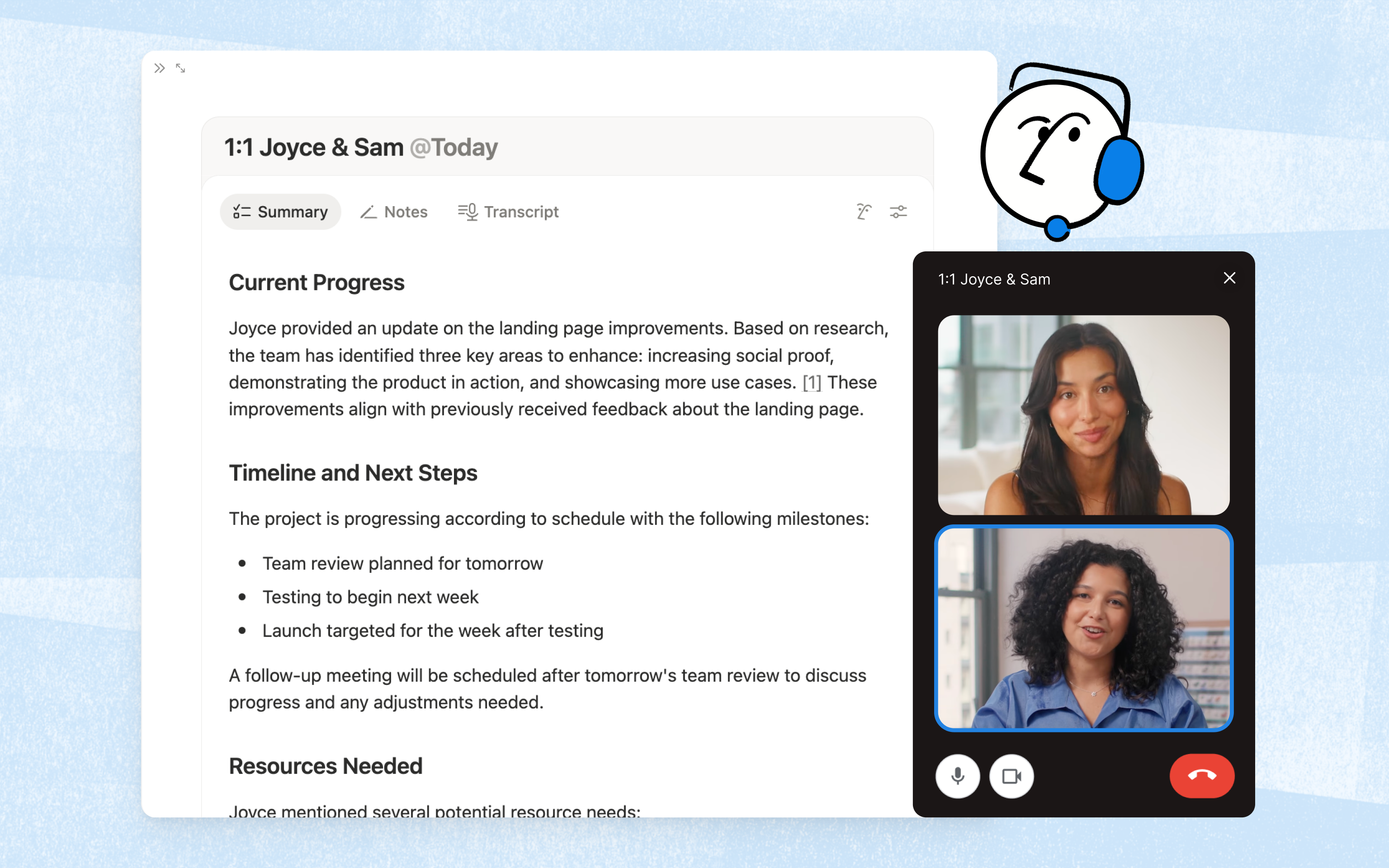
If you have Business, a current Mac/Win setup, and English meetings, you get a near-ideal experience. On Plus or Free, or with non-English meetings, the bar is real.
The alternative when you're not on Business
A three-step chain that doesn't depend on your Notion plan:
- Record meeting audio on your Mac (system audio + microphone)
- Run it through AI for transcription and summarization
- Drop the result into your Notion meeting template
The nice properties: no bot has to join the meeting (no awkwardness in customer calls), Notion stays on Free or Plus, and the same flow works for Zoom, Google Meet, and Teams.
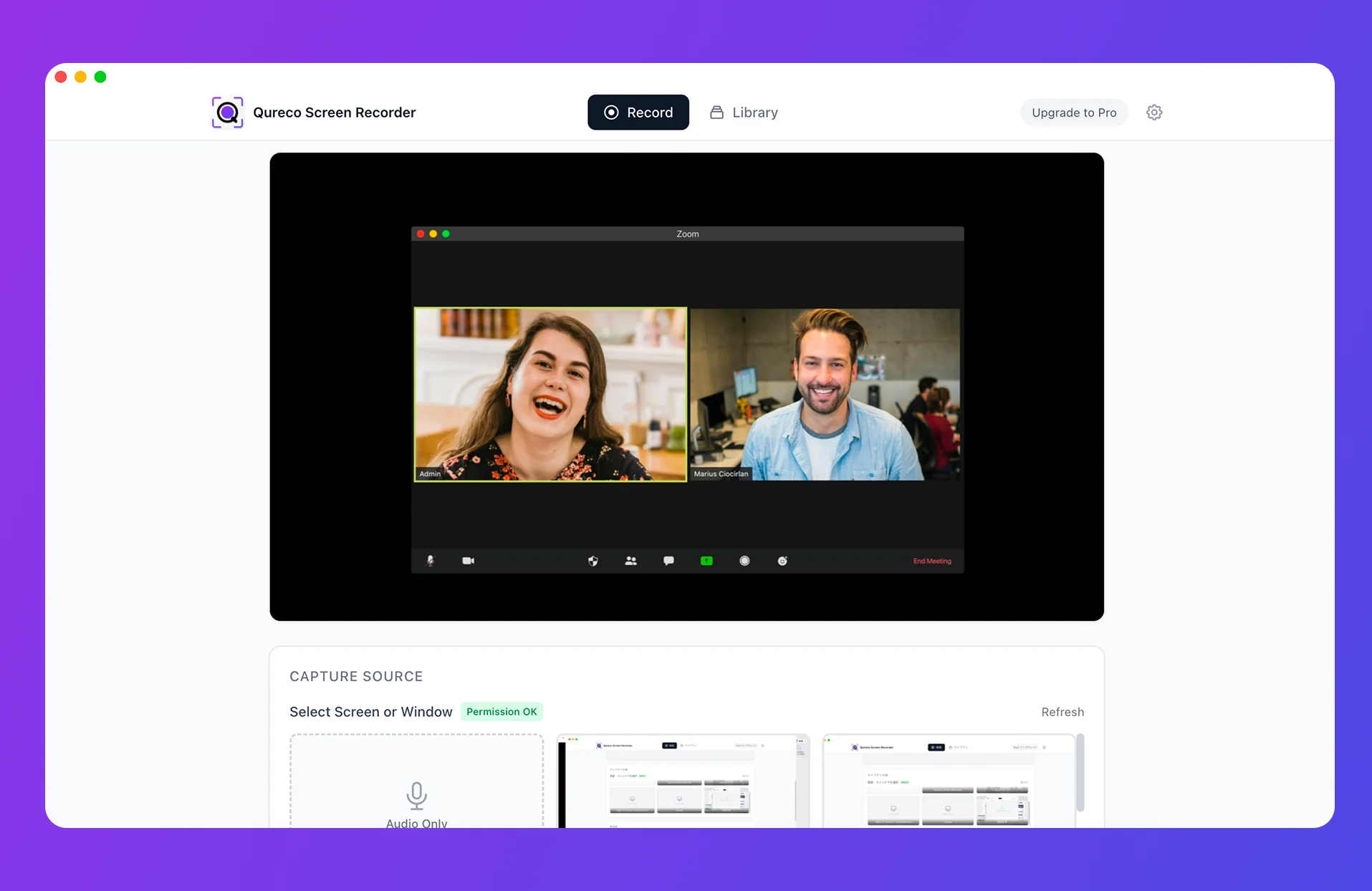
Qureco: one app for record → AI notes → Notion
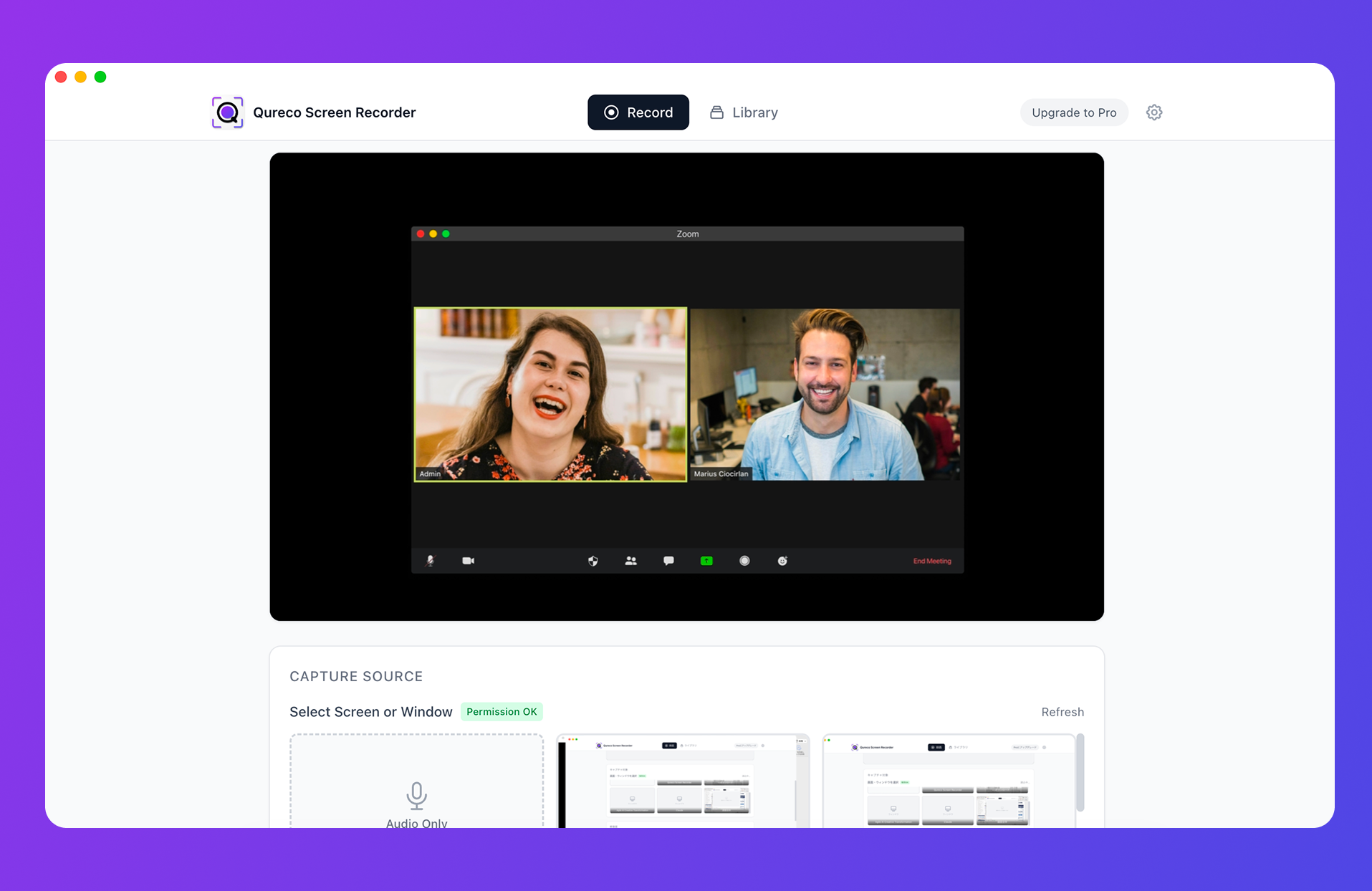
- No virtual audio setup to capture system audio (no BlackHole)
- AI generates the meeting notes with a customizable template (tune it to match the five scene templates above)
- One-click Notion integration pushes the result into your meeting notes DB
Free tier covers recording with no time limit, no watermark. AI notes and Notion integration are on Pro ($9/month, first two weeks free, no card on file).
Operational tips — make the pile actually useful
A template alone gives you a folder that fills up and doesn't pay you back. Three habits to actually extract value from the pile:
- Use Status to separate "Draft" and "Confirmed" — right after a meeting it's a rough note (Draft); once cleaned up, mark Confirmed. Build a Draft-only view to surface notes you haven't tidied yet
- Use the Type tag for per-scene views — filter to "my 1-on-1s for the last six months" or "all sales meetings with one customer." Huge for performance reviews and customer QBRs
- Split next actions into a separate Tasks DB — inline
- [ ]lists are convenient but invisible across notes. A separate DB linked back makes the whole to-do pile searchable
Summary
The shape of Notion meeting notes that doesn't drift:
- One DB, five template buttons — that's the design that survives
- The five templates (1-on-1, standup, sales, kickoff, retro) are in the code blocks above — paste them directly
- AI auto-fill has two real paths: Notion AI Meeting Notes (requires Business) or Mac recording → AI notes → Notion (Qureco or similar makes it one app)
- Don't skip the "after you've piled them up" layer: Status, Type tag, and a separate Tasks DB
Start by pasting the templates and running them in Monday's 1-on-1. When manual filling starts to hurt, move the recording-based automation in.

Qureco Screen Recorder
Powerful screen recording app for Mac
Record meetings, let AI handle the notes, just read what arrives in Notion.
Try all features free for the first two weeks.