You just recorded an important sales call on your Mac, hit play, and heard only your own voice. The other party — silent. The shared-screen demo audio — also silent. The recording is half a meeting.
The fast answer: Qureco Screen Recorder
- No virtual audio device required (no BlackHole, no Soundflower, no Audio MIDI Setup)
- Screen recording is completely free — unlimited time, no watermark, no locked features
- No credit card required to download
- Mic and system audio are independent toggles in the recording UI, each with its own level meter
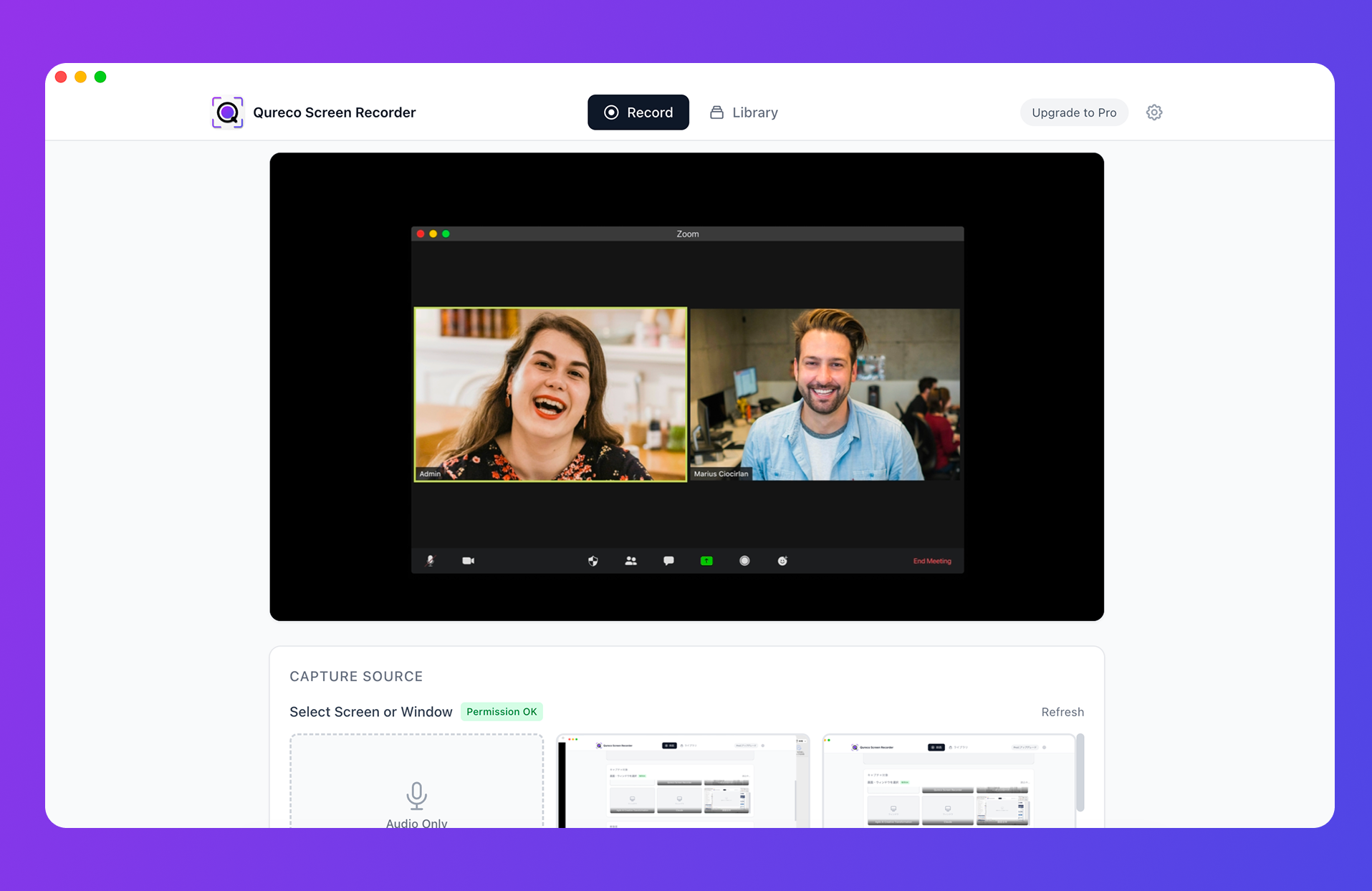
If you need this working before tomorrow morning's call, downloading it now is the fastest path. The free tier is more than enough to confirm the workflow on one test recording.
Why the Mac's built-in tools can't capture system audio
Worth understanding why the wall exists in the first place — it explains why so many fixes don't actually fix anything.

Shift + Command + 5and QuickTime only list "Microphone" as an audio source. Sound playing inside your Mac is routed to output devices (speakers, headphones), not input devices, so it simply doesn't show up in the picker.- Since macOS Catalina, TCC (Transparency, Consent & Control) has governed audio access. "Screen Recording" and "System Audio Recording Only" are separate permissions, and the native tools don't even call the latter API.
- On macOS Sequoia and later, screen recording permission resets monthly and after every restart. "It worked yesterday but doesn't today" almost always traces back to this.
The takeaway: no matter what setting you flip, the built-in tools alone cannot capture system audio. You either route through a virtual audio device, or you use an app that handles the system-audio API natively. Those are the only two real paths.
Three reasons Qureco fits this problem specifically
1. No virtual audio device required
To get system audio through the built-in recorder, you have to install BlackHole, create a Multi-Output Device in Audio MIDI Setup, grant two separate TCC permissions, and remember to revert your sound output after every recording.
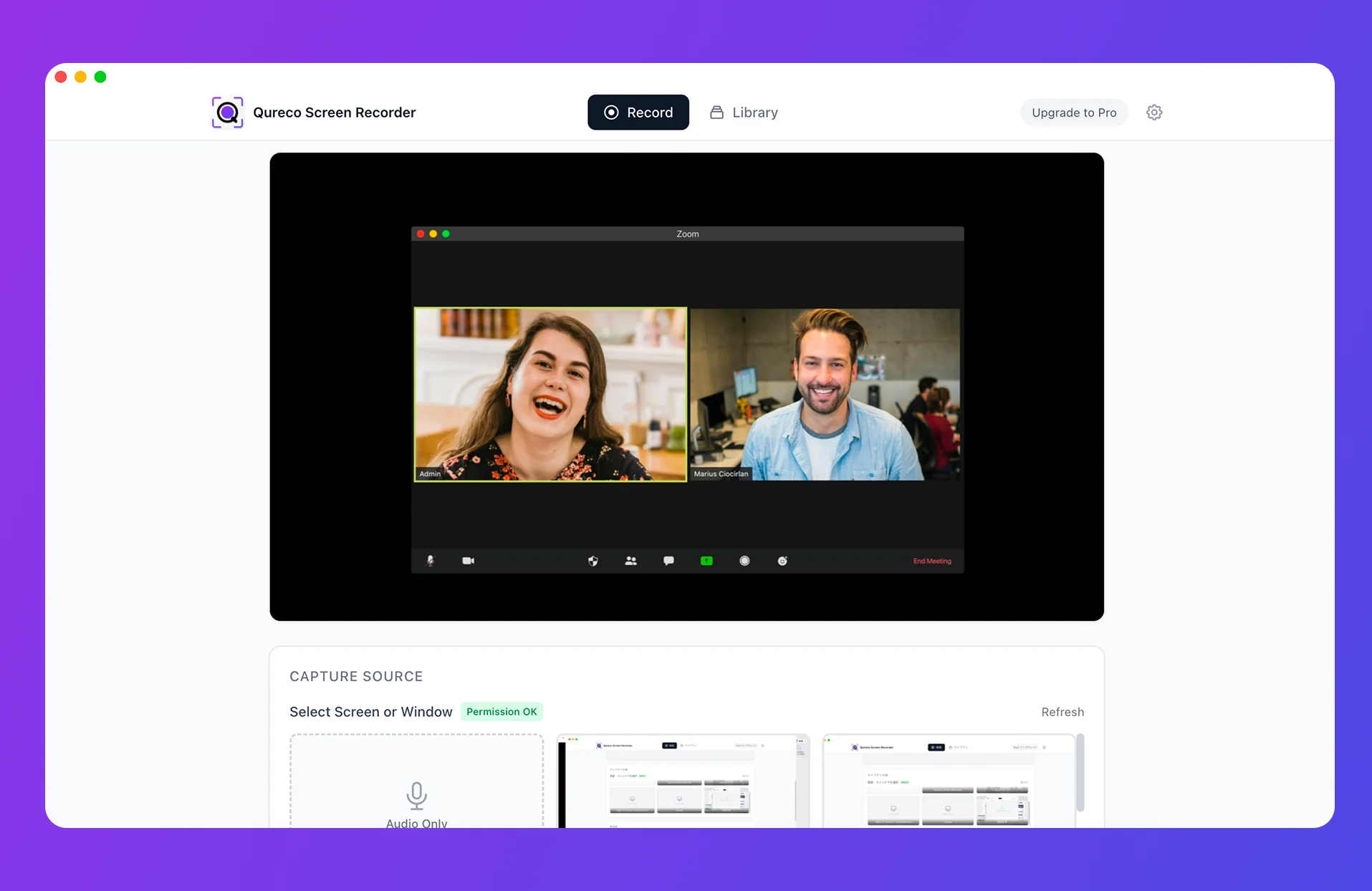
Qureco skips all of that. Install the app, toggle mic and system audio in the recording UI, hit record — both are captured together. It doesn't change your system sound output, so there's no "I forgot to revert and now my next Zoom is silent" disaster lurking after every session.
2. Screen recording is completely free — no time limit, no watermark
The usual gotchas of free recording apps don't apply:
- Recording time: unlimited
- Watermark: none, even on the free tier
- Feature locks: screen recording and system audio capture are unrestricted on free
- Credit card: not required to download
Whether it's a sales call, a long tutorial recording, or a multi-hour internal workshop, the free tier handles it on its own. You don't hit a paywall until you want AI meeting notes or Notion sync (more on those below).
3. Pro adds AI meeting notes and Notion sync
If you also want to skip "transcribe the recording and paste it into Notion" by hand, Pro is $9/month (first two weeks free, no card on file). What that unlocks:
- AI generates meeting notes from your recording — summary, decisions, action items
- Speaker identification, so multi-person calls stay readable
- One-click save to a connected Notion workspace and database
- 30 GB of cloud storage for recordings
The use case it solves: you finish a meeting, open Qureco, click "Generate notes," click "Send to Notion." Done. The recording → notes → Notion loop runs in under a minute.
When system audio recording comes up in real work
A few situations where "wait, why can't I hear them" hits people the hardest:
Sales calls and demos
You recorded a Zoom call with a prospect, hit play to pull quotes for the follow-up email, and there's no prospect. Just you. The next time you can ask for the same context is in a week, and they've already moved on. The cost of a half-silent recording is usually a week of momentum.
Tutorial and product walkthrough videos
You're recording a screen demo with system audio playing — a video tutorial, a UI walkthrough with background music, a software demo where the app itself plays sounds. The audio is the whole point. Without it, you've recorded a silent movie.
Webinar and conference replays
You signed up for a webinar, can't make the live session, and want to capture it for later. Your mic captures nothing useful, but the system audio is everything. Same setup, same problem, same fix.
Internal training and onboarding
You're recording a process walkthrough for a new hire that involves switching between several tools. The audio across those tools — the Slack notification ping, the Loom playback, the dial-in audio — is exactly what needs to make it into the video.
In all four cases, the fix is the same: capture system audio at the source.
DIY route: BlackHole + the built-in recorder
For people who already have BlackHole installed or really prefer not to add another app, the route through the built-in recorder looks like this:
- Install BlackHole 2ch. Works on M1 / M2 / M3 Apple Silicon Macs. Soundflower no longer works on Apple Silicon, so BlackHole is the de facto standard
- Create a Multi-Output Device in Audio MIDI Setup with both your built-in speaker and BlackHole 2ch checked
- System Settings → Sound → Output → set to the Multi-Output Device
- In
Shift + Command + 5→ Options, set Microphone to "BlackHole 2ch" - Start recording
Where this route trips people up
- Skip the Multi-Output Device and your own speakers/headphones go silent. Sending output to BlackHole alone routes audio away from you — you can't hear the meeting in real time
- Forget to revert your sound output and the next Zoom or Meet will be silent. Build the habit of switching it back the moment recording stops
- Under
System Settings → Privacy & Security, you need both "Screen Recording" and "System Audio Recording Only" permissions enabled for the recording app - If the Multi-Output Device's clock source isn't set to BlackHole, audio can drift over long recordings (you'll get progressive desync between video and audio)
- macOS updates occasionally reset the Multi-Output Device configuration — worth checking after any system update before a real recording
If you're fine looking up each pitfall as you hit it, this route is free. If "tomorrow morning, reliably, without thinking about it" is the constraint, going straight to a native-handling app is faster.
Native app vs BlackHole route, side by side
The honest comparison:
| Aspect | Qureco (native handling) | BlackHole + built-in recorder |
|---|---|---|
| Cost | Free for recording; $9/mo for AI notes + Notion | Completely free |
| Setup time | About 60 seconds (download, install, toggle) | 15–30 minutes the first time |
| Ongoing setup per recording | None | Switch system output, revert after |
| Risk of "next Zoom is silent" | None | High until the revert habit forms |
| Long recording stability | Stable | Possible clock-drift desync |
| Permissions to grant | One ("Screen & System Audio Recording") | Two (screen + system audio recording) |
| Survives macOS update? | Yes | Sometimes the Multi-Output Device needs rebuilding |
The trade-off: the BlackHole route is genuinely free, but the operational tax is real. For occasional recordings, that's fine. For weekly use, the math tips fast.
FAQ
Can QuickTime Player record system audio?
Shift + Command + 5 — only captures audio through "microphone input." It can't record system audio directly.Will a future macOS update fix this?
Shift + Command + 5, Screenshot, QuickTime). Apple has gradually added more privacy gates around audio, not fewer. Plan around "virtual audio device, or an app that supports it" for the foreseeable future.Does Qureco change my Mac's sound settings?
No. Qureco handles audio internally without routing through a virtual audio device, so it doesn't touch your system output device. No revert step required after recording, and no risk of accidentally muting your next call.
Can I record only system audio (no microphone)?
Yes. Both Qureco and the BlackHole route let you toggle the microphone off if you only want what's playing inside your Mac — useful for webinar replays, tutorial captures, and other scenarios where you don't need your own commentary.
What about recording just the audio of a specific app (like only Zoom)?
That isn't a feature of either built-in macOS tools or Qureco today. System audio capture is global — it records everything playing on your speakers. If you need single-app audio isolation, OBS Studio with per-application audio routing is the closest option, but the setup is non-trivial.
Does this work for Apple Silicon (M1 / M2 / M3 / M4) Macs?
Yes for both routes. BlackHole 2ch supports Apple Silicon natively. Qureco is built for Apple Silicon and runs on Intel Macs too. Avoid Soundflower — it stopped working on Apple Silicon long ago.
Will recording impact CPU or battery noticeably?
For 1080p/30fps recording with system audio on an Apple Silicon Mac, CPU usage stays in the single digits. Battery impact is light. The heavier hit comes when you're also running OBS-style multi-source compositing — but for straight screen + system audio + mic, both routes are essentially free in resource terms.
Can I record stereo system audio (left/right separation)?
Yes. Both BlackHole 2ch and Qureco preserve stereo channels. If your source audio has spatial separation — a podcast, a game with positional sound, a music app — the recording will keep that. If your source is mono (most conferencing apps), you'll get mono in the recording too. There's no setting to "force stereo" if the source isn't there to begin with.
Where do my recordings save by default?
Shift + Command + 5 saves to your Desktop by default, but you can change the destination in the toolbar's Options menu. For long-term archival, exporting to an external drive or cloud storage right after recording is a habit worth building.Recap
- The Mac's built-in screen recorders (
Shift + Command + 5/ QuickTime) can't capture system audio — by design, not by accident - The fastest free fix is Qureco Screen Recorder: no virtual audio device, just install, hit record, and screen + system audio + mic are captured together. Unlimited recording time, no watermark
- If you'd rather wire it up yourself, the BlackHole + Audio MIDI route works — for people who don't mind hitting each pitfall along the way and remembering to revert their sound output after every session
- For anything beyond occasional recordings, the time math usually tips toward the native-app route
Install the free version, run one short test recording to confirm the other person's voice actually got captured, and you're set for the next real meeting.
Qureco Screen Recorder
Powerful screen recording app for Mac
Record meetings, let AI handle the notes, just read what arrives in Notion.
Try all features free for the first two weeks.