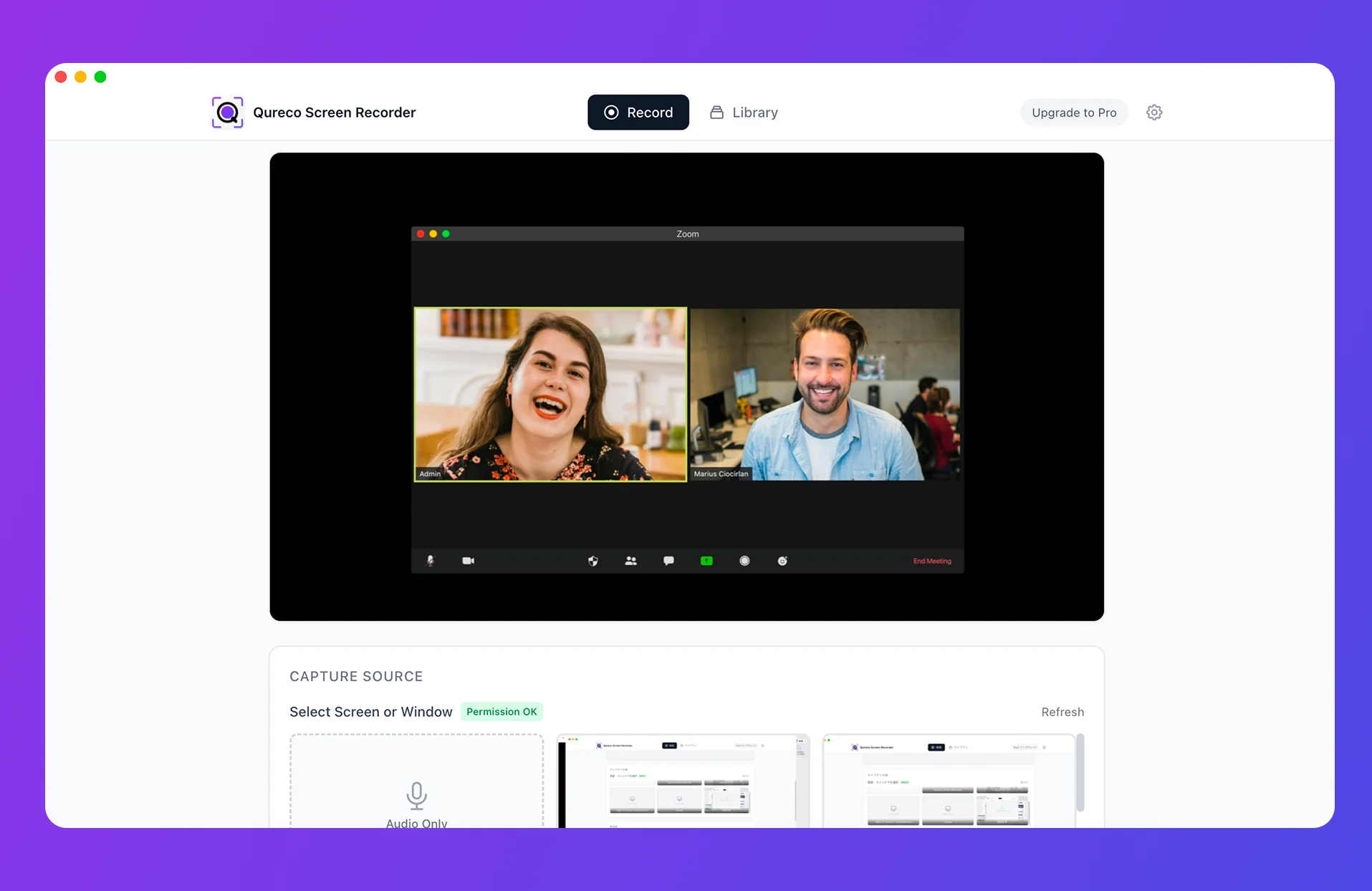
The fast answer: Qureco Screen Recorder
- After installing, just toggle Mic and System Audio on in the recording panel
- No virtual audio device (BlackHole / Soundflower) required
- Your system sound output isn't rewritten, so the next Zoom won't go silent after you stop recording
- Screen recording and system audio capture are completely free — unlimited duration, no watermark
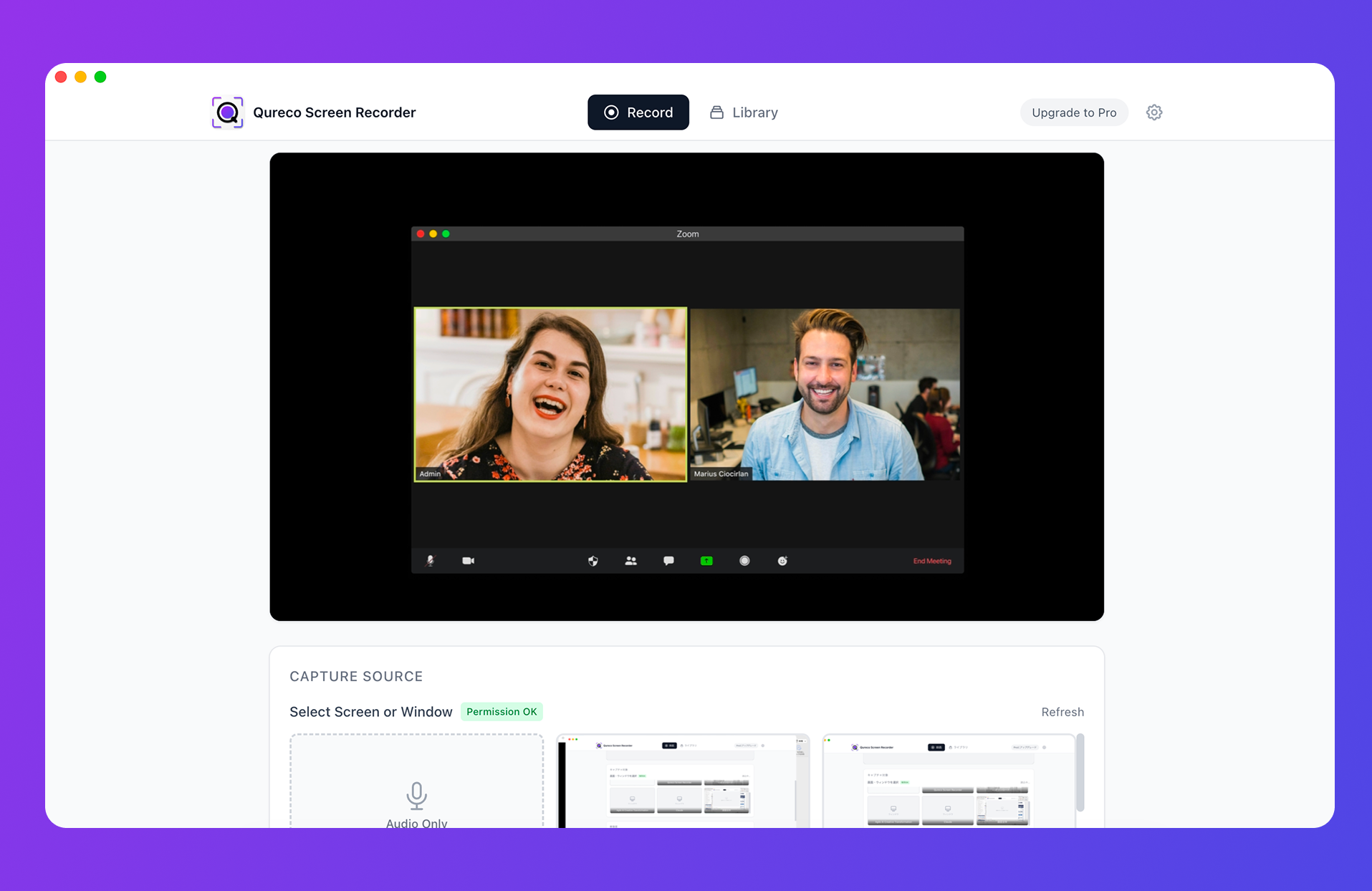
Qureco is built specifically for Mac and taps directly into the modern macOS API for system audio (more on that in a moment). If you want to reclaim the hours you lost in Audio MIDI Setup, downloading the app and flipping two switches is genuinely the fastest move.
Why BlackHole isn't strictly needed on Mac anymore
Shift + Command + 5 and QuickTime Player) don't use the new API. That's why "Mac screen recording has no audio" is still a common complaint even on macOS Sequoia and beyond. To actually capture system audio without BlackHole, you have two real options:- Use an app that adopts ScreenCaptureKit's audio API
- Use a virtual audio driver (BlackHole / Soundflower / Loopback)
This article focuses on the first path, with three flavors depending on what you actually want to record.
Method 1: ScreenCaptureKit-native screen recorder (recommended)
The shortest route is to pick a screen recorder that adopts ScreenCaptureKit's audio API natively. Install, hit record with mic and system audio enabled, done.
The notable options
| App | Price | Mac-native | Notes |
|---|---|---|---|
| Qureco Screen Recorder | Free (Pro is $9/month) | ✓ | Mac-only, AI meeting notes + Notion sync in Pro |
| Screen Charm | Paid (one-time) | ✓ | Mac-only, indie studio |
| Cap | Free (open source) | ◯ | Cross-platform OSS |
| QuickRecorder | Free (open source) | ✓ | Built on ScreenCaptureKit; driver-free system audio needs macOS 13+ |
How to record with Qureco
- Download the app from the official site (no card required)
- Launch, pick your capture source
- Toggle Mic and System Audio on
- Hit record
That's the whole flow. You never open Audio MIDI Setup, you never build a Multi-Output Device, and you never have to remember to switch your sound output back after recording — because Qureco never touched it in the first place.
When this method is the best fit
- Recording screen and audio together (demos, sales calls, tutorials, internal walkthroughs)
- People who don't want to spend any time on setup
- Anyone trying to stay on a free plan
- Anyone who's been burned by the "I forgot to revert and now Zoom is silent" failure mode
Method 2: Audio-only GUI app (Audio Hijack)
How it's different from raw BlackHole
- You don't have to manually build a Multi-Output Device
- You can source audio per-app ("just Zoom," "just the browser")
- No need to flip your system audio output back after each session
- The configurations save as named "Sessions" so you can re-run yesterday's setup with one click
The notable options
| App | Price | Use case |
|---|---|---|
| Audio Hijack | $69 one-time | Capture audio from specific apps or devices |
| Loopback | $129 one-time | Create a virtual input device usable by other apps |
When this method is the best fit
- Audio-only recording (no screen needed)
- Routing multiple apps to separate tracks (podcasting, multi-source recording)
- People willing to pay for a polished, established tool
Method 3: Browser-based recording (Loom)
How it works
It uses your browser's tab audio sharing API to capture sound playing inside the browser. No native app to install, just the Chrome / Firefox / Safari extension.
The trade-offs
- It captures browser tab audio primarily. Native desktop apps (Zoom desktop client, Slack calls, native Teams) aren't covered by the extension alone
- The free tier caps both video count and length (Loom's free plan limits each clip to about 5 minutes)
- Quality is generally a step below native apps, especially for longer recordings
- You need a network connection — recordings upload as you go
When this method is the best fit
- Locked-down corporate Macs where you can't install software
- Browser-based product demos and walkthroughs
- Short clips you want to share by link to a teammate
The 3 methods side by side
| Criterion | Method 1: Qureco | Method 2: Audio Hijack | Method 3: Loom |
|---|---|---|---|
| Price | Free → $9/mo | $69 one-time | Free → paid |
| Screen recording | ✓ | ✗ | ✓ (browser-centric) |
| System audio | ✓ (native API) | ✓ (virtual audio) | △ (tab audio only) |
| Mic + system audio | ✓ | ✓ | ✓ |
| Setup difficulty | ★☆☆☆☆ | ★★☆☆☆ | ★☆☆☆☆ |
| AI meeting notes | ✓ (Pro) | ✗ | ✗ |
| Mac-native | ✓ | ✓ | ✗ (browser) |
| Recommendation | ★★★★★ | ★★★★☆ | ★★★☆☆ |
Quick decision guide:
- Recording video + audio together → Method 1 (Qureco)
- Audio only → Method 2 (Audio Hijack)
- Can't install desktop apps → Method 3 (Loom)
When BlackHole is still the right call
In fairness, BlackHole hasn't gone obsolete. There are cases where it (or Loopback) is still the right pick:
- Music production or live streaming with fine-grained routing across multiple apps
- Existing workflows that already depend on OBS + BlackHole (rewiring is more work than maintaining)
- You need a free virtual audio driver and Audio Hijack/Loopback's paid prices aren't justified
- You're running an older macOS that predates the ScreenCaptureKit audio API
For the simpler goal of "I just want to record Mac internal audio," any of the three methods above is friendlier.
Common scenarios where this comes up
A handful of situations where the "Mac internal audio doesn't record" wall hits people the hardest:
- Sales calls with screen-share demos: The prospect is talking, the screen-share is playing a video, and you walk away with a recording of only your own voice. The full demo context is gone.
- Tutorial recording for product docs: You're recording a UI walkthrough where the app itself plays sounds, and you need both your narration and the app audio in the file.
- Webinar capture for later review: You signed up for a webinar, can't make the live session, and your recording captures everything except the actual webinar audio.
- Recording a podcast guest from a Zoom call: You need their voice (system audio) and yours (mic), both at usable quality.
- Internal training and onboarding videos: You're recording cross-tool process walkthroughs and the audio across each tool matters.
In every case, the failure mode is the same and the fix is the same.
Notion sync and AI meeting notes with Qureco Pro
If you're recording Mac audio specifically to produce meeting notes downstream, you can collapse the whole pipeline into one app. With Qureco's Pro plan ($9/month, first two weeks free, no card on file), AI generates the meeting notes from your recording and pushes them straight into a pre-configured Notion database.
- Don't take notes mid-call — just talk
- Notion has the summary, decisions, and action items ready by the time the meeting ends
- Templates let you customize the format per meeting type (1:1, sales call, internal sync)
FAQ
Does Qureco require macOS Sonoma or later?
ScreenCaptureKit's audio API needs macOS 14.2 or later. Qureco supports macOS 13 and up; on older systems it falls back gracefully but the system-audio-without-virtual-driver path requires 14.2+.
Can I record with mic only (no system audio)?
Yes. Each toggle is independent — mic on, system audio off works fine if you only want narration over a silent screen recording.
What if I already have BlackHole installed?
You can leave it installed. Qureco doesn't conflict with virtual audio drivers; it just doesn't need them. If you're not using BlackHole for anything else, uninstalling cleans up an Audio MIDI configuration that can break after macOS updates anyway.
Does this work for Apple Silicon (M1 / M2 / M3 / M4) Macs?
Yes. All three methods support Apple Silicon. ScreenCaptureKit is fully native on Apple Silicon, and Audio Hijack and Loom have universal binaries.
Will recording impact CPU usage during long sessions?
For 1080p/30fps recording with system audio on Apple Silicon, CPU usage stays in the single digits. Long sessions (an hour+) are stable without overheating or fan ramp-up. Older Intel Macs see a noticeable bump but stay usable.
What about the recording file size?
A 1-hour 1080p/30fps recording with mic + system audio is roughly 1 GB. Most modern recorders also support H.265 encoding, which cuts file size by 30–50% with minimal quality loss — useful if you record multiple meetings per day.
In one line
"No audio in Mac screen recording," "I can't record internal audio on Mac" — these aren't problems you need to solve with Audio MIDI Setup anymore. macOS 14.2 added a proper system audio API, and the modern answer is to pick an app that uses it.
To recap:
- Video + audio together → Qureco Screen Recorder (free, Mac-native, fastest)
- Audio only → Audio Hijack (GUI routing, $69 one-time)
- Can't install desktop apps → Loom (browser extension, free tier)
If you need this working before tomorrow's call, start with Qureco's free download and flip the System Audio toggle. Recording Mac internal audio shifts from "configuration nightmare" to "two switches and a record button."
Qureco Screen Recorder
Powerful screen recording app for Mac
Record meetings, let AI handle the notes, just read what arrives in Notion.
Try all features free for the first two weeks.