"I figured I could just upload the recording to Notion AI and let it transcribe itself" — and then you found out you can't. The MP4 from last week's conversation is still sitting on your desktop, slowly aging. If that's where you are, this is the right article.
Three things to know before picking a tool
Before jumping into the tool comparison, three things most people get wrong when they first try to transcribe into Notion.
You can't just upload a file to Notion AI
- Requires Business plan or higher ($24/user/month and up)
- Uses the desktop app (v4.7.0+) to live-record audio during a meeting
- Does not accept existing audio files for transcription
So if you're trying to process a recording you already have, Notion alone won't get you there. There's no "upload your MP4 here" path.
Think of it as a two-step flow
The realistic workflow is:
- Transcribe the audio with an external tool — this is where speaker identification also happens
- Organize the result in Notion — manual paste or built-in integration
The source format decides the route
Interview recordings vary wildly based on how they were captured. This article splits the choice into three buckets:
| Source type | Common scenarios | Best route |
|---|---|---|
| Online interview (Zoom / Meet / Teams) | Remote interviews, podcast-style talks, internal interviews | All-in-one record → transcribe → Notion tool |
| Smartphone voice memo (iPhone, etc.) | In-person interviews, quick captures | File-upload transcription tool like Notta |
| IC recorder file | Long-form conversations, on-site recording | Long-form-friendly tool like Rimo Voice |
Pick your bucket, then jump to the matching section below.
Quick comparison table
All three routes at a glance.
| Source | Recommended tool | Speaker ID | Notion integration | Starting price |
|---|---|---|---|---|
| Online interview | Qureco | ★★★★★ | ★★★★★ (one click) | From $9/mo |
| Online (already have MP4) | Notta (upload) | ★★★★★ | ★★★★☆ (page export) | From $9/mo |
| Voice memo | Notta | ★★★★★ | ★★★★☆ | Free up to 120 min / $9+ |
| IC recorder (long form) | Rimo Voice | ★★★★★ | ★★★☆☆ (copy-paste) | Pay-as-you-go |
| Free / experimental | Whisper / Google Docs voice input | ★★☆☆☆ | ★☆☆☆☆ (manual) | Free |
Route 1: Online interview (Zoom / Meet / Teams)
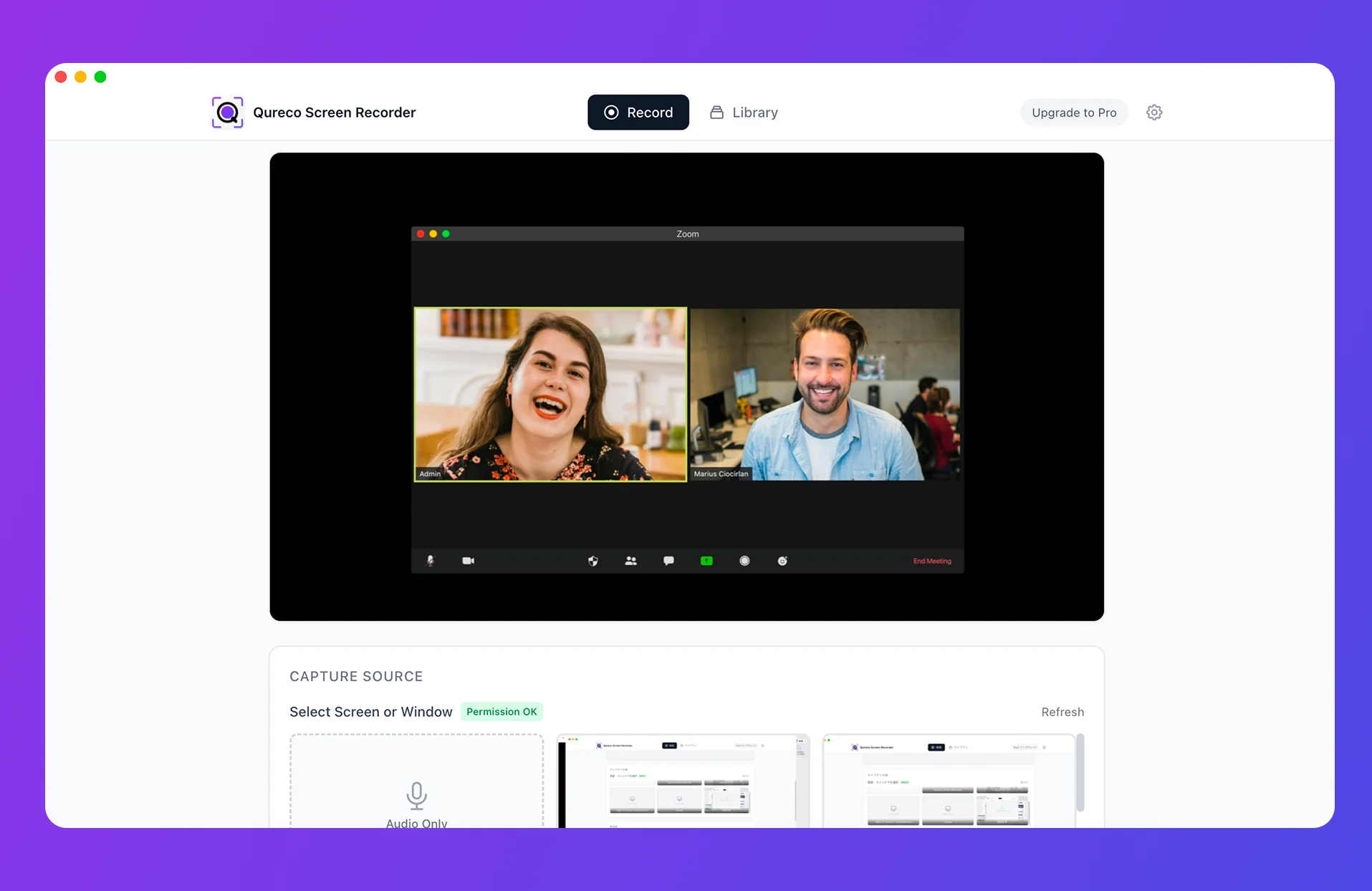
Use Qureco for an end-to-end flow
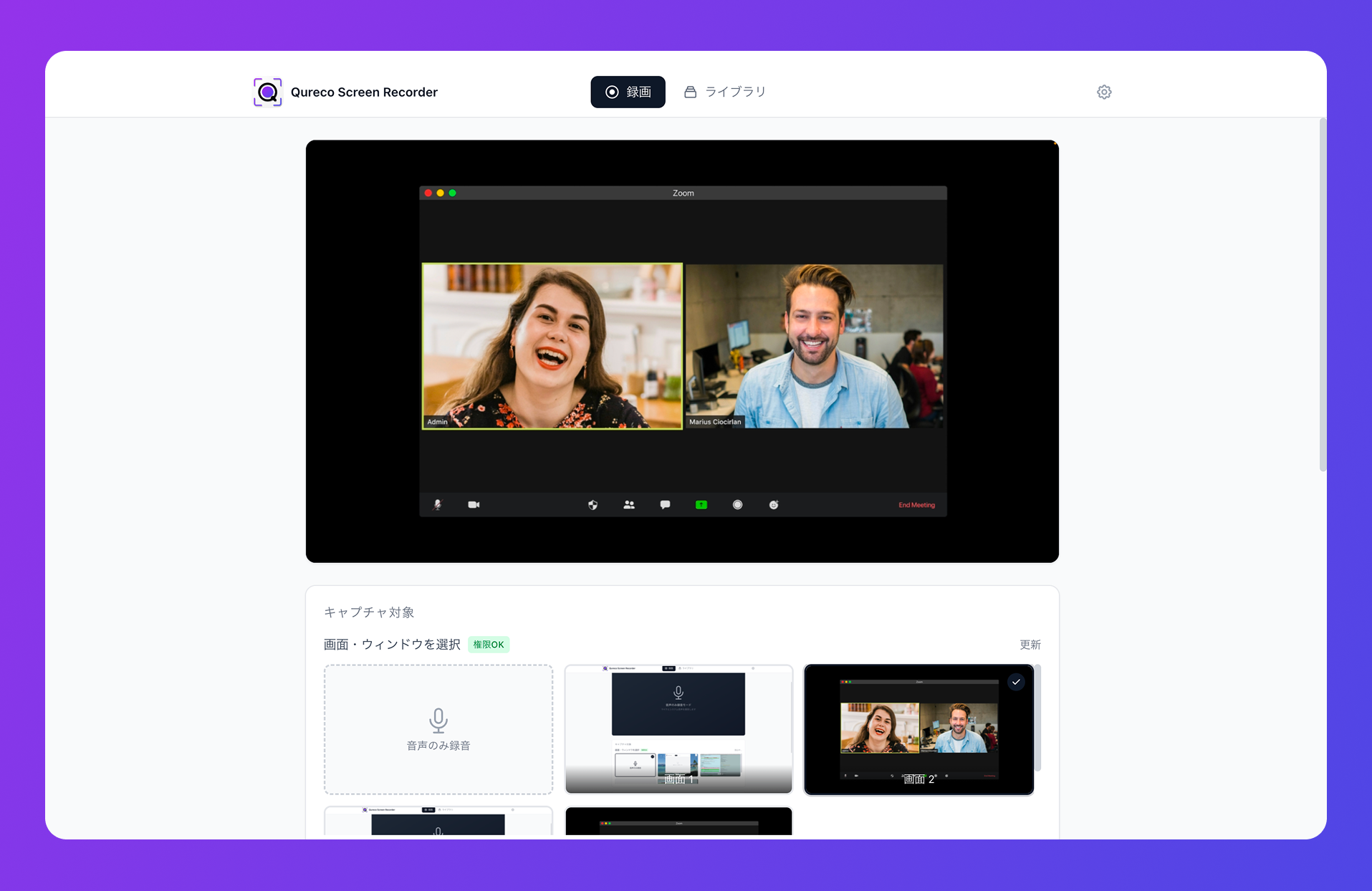
- No bot in the meeting — your guest doesn't see a "Notetaker" name in the participant list
- No host permission needed — works for Zoom calls where the other side is hosting
- One-click Notion export — Pro plan pushes the AI-generated transcript and summary straight to a Notion page
The actual workflow:
- Start Qureco, capture the Zoom window's screen + system audio + your mic
- After the call ends, hit stop — the AI generates the transcript and notes (Pro plan)
- Click the Notion export button to push it to your chosen database
The free tier records unlimited time without watermarks, so you can also use Qureco purely for capture and run transcription elsewhere if you'd rather.
When you already have an MP4

- Log into Notta → "Import" → upload your MP4 / M4A / MP3
- Enable speaker identification (label interviewer vs interviewee)
- Generate the AI summary → click "Send to Notion" to push it as a page
Notta's accuracy on English is solid, and it accepts a wide range of file formats (MP4, MP3, WAV, M4A, MOV). If you already have the recording in hand, this is the practical first choice.
Route 2: iPhone voice memos and other smartphone recordings
In-person interviews or quick captures usually live in the iPhone Voice Memos app. The fastest route is sending the recording into Notta through the share sheet.
From iPhone Voice Memos to Notta
The iOS Voice Memos app lets you share a recording into another installed app:
- Open the recording in Voice Memos → tap the share button
- Select the Notta app (must already be installed) → it imports automatically
- Transcription starts → once it's done, edit the speaker labels
- Use the Notion integration to push the result
If you'd rather work on a desktop, export as M4A and upload to the Notta web app instead. Same outcome, slightly faster keyboard.
Get speaker labels right early
Speaker identification is the single most useful feature for interview transcripts. Notta auto-labels speakers as "Speaker 1" and "Speaker 2," but you can rename them to actual names ("Sasaki — interviewer," "Tanaka — interviewee"). Do this once at the start, and the rest of the transcript is suddenly much easier to scan and edit inside Notion.
Staying inside the free tier
Route 3: IC recorder files (long-form, on-site)
Why Rimo Voice for long-form
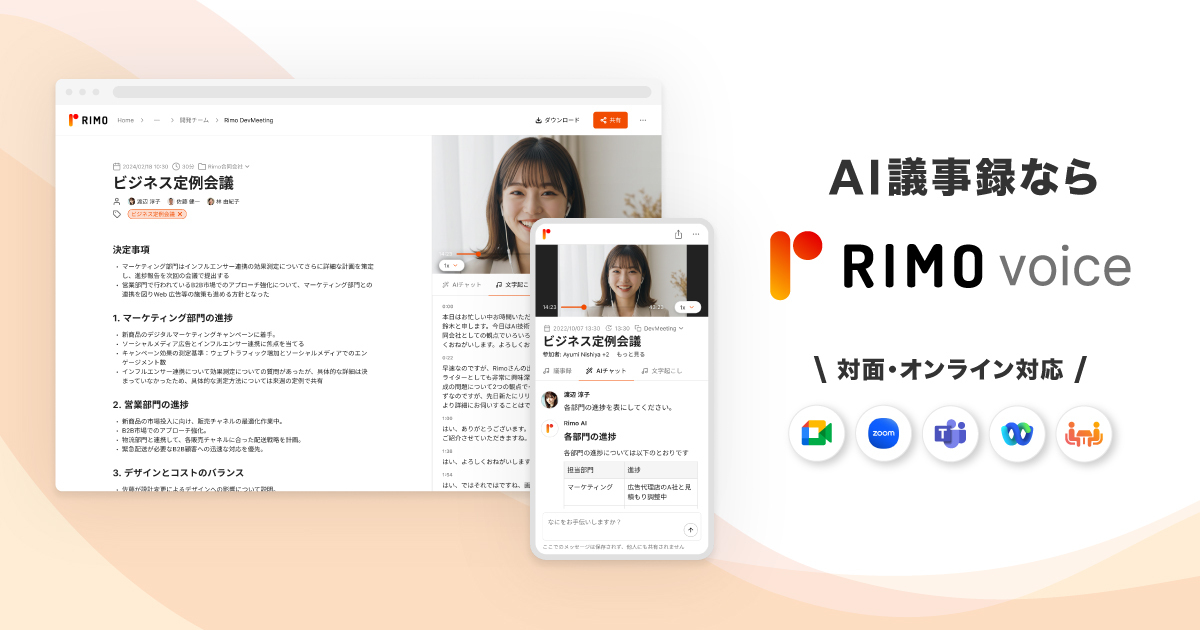
- Pay-per-use pricing — roughly $7–10 per hour, no monthly commitment
- High-quality speaker identification — well-regarded in interview and journalism circles
- Timestamps — every segment is tagged with a time code, so you can jump back to the audio when verifying a quote
The workflow:
- Transfer the file from the IC recorder to your computer (USB or SD card)
- Upload to Rimo Voice with speaker separation turned on
- After transcription, export as Word, PDF, or plain text
- Paste into Notion
Rimo Voice doesn't have a direct Notion integration, so you're copy-pasting. For long-form material this trade-off is fine — accuracy and per-minute price matter more than one-click export.
Free alternatives worth knowing
If your budget is literally zero and you just want to try something on one recording:
- Whisper (OpenAI's open-source model) — runs locally, free, strong on most major languages (WER around 5% for English and Japanese). Needs a bit of Python setup, so this is the engineer-friendly route
- Google Docs voice input — record yourself playing back the file while Docs transcribes in real time. No speaker ID, but truly free
Fine for one-off validation. You'll outgrow them quickly for ongoing interview work.
Three small habits that make Notion transcripts actually usable
Raw transcripts don't make for great Notion pages on their own. Three quick habits from real interview work:
1. Keep the timestamps
Sooner or later you'll question whether someone really said something the way you wrote it. Being able to jump back to the audio at the exact second is what makes the difference between editing and rewriting from scratch. Both Notta and Rimo Voice support timestamped exports — keep them on.
2. Let AI handle filler-word cleanup
3. Always spot-check the first 5 and last 5 minutes for speaker labels
Speaker identification tends to swap labels in segments with lots of short back-channel responses ("yeah," "right," "okay"). A quick scan of the first and last five minutes catches almost all the issues before they reach the final Notion page.
Bonus: structure the Notion page for re-use, not just storage
Most interview transcripts get pasted into Notion and never opened again. A small bit of structure changes that:
- Top of page: subject's name, role, date, key takeaways (3–5 bullets)
- Middle: cleaned transcript
- Bottom (toggle): raw transcript with timestamps
That way the transcript actually becomes a referenceable artifact for the next meeting, the next piece of writing, or the next interviewer who picks up the thread.
Cheat sheet: which tool, when
A one-line summary of everything above.
| Goal | Pick | Why |
|---|---|---|
| Online interview, record → Notion in one go | Qureco | No bot, end-to-end Notion integration |
| Have an MP4, need speaker labels | Notta | Strong language accuracy + Notion page export |
| Short interview captured on phone | Notta | Share-sheet import is friction-free |
| 90+ minute on-site interview | Rimo Voice | Pay-per-use, strong speaker ID |
| Free experiment | Whisper | Open source, engineer-friendly |
| Already on Notion Business | Notion AI Meeting Notes | Live-record only — no file upload |
End-to-end for online interviews: Qureco
If your work is mostly online interviews, Qureco is the cleanest setup for going from call to Notion page in one motion.
- No bot in the participant list, so your guest never sees a third name on the call
- Works even when the other side is hosting — no host permissions needed
- Pro plan generates the AI transcript + summary and pushes it to Notion with one click
- Free tier records unlimited time without watermarks
The Pro plan has a free two-week trial with no card on file. If you have an interview on the calendar next week, that's a low-stakes way to see whether the one-click Notion flow actually saves you the editing time you think it will.
Wrapping up
Don't start from "which transcription tool is best." Start from the source file you already have:
- Notion alone won't transcribe an uploaded file — it's live-record only on Business+
- Always think in two steps: external transcription → Notion organization
- Online → Qureco; phone recording → Notta; long-form IC recorder → Rimo Voice
Open the cheat sheet above next time an interview gets scheduled, pick one tool, and you'll have a clean Notion transcript before the end of the day — instead of yet another MP4 aging quietly on your desktop.
Qureco Screen Recorder
Powerful screen recording app for Mac
Record meetings, let AI handle the notes, just read what arrives in Notion.
Try all features free for the first two weeks.