You hop on a Zoom call your prospect set up, and there's no record button anywhere on your screen. The call wraps, and you're writing notes and updating the CRM from memory — burning fifteen minutes trying to remember what their budget was and what you promised to send over. Multiply that by three or four calls a day, and it gets ugly fast.
Why your record button disappears when the prospect hosts
Every meeting tool builds recording around the host. If you're not running the call, the button often isn't even there. Here's the lay of the land:
| Tool | What a guest needs to record |
|---|---|
| Zoom | The host has to grant "allow recording" ahead of time — otherwise the button never appears for participants |
| Google Meet | Business Standard plan or higher, AND you have to be in the same org as the host. External guests structurally don't get a record button |
| Microsoft Teams | M365 license, IT admin approval, AND same organization. Guests and external attendees can't record |
- Asking "mind if I record this?" feels awkward, especially with a new contact
- The calendar invite drops 30 minutes before the call and there's no time to coordinate
- Their IT team has recording locked down across the board
- You asked once, got a no, and can't bring it up again
The ground rule — ask first, don't record in the dark
Recording laws vary by country and state — some places only require one party's consent, others require everyone's. Either way, the etiquette move is the same: tell them upfront. It clears the legal grey area, and frankly it's just better business hygiene. If the recording ever gets shared, surfaced in a dispute, or comes up in a renewal conversation, you want to be the rep who handled it cleanly.
The good news? Getting permission is easy. Drop one line at the top of the call, with the reason attached:
"Just so I can take accurate notes and tighten up my follow-up, mind if I record this one?"
You really only have two options
Strip it down and you've got two paths:
| Option | Pros | Cons |
|---|---|---|
| Ask the host to record | Uses the official feature, the recording can be shared with them too | Depends on their answer, awkward to ask, useless if you're 30 seconds from kickoff |
| Record on your own Mac | Doesn't care about their permissions, same flow every time, nothing pops up on their screen | The file lives with you and you have to manage it |
Recording an online sales call on your own Mac
Recording on your own machine is the most universal route — it doesn't care about their settings or their company's policy. On a Mac, you've got three real options.
1. The built-in macOS screen recorder
Macs ship with screen recording out of the box.
- Hit
Shift + Command + 5 - Pick what to capture (whole screen or just part)
- Click "Record"
2. The DIY route: BlackHole and virtual audio
- Install BlackHole via Homebrew or the official installer
- Open "Audio MIDI Setup" and create a "Multi-Output Device"
- Send audio to both BlackHole and your normal speakers
- Switch your recorder's audio input to BlackHole
Looks simple in print. It is not simple the first time. Setting it up five minutes before a call, having it not work, and going into the call unable to record — that's exactly the scenario you want to avoid.
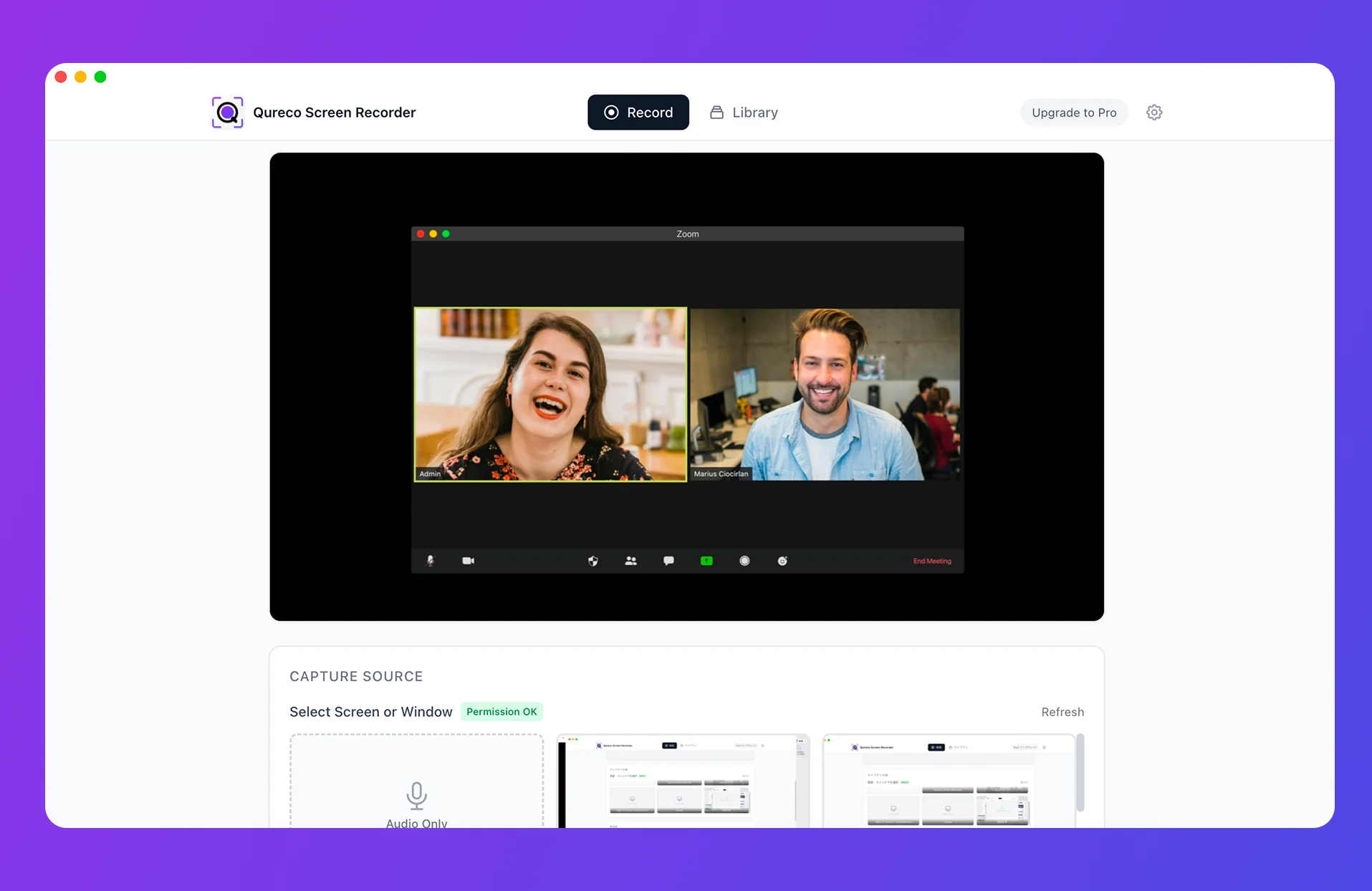
3. A Mac app that handles all of this: Qureco
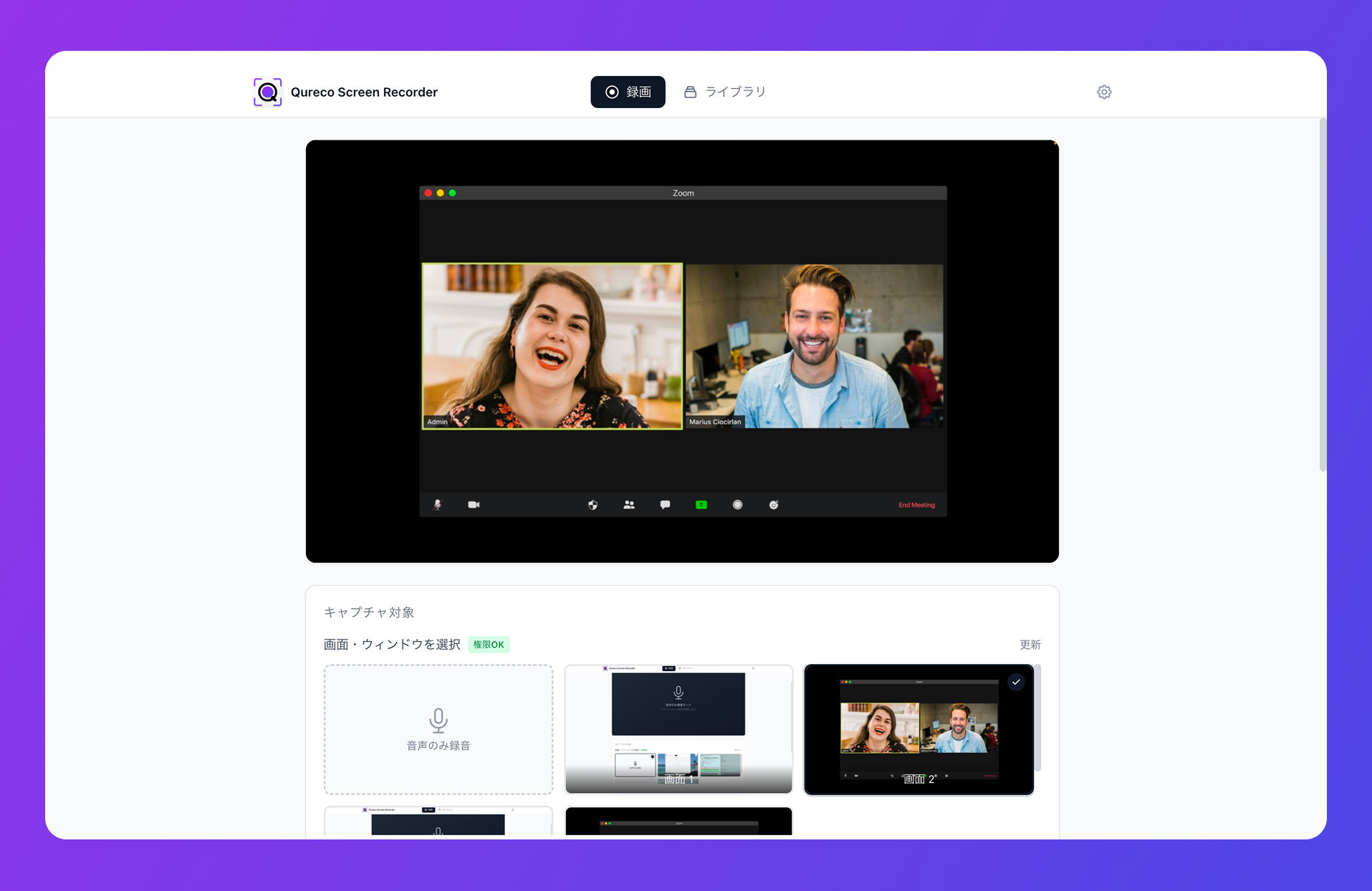
For sales calls specifically, what matters:
- Internal audio just works — no BlackHole, no Audio MIDI surgery
- Unlimited recording time, no watermark, even on the free plan
- You're recording locally on your Mac, so nothing shows up in the participant list and no notification fires on the prospect's screen
- Doesn't matter if the meeting tool is on a free tier or who set up the call
From recording to AI notes to Notion — without a bot
AI note tooling splits into three rough camps:
| Approach | Examples | Strengths | Where it falls down in sales |
|---|---|---|---|
| Bot joins the call | tl;dv, Otter, Notta, Fireflies | Polished SaaS, speaker ID, deep SFA integrations | A "Bot" sits in the participant list, tends to need an org contract and a real budget, often can't be invited if you're a guest |
| Upload after the fact | ChatGPT, standalone transcription tools | Works on any file you already have | Record → upload → format → paste leaves a lot of manual work |
| Native recording app | Qureco | No bot, recording and notes live in the same app | macOS only |
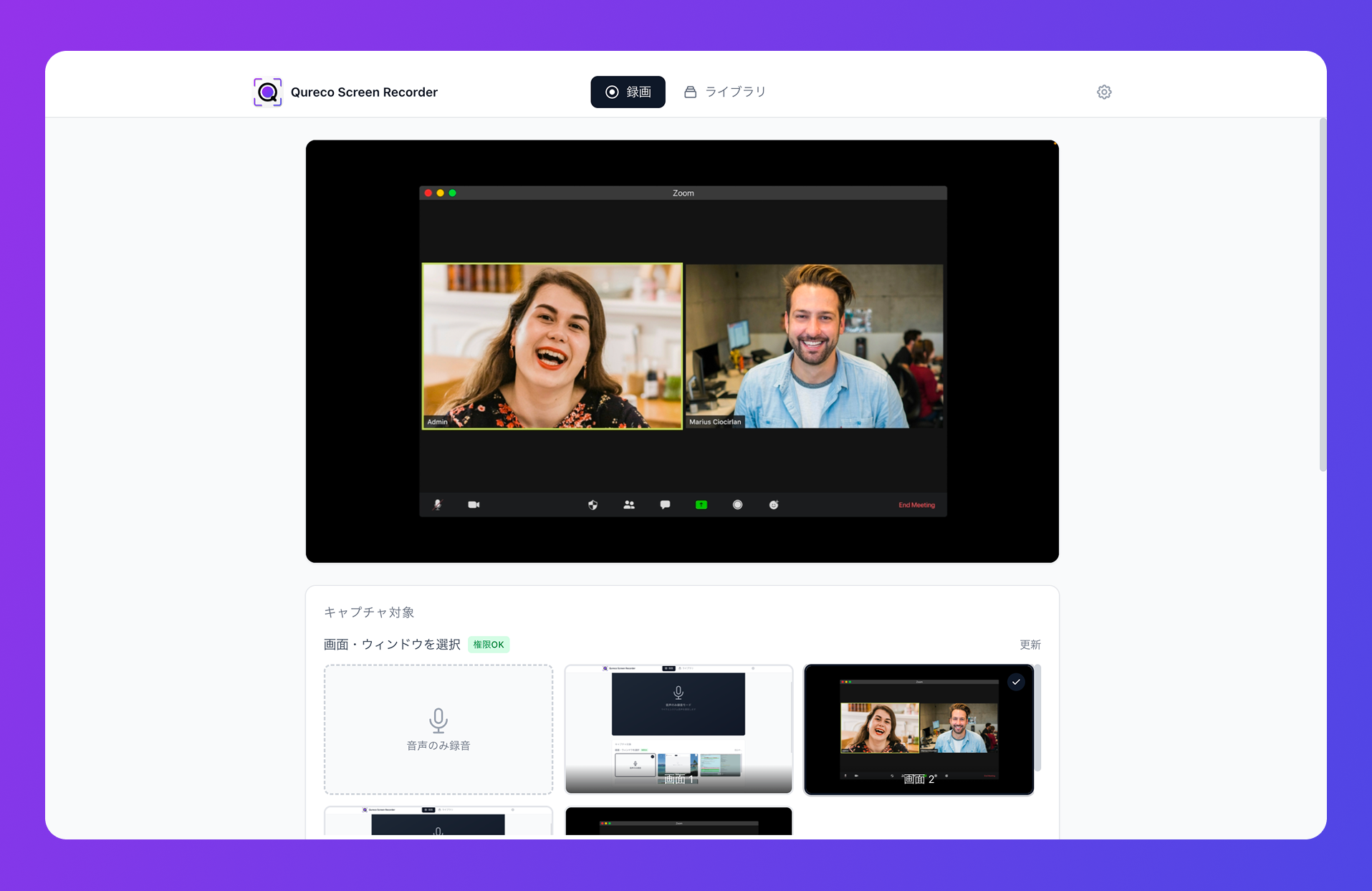
The flow for a sales call:
- Before the call kicks off, start recording in Qureco (menu bar or
Cmd + Shift + R) - Open with your consent line, run the call normally
- Afterward, open the recording library and generate notes
- Pick the Notion workspace and database, click save
FAQ
Q1: Is it OK to record a sales call without telling the prospect?
Don't. Even where one-party consent is legal, recording without telling them is a reputation move you can't take back. It also gives the prospect a clean reason to walk if the recording ever surfaces. Drop the one-line ask at the top of the call — you'll get a yes more often than you think, and the recording stops being a liability.
Q2: How is this different from using a bot-style tool like Gong or Otter?
Bot tools (Otter, tl;dv, Fireflies, Gong) are polished and integrate deeply with the CRM — but a literal "AI" participant joins the call. Prospects notice. Some get visibly more cautious once they see it. Those tools also assume an org contract and a budget line. Recording on your own Mac means nothing shows up in the participant list, nothing notifies the buyer, and you can start as a solo rep for free. It fits the "don't bring a third presence into the room" use case.
Q3: How do I get a recorded sales call into Salesforce or HubSpot?
Qureco doesn't push directly to a CRM — it lands AI notes in Notion. In practice the smooth flow is: generate notes in Qureco → save to Notion → paste the key points into the CRM activity log. Compared to writing the log from a blank field based on what you half-remember, working from AI-summarized notes cuts the time and the missing-detail problem dramatically.
Q4: Does it work for in-person sales meetings too?
Q5: Won't the recording files eat up my Mac's storage?
Sales calls run a few hundred MB to about 1GB per hour, so local-only fills up fast. Qureco's Pro plan ships with 30GB of cloud storage and auto-uploads recordings after each session. Pair that with a per-deal folder convention and the occasional clean-up and storage stops being a thing you think about.
Wrap-up — when the prospect hosts, the record is still yours to keep
Quick recap:
- Meeting tool recording is built around the host. In sales, the host is the buyer, so the record button often isn't there for you
- Always ask first. One line at the top of the call, with the reason attached, gets you to yes most of the time
- When you can't ask (or can't get a yes), recording on your own Mac is the universal fallback
- The built-in macOS recorder is easy but can't capture the prospect's voice without virtual audio plumbing
- If you'd rather skip that setup, a dedicated app like Qureco handles internal audio out of the box
- To turn the recording into something a future-you will actually use, run record → AI notes → Notion without a bot in the room
Next time you hit "no record button" mid-sales call, don't pressure the prospect. Drop your consent line and record on your own Mac — and your post-call notes and CRM update get a lot lighter. With Qureco, one afternoon's calls is enough to feel the difference.
Qureco Screen Recorder
Powerful screen recording app for Mac
Record meetings, let AI handle the notes, just read what arrives in Notion.
Try all features free for the first two weeks.