You asked an agency to quote a training video, and the number stopped you cold: a few thousand dollars per video, six weeks of turnaround. That's probably how you ended up here.
This article assumes macOS. If you're on Windows, some built-in-tool behavior will differ.
Training videos only need "slides + voice" — so skip the agency
The break-even point that makes in-house worth it
Polished production: outsource. Bread-and-butter training: in-house.
To be honest, in-house isn't the answer for everything. Employer-branding videos and anything that needs animation or cinematic production are better left to professionals.
- Good for in-house: onboarding, compliance and infosec training, tool walkthroughs, product knowledge — content that's all substance and gets updated often.
- Good for outsourcing: recruiting/branding and the handful of videos that genuinely need production value.
Just moving your high-volume, routine training in-house cuts the outsourcing bill dramatically.
Why "slides + narration" sticks better than putting your face on camera
A video where the instructor talks to camera raises the bar on both filming and re-shooting. Lighting and background start to matter, one stumble means starting over, and you end up never finishing a single video.
How to make a training / eLearning video in 4 steps
The big picture is simple. These four steps are the whole loop. Recording (step 3) is the real hurdle, so it gets its own section below.
1. Plan: one topic per video, about 10 minutes
2. Build slides: order them as you'll speak, and write a script
3. Record: put slides on screen and narrate over them
4. Distribute: export MP4 and share
Export the finished video as MP4 and share it. Where you put it depends on the use case:
- LMS (learning management system): when you need to track completion.
- Shared drive / internal wiki: when you just want easy sharing.
- Unlisted video link: when only people with the URL should see it.
No LMS? You can still run training by dropping the file on a shared drive and sending the link.
The real hurdle is recording. Here's how to do it free, with no watermark, on a Mac
Step 3 is where in-house succeeds or stalls. Let's clear the walls Mac users hit before you start.
The built-in-tool wall: it can't capture your slides' "embedded video audio"
Two landmines in free recorders: watermarks and time limits
So you decide to grab a free screen recorder — and a different trap appears:
- Watermark: many free versions stamp a logo in the corner. Fine for a quick internal note, but a competitor's logo on a video you hand to learners looks unprofessional and hurts your own branding.
- Recording time limit: some free versions cap recordings at "X minutes." Training and lectures run long, and you get cut off right at the important part.
What a training-video recorder actually needs
Putting it together, here's what to look for in a recorder for training and eLearning:
| Requirement | Why it matters |
|---|---|
| Works with no setup | So you don't give up on virtual-audio configuration |
| Captures system audio + mic together | To get embedded-video audio and your narration at once |
| No watermark | Because this is a video you distribute to learners |
| Unlimited recording time | So long sessions don't get cut off |
Here's how the main Mac options line up against those:
| Tool | Setup | System audio | No watermark | Unlimited time | Price |
|---|---|---|---|---|---|
| Mac built-in (Shift+Cmd+5) | Virtual audio needed | △ (needs setup) | ◯ | ◯ | Free |
| QuickTime Player | Virtual audio needed | △ (needs setup) | ◯ | ◯ | Free |
| Some free recorders | Sometimes none | ◯ | ✕ (watermark) | ✕ (limited) | Free–paid |
| Qureco | None | ◯ | ◯ | ◯ | Free–paid |
Record it as-is, no setup: Qureco
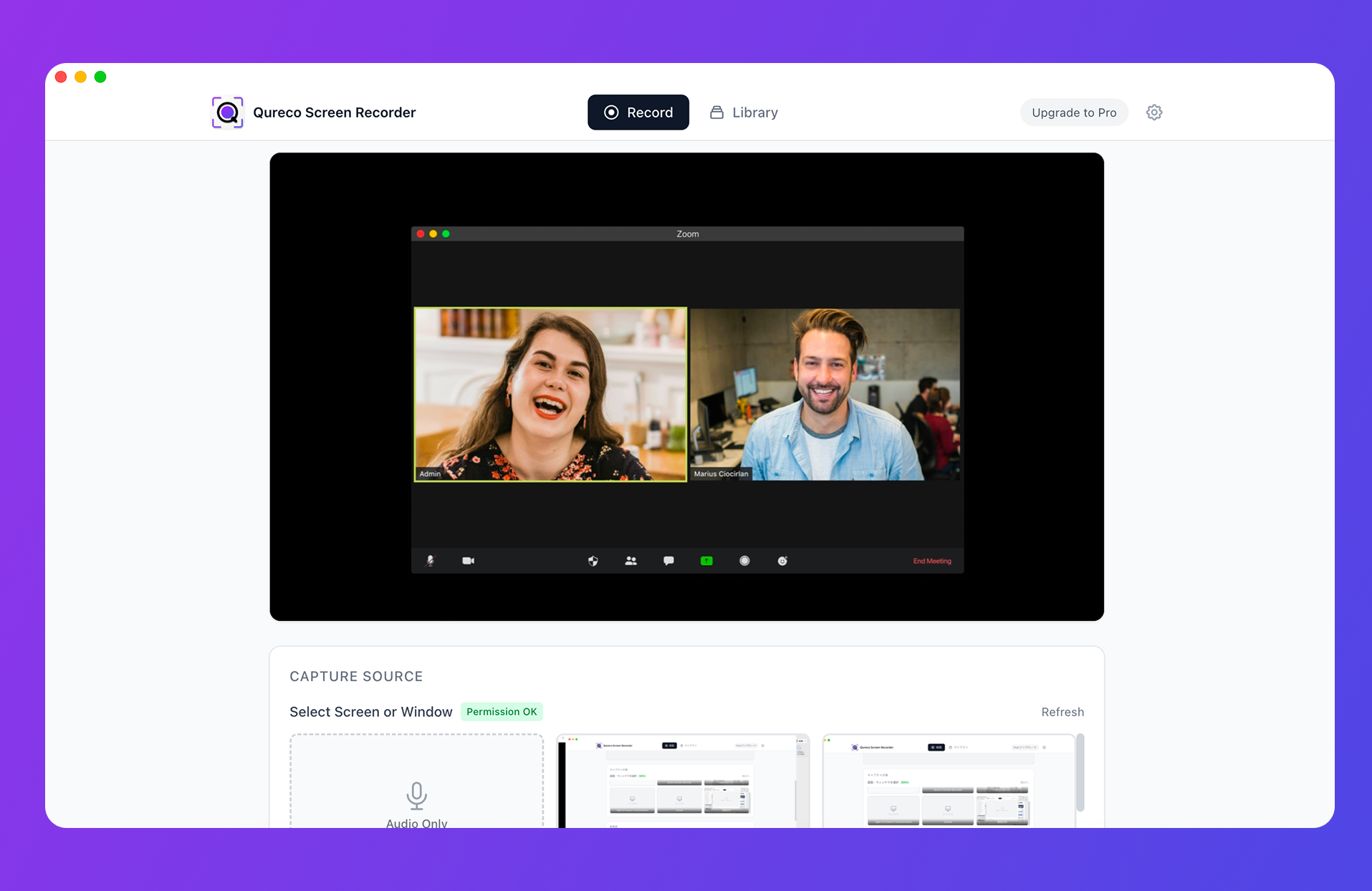
Four things that matter for training videos:
- Captures system audio + mic together: the audio from videos or music embedded in your slides and your own narration land in one recording. Just flip the toggles on.
- Free and watermark-free: no logo even on the free plan, so you can hand it straight to learners.
- Unlimited recording time: long training sessions won't get cut off.
- Full screen / single window, with resolution options: record just your slides cleanly, or drop the resolution to keep file size down.
"Make your slides full-screen, switch on mic and system audio, hit record." For a training video, that's the entire recording step.
A little post-production raises the quality
Recording isn't the finish line — it's where turning it into real courseware begins. One extra step lifts the value of the same video.
Turn the transcript into a script, captions, and a text version
- Clean up the narration script: transcribe what you recorded off the cuff and reuse it as the script for video #2.
- Caption draft: polish the transcript into captions so learners who can't play audio still get the content.
- Text version of the material: distribute the key points as a readable doc for people who don't have time to watch.
When both video and text exist, your training material feels far more complete.
Centralize materials and knowledge in Notion
The biggest in-house win: you can re-record and swap anytime
Summary: record your first one today, on your Mac
Training and eLearning videos only need slides plus voice. If the agency quote stopped you, just record one video on the Mac in front of you.
- What you're conveying is "your slides and your voice." No fancy production needed.
- The in-house hurdle is recording. The Mac built-in tools stumble on embedded-video audio (system audio).
- Choose a recorder by four criteria: no setup, system audio + mic, no watermark, unlimited time.
- Afterward, use the transcript to spin off a script, captions, and a text version to raise quality.
You don't need perfection. Start with one 10-minute, single-topic video and in-house production starts to run on its own. Qureco is free, watermark-free, and needs no setup — a perfect place to practice that first video. As prep for your next training session, just record one.
Qureco Screen Recorder
Powerful screen recording app for Mac
Record meetings, let AI handle the notes, just read what arrives in Notion.
Try all features free for the first two weeks.