You recorded the meeting — or thought you did — and now the file is nowhere in the save folder. Or worse, the record button wouldn't even respond and an error popped up. When you've promised to share the minutes by tomorrow and the recording is gone, that sinking feeling is familiar to anyone who works remotely.
First, a 3-minute triage: which type is yours?
The cause and the fix depend entirely on the symptom. Find yours in the table below and jump to that section.
| Your symptom | Likely cause | Go to |
|---|---|---|
| You recorded, but there's no file in the save folder | Wrong location / recording never started / conversion incomplete | Type A |
| The record button won't respond, or you got a permission error | Participants don't have recording rights (host-controlled) | Type B |
| You recorded to the cloud, but can't view it / it's gone | Cloud storage limit / plan or connection issue | Type C |
Type A: You recorded, but the file isn't in the save folder
Check the local recording location (Mac / Windows)
/Users/[username]/Documents/Zoom (the "Zoom" folder inside Documents). On Windows, it's the Zoom folder inside Documents.The reliable way is to check from the Zoom app:
- In the Zoom desktop client, click your profile picture → Settings
- Open Recording
- Click Open next to "Local Recording" to reveal the folder
The "recording never actually started" case
Surprisingly common: you meant to start recording, but it didn't run. While recording, Zoom shows a "Recording…" indicator in the top-left of the screen. Try to recall whether that indicator appeared and whether you pressed stop. If it never showed, the file simply wasn't created.
Conversion is stuck (double_click_to_convert)
double_click_to_convert_01.zoom in the folder.Double-click that file to restart the conversion manually. If it still won't process, update Zoom to the latest version and try again.
Type B: The record button won't work, or you get a permission error
If you saw "Please ask the host to grant you permission to record," the cause is clear.
What "ask the host for permission" really means
What you can do on the spot
To record right away, you have two routes:
- As a participant: Click the record button to send a request to the host, and have them approve it
- As the host: Select the participant in the list and enable "Allow Record." To set it up beforehand, turn on "Hosts can give participants permission to record locally" in the Zoom web portal settings
Note that local recording is a desktop-client-only feature — it isn't available on the phone or tablet apps.
When asking the host every time isn't realistic
Type C: Your cloud recording is missing or won't play
The 5GB cloud limit
The fix is to either (1) delete old recordings to free space, or (2) purchase additional cloud storage. When you "recorded but can't view it," check your cloud usage first.
Plan, connection, and version issues
- Free plans can't use cloud recording (local only). Thinking you recorded to the cloud when you actually couldn't is exactly this case
- If your network drops mid-meeting, the recording data may not be generated correctly
- An outdated Zoom app can fail to save properly — update to the latest version
Don't rely on the cloud quota alone
The more variables you add — cloud capacity, license, connection — the more often "it should be recorded" falls apart. If you want a reliable copy in hand, keep a local or external recording method alongside Zoom so you're not dependent on the cloud quota.
How to record reliably from now on — without worrying about permissions or storage
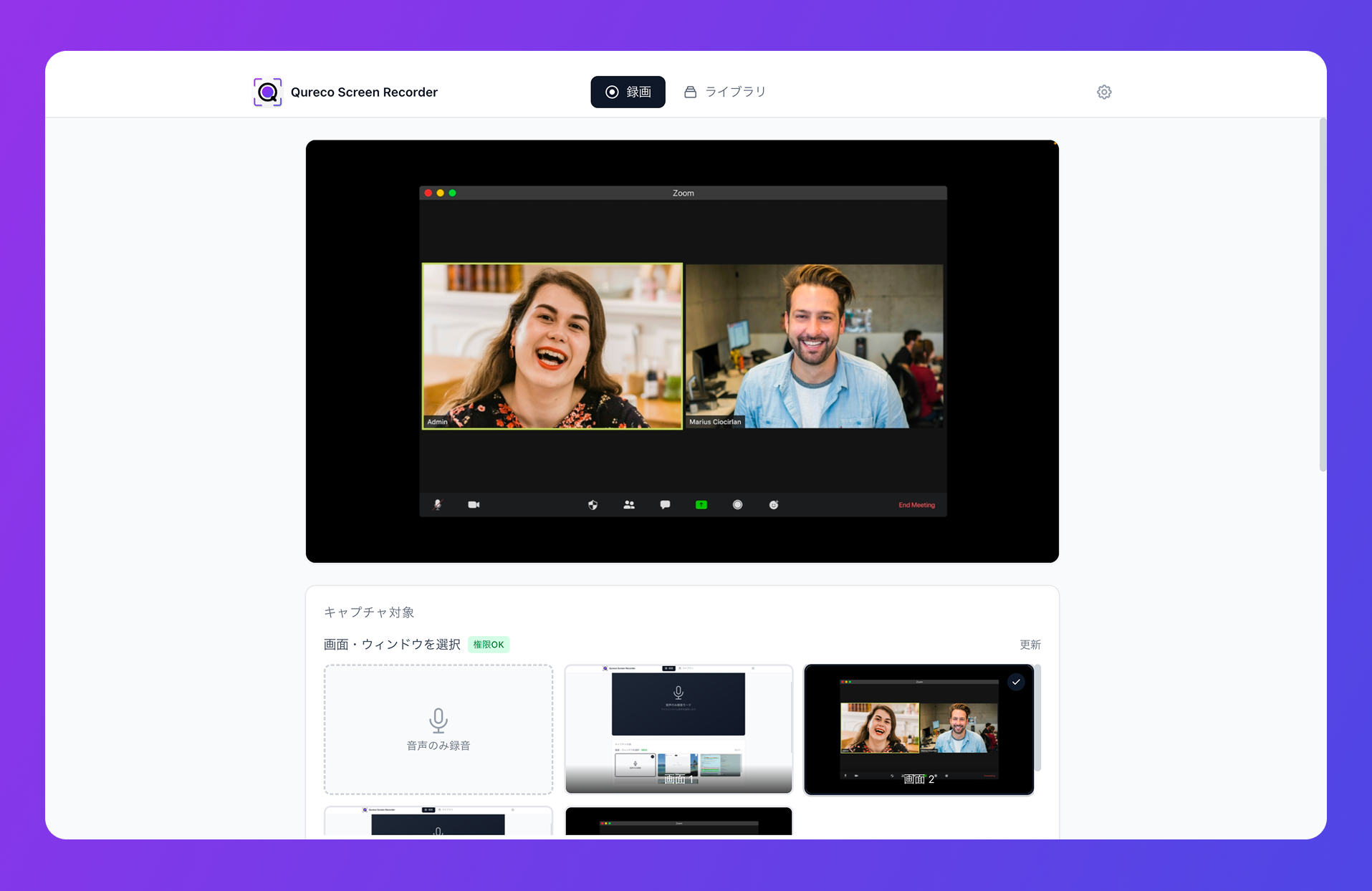
Mapped against the Zoom problems above:
| Where Zoom got stuck | Recording on your own Mac |
|---|---|
| The host won't grant recording permission | Records regardless of permissions |
| 5GB cloud limit blocks or loses the file | Saves locally; Pro auto-saves to 30GB cloud too |
| Free plan has no cloud recording | Records regardless of plan |
| Tripped up by the record button or conversion | One record button (unlimited time, no watermark) |
Summary: making sure "I can't find it" never happens again
The key points:
- Missing from the save folder (Type A): Check the location (Mac:
Documents/Zoom) → confirm recording actually started → re-convertdouble_click_to_convert - Button won't work / permission error (Type B): Participants have no recording rights by design. Ask the host, or record on your own device
- Disappears from the cloud (Type C): The 5GB limit, free plans, and connection drops are the usual causes. Check usage and don't rely on Zoom's cloud alone
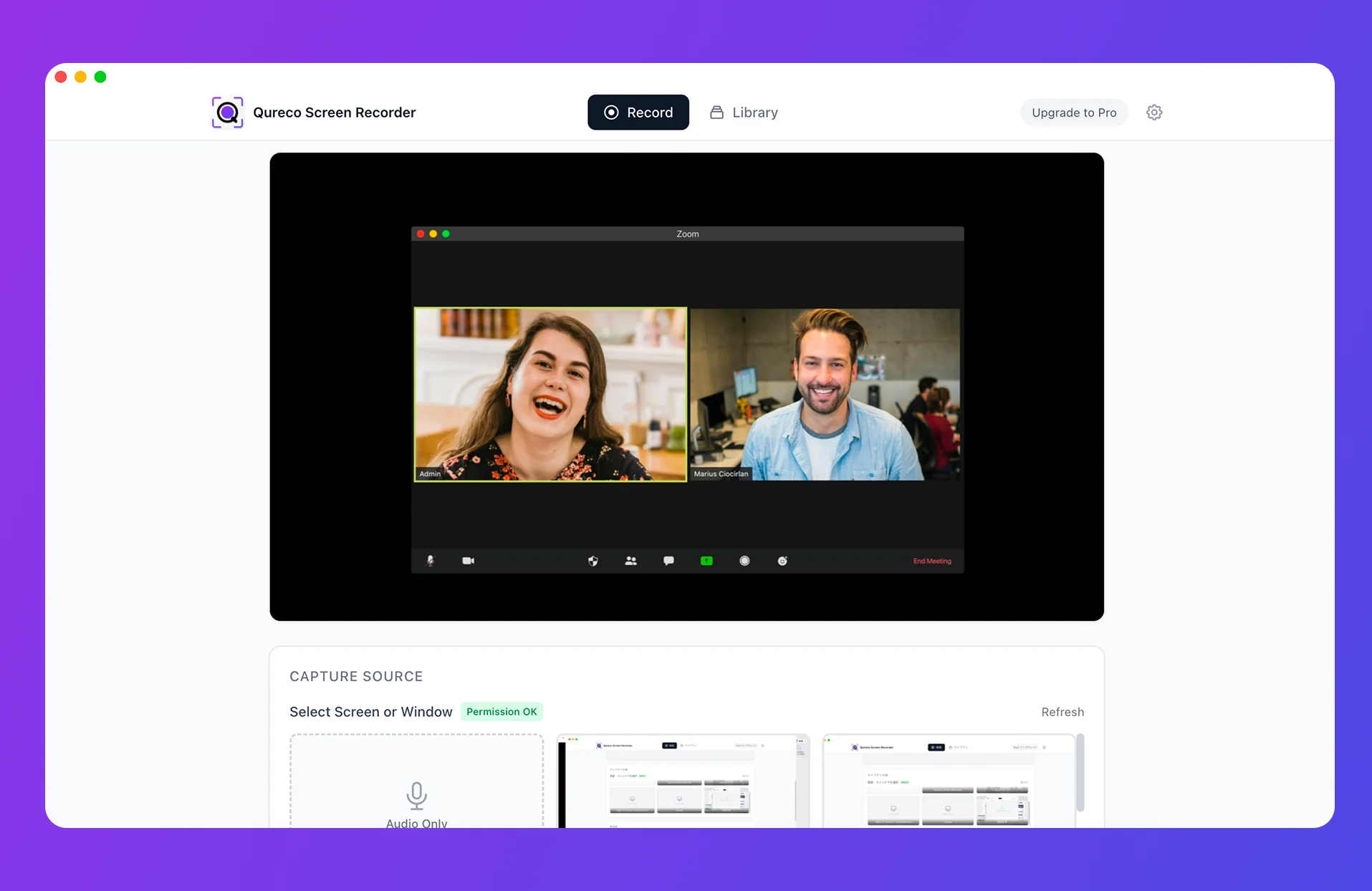
Once you've recovered this recording, the next step is escaping the "did it actually record?" anxiety for good. Record on your own Mac and your meetings stay reliably in hand — no host permissions, no cloud limits. With Qureco, a single afternoon meeting is enough to feel out the flow from recording to Notion.

Qureco Screen Recorder
Powerful screen recording app for Mac
Record meetings, let AI handle the notes, just read what arrives in Notion.
Try all features free for the first two weeks.