You hit play, and it was silent.
The important meeting you thought you'd captured — the screen is right there, but the other person's voice is completely gone. Your next call is tomorrow morning, and you want to be sure that "this time it records" before then.
When a screen recording on your computer (Mac or Windows) comes out with no sound, the cause is usually tied to a specific symptom. Instead of randomly toggling settings, it's faster to first figure out which symptom you have, then check the causes from the top down. This article organizes the fixes by symptom for both Mac and Windows, and walks you all the way through the wall where most people get stuck: internal audio (the other person's voice and your PC's sound) that won't record.
If You Just Want Internal Audio Recorded on Mac With Zero Setup, Use Qureco
Let's start with the bottom line: if you want a Mac that "just records reliably without fiddling with settings before your next meeting," the fastest route is an app that records internal audio natively. Qureco is a screen recording app for macOS that captures both internal audio (the other person's voice and your PC's sound) and your microphone — with no virtual audio driver setup. It's designed to work the moment installation finishes, so you're free from the "I might not be ready in time" panic.
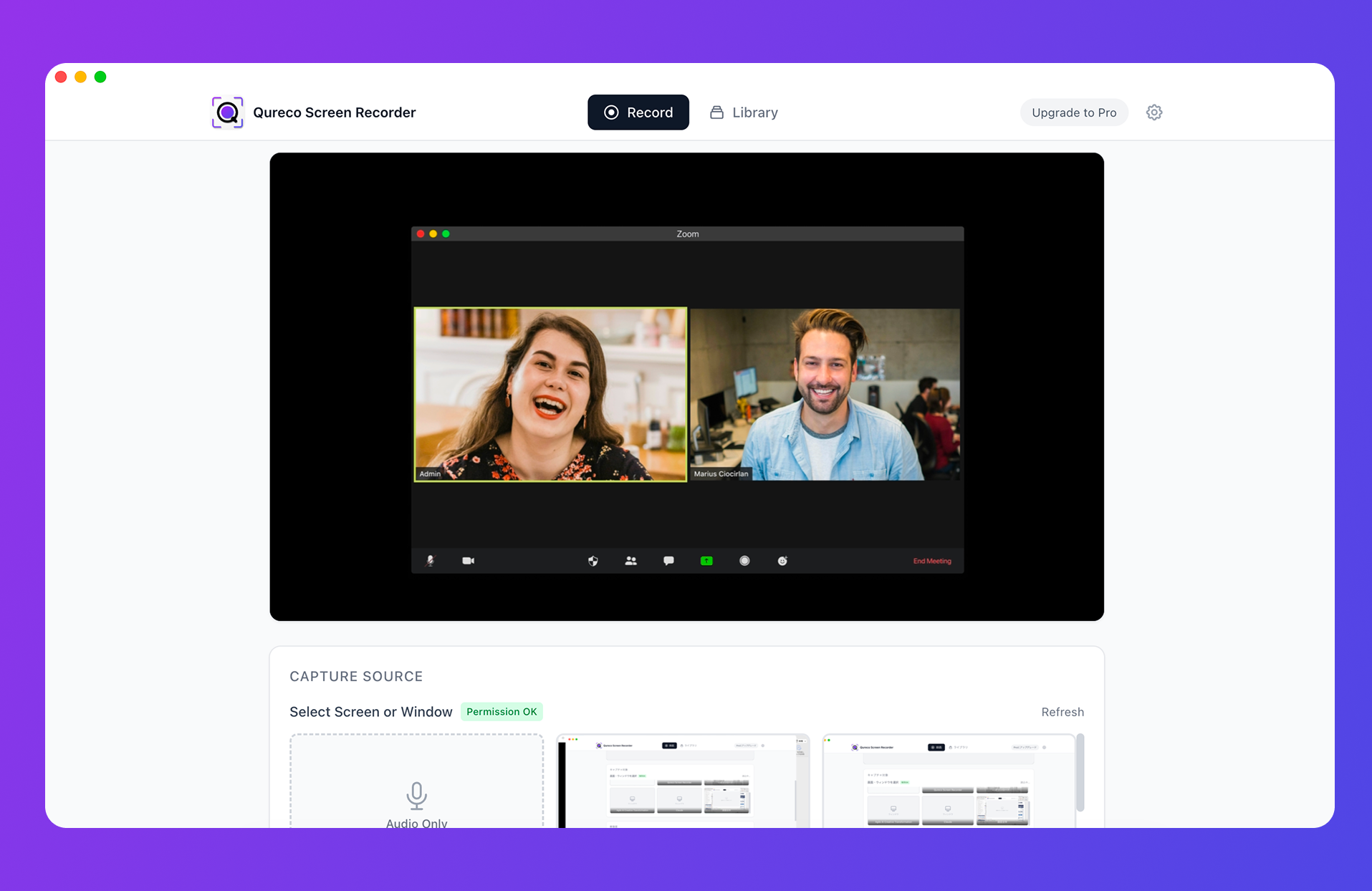
Why you won't get lost in settings
- Internal audio recording works right after install: no BlackHole or other virtual audio driver, no Audio MIDI Setup
- Mic / system audio toggles live in the UI: each has a level meter, so you can confirm the sound is being picked up before you record
- Free, with no time limit and no watermark: try it casually, and walk away if it's not for you
No headaches after recording, either
For meeting recordings, the hardest part is often what comes after — writing the minutes. With Qureco's Pro plan, you can automate:
- AI that generates meeting minutes automatically from the recording
- Customizable minutes templates so every set of notes follows the same format
- One-click export of the finished minutes to Notion
It's end to end — not "record and you're done," but "turn what you recorded into an asset." The Pro plan is free for the first month, no credit card required.
If your computer is Windows, see the Windows-specific fixes noted under each cause below (Game Bar, Stereo Mix, OBS, and so on).
Start Here: The Symptom Lookup Table
"No sound" actually covers several very different symptoms. First, get a rough sense of which one is yours.
| Your symptom | Likely cause | Fix |
|---|---|---|
| Neither your voice nor the other person's is recorded | The mic is "off" in your recording tool | Cause 1 |
| Pressing record does nothing / you're stuck on a permission prompt | The OS hasn't granted mic / screen recording permission | Cause 2 |
| Your voice records, but sound coming from the PC (the other person, video audio) doesn't | "Internal audio" can't be captured structurally | Cause 3 |
| It recorded fine until yesterday, then suddenly went silent today | The input/output device selection has shifted | Cause 4 |
| Settings look on, but somehow it won't record | The audio track in the app/tool is disabled | Cause 5 |
Of these, the third (internal audio) is where the most people get stuck. Let's go through them in order.
Cause 1 | The Mic Is "Off" in Your Recording Tool (Most Common)
The most frequent issue is that "use the microphone" is turned off in the recording tool. It happens a lot to people who only ever learned the "start recording" shortcut and never once opened the options screen.
On Mac (Shift+Command+5)
The Mac's built-in screenshot toolbar defaults to "no microphone."

- Press
Shift + Command + 5to show the toolbar - Click "Options"
- Under "Microphone," select the built-in mic or the external mic you want to use
That's enough to start capturing mic audio. Always confirm that the volume level meter next to the record button responds.
On Windows (Xbox Game Bar)
Windows' built-in Xbox Game Bar has a slightly mean default. "Audio to record" defaults to "Game" only, so audio from work apps or your browser won't record as-is.
- Press
Windows + Gto open Xbox Game Bar - Open "Settings" → "Capturing"
- Change "Audio to record" to "All"
- If you also want your mic, turn on "Mic" in the capture widget
This one move widens what gets recorded beyond just games.
Checkpoint
Before you press record, always watch whether the level meter responds. If you're talking or playing music and the meter doesn't move, the recording will be silent. Noticing only after you've recorded is the most painful outcome, so building the habit of a quick check here cuts accidents dramatically.
Cause 2 | The OS Hasn't Granted Mic / Screen Recording Permission
Modern operating systems grant "may use the mic" and "may record the screen" separately, per app. Even when it looks on, a permission you just toggled may not take effect until the app restarts.
On macOS
System Settings → Privacy & Security and confirm both:- Microphone: check the app you're using
- Screen Recording: check the app you're using
After checking the box, the trick is to fully quit the app and relaunch it. On macOS Sequoia and later, a dialog re-confirms screen recording permission once a month — if you keep hitting "Later," recording won't work properly.
On Windows
Settings → Privacy & Security → Microphone and turn on both:- "Let apps access your microphone"
- "Let desktop apps access your microphone"
Some software like OBS counts as a "desktop app," so if the lower option is off, it can't pick up the mic.
Cause 3 | You're Trying to Record "Internal Audio" (The Real Issue)
This is the wall where most people lose time.
Why the Mac's built-in features can't record the PC's sound
Shift + Command + 5 and QuickTime Player only record sound coming in through the mic input. There's no built-in route to grab the sound playing from the speakers (as of 2026, this hasn't changed even on macOS Sequoia).There are two main solutions.
Solution A: Install a virtual audio driver (BlackHole)
- Install BlackHole
- Open "Audio MIDI Setup" on macOS
- Create a "Multi-Output Device" and check both your built-in speakers and BlackHole
- Switch your system's audio output to that multi-output device
- Set your recording app's mic (input) to BlackHole
Only after all this can your PC's sound be recorded. On top of that, system volume is fixed while recording, and switching to a different audio device means rebuilding the setup — there are operational quirks. Think of it as "you have to pay a little attention every time you record," not "set it once and forget it."
Solution B: Switch to an app that records internal audio natively
If you want to avoid the virtual audio hassle, you can use an app that records internal audio natively. These let you handle mic audio and system audio as separate on/off toggles, with no setup after install (Qureco, mentioned at the top, is this type).
For people who "want it fixed before the next meeting" or who record frequently, this pays off better in time cost.
On Windows (Stereo Mix)
Windows often ships with a "Stereo Mix" feature that records internal audio, so the bar for internal audio recording is lower than on Mac.
- Right-click the speaker icon in the taskbar → "Sound settings"
- Open "More sound settings" → the "Recording" tab
- Right-click an empty area and enable "Show Disabled Devices"
- If "Stereo Mix" appears, right-click it and choose "Enable"
- Select "Stereo Mix" as the input device in your recording app
Some PCs don't show Stereo Mix in the list. In that case, update your sound card driver, or use OBS Studio's "Audio Output Capture" to grab internal audio. In OBS, add "Audio Output Capture (Desktop Audio)" and "Audio Input Capture (Mic)" as separate sources, and confirm the level meters respond in the mixer.
Cause 4 | The Input/Output Device Isn't What You Think
"It recorded fine until yesterday, then suddenly no sound today" — this pattern is usually the input/output device selection quietly switching to something else.
It's especially likely to happen when you:
- Plug or unplug a headset for a meeting
- Pair Bluetooth earbuds with another device
- Connect an external display via HDMI
In the HDMI case, audio output can switch to the display on its own, so no sound comes out of the built-in speakers — and the recording goes there too.
Mac
System Settings → Sound and confirm the right device is selected under both "Output" and "Input." It's most reliable to also explicitly re-select the input device inside your recording app.Windows
Settings → Sound.Cause 5 | The Audio Track Is Disabled in the App or Tool
Even when both the OS and the recording tool are on, the audio track may be off in a specific app's settings. Each tool has its own "gotcha," so check the one you're using.
- QuickTime Player (Mac): Click the "∨" next to the record button in "File" → "New Screen Recording" to reveal the mic options. If it's set to "None," change it. Note that QuickTime also can't record system audio by default — to capture the other person's voice, see Cause 3.
- OBS Studio (Mac/Windows): Confirm that "Audio Input Capture" and "Audio Output Capture" are added under Sources, and that the level meters respond in the mixer. Also check that individual tracks aren't muted.
- PowerPoint slide recording: Before recording, confirm the "Microphone" icon is on. Narration may record while audio from a video embedded in a slide (system audio) is handled separately.
- Online meeting app recording (Zoom, etc.): Some apps offer options to save your audio, other participants' audio, and system audio as separate tracks. Make sure "save audio when recording" isn't disabled.
When Setup Keeps Failing, Switching Tools Is the Shortest Path
Most readers who've made it this far probably solved it around "turn the mic on" or "OS permissions." But a certain number of people get stuck on Cause 3 — internal audio.
Virtual audio setup is free, yes, but operational costs quietly pile up:
- The work of building a multi-output device in Audio MIDI Setup (Mac)
- Switching the audio output destination every time you record
- Rebuilding it all when you switch to a different headset
For people who record frequently, doing this every single time is honestly draining.
More than "can it record at all," the real goal is "a state where it records reliably before the next meeting, without you having to think." If holding out on settings stops being worth the time, switching from the start to an app that records audio inclusively (like Qureco, mentioned at the top) ends up being the fastest path — and that's worth considering.
Frequently Asked Questions
If I install BlackHole, I can record internal audio for free, right?
Yes, it's technically possible. But it comes with ongoing hassle — building a multi-output device in Audio MIDI Setup, switching the output destination for each recording, and so on. If you record a few times a month, it's a fine free option; if you record weekly or daily, it's worth reconsidering whether that time cost is worth it.
Is it true that macOS Sequoia records internal audio without a virtual driver?
Shift + Command + 5 or QuickTime) still don't provide a route to record internal audio. What Sequoia added is a monthly dialog re-confirming screen recording permission — internal audio recording itself wasn't unlocked.Can Windows record internal audio? Can I use Qureco?
Windows often has Stereo Mix, so try enabling that first (see Cause 3). If it doesn't appear, OBS Studio's "Audio Output Capture" is reliable. Note that Qureco is currently macOS-only, so use these methods on Windows.
What if the recorded audio cuts out or has noise?
Typical causes are another app holding the same mic, a sample-rate mismatch between the app and OS, or excessive CPU load. Quitting other online meeting apps and voice chats before recording, and temporarily turning off noise-suppression software, often improves it.
After I record, can it generate minutes automatically?
For meeting recordings, most people want to go beyond recording to producing minutes. Qureco's Pro plan generates minutes automatically from the recording with AI and exports them straight to Notion. It removes the manual transcribe-and-summarize step entirely, so you can also erase the work that comes after "I got the audio."
Summary | Check by Symptom; If Internal Audio Blocks You, Switch Tools
The causes of "screen recording has no sound" on a computer boil down to five:
- The mic is "off" in your recording tool
- The OS hasn't granted mic / screen recording permission
- You're trying to record "internal audio" (the other person's voice, the PC's sound) — a structural limit
- The input/output device has shifted
- The audio track in the app/tool is disabled
Causes 1, 2, 4, and 5 are solvable by almost everyone with a settings review. Most people will succeed on the next recording just from reading this far.
The problem is Cause 3 — hitting the internal audio wall. On Mac you can hold out with virtual audio (BlackHole, etc.); on Windows you have Stereo Mix or OBS. But if you record frequently, switching from the start to an app that records audio inclusively ends up easier. "Rather than getting stuck on settings over and over, own a setup that just records without thinking" is a pretty important mindset for the long haul.
Here's hoping tomorrow's meeting isn't another "I hit play and it was silent" like today's — and that your next recording is saved with exactly the sound you expected.
Qureco Screen Recorder
Powerful screen recording app for Mac
Record meetings, let AI handle the notes, just read what arrives in Notion.
Try all features free for the first month.