You open Google Meet and there's no record button anywhere on the screen. You're sure the other side has Workspace, but the button still doesn't show up for you.
Why the Google Meet record button isn't on your screen
- Condition 1 — a paid Google Workspace plan: Business Standard, Business Plus, Enterprise (all tiers), Workspace Individual, or Teaching and Learning Upgrade
- Condition 2 — same organization as the organizer: As a guest joining from an external domain, you don't get recording rights even if your own domain happens to be on Business Plus
- Condition 3 — the Workspace admin has enabled recording: At the org level, the recording policy has to be turned on. Without that, even same-org users have no record button
Three patterns where "I have Workspace" doesn't help
The most common dead-ends in real work:
Pattern 1: Your domain is on Business Starter
A common mid-sized-company situation: cost considerations land everyone on Business Starter, which doesn't include recording. Whether you're the host or a participant, the button isn't there at the org level. Without an upgrade to Business Standard or higher, Meet's built-in recording is off the table entirely.
Pattern 2: You're on Workspace Individual or personal Gmail
Pattern 3: You're an invited guest in the organizer's Workspace
A common misunderstanding: "I'm invited into their Workspace, so I count as an org member." Guest invitations don't count as full org membership. Most org-level features — recording, transcription, breakout rooms with recording — stay off.
In all three patterns, the "if I have a plan I can record" assumption falls apart on contact with reality.
Option 1 — Ask the host (with Meet-specific caveats)
The first move worth trying is asking the host directly. Have one 5-second template ready:
"I'd like to share clean notes with my team afterward — okay if I record this one?"
A few variations for different contexts:
- Customer meeting: "Just so I can take accurate notes and tighten up the follow-up, mind if I record?"
- Vendor / partner meeting: "I'd like to share the call back with my team for context — okay to record?"
- Cross-team sync: "Recording so the people who couldn't make it can catch up — any objections?"
In Meet specifically, even an agreeable host might not be able to start recording right away:
- The host's account is on Business Starter — recording isn't on the account at all
- The org's Workspace admin doesn't have recording enabled, and it can't be flipped on mid-call
- The recording lands in the host org's Drive (the Meet Recordings folder), so sharing it with an external guest requires an extra step
"Just ask" doesn't always resolve cleanly in Meet. That's where Option 2 comes in.
Option 2 — Record Google Meet from your own Mac
Recording on your own device sidesteps the other side's plan, organization, and admin policy in a single move. It's the most universal answer.
With that as the baseline, two real approaches on Mac.
QuickTime Player's built-in screen recording
QuickTime ships with a screen recorder:
- Open QuickTime Player
- File → New Screen Recording
- Pick a recording area and hit record
Capturing internal audio means dealing with virtual audio drivers
- Install BlackHole (Homebrew or the official installer)
- Open Audio MIDI Setup and create a Multi-Output Device
- Route audio to both BlackHole and your normal speakers
- Set QuickTime's audio input to BlackHole
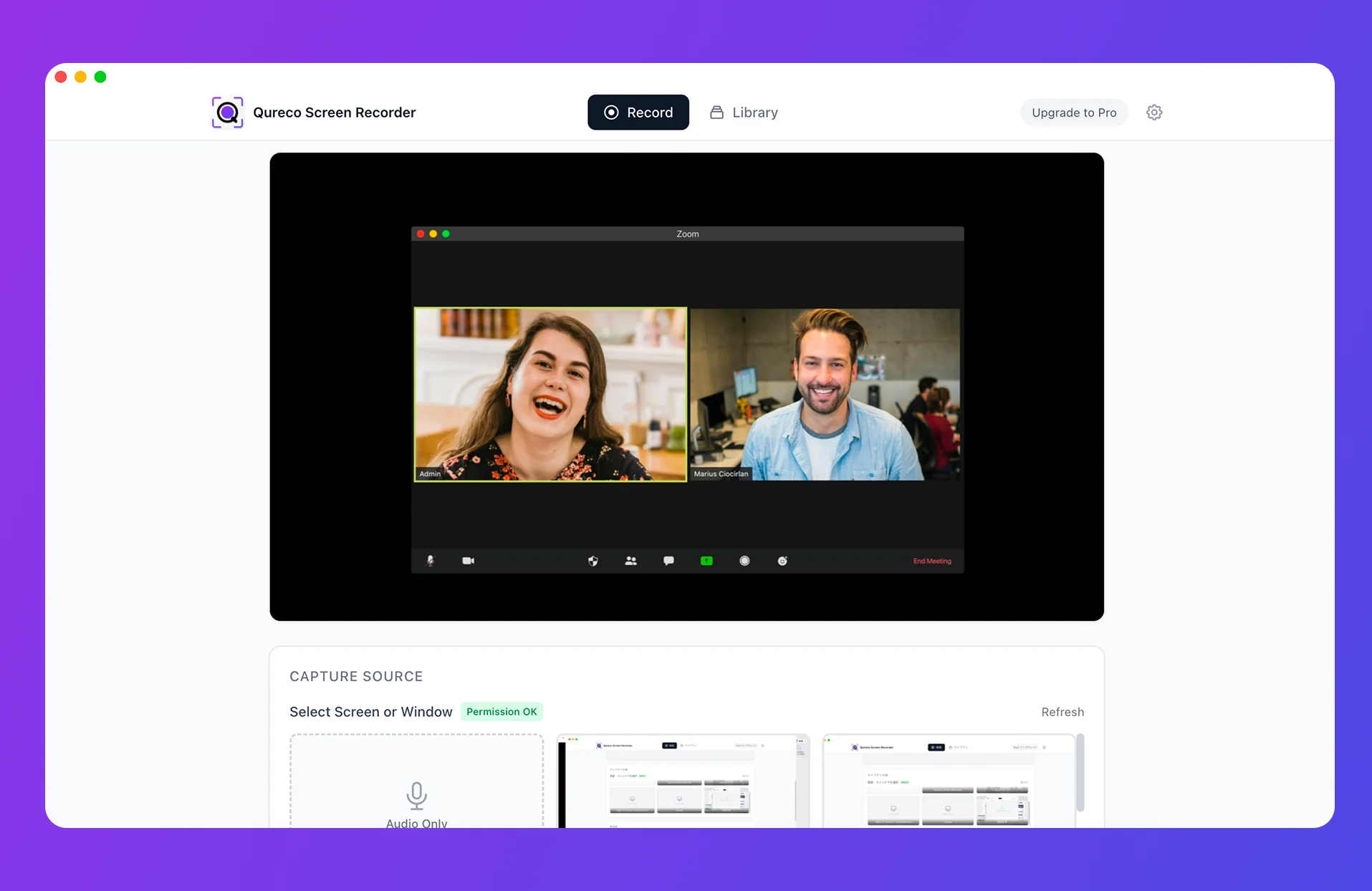
A Mac app that skips the virtual audio setup: Qureco
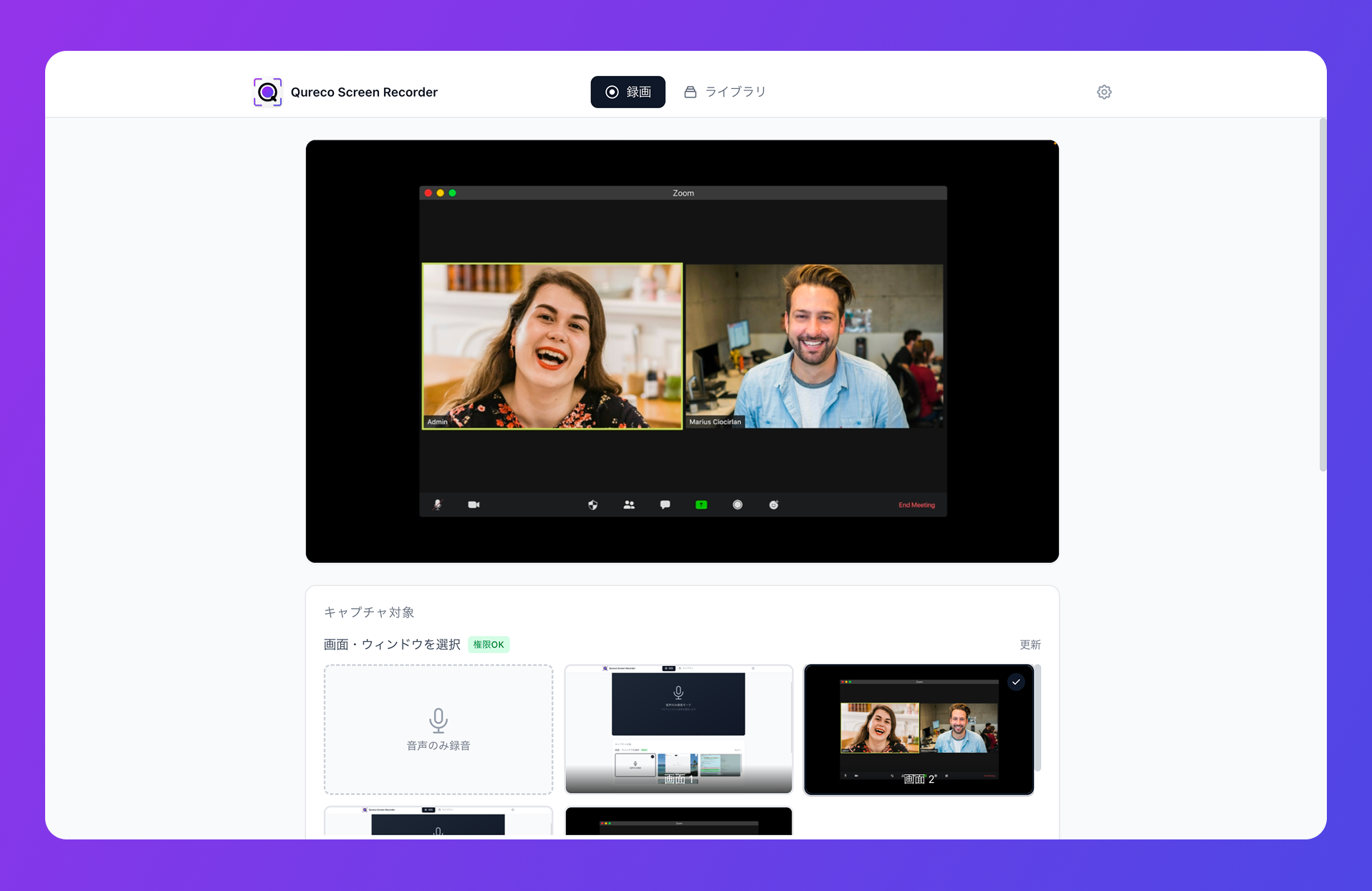
Quick highlights:
- Captures internal audio with zero virtual-audio configuration
- Unlimited recording time, no watermark, even on the free tier
- Recording happens on your Mac, so the Meet participant view stays silent
- Works regardless of the organizer's domain or Workspace plan
Free to download. The recorder itself is free for as long as you want to use it.
From Meet recording to AI notes in Notion — without a bot
Three broad approaches:
| Approach | Examples | Strengths | Weaknesses |
|---|---|---|---|
| Bot attendee | tl;dv, Otter, Notta, Fireflies | Polished SaaS, speaker ID | A bot shows up in the participant list — guests often can't invite one |
| Upload after the fact | ChatGPT, standalone transcription tools | Works from any audio file | You still do record → upload → cleanup → save by hand |
| Native recorder + AI | Qureco | No bot, recording and notes in one app | macOS only today |
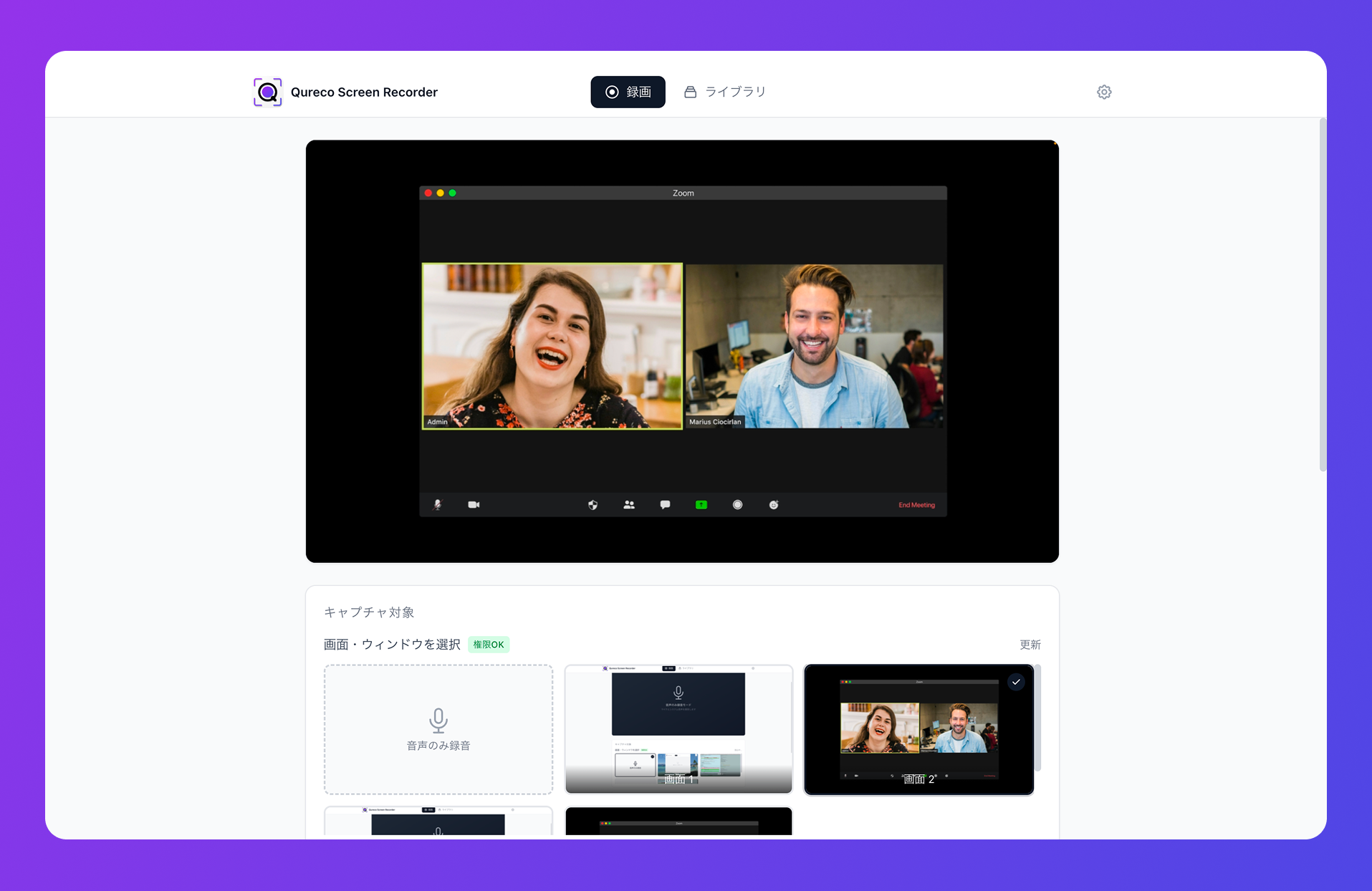
The flow:
- Hit record in Qureco before the call (menu bar or
Cmd + Shift + R) - Run the Meet call as usual — nothing shows on the participant view
- After the call, generate AI notes from the recording library
- Pick a connected Notion workspace and database, save in one click
FAQ
Does everyone get a "recording" notification when Meet records?
Yes — Meet's built-in recording notifies all participants ("This meeting is being recorded"). With a Mac-side app (QuickTime, Qureco), Meet has no way to detect that anything is happening, so no notification fires. That's exactly why leading with consent ("Heads up, I'll be recording for our notes") at the start matters: the platform doesn't signal it for you.
The host has Business Plus — doesn't that mean I can record too?
I heard Workspace Individual includes recording — doesn't that help?
My Mac is filling up with Meet recordings — what do I do?
Meet recordings range from a few hundred MB to around 1 GB per hour. A few calls a week and your internal SSD is hurting fast. Two practical options:
- Pick a tool with cloud storage built in (Qureco's Pro plan includes 30 GB)
- Organize recordings by client or project, and run a monthly cleanup of anything older than 60–90 days
Can the host see if I'm recording on my Mac?
No. From the host's side, you're just a normal participant. There's no notification, no badge in the participant list, no log entry on Meet's side. The only signal is whatever you tell them at the start — which is exactly why we recommend doing that explicitly.
Will recording impact Meet call quality?
In practice, no. On Apple Silicon Macs, 1080p screen recording with system audio uses a few percent of CPU. On older Intel Macs you might notice a slight bump in fan noise during long calls, but call quality itself stays stable.
Wrap-up — Meet's "plan and org wall" is solvable from your Mac
To recap:
- Google Meet recording requires all three of: a Business Standard+ plan, same-org membership as the organizer, and an enabled admin policy
- External guests can't record even if either side is paying for a high-tier plan
- First, try asking with a 5-second script — most hosts say yes if you lead with the purpose
- When that doesn't work, record from your own Mac — it sidesteps Meet's permission model entirely
- QuickTime works for video, but you need virtual audio (BlackHole) to capture the other side
- A purpose-built Mac app like Qureco skips that setup and ignores Meet's plan/org rules
- To make recordings actually useful, record → AI notes → Notion without a bot is the realistic workflow
Next time the record button isn't there in Meet, you don't have to push the other side's domain or admin policy. Have a Mac-side capture in place by default — and the problem disappears.
Qureco Screen Recorder
Powerful screen recording app for Mac
Record meetings, let AI handle the notes, just read what arrives in Notion.
Try all features free for the first two weeks.