You open Microsoft Teams and there's no record button. Your company is paying for Microsoft 365, but you can't record an externally-hosted Teams call. The license you assumed would unlock everything turns out to do exactly nothing here.
Why the Teams record button isn't on your screen
- Condition 1 — a paid Microsoft 365 / Office 365 license: Office 365 Enterprise E1 / E3 / E5, Microsoft 365 Business Standard / Premium, and certain other SKUs
- Condition 2 — an IT admin must have enabled the recording policy: Without that, even a licensed user has no record button
- Condition 3 — same organization as the organizer: Guests, anonymous users, and users from other tenants are structurally hidden from the button
The button only appears once all three are satisfied. In customer or partner-hosted Teams calls, at least one of them almost always fails — usually the third.
Three patterns where "but we pay for M365" doesn't help
The common dead-ends:
Pattern 1: You have the license, but IT has the policy turned off
In security-conscious organizations, Teams recording is often disabled at the org level to limit data leakage risk. Even if your account is on E5 or Business Premium, if the recording policy is OFF the button doesn't appear. And turning it on isn't something you can do without IT — it's a Teams admin center setting that lives behind change-control in most enterprises.
Pattern 2: You have M365, but you're a guest in the other side's tenant
Pattern 3: The recording file is owned by the organizer (not you)
All three patterns break the "we pay for M365, so we can record" assumption.
Option 1 — Ask the host (with Teams-specific caveats)
The first move worth trying is asking the host directly. Have one 5-second template ready:
"I'd like to share clean notes with my team afterward — okay if I record this one?"
A few variations for different stakes:
- Customer call: "Just so I can take accurate notes and tighten up the follow-up, mind if I record?"
- Vendor or partner call: "I'd like to share the call back with my team for context — okay to record?"
- Cross-tenant internal: "Recording so the folks who couldn't make it can catch up — any objections?"
In Teams specifically, even an agreeable host can hit roadblocks:
- The host's org has the recording policy disabled, and it can't be flipped on mid-call
- After recording, the host has to: OneDrive save → generate an external sharing link → set permissions → send. That's not instant.
- Without Teams Premium / Copilot, granular delegation of recording rights isn't possible at all
"Just ask" doesn't always resolve cleanly in Teams. That's why Option 2 matters even more here than in Zoom or Meet.
Option 2 — Record Teams from your own Mac
Recording on your own device sidesteps the other side's license, policy, and tenant in a single move. It's the most universal answer.
With that as the baseline, two real approaches on Mac.
QuickTime Player's built-in screen recording
QuickTime ships with a screen recorder:
- Open QuickTime Player
- File → New Screen Recording
- Pick a recording area and hit record
Capturing internal audio means dealing with virtual audio drivers
- Install BlackHole (Homebrew or the official installer)
- Open Audio MIDI Setup and create a Multi-Output Device
- Route audio to both BlackHole and your normal speakers
- Set QuickTime's audio input to BlackHole
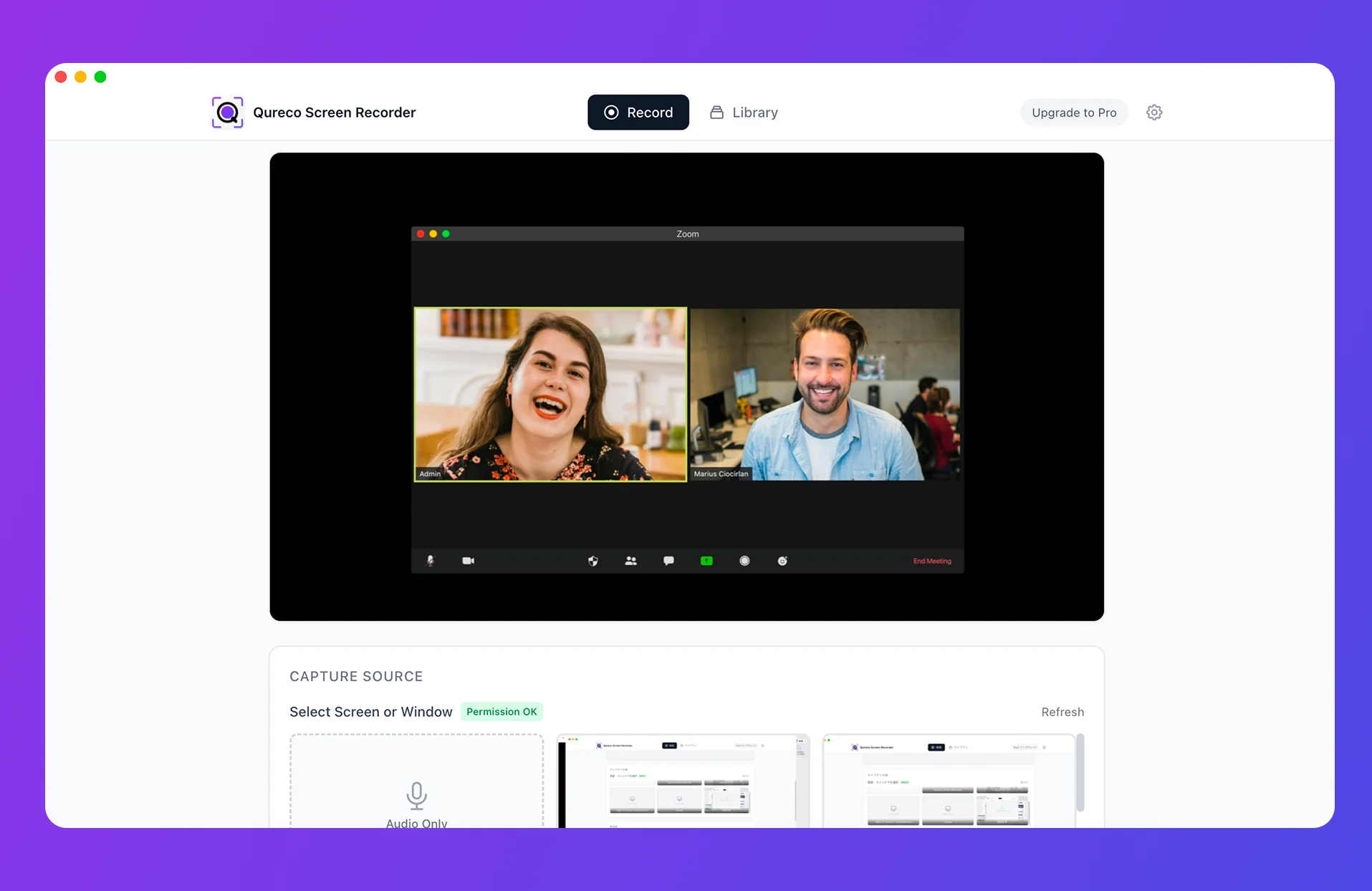
A Mac app that skips the virtual audio setup: Qureco
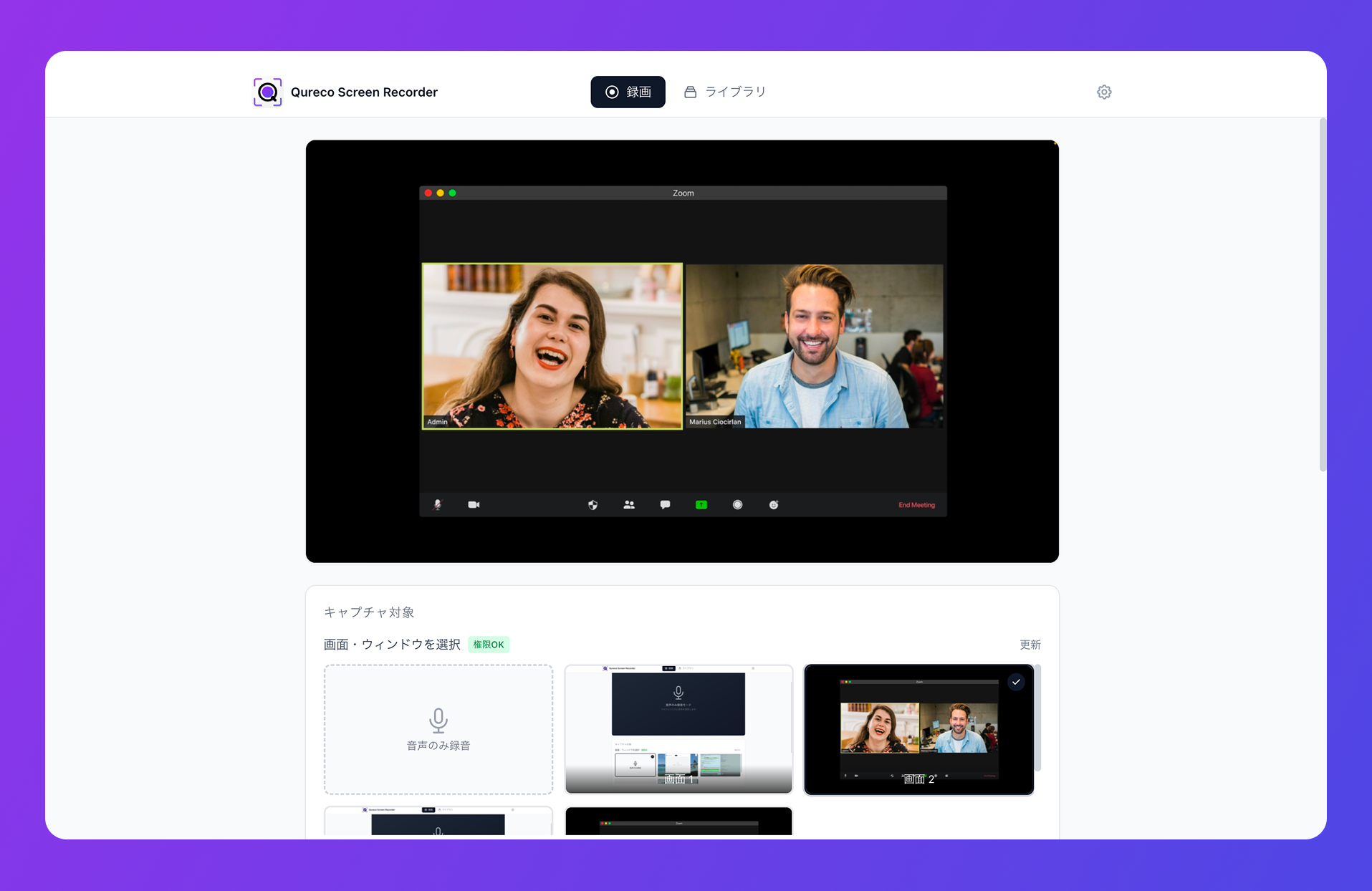
Quick highlights:
- Captures internal audio with zero virtual-audio configuration
- Unlimited recording time, no watermark, even on the free tier
- Recording happens on your Mac, so the Teams participant view stays silent
- Works regardless of the other side's license, admin policy, or tenant
- The recording file lives on your machine — no need to negotiate sharing settings with the organizer afterward
Free to download. The recorder itself is free for as long as you want to use it.
From Teams recording to AI notes in Notion — without a bot
Three broad approaches:
| Approach | Examples | Strengths | Weaknesses |
|---|---|---|---|
| Bot attendee | tl;dv, Otter, Notta, Fireflies | Polished SaaS, speaker ID | A bot shows up in the participant list — guests often can't invite one |
| Upload after the fact | ChatGPT, standalone transcription tools | Works from any audio file | You still do record → upload → cleanup → save by hand |
| Native recorder + AI | Qureco | No bot, recording and notes in one app | macOS only today |
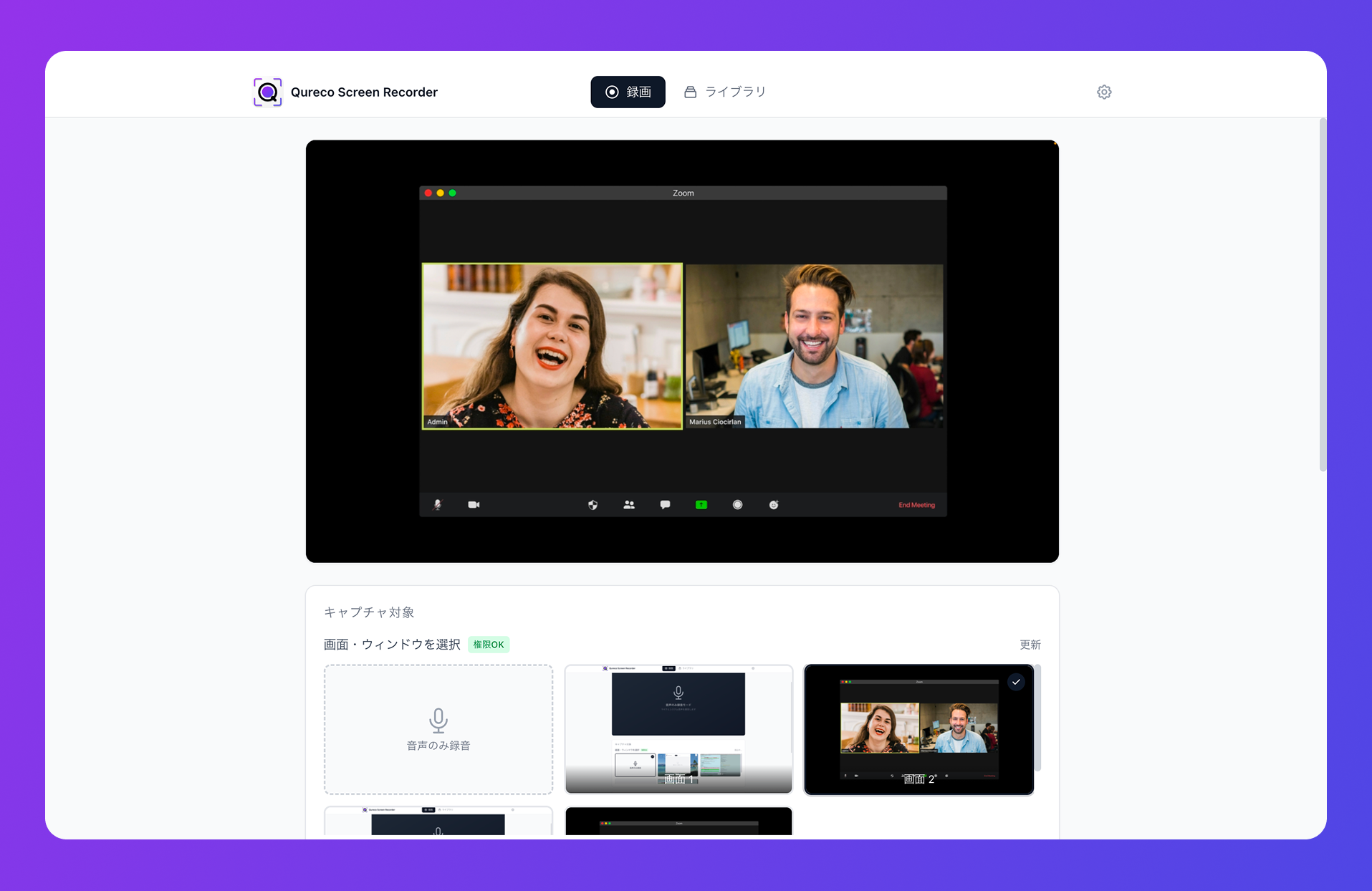
The flow:
- Hit record in Qureco before the call (menu bar or
Cmd + Shift + R) - Run the Teams call as usual — nothing shows on the participant view
- After the call, generate AI notes from the recording library
- Pick a connected Notion workspace and database, save in one click
FAQ
Does everyone get a "recording" notification when Teams records?
Yes — Teams' built-in recording shows a recording banner to all participants. With a Mac-side app (QuickTime, Qureco), Teams has no way to detect that anything is happening, so no banner fires. That's exactly why leading with consent ("Heads up, I'll be recording for our notes") at the top matters: the platform doesn't signal it for you.
If I have an M365 license, can I record externally-hosted Teams calls?
Does Teams Premium or Copilot change anything?
My Mac is filling up with Teams recordings — what do I do?
Teams recordings tend to be larger when screen-sharing is involved — roughly 800 MB to 1.2 GB per hour. A role that records several client calls a week won't survive long on local-only storage. Two practical options:
- Pick a tool with cloud storage built in (Qureco's Pro plan includes 30 GB)
- Organize recordings by client or project and run a weekly cleanup of anything you no longer need
Will recording from my Mac affect Teams' call quality?
In practice, no. On Apple Silicon Macs, 1080p screen recording with system audio uses a few percent of CPU at most. On older Intel machines you may notice slightly higher fan noise during long sessions, but the Teams call itself stays stable.
Can the host see if I'm recording on my Mac?
No. From the host's perspective, you're just a normal participant. There's no notification, no banner, no participant-list badge, no log entry in the Teams admin center. The only signal is whatever you tell them at the start — which, again, is the responsible move regardless.
Wrap-up — Teams' "three-condition wall" is solvable from your Mac
To recap:
- Teams recording requires a paid license + an enabled admin policy + same-org membership — all three, every time
- External guests can't record even if either party has high-tier licensing
- Recordings live in the organizer's OneDrive / SharePoint, and getting one shared externally depends entirely on the host
- First, try asking with a 5-second script — most reasonable hosts will say yes if you lead with the purpose
- When that doesn't work, record from your own Mac — it bypasses Teams' permission model entirely
- A purpose-built Mac app like Qureco skips virtual-audio setup and ignores Teams' three conditions
- To make recordings actually useful, record → AI notes → Notion without a bot is the realistic workflow
Next time the record button isn't there in Teams, you don't have to push the other side's licensing or admin policy. Have a Mac-side capture in place by default — and the problem disappears.

Qureco Screen Recorder
Powerful screen recording app for Mac
Record meetings, let AI handle the notes, just read what arrives in Notion.
Try all features free for the first two weeks.