Typing notes during a call is not keeping up, so you try voice typing in Google Docs. Thirty seconds in, you glance at the screen and the microphone has switched itself off. No punctuation either, just one long run-on line.
You did not do anything wrong. Stopping is how the feature works, and the missing punctuation is expected behavior outside English.
This article covers how to start voice typing, how to make it more accurate, what the limits are, and whether it can transcribe a meeting. The source for the specifics is Google's own documentation.
Getting voice typing started
Three steps
- Open your document in Chrome
- Go to Tools > Voice typing
- Click the microphone that appears, and talk
The first time, your browser asks for microphone permission. Decline it and the microphone button will not respond afterwards. If you blocked it by accident, the icon at the left of the address bar lets you change it back.
Where it works and where it does not
| Environment | Works? | Notes |
|---|---|---|
| Chrome on desktop | Yes | The most stable option |
| Edge and Safari (latest) | Yes | Switch to Chrome if behavior gets flaky |
| Mobile and tablet apps | Not this feature | You use the OS keyboard dictation instead |
| Offline | No | Recognition is processed over the network |
More than 100 languages are supported. All of this is free with any Google account.
Two limits worth knowing before you rely on it
Voice commands are English only
Google Docs also has voice commands, which let you edit and format by speaking. Say "bold that" or "new paragraph" and the action happens.
The documentation is explicit about the conditions: voice commands are available in English only, and both your account language and your document language have to be set to English.
| Voice typing (speech into text) | Voice commands (editing and formatting by voice) | |
|---|---|---|
| Languages | 100+ | English only |
| Setup needed | Browser microphone permission | Account language and document language both set to English |
| Available outside English | Yes | No |
If you write in another language, the dictation works and the commands do not.
Plan on adding punctuation yourself
Google lists six punctuation commands: period, comma, exclamation point, question mark, new line, and new paragraph. The same page notes that punctuation may not be available in some languages.
Cutting out is the intended behavior
What triggers it
Voice typing ends on its own under two conditions:
- A stretch of silence
- The tab losing focus
The second one catches people out. Switch to another window to check a document, or click into another browser tab, and dictation stops right there. You come back, keep talking, and nothing lands on the page.
Working with it rather than against it
- Keep the document tab in front. If you need reference material, put it on a second display or on paper
- Avoid long pauses. If you need to think, turn the microphone off first
- Restart with the shortcut. Cmd + Shift + S (or Ctrl + Shift + S) gets you going again without reaching for the mouse
It is not a bug, so building your habits around it works better than trying to prevent it.
Five things that actually improve accuracy
| Factor | What to do | Why |
|---|---|---|
| Microphone | Use a wired headset or external mic rather than the laptop's built-in one | Built-in mics pick up fan noise and keystrokes |
| Distance | Keep it about 15 to 20cm from your mouth | Too close distorts plosives, too far raises the noise floor |
| Pace | Slightly slower than conversation, at a steady rate | Changing pace is where word endings get lost |
| Background noise | Turn off air conditioning and TV; use a closed room if you can | Recognition cannot cleanly separate background sound from speech |
| Proper nouns | Assume company and product names will be wrong, and fix them in one pass | There is no custom dictionary, so find-and-replace beats correcting as you go |
Proper nouns are worth giving up on in the moment. Say a consistent placeholder while dictating and replace it afterwards.
A checklist when nothing happens
Work down the list in order.
| Symptom | Likely cause | Fix |
|---|---|---|
| No "Voice typing" in the Tools menu | Not Chrome, or an outdated version | Reopen in the latest Chrome |
| Microphone button does nothing | Browser microphone permission is blocked | Change it to Allow from the icon left of the address bar |
| Icon activates but no text appears | Another app is holding the microphone, or the wrong input device is selected | Close meeting and recording apps, then check the input device in your OS sound settings |
| Stops after a few seconds | By design (silence, or tab lost focus) | Keep the tab in front and restart with the shortcut |
| Accuracy is very poor | Noise, microphone quality, pace | Work through the five factors above |
| No punctuation | Voice commands do not work outside English | Switch to adding punctuation afterwards |
If none of that helps, opening the document in an incognito window or a different Google account tells you whether an extension is the culprit.
It is the wrong tool for transcribing an online meeting
For a lot of people this is the real question, so to be direct: using Google Docs voice typing to produce meeting minutes does not work. The reason is structural rather than a matter of technique.
The other person's voice never reaches it
You can play the call through speakers and let the mic pick it up, but quality drops sharply, recognition suffers, and it fights with the meeting app's echo cancellation.
The other mismatches
- It stops when the tab loses focus. Any time you are looking at the meeting window or a shared document, nothing is being captured
- There is no speaker identification. Nothing marks who said what, so the output needs sorting afterwards
- Nothing is recorded. There is no way to go back and check something you missed
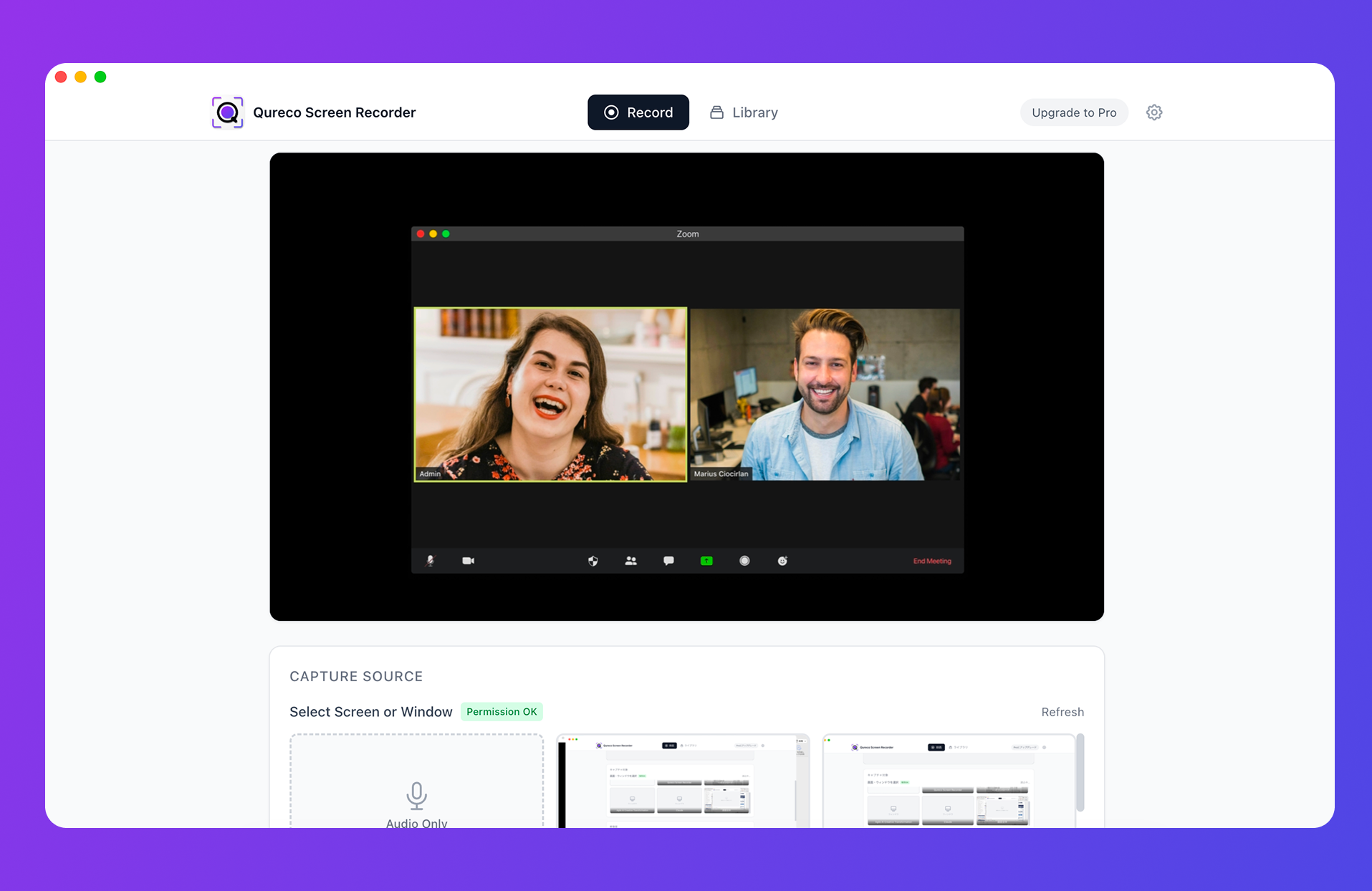
Record first, convert after
Wrapping up
- Start from Tools > Voice typing, or Cmd + Shift + S on a Mac and Ctrl + Shift + S on Windows. Chrome is the most stable
- Voice commands are English only, and require both account and document language to be English, so they are unavailable to everyone else
- Add punctuation afterwards. Dictate straight through, then clean up in one pass
- Cutting out is by design, triggered by silence or by the tab losing focus
- Accuracy comes down to microphone, distance, pace, background noise, and how you handle proper nouns
- It cannot transcribe an online meeting. It hears only your microphone, stops when you look away, and marks no speakers
For recording a meeting, change the order and capture first. That single change solves both the missed passages and the missing half of the conversation.
Qureco Screen Recorder
Powerful screen recording app for Mac
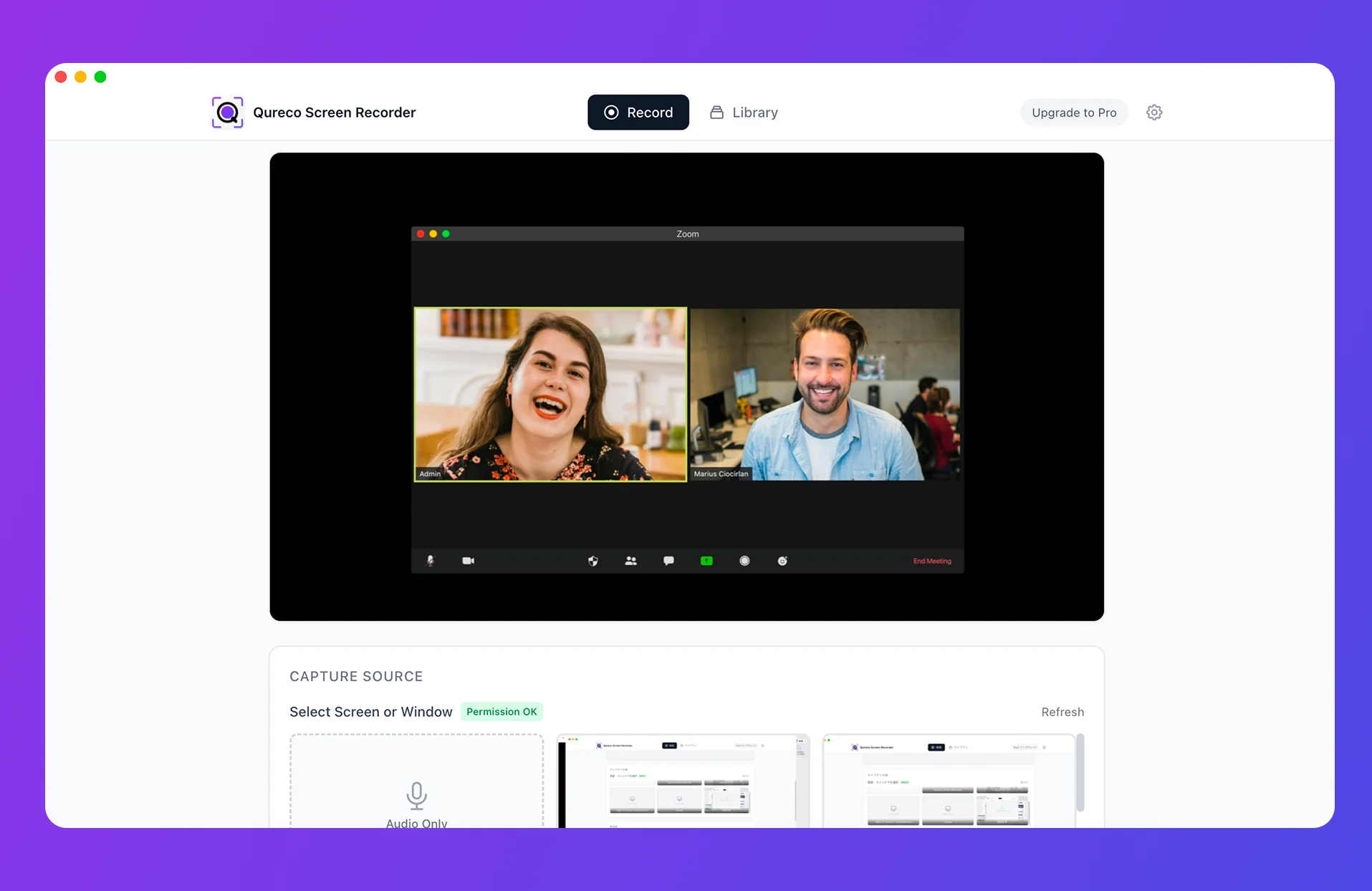
Record meetings, let AI handle the notes, just read what arrives in Notion.
Try all features free for the first two weeks.