You have twenty PDFs and articles piled up from a competitor review, so you open NotebookLM to drop them in. The screen says Gemini Notebook. You search for a guide, and every result still says NotebookLM, with screenshots that do not quite match what you are looking at.
There is a reason for the mismatch. The product was renamed in July 2026, and in September the way usage is counted changed as well. Most guides stopped at one of those two points.
This article covers how things stand in October 2026: what you can do, how far the free tier goes, and where the paid line actually sits, with primary sources for the numbers.
NotebookLM is now Gemini Notebook
The rename, July 16, 2026
Nothing is required of you. Google describes it as "the same standalone product," and every notebook you have made, every shared link, and every bookmarked URL keeps working. At the time of the announcement, the product had more than 30 million users across more than 600,000 organizations.
What arrived alongside the new name
The rename came with deeper ties to the rest of Google.
| Change | What it does | Availability |
|---|---|---|
| Gemini app sync | Create and open notebooks from inside the Gemini app, synced both ways | Live |
| Cloud computer | Each notebook gets a secure cloud environment that can run code for analysis grounded in your sources | Ultra and Workspace first, Pro rolling out |
| Search integration | Notebooks reachable from AI Mode in Google Search | Coming |
Code execution matters most when your sources are full of numbers. Aggregating a table or charting it happens with your own documents as the basis.
People still search for the old name
Search traffic still overwhelmingly uses "NotebookLM," and most published guides do too. For readability, the rest of this article uses NotebookLM.
What NotebookLM actually does
What you can put in
Add sources to a notebook, and the assistant answers using only what is in them. Accepted sources include:
- PDFs
- Google Docs and Slides
- Web page links
- YouTube videos
- Audio files
- Pasted text
Each source caps at roughly 500,000 words or 200MB, whichever comes first.
What you can get out
From those sources, several output formats are available. Which one to pick depends on what you are trying to do.
| Output | What you get | Best for |
|---|---|---|
| Chat and summaries | Answers with citations back to the exact passage | Finding a specific fact inside the pile |
| Audio Overview | A podcast-style conversation between two voices | Absorbing the whole picture while commuting |
| Video Overview | A narrated explainer with slides | Sharing so you do not have to explain it yourself |
| Mind map | A branching diagram of the arguments | Seeing the structure of the material |
| Reports | Briefing docs, timelines, FAQs | Something to hand around and read |
| Flashcards and quizzes | Question-and-answer drills | Memorizing, or testing comprehension |
If you just want a feel for the material, start with a mind map or an Audio Overview. If you need a specific detail, chat gets there faster.
How it differs from other AI tools
Every answer carries citations, and clicking one opens the passage it came from. If something is not in your sources, it says so. Thinking of it as a tool for reading material you already have, rather than a tool for researching the open web, keeps you from using it wrong.
What it cannot do
Setting expectations up front saves time:
- No live capture during a meeting. You hand it a file after the recording ends
- No speaker identification. Audio goes in, but who said what is not separated
- No research beyond your sources. It will not go looking across the web
How far the free tier goes, as of October 2026
Notebooks and sources
| Plan | Notebooks | Sources per notebook |
|---|---|---|
| Standard (free) | 100 | 50 |
| Plus | 200 | 100 |
| Pro | 500 | 300 |
| Ultra | 500 | 500 to 600 |
Sharing a notebook does not change the source limit for anyone you share it with.
On September 2, counting by the request went away
This is the part most guides get wrong now.
| Old system (through August 2026) | Current (from September 2, 2026) | |
|---|---|---|
| Counting | Per-feature request counts (50 chats a day on free) | One shared usage budget across all features |
| Refill | Daily | Every five hours, under a weekly cap |
| Cost per action | One request is one request | Varies with prompt complexity, chat length, source count, and how heavy the feature is |
| Paid difference | More requests | A multiplier on the budget (Plus 2x, Pro 4x) |
Chat, Audio Overviews, Video Overviews, and reports all draw from the same pool. A short question is cheap; generating a Video Overview is expensive. Remaining budget shows under Settings, then Usage. If you run out, you can queue Video Overviews and slides to generate once the budget comes back.
Which usage patterns stay free
A budget cannot be expressed in request counts, so it is easier to think in terms of workload.
- Loading a handful of documents a week and pulling out the key points
- Keeping one notebook with 20 to 50 sources on a theme and querying it occasionally
- Generating an Audio Overview now and then
- Digging deep into several separate document sets every day
- Generating Video Overviews or slides daily
- Long back-and-forth conversations over a notebook stuffed with sources
For individuals, Google AI Pro is $19.99 a month and multiplies the free budget by four.
If you are unsure, starting free and watching how often you hit the ceiling is enough to decide. The settings screen shows what is left, so your own pattern becomes clear quickly.
What to do in the first thirty minutes
Create a notebook and add sources
Ask a question, then check the citation
Type a question into the chat. It is strongest at cross-cutting questions, along the lines of "what concern comes up across all of these documents."
Click the numbered citation in the answer and the underlying passage opens. Making a habit of this keeps you from taking a summary on faith.
Try an Audio Overview and a mind map once each
The Audio Overview reads your material back as a conversation between two voices. Generation takes a few minutes, so it fits nicely into a gap between other work.
The mind map is for structure. Making one right after loading your sources tells you where to start reading.
Those two give you a feel for what the tool is like.
Where meeting recordings get complicated
Documents are one thing. Feeding in a recording of a meeting takes a bit more preparation.
Treat audio as something to transcribe first
You can hand NotebookLM an audio file. As noted above, though, there is no speaker identification, which matters a lot for minutes where who said what is the point.
Length is the other constraint. With a 200MB cap per source, a multi-hour screen recording will not fit as is. Recording audio only, or dropping the resolution, gets around it.
Getting the recording in the first place
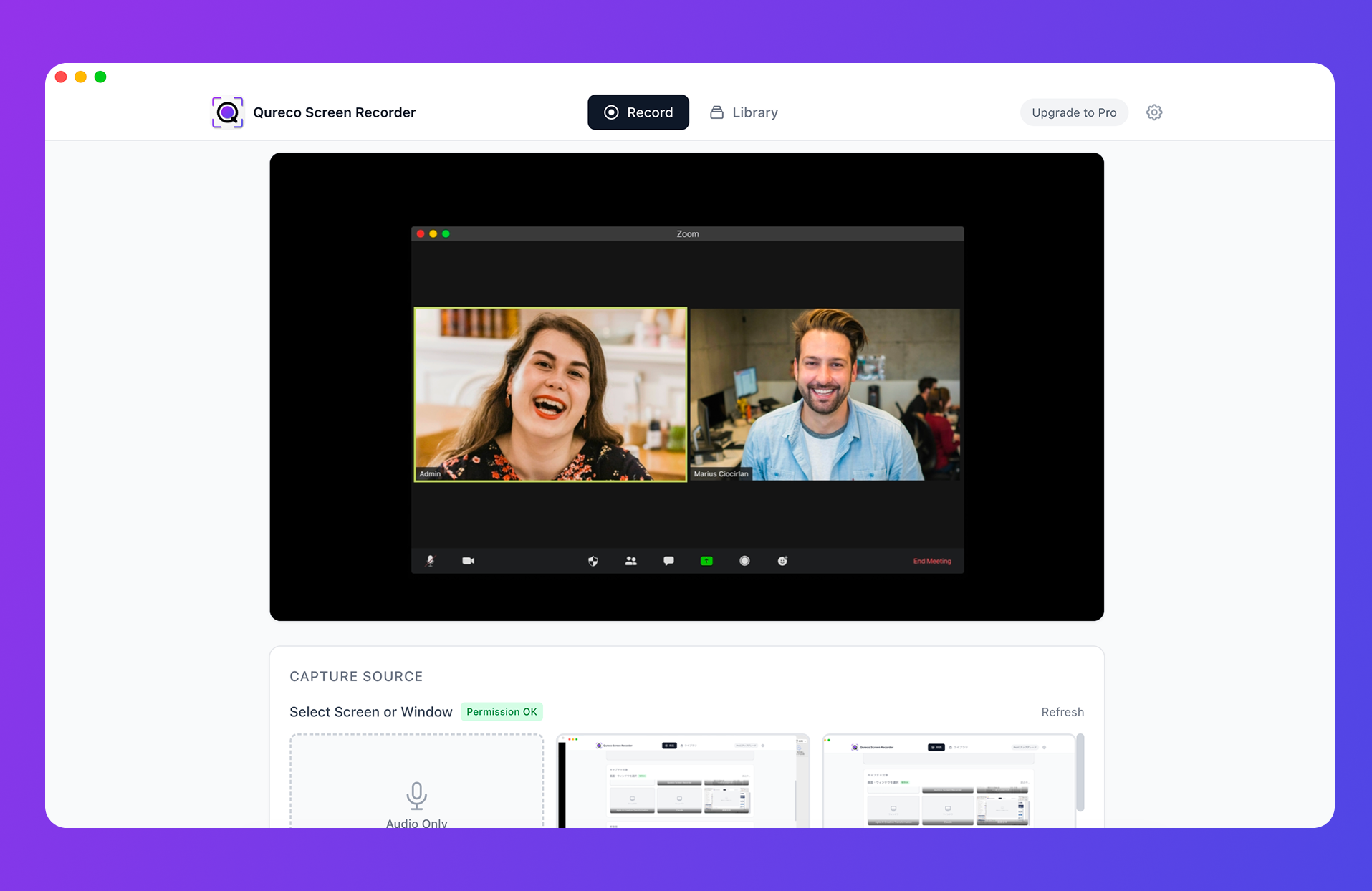
None of this starts without an audio file, and when you are not the host of a call, the record button is often unavailable.
Wrapping up
- NotebookLM became Gemini Notebook on July 16, 2026. Nothing is required of you, and existing notebooks and URLs keep working
- On September 2, 2026 the counting changed. Fixed request caps are gone, replaced by a budget that refills every five hours. Any guide saying "50 a day" is describing the old system
- The free tier gives 100 notebooks with 50 sources each. Loading a few documents a week stays comfortably inside it
- It answers only from your sources and cites them. It is a tool for reading what you have, not for researching what you do not
- No live capture and no speaker identification. For meeting audio, plan on transcription
Pick one theme, load about ten sources, and generate a mind map and an Audio Overview once each. That is enough to tell whether it belongs in your work.
Qureco Screen Recorder
Powerful screen recording app for Mac
Record meetings, let AI handle the notes, just read what arrives in Notion.
Try all features free for the first two weeks.