Say you heard NotebookLM can write your meeting minutes, and you went looking for instructions.
Every guide opens the same way: "First, upload the audio file from your meeting."
NotebookLM is now called Gemini Notebook
Start with the name.
A few things arrived around the same time.
| Change | Detail |
|---|---|
| Ecosystem integration | Reachable from the Gemini app, AI Mode in Google Search, and other Google surfaces |
| More output formats | Charts, spreadsheets (xlsx), slides (pptx) and PDF reports |
| Data analysis | Cloud-side code execution for heavier analysis |
| Scale | Over 30 million individual users and 600,000 organizations |
Search behavior has not caught up with the rename, and most guides still use the old name, so this article continues to say NotebookLM.
NotebookLM is not a transcription tool
Getting this straight up front saves disappointment later.
Three consequences follow for meeting minutes.
1. No live capture
2. No speaker labels
For meetings where attribution does not matter (your own review, a presentation built around slides), this is a non-issue. For meetings where the record of who agreed to what matters, it is decisive.
3. No full transcript as a deliverable
Which part of the job can it own?
Split minutes into four stages and the answer gets concrete.
| Stage | What happens | NotebookLM's role |
|---|---|---|
| 1. Capture | Record the meeting | Not covered (you supply this) |
| 2. Transcription | Turn audio into text | Handled internally (not built for extraction) |
| 3. Summarize and structure | Pull out decisions, action items, open questions | Where it excels |
| 4. Distribute | Get it to the people who need it | Not covered (use another route) |
What it does well
You extract by asking:
- "What was on the agenda, and what was decided?"
- "List the action items by person."
- "Comparing last week's deck to today's discussion, what changed about the plan?"
That third question spans multiple sources, which a tool holding only a single audio file cannot answer. That is the NotebookLM-shaped use case.
The actual steps
- Create a new notebook
- Add the meeting audio as a source
- Wait for processing; a summary appears in chat automatically
- Ask the questions above to pull out decisions and action items
- Save to Google Docs or another destination and share
Producing the audio in the first place
Stage 1. The step every guide skips, and the step where people actually get stuck.
In-person meetings
Video calls
Staying under 200MB
Long meetings recorded with video attached can hit that ceiling. Two ways around it:
- Record audio only. If minutes are the goal, video is often unnecessary, and the file gets dramatically smaller
- Lower the resolution. When you do want the shared slides on record, 720p stays perfectly readable
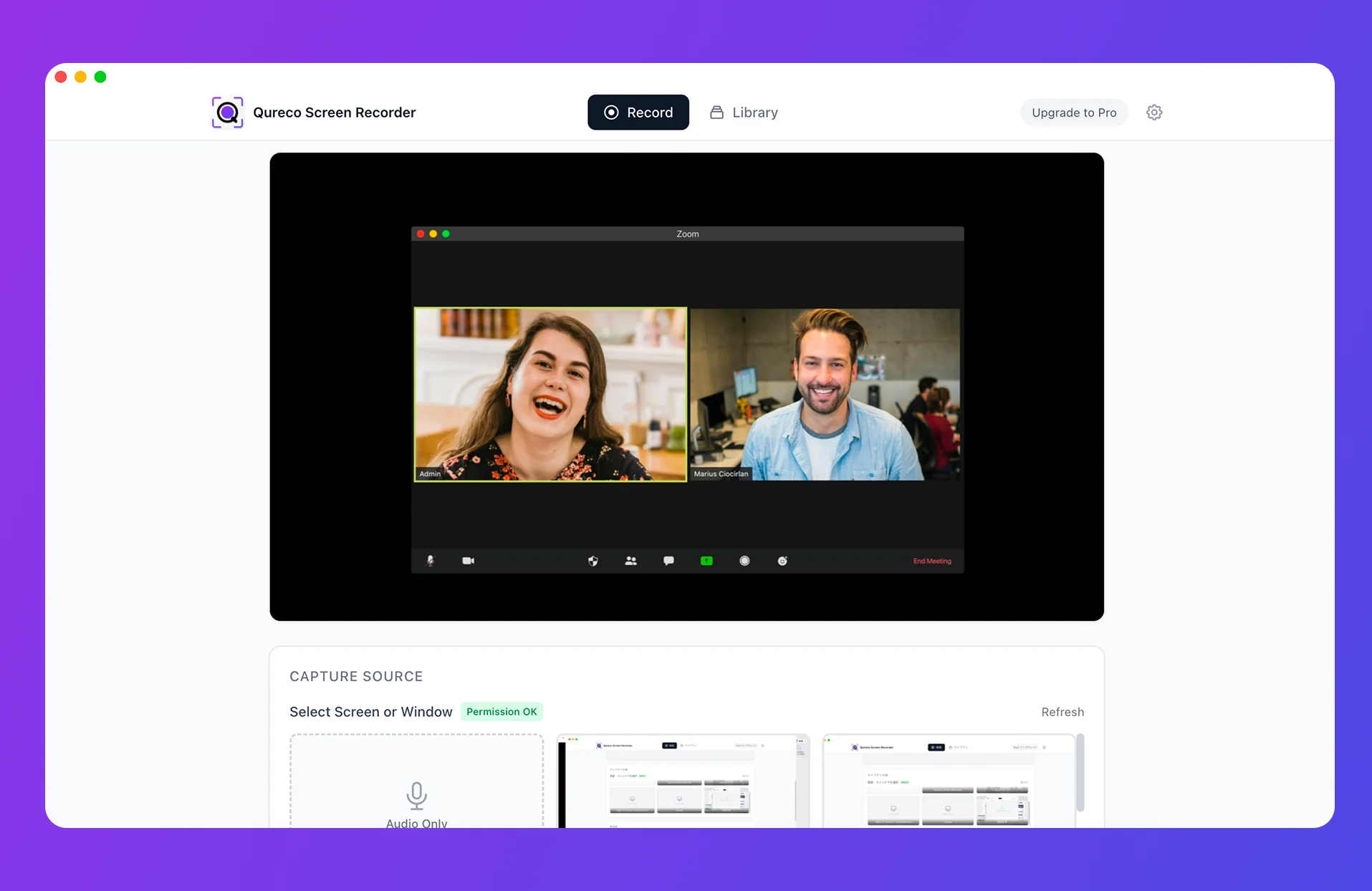
Need the audio to feed it? Try QurecoA Mac screen recorder that captures the other side of the call (system audio) with no virtual audio setup. An audio-only mode keeps the file small enough to upload comfortably. Recording is free, with no time limit and no watermark.
Does the free tier hold up for meetings?
Here are the plan limits.
| Item | Free | Pro |
|---|---|---|
| Notebooks | Up to 100 | Up to 500 |
| Sources per notebook | Up to 50 | Up to 300 |
| Chat questions per day | Up to 50 | Up to 500 |
| Audio Overviews per day | Up to 3 | Up to 20 |
| Size per source | ~500,000 words (about 200MB) | Same |
- 50 sources is not a constraint. One audio file plus a few documents per meeting still fits dozens of meetings into a single notebook
- 50 chat questions a day bites sooner than you would think. On a day with three meetings, asking each one "what was decided," "what are the action items," "what changed since last time" and following up puts you at ten questions per meeting. The more you dig, the faster you hit it
- The 200MB per source cap bites on long recordings. The two fixes above handle it
- Three Audio Overviews a day is almost irrelevant here. That feature generates a spoken discussion between AI hosts, which is a different job from written minutes
These numbers change often as Google revises them, so confirm the current values before you commit.
When to reach for it, and when not to
The fit is sharp enough that it is worth sorting meetings by type.
Good fit
- Document-heavy meetings, where reading the audio alongside the materials is the whole advantage
- Meetings you will revisit, since a question-and-answer interface suits analysis that does not end with one summary
- Reviews you do alone, where attribution and distribution are both irrelevant
Poor fit
- Meetings where attribution matters. Negotiations and deals where who proposed which terms comes up later
- Meetings that must be circulated same day. Upload, ask, reformat, distribute is a lot of steps to repeat every time
- Confidential meetings. Uploading audio to an external AI service may itself conflict with your organization's policy
Covering the capture step with Qureco
If stage 1 is the only gap you need to close, here is the option.
- No virtual audio setup. From the moment you install it, system audio and microphone can be toggled independently
- An audio-only mode. If the file is only going to NotebookLM, video is dead weight and you stay clear of the 200MB cap
- Resolution choice of 1080p, 720p, 480p or 360p, so you can keep shared slides on record without a huge file
- No time limit and no watermark. Exports as MP4 or MP3
- Because you record your own screen, host permissions do not apply
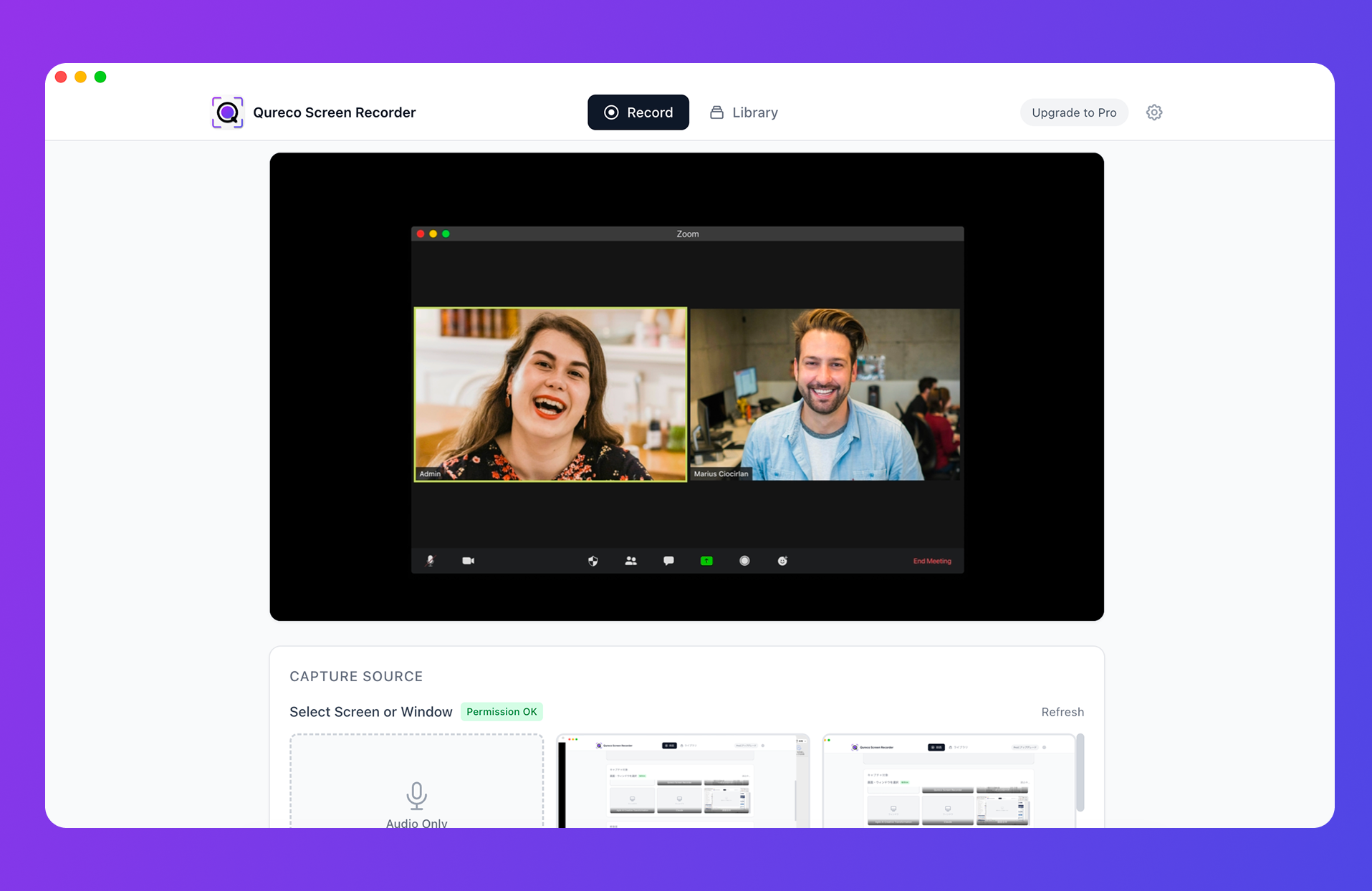
On the Pro plan, Qureco takes the recording all the way through AI-generated minutes and into Notion on its own. Document-heavy meetings suit NotebookLM, meetings you need to capture and circulate quickly suit Qureco, and using both is reasonable.
Frequently asked questions
They carry over. Google stated that no migration work is required on the user side, and the way you use the product is unchanged.
Not as a deliverable. Audio is transcribed internally so the source becomes searchable, but the product is not built to output a verbatim record. When you need the full text, pair it with a dedicated transcription tool.
It handles other languages, including Japanese. Accuracy depends heavily on the source audio, so the standard guidance is to record somewhere quiet and avoid people talking over each other. Voices far from the microphone drop out easily, which is another argument for capturing system audio cleanly on video calls.
Check your internal policy first. Plenty of organizations restrict sending data to external generative AI services, and meetings involving customers or personnel deserve extra care. When in doubt, keep the recording on your own machine and ask IT specifically about the upload step.
Summary
- NotebookLM was renamed Gemini Notebook on July 16, 2026. Existing notebooks carry over and no migration is needed
- It is a research and summarization tool, not a transcription tool. Live capture, speaker labels and verbatim export are outside what it was built for
- Of the four stages of minutes, it owns stage 3, summarizing and structuring. You supply the capture, and distribution happens elsewhere
- Its edge is reading audio and documents together, which lets it answer questions like "what changed since last week's deck"
- On the free tier, the 50 chat questions per day runs out first. 50 sources is never the problem. Upgrade when meeting volume and follow-up depth demand it
- The step people get stuck on is capture. Solve how to record the other side of a video call and the rest of the workflow runs
Before your next meeting, just produce one recording. Once the file exists, NotebookLM answers in minutes.
Qureco Screen Recorder
Powerful screen recording app for Mac
Record meetings, let AI handle the notes, just read what arrives in Notion.
Try all features free for the first two weeks.