"Your startup disk is almost full."
You go looking for the culprit and find 80GB sitting in one folder: screen recordings. A few calls a week, and somehow a third of the SSD is gone. Deleting them feels wrong, and keeping them means the next recording stops partway through.
14GB for one hour. Where does that come from?
Three variables decide the size
The answer in that thread sums up the whole problem: it depends on the pixel count of the screen, the frame rate, and the encoding method.
That is the entire list.
| Variable | What it is | How it affects size |
|---|---|---|
| Pixel count | Pixels in a single frame | Halving width and height cuts area to a quarter. The biggest lever |
| Frame rate | Frames per second | 60fps to 30fps is a straight halving |
| Codec | H.264, HEVC, and so on | HEVC produces smaller files at the same quality |
Size per hour, by resolution
| Resolution | Bitrate | Recording time per GB | Size per hour |
|---|---|---|---|
| 480p | 1 Mbps | ~136 min | ~0.44 GB |
| 720p | 4.5 Mbps | ~30 min | ~2 GB |
| 1080p | 9 Mbps | ~15 min | ~4 GB |
| 4K | 35 Mbps | ~4 min | ~15 GB |
Full-screen capture is quietly recording in 4K
Put that 14GB file against the table above. It lines up with the 4K row. That recording was captured at 4K-class pixel dimensions for a full hour.
Nobody chose 4K on purpose. It happened because the whole screen was being recorded.
Command + Shift + 5 on macOS, the pixel dimensions of the region you select become the recording resolution. On a 2880x1800 display, selecting around 1300x900 gives you roughly 720p, and around 1800x1050 gives you roughly 1080p (Recording in full HD on a MacBook Air, Yahoo! Chiebukuro).Select the entire screen and every pixel of the display becomes your recording resolution. On a 27-inch Retina iMac that is 5120x2880, which is 5K. The better your display, the more expensive full-screen capture gets.
Decide before you record. That is where 90% of the size is set
Compressing what has piled up is work you will repeat after the next call. Changing the capture settings makes the work disappear.
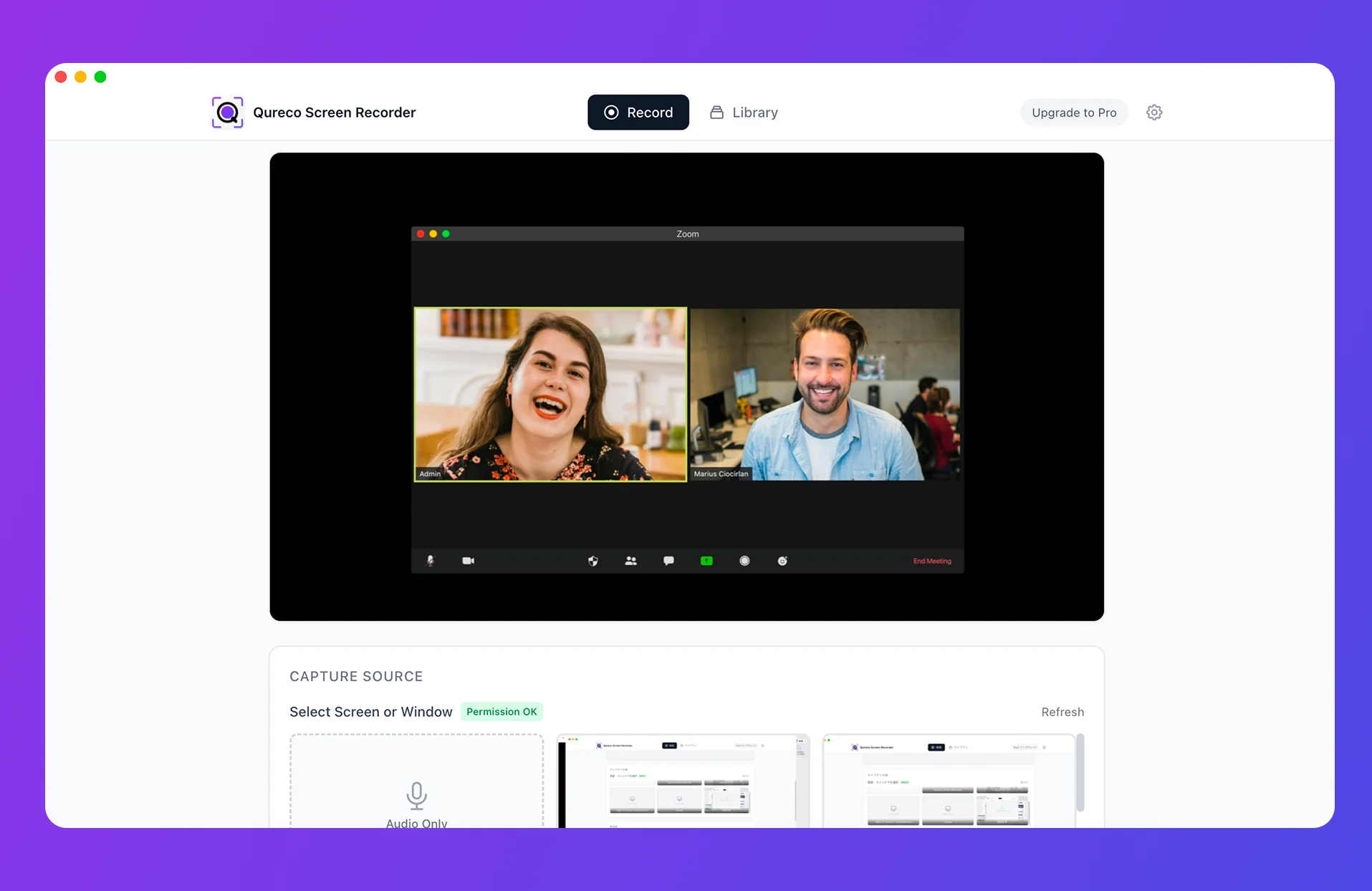
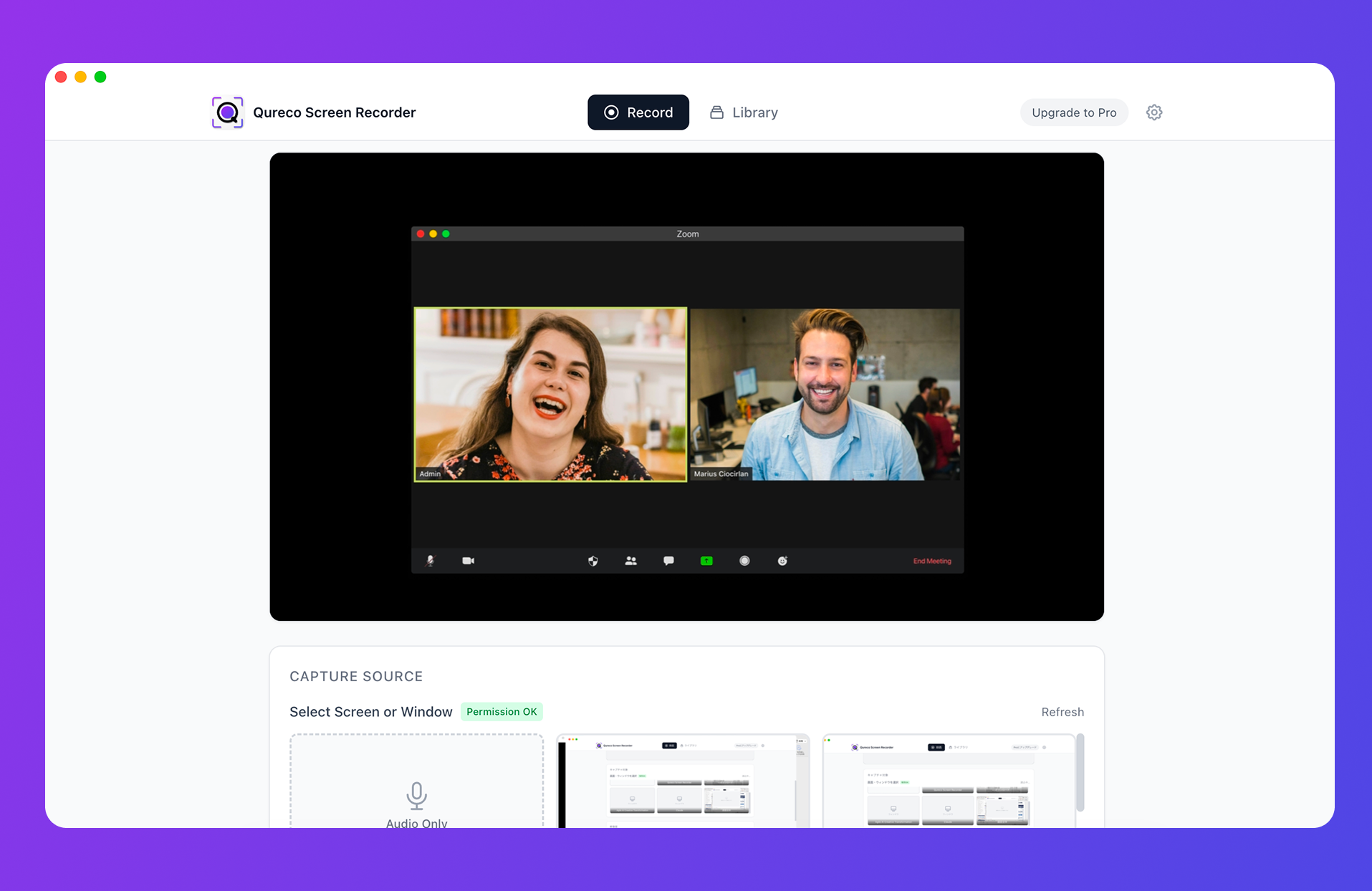
If you want to pick a resolution every time, try QurecoThe built-in macOS recorder has no resolution setting, so you adjust it by choosing a smaller region. Qureco lets you pick 1080p / 720p / 480p / 360p before you hit record, so meetings can be 720p and demos 1080p. No time limit and no watermark on the free tier.
1. Record a smaller region
This is the highest-impact change and it requires no settings at all.
Command + Shift + 5, choose Record Selected Portion instead of the full screen, and draw a box around only what matters. Cut the area to a quarter and you cut the pixel count to a quarter.2. Choose the resolution deliberately
When a smaller region is not enough, set the resolution itself. A rough guide:
- 720p is enough: recordings where people talking is the content. Meetings, sales calls, one-on-ones, walkthroughs. Slide text stays readable
- 1080p is needed: recordings where fine text is the point. Code editors, spreadsheet figures, one-pixel UI breakage, product tutorials
- 480p or lower: recordings you only need to confirm something in, and may never open again
3. For meetings, consider not keeping video at all
Keep only audio and the size drops by two orders of magnitude. An hour of meeting audio lands in the tens of megabytes. Against 4GB of 1080p video, that is less than a hundredth.
Qureco has an audio-only mode that skips screen capture entirely and exports to MP3. For a recurring internal meeting where nobody revisits the slides, that is often all the recording you need.
Shrinking the files you already have, with built-in tools
Capture settings cannot help files that already exist. Those need compression, and macOS can do it without any extra software.
Finder's "Encode Selected Video Files"
The fastest built-in route.
- Select the file or files in Finder
- Right-click (Control-click) to open the menu
- Choose Encode Selected Video Files
- Pick a format and click Continue
| Preset | Use it for |
|---|---|
| H.264 480p / 720p / 1080p / 2160p | Maximum compatibility. The safe default |
| HEVC 1080p / 2160p | Smaller at the same quality, pickier about playback |
| Audio Only | Keep the sound and drop the video. Good for archived meetings |
| Apple ProRes | Editing format. This one makes files bigger |
-1 appended, so the source stays put until you have checked the result.iMovie, when you need a target size
What re-encoding costs you
Worth saying up front. Compression has three downsides.
- Quality does not come back. A file taken down to 480p cannot be restored to 1080p. Confirm everything you need is still readable before deleting the original
- It takes time. Batch-encoding several long recordings runs in tens of minutes
- HEVC is not universal. Older Windows machines and some players cannot open it. Send H.264 when the file is going to someone else
Those three are exactly why deciding before you record ends up being less work.
Which settings for which job
A starting point when you do not want to think about it. Hourly sizes are estimates from the bitrates above.
| What you are recording | Resolution | Audio | Per hour |
|---|---|---|---|
| Recurring internal meeting, one-on-one | Audio only | Mic + system | Tens of MB |
| Sales call, interview | 720p | Mic + system | ~2 GB |
| Webinar, lecture | 720p | System | ~2 GB |
| Bug report, defect repro | 1080p, window only | Optional | A few MB for 30s |
| Product tutorial, demo | 1080p | Mic | ~4 GB |
| Footage you plan to edit | 1080p or higher | Depends | 4 GB and up |
Audio-only or 720p for anything conversational, 1080p for anything you are showing on purpose. That split covers most of it.
Where recordings should live as they pile up
Better settings slow the growth. They do not stop it. At some volume you need a place to put things.
Keeping everything local does not last
Five one-hour calls a week at 720p is about 10GB a week, 40GB a month, 120GB a quarter. A 256GB MacBook will not absorb that. Any plan that depends on "I will clean it up later" ends at a disk-full warning.
Decide what to keep right after you stop recording
- A meeting where something was decided: keep it, or keep the notes and drop the video
- A status call you just needed to confirm: delete once the notes are written
- A bug report you already sent: delete when you send it
Not deferring that decision changes the volume more than any codec setting.
Move it off the disk, share it as a link
Some recordings genuinely need to stay. Having somewhere to put them keeps your disk free without losing the record.
FAQ
The extension itself has no effect. The codec and bitrate inside decide the size. Mac recordings in MOV are usually H.264 already, so rewrapping to MP4 changes almost nothing. Change the encoding, not the container.
Not always. Screen recordings with little motion compress well and show a large gap, while high-motion footage narrows it. Playback support is the other catch, so files headed to someone else are safer as H.264.
Total size stays the same, but handling improves. One enormous file is slow to scrub through and slow to send. Stopping and restarting at agenda breaks lets you delete the parts you do not need later.
Wrapping up
- Screen recording size comes down to pixel count, frame rate, and codec, which together become a single bitrate number
- Per hour, expect roughly 0.44GB at 480p, 2GB at 720p, 4GB at 1080p, and 15GB at 4K. A 14GB hour was captured at 4K-class dimensions
- Full-screen capture uses the display's own pixel count as the resolution, so the better your display, the more it costs you
- Existing files compress through Finder's Encode Selected Video Files, down to about 12% at H.264 480p. Quality does not come back
- Not creating the problem is less work than solving it: smaller region, then a chosen resolution, then audio-only for meetings
Before your next recording, draw the box around just the window you need instead of grabbing the whole screen. That alone deletes the compression step from your week.

Qureco Screen Recorder
Powerful screen recording app for Mac
Record meetings, let AI handle the notes, just read what arrives in Notion.
Try all features free for the first two weeks.