Five minutes before a call, you open your recording app and there it is again: "wants to record this computer's screen." You check System Settings and the toggle is already on. You are fairly sure you did this last month too. Did macOS 26 break something?
First: is your symptom a feature or a fault?
Before trying any fix, think about how often you actually see the prompt.
| How often you're asked | Verdict | What to do |
|---|---|---|
| About once a month | By design | Nothing. Click Allow and move on |
| Once, right after updating the app | By design | Normal. Grant it again after each update |
| Every launch, or every restart | Likely a real problem | The cause is identifiable (see below) |
| Screen records fine but audio is missing | A different setting | Audio access is now its own list (see below) |
Roughly monthly means it's working as intended
This periodic re-confirmation arrived in macOS Sequoia and carried over into macOS 26. Apple has never published the exact interval, but in practice most people see it about once a month.
One thing did change in macOS 26: the dialog's buttons. The old "Allow For One Month" button is gone, replaced by a plain "Allow" alongside "Open System Settings." Because the wording no longer mentions a duration, a lot of people assume they're granting one-time access. The underlying behavior is unchanged.
Every launch means something else is going on
If you're asked each time you open the app, or after every reboot, that's outside the normal pattern. The cause is usually one of two things, and both are fixable without the Terminal.
The setting has a new name in macOS 26
Before the fixes, let's clear up the thing that sends people in circles inside System Settings.
"Screen Recording" is now "Screen & System Audio Recording"
The panel was renamed in macOS 26:
If you're scanning the list for the old "Screen Recording" label, you won't find it, and it's easy to conclude the option was removed.
| macOS 15 and earlier | macOS 26 |
|---|---|
| Screen Recording | Screen & System Audio Recording |
| (no equivalent) | System Audio Recording Only |
There's now a separate "System Audio Recording Only" list
If your app isn't in the list at all
"I can't grant permission because the app isn't even listed" comes up constantly. Nothing is broken.
Fixing the every-launch prompt (no Terminal required)
This section is for the "every time" crowd. You won't need the command line.
Cause 1: permission is tied to that exact build of the app
Check whether any of these apply:
| Sounds familiar? | What's happening | Fix |
|---|---|---|
| You just updated the app | The build changed, so the approval doesn't match | One prompt after an update is normal. Grant it again |
| You moved the app in Finder | The executable path changed | Keep it in the Applications folder |
| You launch it straight from Downloads | Its location never settles | Move it to Applications |
| You run it from a mounted DMG | Each mount looks like a new location | Install it properly, then eject the DMG |
Those last two are extremely common causes of a repeating prompt. Move the app into your Applications folder and launch it from there. That alone often ends it.
Cause 2: you never fully quit the app
A new permission doesn't take effect until the app restarts, and closing the window is not restarting.
Step by step: remove the permission and grant it again
If none of the above fits, give the app a clean slate.
- Open System Settings → Privacy & Security → Screen & System Audio Recording
- Toggle the app off, then remove it from the list with the "−" button
- Quit the app completely with Cmd+Q
- Launch it, start a recording, and choose Allow in the dialog
- If you're prompted to restart the app, do it
This resolves the majority of cases.
Still stuck? Resetting with tccutil
From here on you'll use the Terminal. If the steps above worked, you can skip this part.
What TCC actually is
tccutil as the only supported way to change these entries.Do not run this command without an argument
You'll see this command everywhere, and there's a version of it worth being careful with:
tccutil reset ScreenCapture
Finding a bundle ID
A bundle ID is an app's internal identifier. You can look one up like this:
osascript -e 'id of app "Zoom"'
Common ones:
| App | Bundle ID |
|---|---|
| Zoom | us.zoom.xos |
| Microsoft Teams (new) | com.microsoft.teams2 |
| Google Chrome | com.google.Chrome |
| Slack | com.tinyspeck.slackmacgap |
| OBS Studio | com.obsproject.obs-studio |
| QuickTime Player | com.apple.QuickTimePlayerX |
Reset, then grant again
tccutil reset ScreenCapture us.zoom.xos
Afterwards, quit the app with Cmd+Q, relaunch it, start a recording, and approve the dialog when it appears.
Skip the recovery-mode TCC deletion
The risk and cleanup aren't worth what you get back. If you've made it this far without success, reinstalling macOS or contacting Apple Support is the more sensible next step.
You can't make the monthly prompt go away, but that's not a problem
To be straight with you: System Settings has no "always allow this app" option. Revoking access is the only thing it offers.
Workarounds exist, but they all amount to weakening macOS's privacy machinery, which isn't a reasonable trade on a machine you work on.
If your Mac is company-issued, there is one legitimate exception: an MDM configuration profile can pre-approve screen capture so the prompt never appears. That's your IT team's call, not something you can set up yourself, and it isn't available on a personal Mac.
In the end, clicking Allow takes about a second. A practical habit is to trigger a recording yourself at the start of each month, get the prompt out of the way, and never meet it again with a client waiting.
If audio still fails after granting permission, permission isn't the problem
Screen approved, system audio approved, and the recording still has no voices in it. At that point the culprit isn't your settings.
macOS's built-in screen recorder (Shift+Command+5) and QuickTime Player never call the API that captures system audio. You can grant permission all day; they aren't asking for that sound in the first place. This is why so many people end up installing a virtual audio driver like BlackHole as a workaround.
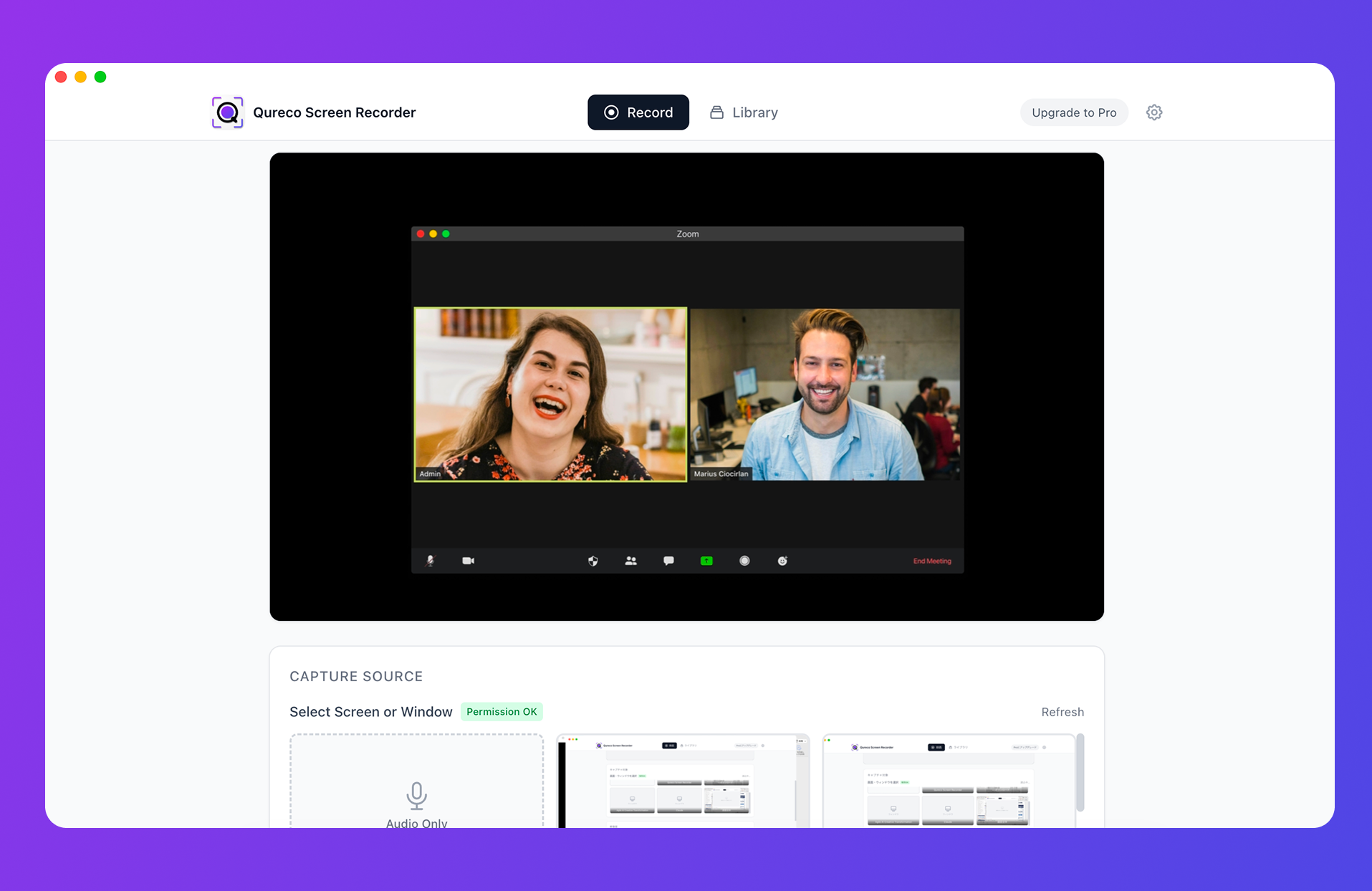
- No virtual audio driver (BlackHole or Soundflower) to install
- Screen and audio recording are free, with no time limit and no watermark
- It doesn't rewrite your sound output device, so Zoom won't go silent after you stop recording
Summary
Here's the whole thing in one place:
- Roughly monthly is by design. It came in with Sequoia, it's still here in macOS 26, and there's no supported way to disable it
- Every launch or every restart means something is actually wrong. Permission is bound to a specific build, so check that the app lives in your Applications folder and that you're quitting it with Cmd+Q
- macOS 26 renamed the panel to Screen & System Audio Recording and split audio into its own list. If you have video but no voices, that second list is where to look
- Always pass a bundle ID to
tccutil reset ScreenCapture. Without one, every app loses access - Deleting the TCC database from recovery mode costs more than it returns. Don't start there
And if the audio is still missing after every permission is granted, that's not a settings problem. It's a sign the app was never capturing system audio to begin with, and switching to one that does is usually the fastest way out.

Qureco Screen Recorder
Powerful screen recording app for Mac
Record meetings, let AI handle the notes, just read what arrives in Notion.
Try all features free for the first two weeks.