You downloaded a "free" screen recorder, recorded your Mac, and only on playback spotted the vendor logo stamped in the corner — unusable for the client deliverable, unfit for YouTube. The whole afternoon's work is now branded with someone else's name.
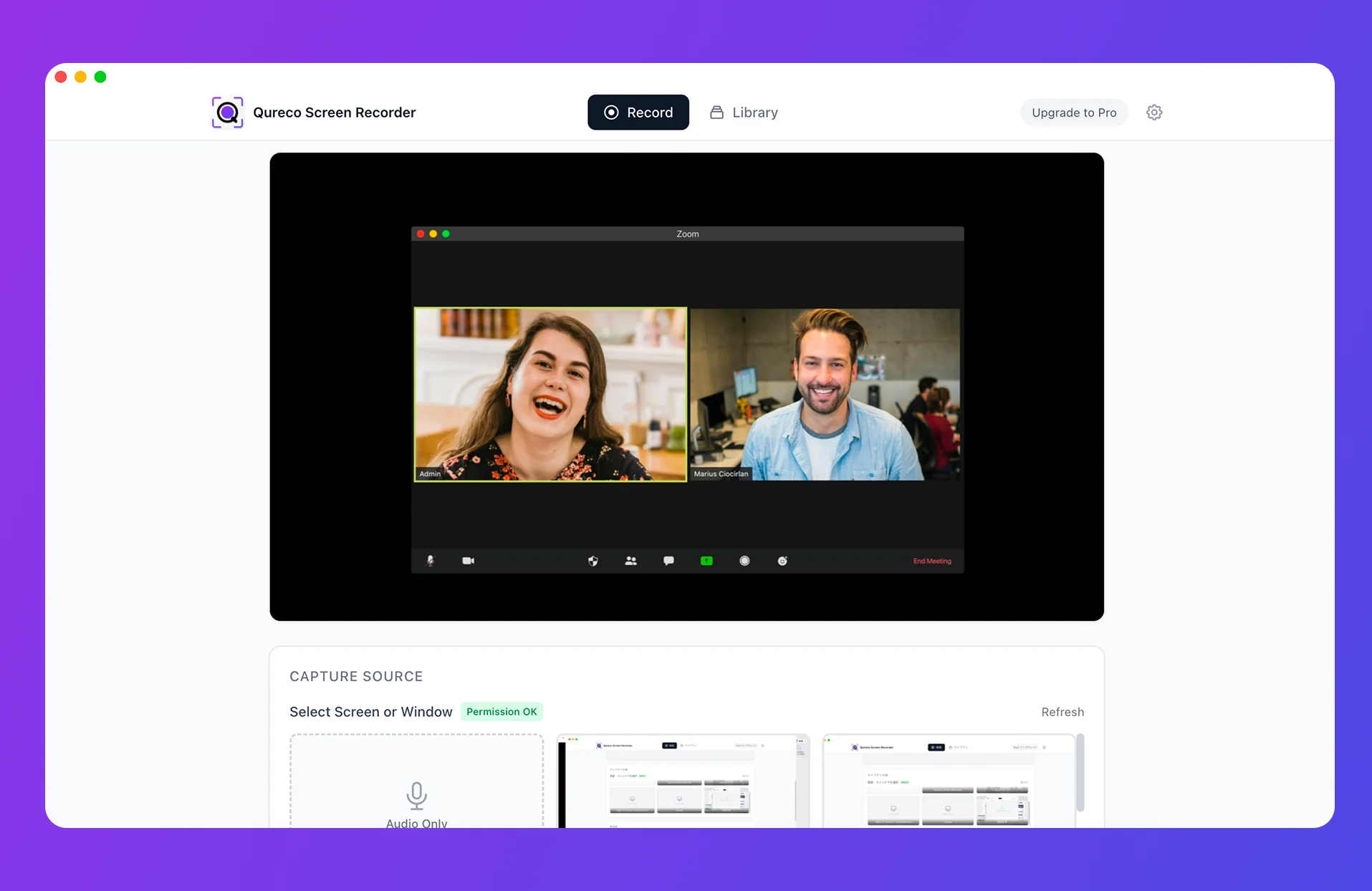
TL;DR: for "install and start recording" speed, use Qureco Screen Recorder
- No watermark on the free plan
- Unlimited recording time
- Internal audio works without any virtual-audio setup (no BlackHole or Soundflower install required)
- No credit card required to download
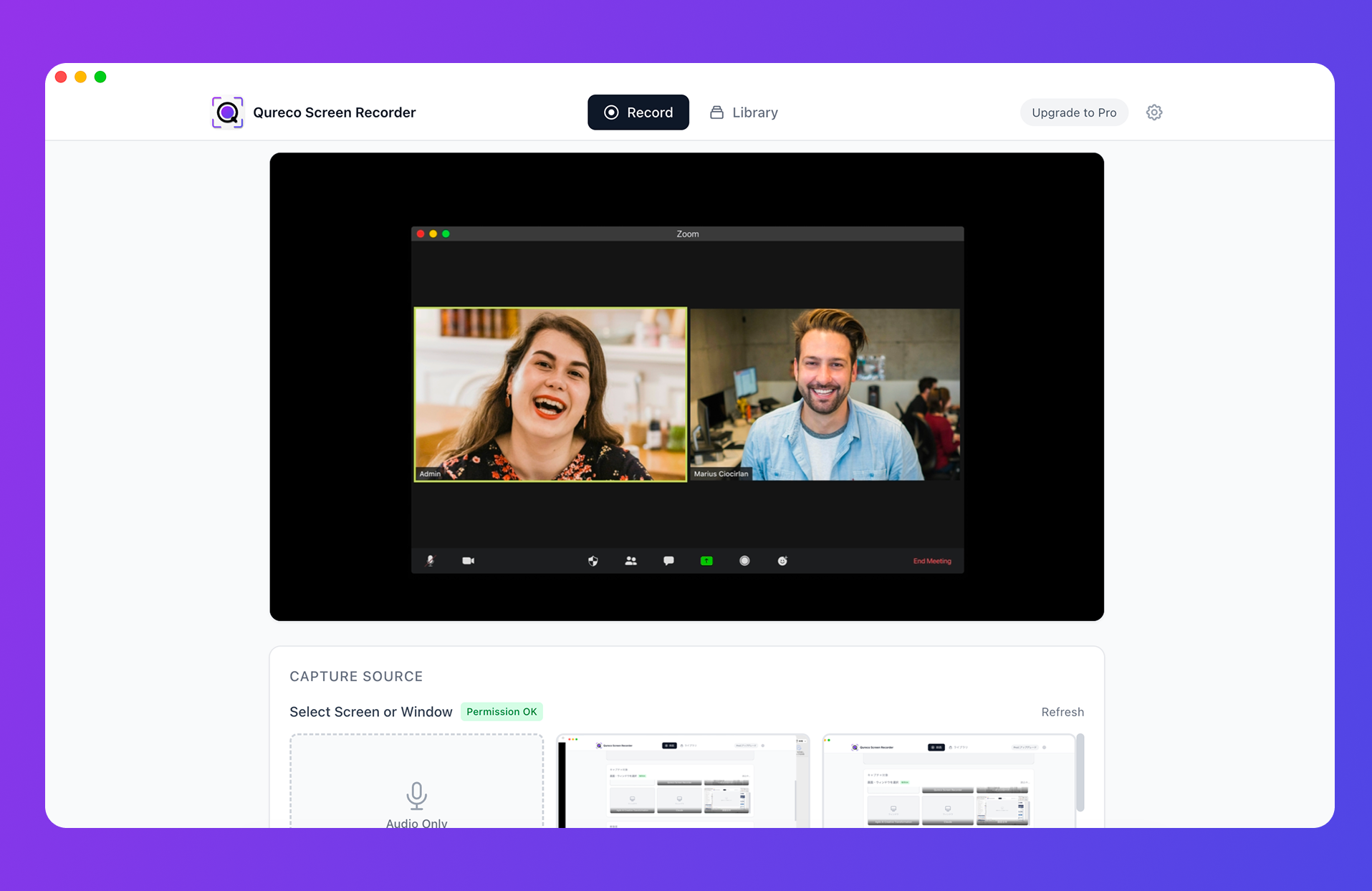
If you need a clean, watermark-free recording delivered by end of day, downloading it now is the shortest path. The rest of this article unpacks why most "free" tools fall short — and where the four other options sit on the comparison.
Why so many "free" Mac screen recorders ship with a watermark
"Free" and "watermark-free" are not the same thing
| Common constraint | Why it bites |
|---|---|
| Watermark / vendor logo | Unusable for client deliveries or public YouTube uploads |
| Time cap (e.g. 5 or 15 minutes) | Kills long tutorials, webinar recordings, meeting captures |
| Resolution lock (e.g. 720p only) | Edited output looks soft on a modern display |
| Limited output formats (e.g. MOV only) | Friction when handing off to a video editor |
Can you just strip the watermark afterward?
What macOS's built-in tools can and can't do
macOS ships with two ways to capture the screen:
Shift + Command + 5(the screenshot toolbar)- QuickTime Player → File → New Screen Recording
Both are free, watermark-free, and have no time limit. There's one catch — and it's the catch.
Built-in tools can't record system audio

Shift + Command + 5 and you'll see only microphone inputs. This isn't a misconfiguration — it's how macOS is designed. Since Catalina, TCC (Transparency, Consent & Control) governs audio access, and the built-in capture tools simply don't tap the system audio API.- Web meetings (your side gets recorded, the other person doesn't)
- Game footage (no game audio)
- Tutorials that include video or music playback
- App walkthroughs for anything that plays sound
The workaround is a virtual audio driver like BlackHole plus a Multi-Output Device in Audio MIDI Setup — doable, but a meaningful setup tax that's easy to get wrong. Forget to revert the audio output and your next Zoom call is silent.
Four checks for any "free" Mac screen recorder
Boiling the above down, here are the four things to verify before you trust a free recorder for real work:
| Check | What to verify |
|---|---|
| 1. No watermark | Free plan exports are clean |
| 2. No time limit | Records as long as you want |
| 3. No feature lock | No resolution cap, export-format trap, or editing paywall |
| 4. Internal audio | Captures system audio without external virtual-audio setup |
The 5 picks: watermark-free, free screen recorders for Mac
| Tool | 1. No watermark | 2. No time limit | 3. No feature lock | 4. Internal audio | Best for |
|---|---|---|---|---|---|
| Qureco Screen Recorder | ✓ | ✓ | ✓ | ✓ (no setup) | Install and start recording today |
| OBS Studio | ✓ | ✓ | ✓ | ✓ (setup required) | Power users who also need to stream |
| BetterCapture | ✓ | ✓ | ✓ | ✓ | OSS / ProRes purists |
| ScreenPal (free tier) | ✓ | △ (15 min cap) | △ | △ | Browser-based, quick captures |
Mac stock (QuickTime / Shift + Cmd + 5) | ✓ | ✓ | ✓ | ✗ (needs BlackHole) | Mic-only narration is enough |
1. Qureco Screen Recorder — install and start recording today
- No virtual audio required — install, flip the mic and system-audio switches, and both are captured
- Unlimited recording time and zero watermark on the free plan
- Minimal UI; the record-to-save path is short enough that you won't get lost
- Optional Pro plan ($9/month, first two weeks free, no card on file) unlocks AI meeting notes and Notion sync
- Mac only (no Windows version yet)
- Relatively new product compared to the established alternatives
2. OBS Studio — power users who also need to stream
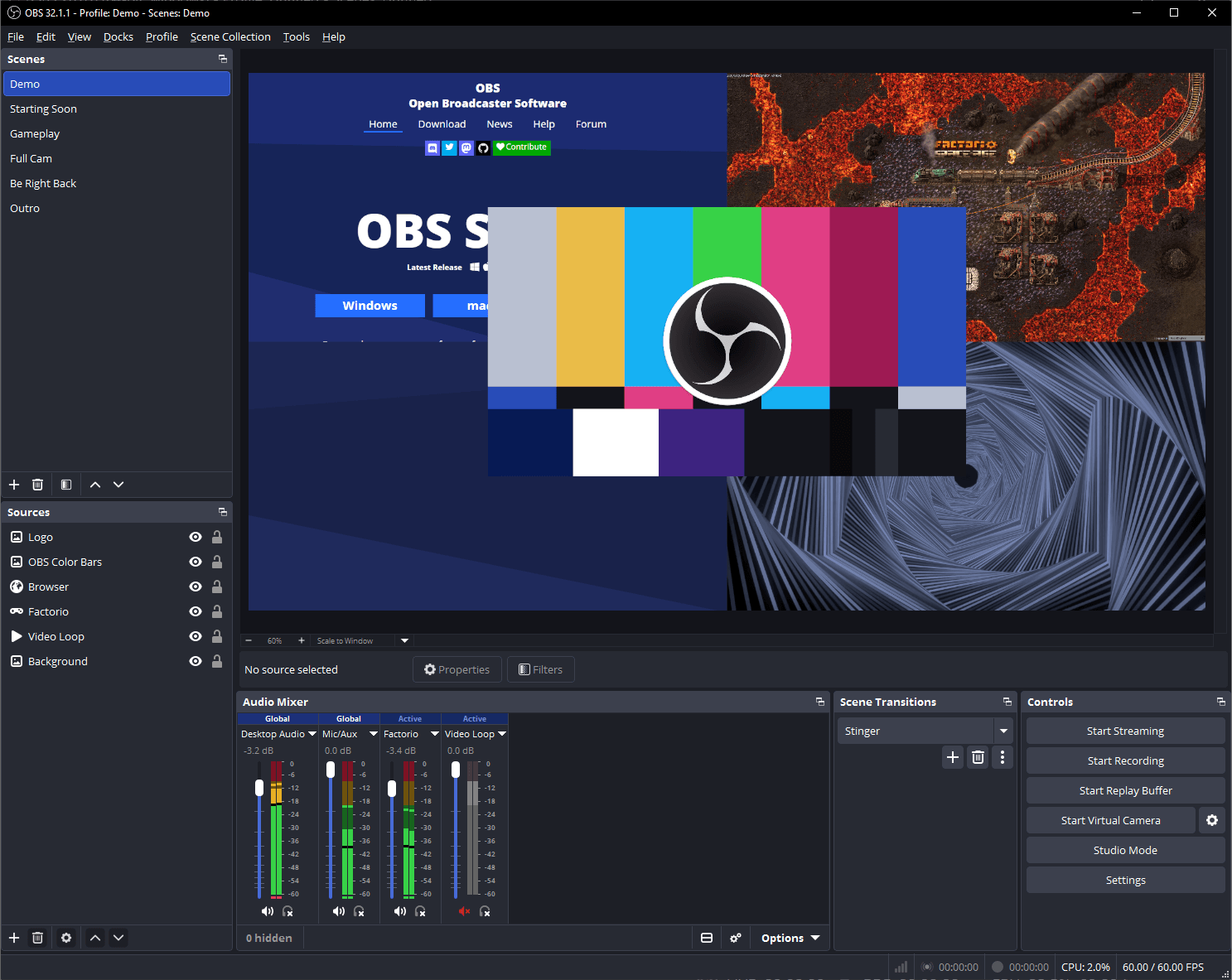
- Genuinely free, no license tier
- Fine-grained control over resolution, bitrate, encoder
- Recording and streaming (YouTube Live, Twitch, etc.) in one tool
- The initial setup curve (scenes, audio routing) is real — most people need an afternoon
- To capture system audio on macOS you still need BlackHole or similar
- Overkill if all you want is "record this screen"
3. BetterCapture — OSS / ProRes purists
- MIT license (commercial use and modification allowed)
- ProRes output pairs nicely with Final Cut / DaVinci workflows
- No watermark, no upsell, no upgrade nag
- Feature set is intentionally minimal — streaming and complex editing belong to other tools
- UI and docs are English-first
4. ScreenPal (free tier) — browser-based, quick captures
ScreenPal (formerly Screencast-O-Matic) is a hybrid web/desktop screen recorder. The free tier is watermark-free but has a few practical limits.
- Free tier is watermark-free
- Try it without creating an account
- Browser-based capture means no install needed in some flows
- Free tier caps each recording at 15 minutes
- Editing tools and cloud storage are paid
- Internal-audio capture varies by setup
5. Mac stock tools (QuickTime / Shift + Cmd + 5) — mic-only narration is enough
- Already on your Mac — zero setup
- No watermark, no time cap, no feature lock
- Survives macOS updates with stable behavior
- Capturing system audio requires BlackHole + an Audio MIDI Multi-Output Device
- Editing tools are essentially non-existent — trim only
Pick by use case
If you'd rather not weigh trade-offs, here's the shortcut:
| Your use case | Pick | Why |
|---|---|---|
| Tutorial videos for clients | Qureco | Watermark-free + internal audio + edit-ready MP4 |
| Web meeting capture + notes | Qureco | Captures the other party's audio without setup; Pro adds AI meeting notes |
| Narrated presentation only | Mac stock / Qureco | Stock is enough; Qureco wins if you value zero setup |
| Recording and live streaming | OBS Studio | One tool covers both |
| OSS-first | BetterCapture / OBS | Both ship under open-source licenses |
| Short clips in the browser | ScreenPal | No install needed, up to 15 min free |
Why Qureco wins for "Mac × watermark-free × free"
To recap the case for Qureco as the default pick:
- All four checks pass on the free plan: no watermark, no time limit, no feature lock, internal audio works
- No virtual audio setup — no BlackHole, no Soundflower, no Audio MIDI Setup tab open in the background
- Install-to-record is short — launch, sign in, hit record
- A clear upgrade path when you need it: the Pro plan ($9/month, first two weeks free, no card on file) adds AI meeting notes and Notion sync — useful once recording itself is solved
Built by Qurio Inc. (Tokyo). The free plan is enough to validate the workflow on a real recording — install it and let your next session prove it.
A note on long-term reliability
A practical concern with "free forever" tools is whether they'll still be free forever in a year. Quick read on each of the five:
- Mac stock tools — Apple won't paywall them; safest long-term bet for the pure recording layer
- OBS Studio — GPL v2 open source, community-maintained, not going anywhere
- BetterCapture — MIT-licensed, the source is yours to fork if the maintainer steps away
- Qureco — commercial product with a free recording tier; the free tier is the entry point to the paid product, so it has structural incentive to stay free and clean
- ScreenPal — commercial product where the free tier exists to convert; restrictions have crept up over the years
For mission-critical workflows (a recording you'll do every day for the next two years), the OSS options have the strongest "I can always self-host this" story. For the speed-of-onboarding case, Qureco wins the time math even if its long-term licensing could in theory change.
Wrapping up
- "Free" Mac screen recorders almost always trip on one of watermark, time cap, feature lock, or internal audio
- Run any candidate through the four checks before you trust it for production work
- Apple's stock tools clear three of four — but you'll need BlackHole or similar to capture system audio
- For "install and start recording with zero setup" pick Qureco Screen Recorder; for "also let me stream and tweak everything" pick OBS Studio
Pick one, install it, and let the next recording be the one where the watermark just isn't there.
Qureco Screen Recorder
Powerful screen recording app for Mac
Record meetings, let AI handle the notes, just read what arrives in Notion.
Try all features free for the first two weeks.