Ever opened a screen recording file and felt your laptop groan? Or hit a Slack size limit trying to share a one-hour meeting? That "max quality" setting you picked might be massively overkill for what you actually needed.
What resolution and frame rate actually mean
Three numbers shape every screen recording: resolution, frame rate, and (behind the scenes) bitrate. Get the relationships down once, and the use-case matrix later in this guide clicks instantly.
Resolution = how sharp the image is (can you read the text?)
Resolution is the pixel count of each frame. Screen recorders usually offer four common tiers:
| Label | Dimensions | Common name | Feel |
|---|---|---|---|
| 1080p | 1920 × 1080 | Full HD | Even tiny text stays crisp |
| 720p | 1280 × 720 | HD | Regular text is perfectly legible |
| 480p | 854 × 480 | SD | Big text reads fine, small text gets fuzzy |
| 360p | 640 × 360 | — | Too low for app or UI recording |
The flip side: if the text is comfortably readable, anything beyond that just inflates file size for no real gain.
Frame rate = how smooth the motion looks (30/60/120 fps)
Frame rate (fps = frames per second) is how many images are shown each second. Three tiers cover most situations:
| fps | Feel | Typical use |
|---|---|---|
| 30fps | The natural-looking baseline | Meetings, tutorials, presentations |
| 60fps | Visibly smoother | Gameplay, sports, fast motion |
| 120fps | Ultra-smooth, slow-mo-ready | Pro game editing, competitive footage |
Resolution × frame rate = where file size comes from
Double the resolution → ~4× the pixels → ~4× the file size Double the fps → ~2× the file size Both → ~8× the file size
Why "max settings" becomes a trap
"Couldn't I just always pick the highest settings my drive can handle, to avoid regret?" Reasonable thought — but in real-world workplace recording, max settings tend to create more problems than they prevent.
How heavy is a one-hour meeting recording, really?
Rough file size for a one-hour web meeting recording, by setting (H.264 codec, typical low-motion content):
| Settings | File size per hour | Day-to-day feel |
|---|---|---|
| 1080p / 60fps | 3–4 GB | Hits Slack's size limit |
| 1080p / 30fps | 1.5–2 GB | Cloud upload feels slow |
| 720p / 30fps | 500 MB – 1 GB | Shares and uploads smoothly |
| 480p / 30fps | 250–400 MB | Snappy to share, but tiny text gets hard to read |
Plain numbers, but stack them up and 1080p / 60fps starts to look excessive. The same meeting, with one setting change, goes from "can't paste into Slack" to "no problem."
The hidden costs of maxing out
Big files create friction beyond just storage:
- Slow sharing: uploads to Slack / Notion / Drive can take minutes
- Sluggish recording itself: higher CPU load during the call can hurt your meeting performance
- Storage pressure: you end up upgrading your cloud plan faster than necessary
- Hard to review later: thumbnails load slowly, search becomes painful
Paying these small costs every day adds up. Picking the right setting from the start saves a surprising amount of time and headspace over a month.
The use-case settings matrix
This is the heart of the guide. Find the row that matches what you're recording, and use those settings. You'll be right 90% of the time.
| Use case | Resolution | Frame rate | File size / hour | Notes |
|---|---|---|---|---|
| Web meeting recording | 720p | 30fps | ~500 MB – 1 GB | Text stays legible, motion is minimal — fps doesn't need to be high |
| Software tutorial | 1080p | 30fps | ~1.5–2 GB | UI elements look crisp; motion is slow, so 30fps is plenty |
| Presentation recording | 1080p | 30fps | ~1.5–2 GB | Slide text needs to stay sharp |
| Course video (edit-ready) | 1080p | 30fps | ~1.5–2 GB | A bit of headroom for cutting and editing later |
| Game streaming / gameplay | 1080p | 60fps | ~3–4 GB | Smooth motion matters — don't compromise here |
| Vertical social clips | 720p | 30fps | ~500 MB – 1 GB | Gets cropped to portrait anyway |
| Quick personal note | 480p | 30fps | ~250–400 MB | Just for you to rewatch — keep it light |
A web meeting doesn't need gameplay settings
The biggest single mistake is people defaulting to 1080p / 60fps for meeting recordings. Those are practically gameplay settings. In a web meeting, what's moving? A cursor. The occasional slide swap. 30fps looks identical to 60fps and saves you half the data.
Gameplay is the one real exception
The opposite end: if you're recording gameplay (especially for editing or sharing online), the settings actually matter. Fast motion at 30fps will visibly stutter, and slow-motion edits look much better with 60fps source footage. Don't compromise here — but also recognize this is a specialty case, not the general baseline.
Tutorial recording sits in the middle
Tutorials and software walkthroughs occupy an interesting spot: the motion is slow (mostly cursor and clicks), but the text needs to be crisp because viewers will pause to read. 1080p / 30fps is the sweet spot — sharp enough to read, slow enough to keep file sizes reasonable. Going higher than 30fps doesn't help; going lower than 1080p makes UI labels frustrating to read on a viewer's small screen.
3 tips for balancing quality and file size
A few mental moves that go further than just memorizing the matrix.
Tip 1: Before bumping quality, question the use case
When you're tempted to crank settings up, pause and ask "what is this recording actually for?"
- Personal rewatch → 720p / 30fps is plenty
- Sharing with the team → 720p–1080p / 30fps
- Public publishing → 1080p / 30–60fps
- Editing into produced content → 1080p / 30fps (edit-ready)
Tightening that question alone — rather than reaching for "max" — often cuts file size by half or more, without anyone watching it noticing the difference.
Tip 2: Audio quality often matters more than video
Modern AI transcription tools don't care at all about your video resolution. Mic quality and background noise drive accuracy. So no, dropping resolution doesn't break your transcription pipeline at all — it might actually help by reducing CPU contention.
Tip 3: Watch out for Retina on Mac
The fix is using a recorder that lets you pick an explicit output resolution (1080p / 720p / etc.) instead of just mirroring the display. macOS's built-in recorder tends to use native resolution as-is, which is why Mac users often see "tiny recordings, huge files" as a daily annoyance.
Pick a tool that lets you choose
macOS built-in tools don't give you much choice
Shift + Command + 5 toolbar are great for quick captures, but neither offers a way to pick resolution or fps. They just default to the display's native resolution and call it done. Convenient for one-off use, limiting if you record meetings every day and care about file size.For ad-hoc recordings these are fine. For sustained daily use, switching to a tool with proper controls pays back fast — both in storage and in time saved sharing files.
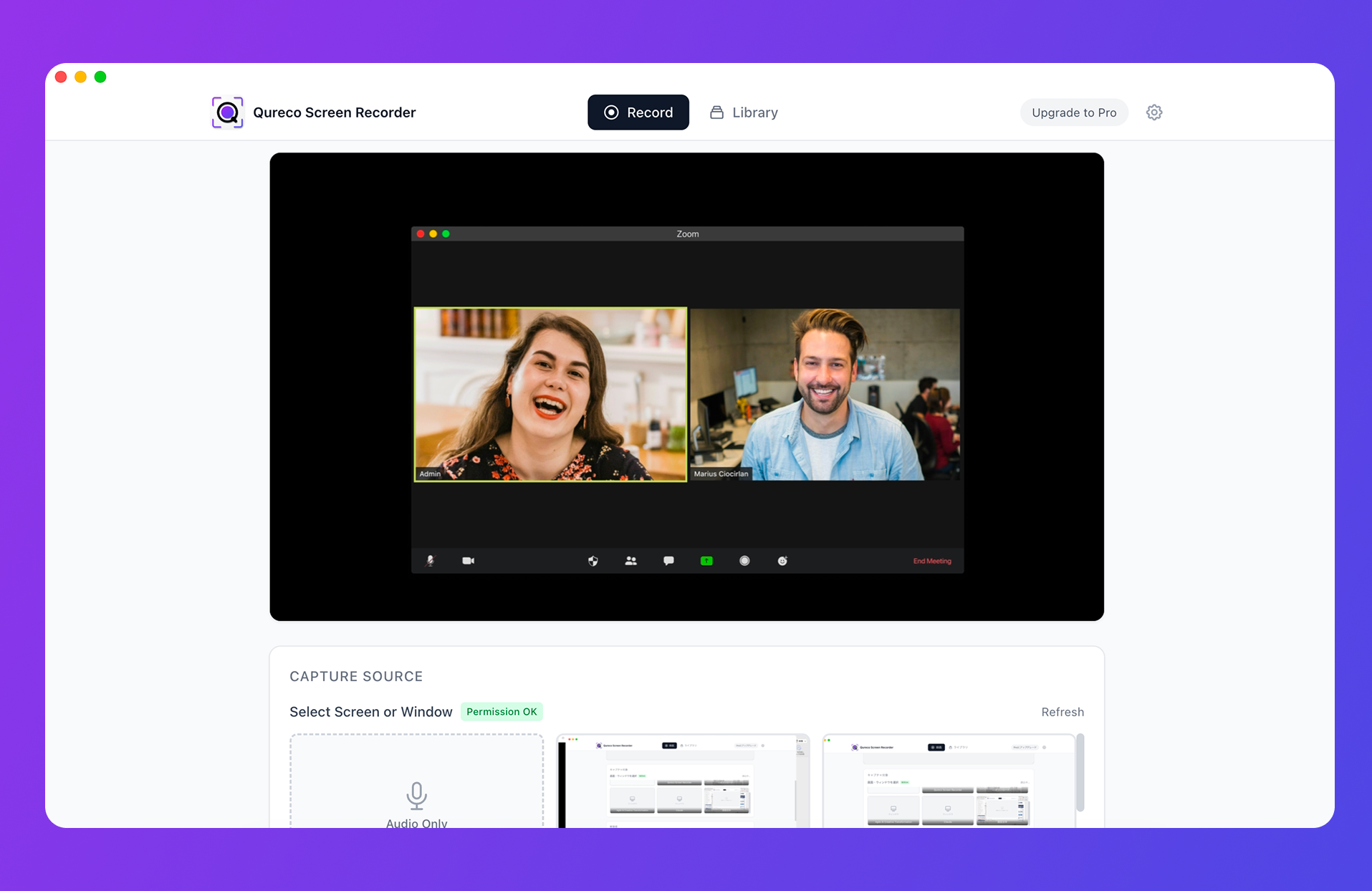
A Mac recorder that lets you pick: Qureco
- Meeting recording → 720p: light files, text stays clear
- Tutorials → 1080p: crisp UI for viewers
- Personal notes → 480p: smallest footprint for self-only review
Qureco also skips the usual setup chore. No virtual audio driver. No initial configuration. Install it and you're recording in seconds. The free tier has unlimited recording time, no watermark, and isn't time-limited.
Upgrade to Pro and the recording → meeting notes → Notion flow runs on autopilot: AI generates structured notes from each recording, and one click sends them into your Notion workspace. Pro is $9/month at launch pricing, with a free two-week trial and no card on file to try.
"Just right" beats "maximum"
Screen recording settings aren't a "bigger is always better" situation. Picking from the use case backwards lets you keep the quality where it counts, the file size manageable, sharing fast, and your laptop quiet — all at once.
The one-line takeaway:
- Web meeting → 720p / 30fps
- Software tutorial → 1080p / 30fps
- Gameplay → 1080p / 60fps
- Personal note → 480p / 30fps
Letting go of "max everything" once and for all frees up storage, speeds up your machine, and makes daily recording feel lighter. Pick a use case from this list and try it on your next recording — you'll notice the difference immediately.
And if you want a tool that actually lets you make that choice on Mac, Qureco was built around exactly this matrix.
Qureco Screen Recorder
Powerful screen recording app for Mac
Record meetings, let AI handle the notes, just read what arrives in Notion.
Try all features free for the first two weeks.