You got a new Mac, tried to install Soundflower the way you always have, and the installer stops partway through. Or it appears to install, but "Soundflower (2ch)" never shows up in your sound settings. You are following a blog post that worked fine three years ago, and only this one step refuses to cooperate.
This article settles the question using the official sources and Apple's own documentation, then walks through the two realistic ways to record Mac system audio in 2026. If you have been using Soundflower for years, the goal is to get you recording again today.
The short answer
| What you want to know | Where things stand |
|---|---|
| Is Soundflower still maintained? | The repository is marked DEPRECATED |
| Last release | 2.0b2, published December 19, 2014 |
| Compatibility label on it | macOS Big Sur (11.1) and earlier |
| Apple Silicon (M1 and later) | Not supported, stated by the project itself |
| If you want the same approach | BlackHole (free, Apple Silicon native) |
| If you want to stop configuring audio routing | Use a recorder that captures system audio directly |
Soundflower isn't broken by your settings
What the official repository says
Soundflower is developed in the open on GitHub, and the first line of its README reads:
DEPRECATED Silicon Macs are not supported. New version coming shortly!
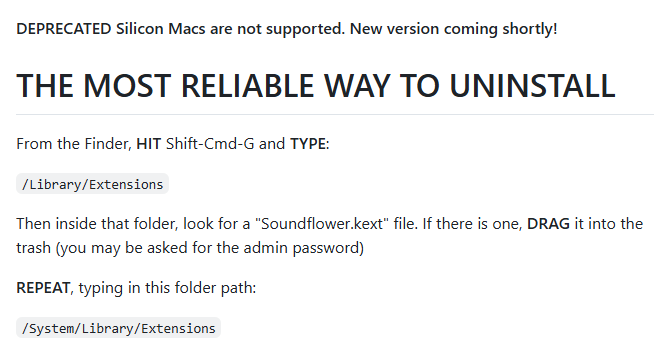
Deprecated means the project is no longer recommended for use. And Silicon Macs, meaning anything with an M-series chip, are explicitly out of scope according to the developers themselves.
The file you'd download hasn't changed since 2014
The release notes then open with this:
M1 chip-based Macs are NOT YET SUPPORTED
The repository description still reads "Soundflower works on macOS Catalina."
| Item | Current state of Soundflower |
|---|---|
| Last release | 2.0b2, published December 19, 2014 |
| Label on that release | Signed version for Big Sur (11.1) and earlier |
| Apple Silicon | Stated as not yet supported |
| Code signing | The extension is signed; the installer is not (you have to control-click to open it the first time) |
| Companion app | SoundflowerBed is retired (per the release notes) |
| README status | DEPRECATED |
Why it can't work on Apple Silicon
You might be wondering whether there is a clever workaround. There isn't, and the reason is structural.
Soundflower is a kernel extension
Soundflower is a kext, short for kernel extension. Think of it as software loaded directly into the core of macOS in order to add a capability the OS doesn't have on its own. Adding a virtual audio device to your Mac required that level of access at the time it was written.
Apple has since moved away from kexts entirely. Apple's own security documentation states that kernel extensions put the integrity and reliability of the operating system at risk, and recommends choosing solutions that do not extend the kernel.
Loading a kext means lowering your Mac's security policy
Apple silicon Macs ship with the security policy set to Full Security, and in that state kexts simply do not load. To allow one, Apple's documented procedure is:
- Shut the Mac down from the Apple menu
- Press and hold the power button until "Loading startup options" appears
- Click Options, then Continue, and pick your startup disk and an admin account
- In the Recovery app, choose Utilities > Startup Security Utility
- Click Security Policy and select Reduced Security
- Check "Allow user management of kernel extensions from identified developers"
- Restart
And it still won't run
You would be trading away a layer of your Mac's security and getting nothing in return, so don't go down this path.
What about Intel Macs?
On an Intel Mac still running Big Sur, it may well work. There are reports of exactly that.
Two things are worth weighing before you rely on it:
- The compatibility label on the release stops at Big Sur (11.1). There is no sign of testing against anything newer
- Kexts are among the first things to break when macOS updates. Working today does not mean working after the next update
"Still running" and "safe to depend on" are different claims. For a recording you only get one chance at, such as a client call or a live event, that is a risky thing to rely on.
The virtual audio drivers that work today
If you want to keep the Soundflower approach of building an audio path inside your Mac, these are the options.
BlackHole (free, Apple Silicon native, no kext)
no kernel extensions or modifications to system security necessary
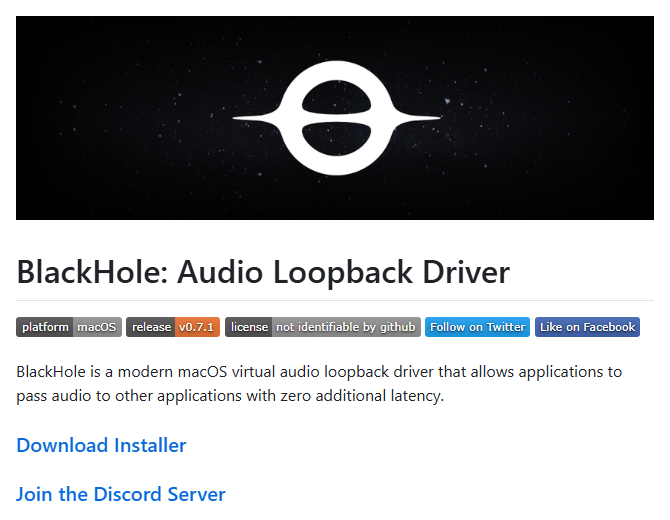
That single line is the whole difference. BlackHole is built as a user-space audio driver rather than a kernel extension, so there is no trip to Recovery and no security policy to lower.
| Item | BlackHole |
|---|---|
| Price | Free (GPL-3.0) |
| Supported macOS | 10.10 Yosemite and later |
| Apple Silicon | Supported (Intel builds available too) |
| Security changes required | None |
| Channel counts | 2 / 16 / 64 / 128 / 256 |
| Added latency | Stated as zero |
| Install | Official installer, or Homebrew (brew install blackhole-2ch) |
If you are migrating from Soundflower, the 2-channel build is all you need. Reach for 16 channels or more only if you are separating multiple sources for a stream.
The setup work doesn't go away
Roughly:
- Install BlackHole
- Open Applications > Utilities > Audio MIDI Setup
- Create a Multi-Output Device and check both BlackHole and your speakers or headphones
- If you also want your own microphone in the recording, create an Aggregate Device combining your mic and BlackHole
- Switch your Mac's sound output to the Multi-Output Device you created
- Select BlackHole as the input in your recording app
Two things trip people up:
- Skip step 3 and you stop hearing anything. All the audio goes to BlackHole and none of it reaches your ears, which on a call means you can no longer hear the other person. The Multi-Output Device exists to split the signal between recording and playback
- It is easy to forget to switch your output back afterward. This is the single most common reason someone joins the next meeting and can't hear anyone
BlackHole itself is a well-built tool, and the fact that it costs nothing is remarkable. The question is whether you want to run through that checklist before every meeting, when what you actually wanted was a record of the conversation.
Loopback (paid, for routing audio per application)
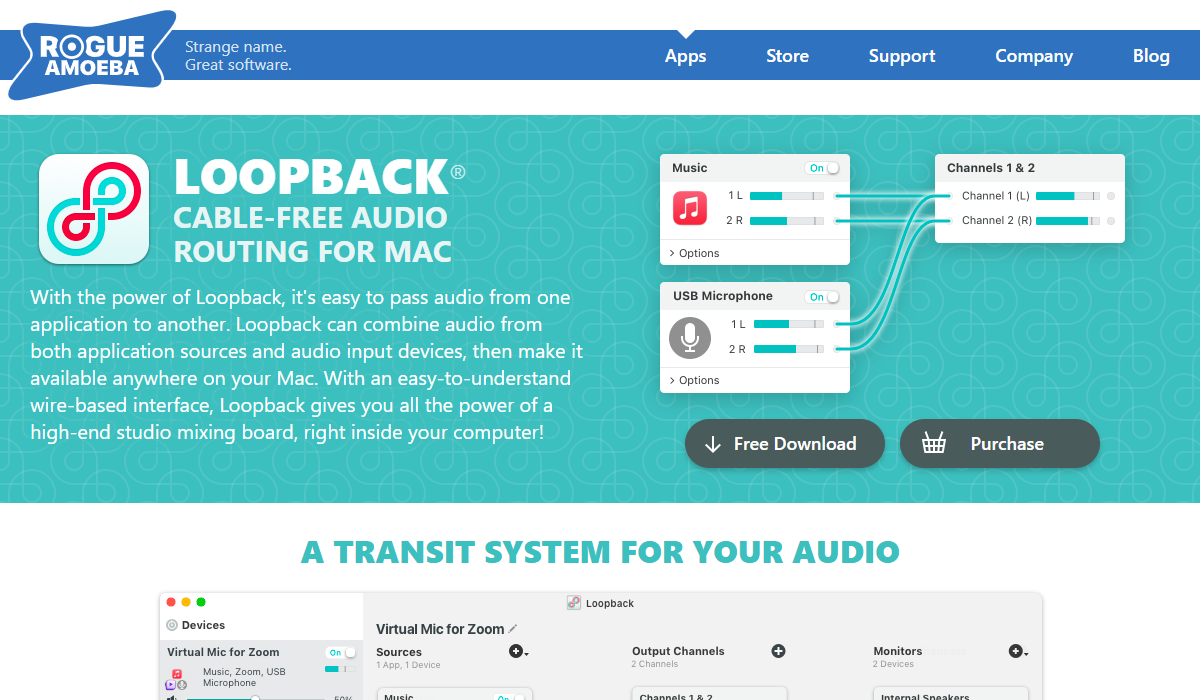
Instead of reasoning about Audio MIDI Setup, you drag wires between "this app's audio" and "this microphone" to build a virtual device. For streamers who need per-application routing, or anyone doing audio production, it is worth the money.
The three side by side
| Soundflower | BlackHole | Loopback | |
|---|---|---|---|
| Price | Free | Free | $99 one-time |
| Apple Silicon | Not supported | Supported | Supported |
| Security changes required | Yes (and it still won't run) | None | None |
| Setup effort | Audio MIDI Setup | Audio MIDI Setup | Handled in the app |
| Per-app routing | No | No | Yes |
| Development status | Last file published in 2014 | Actively maintained | Actively maintained |
In 2026, you may not need a virtual driver at all
Everything above assumes the goal is to find a replacement virtual audio device. That assumption is now somewhat out of date.
macOS 14.2 added a direct route to system audio
The real benefit is that a whole class of problems disappears:
- Audio distorting the moment you connect Bluetooth headphones
- Noise from sample-rate mismatches between devices
- The driver failing to load after a macOS update
- Forgetting to switch your output device back, and going silent in the next call
Every one of those comes from hand-building an audio path. Don't build one and they don't happen.
But the built-in screen recorder still only captures your mic
The screen recorder you get with Shift + Command + 5, and screen recording in QuickTime Player, still capture microphone input only. That is unchanged in macOS 26 Tahoe.
Apple's own support page says as much: the only audio instruction in the whole procedure is to "choose a microphone" if you want to record your voice or other audio. Tahoe added window-specific recording and HDR capture, but there is still no option for system audio, so the other person's voice or a video playing in your browser will not be in the file.
If the goal is recording meetings, let the recorder handle it
It is worth stepping back to what you were trying to do.
Most people hunting for Soundflower are not interested in audio routing for its own sake. They want to be able to revisit a meeting or a webinar afterward. Routing is a means to that end, nothing more.
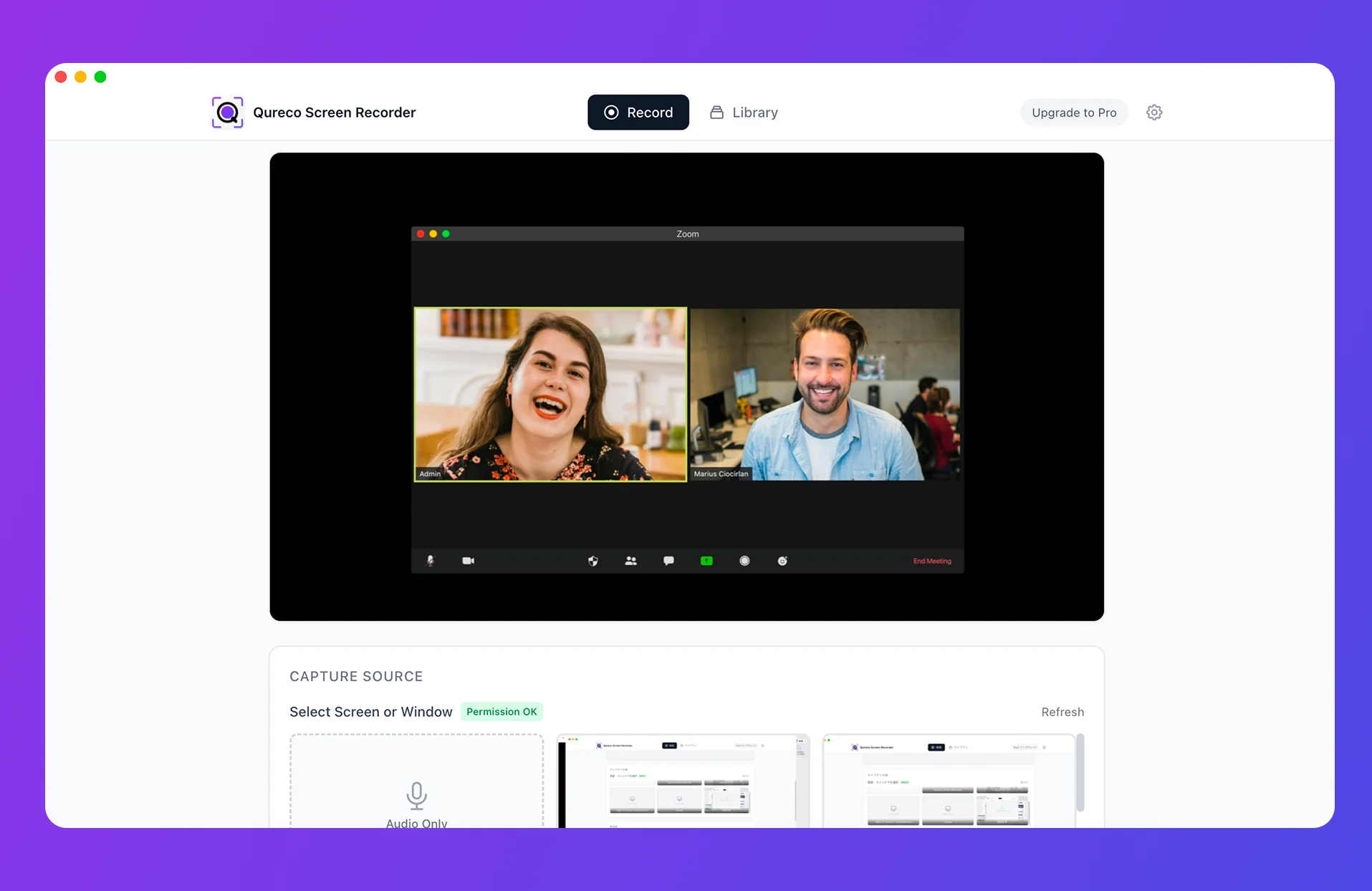
- Records your mic and system audio (the other person's voice) together, straight after install
- No Audio MIDI Setup, no output device to switch, nothing to switch back
- Recording is free, unlimited in length, and watermark-free
- Capture the full screen, a single app, or one window, plus an audio-only mode
On the Pro plan ($9/month at launch pricing, with the first two weeks free and no credit card required), AI turns the recording into meeting notes and sends them to your Notion database. The recording stops being a file you never reopen and becomes something you actually read. Speaker identification means you keep track of who said what.
Choosing based on what you're doing
| What you're trying to do | Best fit |
|---|---|
| Record meetings and webinars so you can review them later | A recorder with built-in system audio (such as Qureco) |
| Avoid configuration work altogether | Same as above |
| Route individual apps separately while streaming | Loopback |
| Build multi-channel routing for audio production | BlackHole (16ch or higher) or Loopback |
| Keep building the path yourself, for free | BlackHole (2ch) |
| Still on an Intel Mac running Big Sur | Soundflower may keep working for now, but line up a replacement |
Frequently asked questions
How do I remove Soundflower if I already installed it?
/Library/Extensions, and drag Soundflower.kext to the trash if it's there. Repeat for /System/Library/Extensions. You will be asked for an admin password. Restart your Mac afterward.Uninstall Soundflower.scpt script you can right-click and open, which clears out the related files in one pass.Can BlackHole and Soundflower coexist?
You will end up with two virtual audio devices cluttering Audio MIDI Setup. If you have decided to stop using Soundflower, uninstall it before installing BlackHole and you will run into fewer surprises.
Is "New version coming shortly" worth waiting for?
I wouldn't plan around it. That line has been sitting there while the last release remains the one from December 2014. If you have something to record now, moving to a maintained option resolves it faster.
What if I only want audio, not the screen?
Pick a tool with a dedicated audio-only mode. Qureco has one and exports to MP3, which is handy when the plan is to capture the conversation and send it to transcription later. The files are far smaller without video.
Wrapping up
- The problem is not your configuration. The official repository is marked DEPRECATED with "Silicon Macs are not supported," the last file published was 2.0b2 in December 2014, and the compatibility label on it stops at macOS Big Sur (11.1)
- Apple Silicon is a structural dead end. Soundflower is a kext, Apple silicon requires lowering your security policy to load one, and no Apple Silicon build exists in the first place
- To keep the same approach, use BlackHole. Free, Apple Silicon native, no kext, though the Audio MIDI Setup work remains
- To drop the setup work, use a recorder that captures system audio. macOS 14.2 and later provide a direct route, but the built-in recorder (Shift + Command + 5) and QuickTime remain microphone-only, even on Tahoe
If you have a meeting to record tomorrow morning, try a recorder that captures system audio on its own before you boot into Recovery. If it covers what you need, you may never open Audio MIDI Setup again.
Qureco Screen Recorder
Powerful screen recording app for Mac
Record meetings, let AI handle the notes, just read what arrives in Notion.
Try all features free for the first two weeks.