That hour-long webinar and those tutorial videos sitting in your watch-later list — be honest, are you ever going to watch them?
The 5 Methods and What's Free in Each
| Method | What's free | When you'd have to pay |
|---|---|---|
| 1: Gemini | URL-paste summaries free (usage caps unpublished, vary with load) | Heavy daily use, or top-tier models |
| 2: NotebookLM | 100 notebooks, 50 sources each, 50 questions/day | Only beyond those limits (Pro) |
| 3: Chrome extension (Glasp) | Extension fully free; summaries run on your ChatGPT account | Never (depends on your AI's free tier) |
| 4: ChatGPT + transcript | Free within usage caps | Bulk-processing long videos (Plus) |
| 5: Record → AI meeting notes | Recording free and unlimited | AI summaries need Pro ($9/mo, first two weeks free) |
Can Each Tool Handle URLs and Your Own Recordings?
| Method | YouTube URL | Your own video files |
|---|---|---|
| Gemini | ✓ | △ Uploads work, but free tier caps video at ~5 min total (paid: ~1 hour) |
| NotebookLM | ✓ | ✗ No MP4 uploads (audio files work, so extract audio first) |
| Chrome extension | ✓ (on YouTube pages only) | ✗ |
| ChatGPT | ✗ (works if you paste a transcript) | ✗ No direct video file reading |
| Qureco | ✓ (record while playing) | ◎ AI summary straight from the recording |
Method 1: Paste the URL into Gemini (Fastest, Free)
The easiest route is Google's Gemini. Google runs YouTube, and it shows — no other AI handles YouTube links this smoothly.
The 3 steps
- Open Gemini (free with a Google account)
- Copy the YouTube URL and paste it into the chat box
- Add "Summarize this video" and send
Key points come back as bullets within a minute.
How far does free go?
- URL-based video summaries work on the free plan as-is, with no stated "X minutes max" limit on URL video length
- Free-tier usage caps are unpublished and vary with demand — but a handful of summaries a day runs fine without paying
- You can also upload your own video files (up to 2GB per file) — but the free tier handles only about 5 minutes of video per prompt (roughly 1 hour on paid plans), so long recordings are out
- Paid plans only matter if you want the top models, or need to feed it video files longer than a few minutes
A prompt that works better than "summarize"
Summarize this video in the following format:
- The core argument in 3 lines
- Main topics as a chronological bullet list (1–2 sentences each)
- Any actionable takeaways as a separate list
Limitations
- Videos without captions can't be summarized (or come back badly degraded)
- Live streams in progress and members-only videos don't work
- Long videos get thin toward the end — ask "Cover the section after the 20-minute mark in detail" to split the work
Method 2: NotebookLM for Deep Dives (Clearest Free Tier)
How far does free go?
- Notebooks (projects): up to 100
- Sources per notebook: up to 50 (mix videos, PDFs, and web pages)
- Chat questions: 50 per day
- Audio Overviews: 3 per day
How to use it
- Create a notebook at NotebookLM
- Add sources → YouTube → paste video URLs (multiple is fine)
- Ask things like "What do these three videos agree on?" or "Give me the beginner-level takeaways"
Method 3: Chrome Extensions (Check What "Free" Means)
If copying URLs feels like friction, a Chrome extension adds a summary button right on the YouTube page. But "free" varies a lot between extensions.
Free forever: YouTube Summary with ChatGPT & Claude (Glasp)
Trial-then-pay: Eightify and similar
- Best for: people who scan many videos daily
- Caution: extensions ask for permissions — check the publisher before installing
Method 4: Paste the Transcript into ChatGPT (Free Within Caps)
The 3 steps
- On the video page, click "Show transcript" below the description
- Select all the transcript text and copy it (timestamps are fine to keep)
- Paste into ChatGPT with your instructions
How far does free go?
- Fine within ChatGPT's free usage caps — a few summaries a day costs nothing
- The pinch point is long videos: an hour-plus transcript can run to tens of thousands of characters, which the free tier may not swallow in one go. Split it front/back — or that's where Plus starts to make sense
- And note: it can't read video files directly. For your own recordings, you need a transcript from somewhere else first (→ Method 5)
Why bother with the extra step
Full control over the output format:
Below is a YouTube video transcript.
- Organize it into "Conclusions," "Evidence," and "Examples"
- I'm new to this topic — add a one-line gloss to any jargon
- Finish with a 3-line verdict: is the full video worth watching?

[TRANSCRIPT]
(paste here)
Method 5: No Captions or Not on YouTube? Record It, Then Let AI Take Notes
And the "videos" you want summarized aren't only public YouTube uploads:
- Videos with no captions, or captions too rough to trust
- Invite-only webinars, and live streams that leave no archive
- Your own recordings — screen captures, Zoom or Teams meeting recordings sitting on your disk, never on YouTube at all
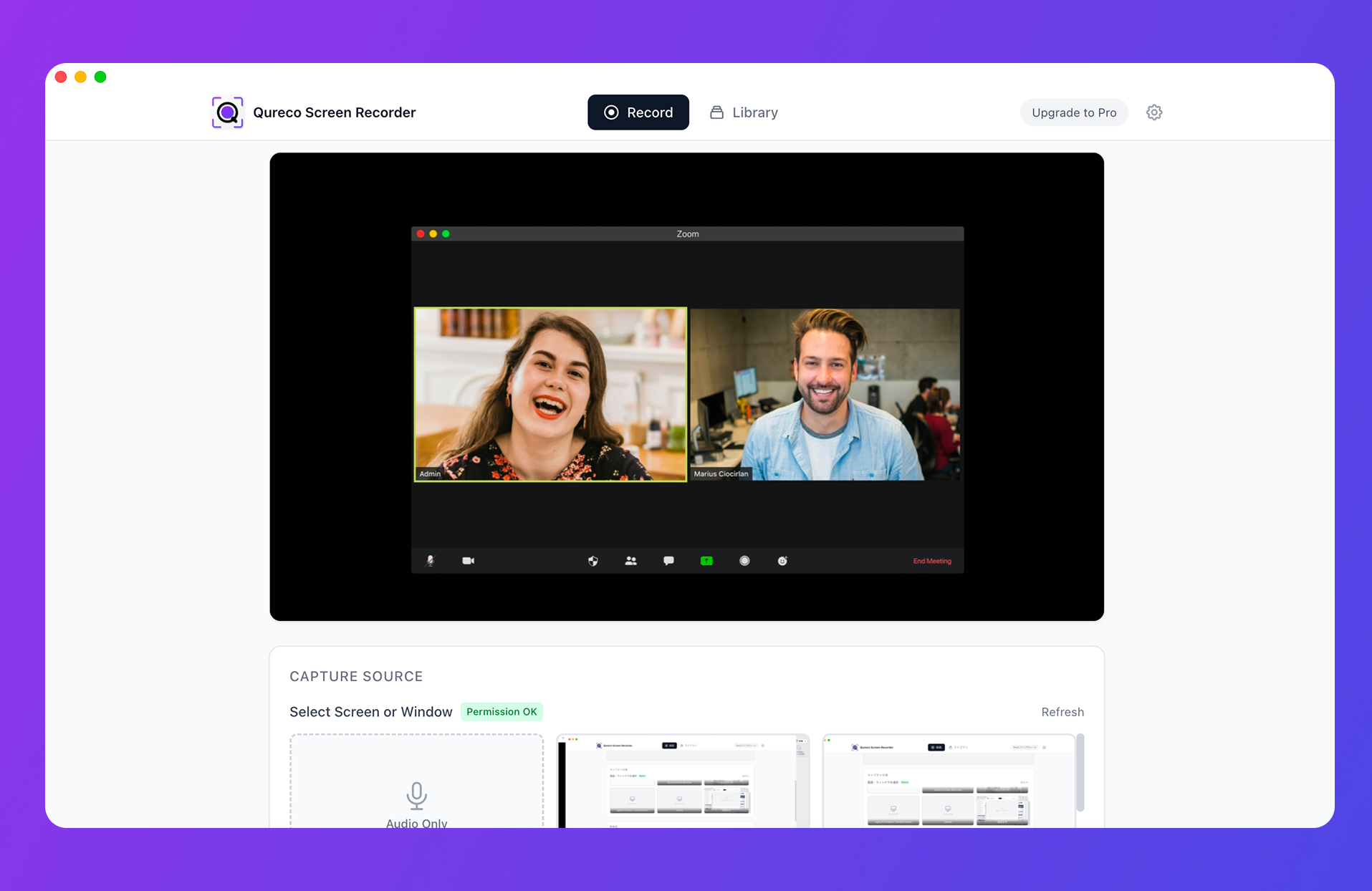
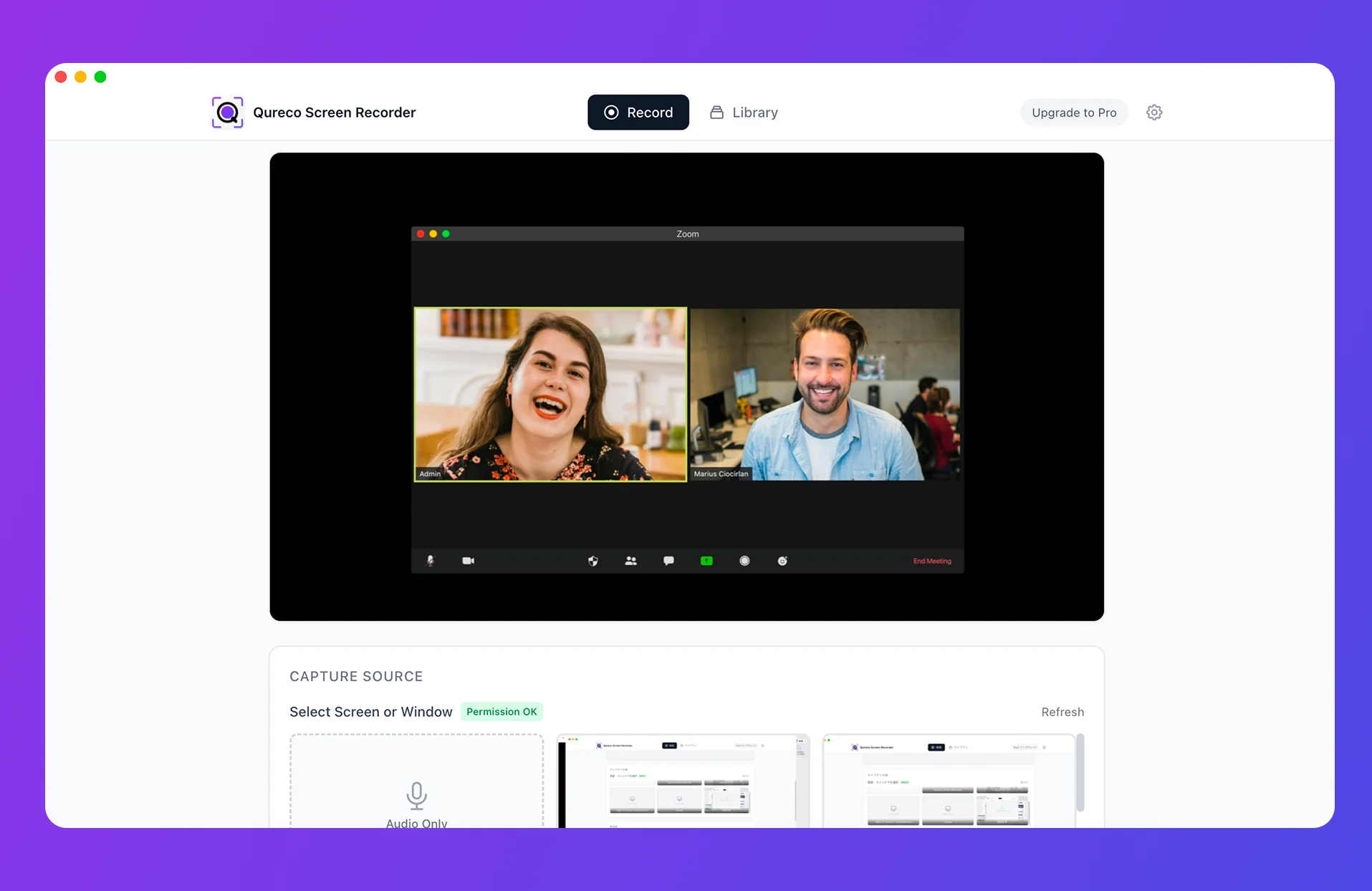
- Record the video or stream while it plays (system audio is captured as-is — no virtual audio driver setup). For meetings and webinars, just record live
- AI generates a summary from the recording, with speaker identification — no length cap, so hour-plus recordings summarize as-is
- Send the notes to Notion in one click and build a knowledge stock
How far does free go?
- Recording is completely free — unlimited length, no watermark, no paywall anywhere in the capture itself
- AI notes and Notion export are Pro features ($9/mo) — but with a free two-week trial and no credit card required, you can find out whether no-caption summarization earns its keep before paying anything
Purpose-Built Prompts for Better Summaries
These work with any of the methods above.
Turn this video's content into an exam-prep review sheet:
- Key concepts: term + one-line definition
- One concrete example per concept
- A 3-question quiz to check my understanding
Separate the "facts" from the "speaker's opinions" in this video.
Keep every number, name, and cited source.
Write this up as meeting notes:
- Separate decisions from open items
- Organize claims by speaker
- List action items with owner and deadline if mentioned
Two Things to Keep in Mind
AI summaries can be wrong
Stay inside copyright and terms of service
Captioned YouTube Videos? You Can Stay at $0
- Right now: paste a URL into Gemini (free; caps unpublished but generous for daily use)
- Deep dives: NotebookLM (clearest free tier: 100 notebooks, 50 sources each, 50 questions/day)
- High volume: the free Glasp extension (summaries run on your AI's free tier)
- Full control: transcript into ChatGPT (free within caps; split long videos)
- The only real paywall: no-caption videos and your own recordings — URL videos stay free, but local files are the blank spot. Recording is free; AI notes are Qureco Pro ($9/mo, first two weeks free)
Once you've cleared a watch-later list with AI, there's no going back. Start by pasting one URL into Gemini — and if webinars and meeting recordings are the bulk of your backlog, grab Qureco's free download below.

Qureco Screen Recorder
Powerful screen recording app for Mac
Record meetings, let AI handle the notes, just read what arrives in Notion.
Try all features free for the first two weeks.