The short answer
| What you want to know | Where things stand |
|---|---|
| Japanese support | Supported (announced November 4, 2025) |
| Supported languages | English, Spanish, French, German, Japanese, Chinese (Simplified) |
| Japanese status | Not marked beta (German and Chinese are) |
| Languages at once | One. Set it before the meeting (French + English is the only pairing) |
| Free plan | 300 minutes/month, capped at 30 minutes per conversation, 25 most recent conversations |
| Paid plans | Pro $16.99/mo ($8.33/mo annual), Business $30/mo ($19.99/mo annual) |
| Interface language | Stays in English regardless of your language setting |
| How it records | A Notetaker joins the meeting, or you record in the app |
Otter.ai does support Japanese
On November 4, 2025, Otter.ai announced its expansion into the Japanese market. From the official blog post:
Japanese transcriptions are now available in Otter's desktop and mobile apps
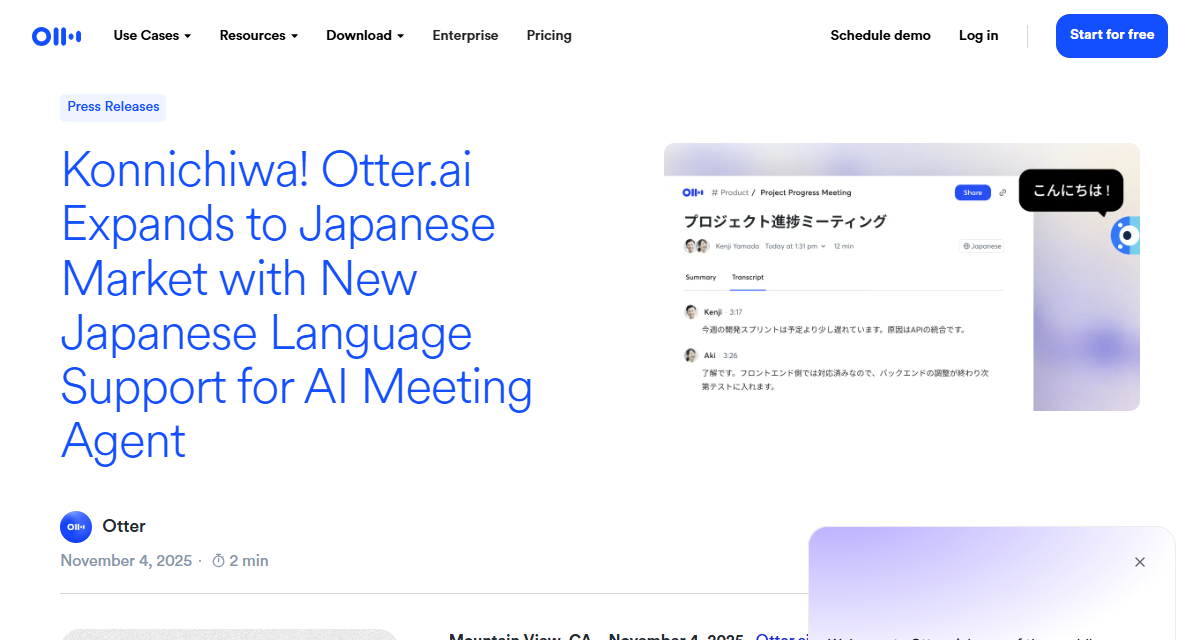
So "Otter is English only" is information from before November 2025.
Why you still see "English only" everywhere
The Japanese-language page hasn't caught up
Open otter.ai/jp today and the headline still reads:
Otterを使えば、英語の会話がそのまま文字になる ("With Otter, your English conversations become text")
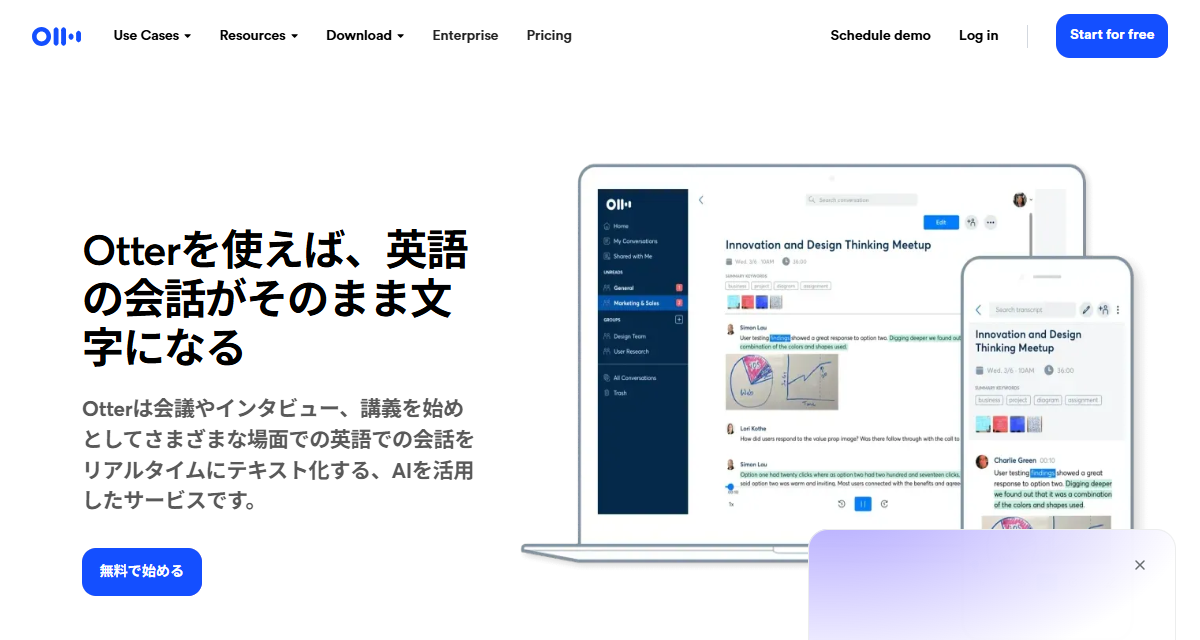
For a reliable answer, go to the English blog post and the help center.
Six languages, and where Japanese sits
According to Otter's help center, transcription currently supports six languages:
| Language | Status |
|---|---|
| English (US/UK) | Supported |
| Spanish | Supported |
| French | Supported |
| Japanese | Supported |
| German | Beta |
| Chinese (Simplified) | Beta |
Test accuracy on your own meetings
This article won't hand you a general accuracy score for Japanese. Results shift too much with jargon, the number of speakers, and microphone quality for a single number to be meaningful.
One language at a time, and mixed calls
This is the part most articles skip. The help center is explicit:
Otter can only transcribe in one language at a time
You choose the language ahead of the meeting or recording. The setting lives at the account level: click your profile in the upper left, open Account Settings, and use the Language dropdown (on mobile it's Account > Account Settings > Conversation Language).
Japanese and English together isn't offered
Asked whether that works for any other language paired with English, the answer is direct:
No. We currently only support transcribing in French and English simultaneously.
You can't redo it afterward
The awkward part for mixed-language teams is that there is no way to correct it later. Two things are spelled out in the FAQ:
- If you forget to switch the language before a meeting, you cannot reprocess it in another language. You have to export the audio file, change the language setting, and import it again
- Changing the language mid-meeting doesn't apply to that meeting. It keeps transcribing in the language that was set when recording started
The language choice is a single decision you make before the call begins.
Practical ways to handle mixed meetings
- Set it to the dominant language of that call. If the first half is Japanese and only the last stretch is English, go with the larger share and fill in the rest from your own notes
- Split the meetings. Keep the Japanese internal standup and the English headquarters sync as separate recurring meetings. Switching language per calendar event also makes the archive easier to read later
- If every call mixes, change the format of the record. Keeping a recording lets you go back to the specific stretch you need, rather than depending on one transcript
Pricing, and the free-plan limit you hit first
From the official pricing page. Prices are in USD; the annual column is the per-month rate when billed annually.
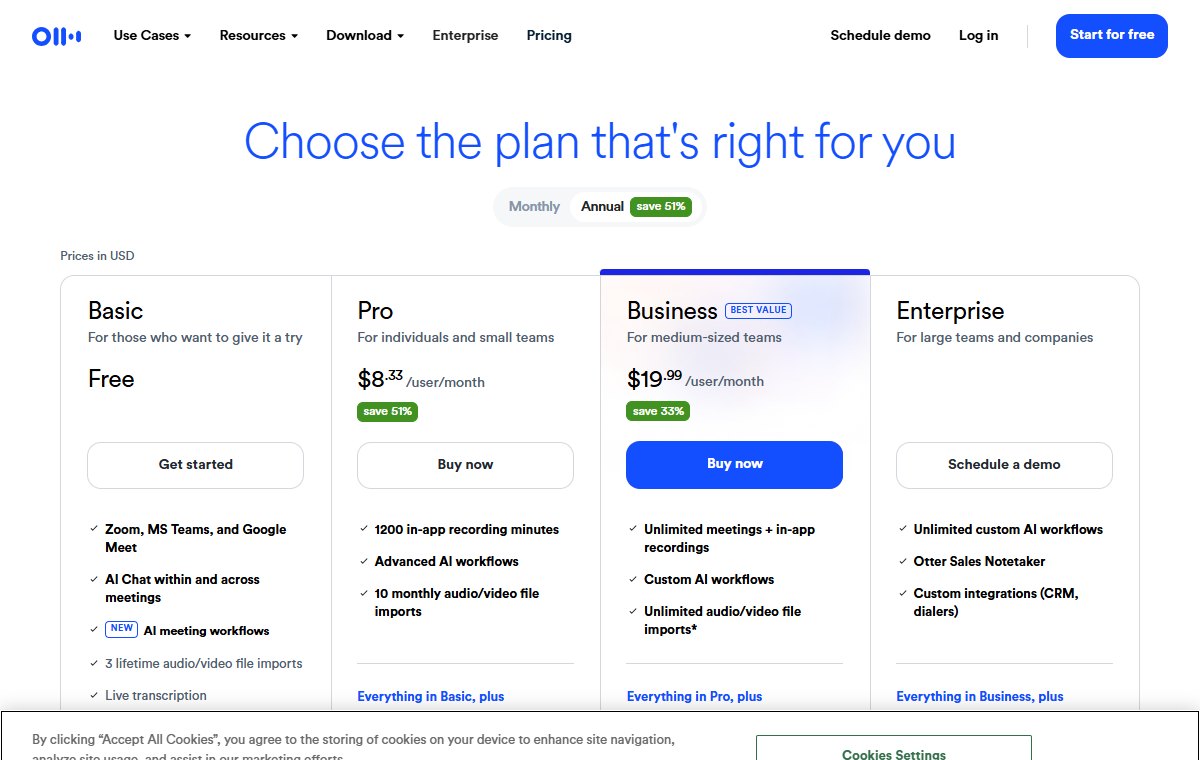
| Plan | Monthly | Annual | Monthly transcription | Per conversation |
|---|---|---|---|---|
| Basic (free) | $0 | $0 | 300 min | 30 min |
| Pro | $16.99/user | $8.33/user | 1,200 min | 90 min |
| Business | $30/user | $19.99/user | Unlimited | 4 hours |
| Enterprise | Contact sales | Contact sales | Unlimited | 4 hours |
The 30-minute cap matters more than the 300
The behavior is slightly unusual, so here is how Otter describes it:
If you exceed that limit, your recording or import will not stop, but you will only be able to access up to 30-minutes of the transcription.
Pro raises it to 90 minutes and Business to 4 hours, so in practice the length of your meetings picks your plan.
The other free-plan ceilings
| Item | Basic (free) limit |
|---|---|
| Monthly transcription | 300 minutes (deleted conversations still count against it) |
| Per conversation | 30 minutes readable |
| File imports | 3 per account, not per month |
| Conversation history | 25 most recent; older ones are archived and unlock on a paid plan |
The import limit is the one people miss: three for the lifetime of the account. Working through a backlog of past recordings is not something the free plan supports. Pro allows 10 per month and Business is unlimited.
The Notetaker shows up in the participant list
[Your Name]'s Notetaker (Otter.ai) using the first name on your profile. Anyone can remove it from the participant list via the More menu.You can also send the Notetaker to a meeting you can't attend yourself, and depending on your plan it can sit in several meetings at once.
For a sales call with a new prospect, or a candidate interview, an unfamiliar name appearing in the participant list is something you'll want to explain. A sentence at the top of the call covers it:
"I have an AI notetaker sitting in so I can review what we discussed. It's just for my notes."
Where Otter.ai is the strong choice
To be fair about it, there are clear cases where Otter.ai is the right tool:
- Teams whose meetings are mostly in English. It is the language the product has had the longest to refine
- Anyone who wants recording to happen automatically. Connect the calendar and meetings get captured without pressing anything
- Teams that share transcripts. The Business plan is built around shared workspaces and admin controls
- Mixing in-person and online meetings. The mobile apps let you cover both with one tool
- Situations where you want recording to be visible. The Notetaker in the participant list is a feature, not a side effect
If any of those describe you, Otter.ai is a solid pick.
When you'd rather not add anyone to the call
There are also meetings where adding a participant is the thing you want to avoid: first sales calls, candidate interviews, meetings with an external executive present. Plenty of people put off adopting AI meeting notes entirely because announcing "I'm bringing an AI notetaker" feels awkward.
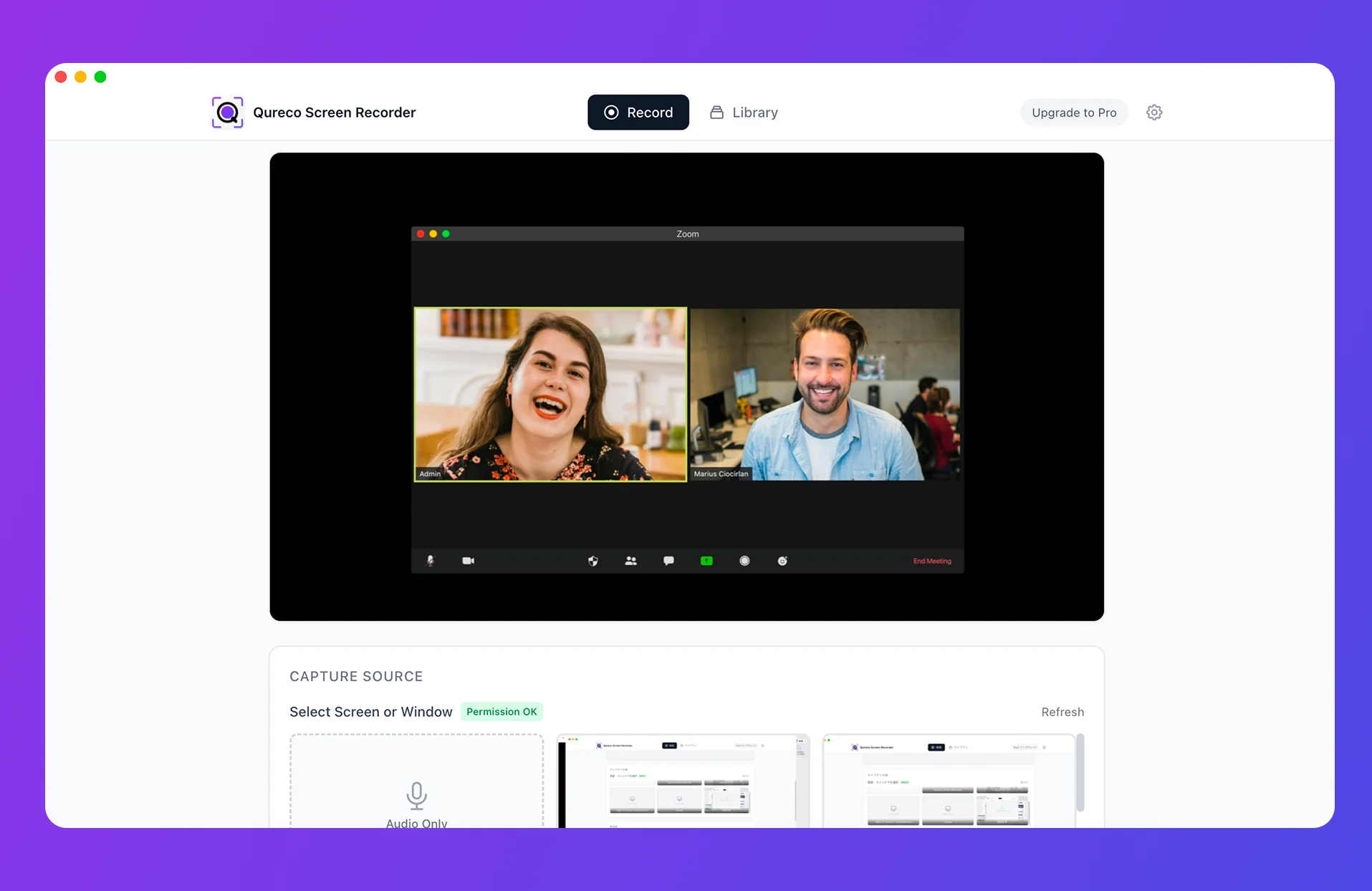
- Records your mic and the other side's audio together, with no virtual audio setup
- Recording is free, unlimited in length, and watermark-free (no per-conversation cap)
- On Pro ($9/month at launch pricing, first two weeks free, no credit card required), AI turns the recording into meeting notes and sends them to your Notion database
- Speaker identification included
Picking between them
| Your situation | Better fit |
|---|---|
| Mostly English meetings, shared across a team | Otter.ai (Notetaker auto-join) |
| Japanese internal meetings where visible recording is fine | Otter.ai |
| Every call mixes languages, and setting one is a hassle | Record and work from the recording |
| External attendees, and you'd rather not add a participant | Record on your own machine (Qureco and similar) |
| Hour-plus meetings you want captured in full, for free | Record on your own machine |
Frequently asked questions
Can I get Japanese meeting notes on the free plan alone?
Yes, for the first 30 minutes of each conversation, within 300 minutes a month. That's plenty for evaluating it, so run one real meeting through and see how the Japanese transcript reads.
Is the interface available in Japanese?
No, and Otter's help center says so directly:
The Otter user interface (UI), such as settings, menus, and navigation, will remain in English. We hope to bring full UI language support in future updates.
Can I transcribe Japanese audio files I already have?
File import is supported, but the count is limited: 3 for the lifetime of a Basic account, 10 per month on Pro. Check that ceiling before planning a bulk backlog project.
Can I use Otter.ai alongside another tool?
Yes, and people do. A common split is Otter.ai for internal English meetings and local recording for external calls. There's no need to standardize on one.
Wrapping up
- Otter.ai has supported Japanese since November 4, 2025. "English only" is pre-announcement information
- The Japanese-language page still uses English-only framing, so base your decision on the English blog post and help center
- Six languages are supported. German and Chinese (Simplified) are beta; Japanese is not
- One language per transcription. For mixed Japanese and English calls, decide up front whether to pin the dominant language or split the meetings
- On the free plan, the 30-minute-per-conversation cap matters more than the 300-minute monthly total. Recording keeps going, but the transcript stops being readable there
- The Notetaker is visible in the participant list, which is transparency in some meetings and a conversation you have to have in others
That should be enough to decide. The remaining unknown is how the Japanese transcript reads for your own subject matter, and one free meeting will answer that. If some of your calls are ones where you'd rather not add a participant, it's worth evaluating a local recording setup alongside it.
Qureco Screen Recorder
Powerful screen recording app for Mac
Record meetings, let AI handle the notes, just read what arrives in Notion.
Try all features free for the first two weeks.