Cmd+Shift+5 right before the call. You stop the recording, rename the file, drag it into the right folder, replay it later, type up the notes, paste them into Notion, and ping the team on Slack.Do you really need to do all of that yourself?
Recording a web meeting used to mean clicking through six manual steps. In 2026, it can mean tapping one shortcut — or none at all — and watching the meeting notes show up in Notion before you've closed your laptop. This article is for anyone who has multiple web calls a week and is quietly losing hours to recording and note-taking. We'll cover the three levels of automation and the smallest, most useful first step you can take tomorrow.
How many hours a week does that routine cost you?
"Pressing the record button isn't a big deal," you tell yourself. But the small movements add up across a busy week.
The six manual steps hidden in every meeting
For most people, an online meeting actually involves six discrete tasks:
- Hit record (or the shortcut) right before the meeting starts
- Stop the recording when the meeting ends
- Rename the output file with the meeting name and date
- Move it to the right folder on your local drive
- Replay it later and write up the key points
- Paste those notes into Notion and share them with the team
Each one only takes a minute or two, but six steps per meeting is real cognitive load. And if you forget step 1 even once, that meeting's content is gone forever.
What ten meetings a week actually adds up to
Suppose you have ten online meetings a week and spend, on average, 15 minutes per meeting on the recording-and-notes routine (transcription included).
- Per week: 15 min × 10 = 150 min (2.5 hours)
- Per month: 150 min × 4 = 600 min (10 hours)
Ten hours a month. That's enough time to write a serious project proposal. And every "I forgot to hit record" moment turns a meeting's decisions into a memory exercise the next morning.
It's worth asking, at least once, whether "recording and note-taking are manual jobs" still has to be true.
Recording automation comes in three levels
When people say "automate my recording," they usually mean one of three different levels. You don't need to leap to the top right away — pick the level that addresses your biggest pain point first.
Level 1: automating the start (shortcuts and auto-record)
This level kills the "I forgot to hit record" problem.
- Mac's built-in shortcut (
Cmd+Shift+5) and QuickTime Player - Zoom's "Automatically record meetings as they start" host setting
- Google Meet's recording button (Workspace editions only)
.mov. Notes still need to be written manually.Level 2: automating the notes (AI meeting minutes)
At this level, the recording becomes a transcript and a summary on its own.
- Zoom AI Companion (plan-dependent)
- Microsoft Copilot for Teams
- Google Meet's "Take notes with Gemini"
- Dedicated AI meeting-minutes SaaS (most invite a bot to the call)
The "type up the meeting" step disappears. The catch is that built-in AI meeting features depend on your plan, language settings, and your IT admin's policy. Plenty of teams discover the AI feature exists in theory but isn't switched on in their workspace.
Level 3: recording → notes → sharing in one pass
By the time the meeting ends, the notes are already in Notion.
- A recording tool that generates notes and pushes them to a knowledge base automatically
- "Meeting over = note shared," with no manual step in between
Notes stop being something you write later and start being a knowledge asset that builds itself, meeting after meeting. The transcription and sharing steps in your weekly 10-hour budget vanish completely.
How Zoom, Google Meet, and Microsoft Teams compare on auto-recording
Here's where the major web meeting platforms stand on recording and automation. Native features can take you a long way — but only under specific conditions.
| Aspect | Zoom | Google Meet | Microsoft Teams |
|---|---|---|---|
| Who can record | Host only | Host/admin (Workspace edition required) | Participants too (subject to admin policy) |
| Auto-record | Yes, host-side setting | Possible (with conditions) | Possible (admin-policy dependent) |
| Storage | Local / Zoom Cloud | Google Drive | OneDrive / SharePoint |
| Built-in AI notes | AI Companion (plan-dependent) | "Take notes with Gemini" | Copilot (license-dependent) |
| Free accounts | Cloud recording paid; local OK | No recording | No recording |
Zoom: auto-record belongs to the host
Zoom has the most mature recording setup, but auto-record is a host responsibility. Turn on "Automatically record meetings as they start" once, and you'll never forget again — but only on calls you host yourself.
Google Meet: Workspace required, notes via Gemini
Recording in Google Meet requires a sufficient Workspace edition. If Gemini's "Take notes" feature is enabled, transcription and summaries happen during the meeting itself, and notes appear automatically afterward.
Microsoft Teams: anyone can record, Copilot writes the notes
If your admin policy allows it, any participant can hit record in Teams. Files land in OneDrive or SharePoint. With Copilot for Microsoft 365, you also get transcription, summaries, and action-item extraction.
When you're not the host: a screen recorder steps in
The most common real-world case: a client sends you a Meet link, or a vendor invites you to their Zoom call. You're a participant, not a host.
The native recording features won't help you here. There's no "request to be made a co-host" button that actually works in practice, and even when the host could grant recording rights, asking for them every single time creates more friction than just solving the problem on your end.
Mac's Cmd+Shift+5 has limits too
Cmd+Shift+5 and QuickTime Player run into specific issues.
- System audio (the other person's voice) is not captured by default
- You have to start and stop the recording manually every time
- The result is a
.movin a folder — turning it into notes is a separate job entirely
Dedicated screen recorders work from the participant's seat
A purpose-built screen recorder for Mac can:
- Capture system audio + microphone with no virtual audio configuration
- Start and stop with a single shortcut
- Auto-organize recordings in a built-in library
- Generate AI meeting notes and push them to Notion (depending on the product)
Translation: even when you're "just a participant" or your web meeting platform's AI features aren't available, you can still finish the recording → notes → sharing loop on your own.
One continuous flow: Qureco for recording → notes → Notion
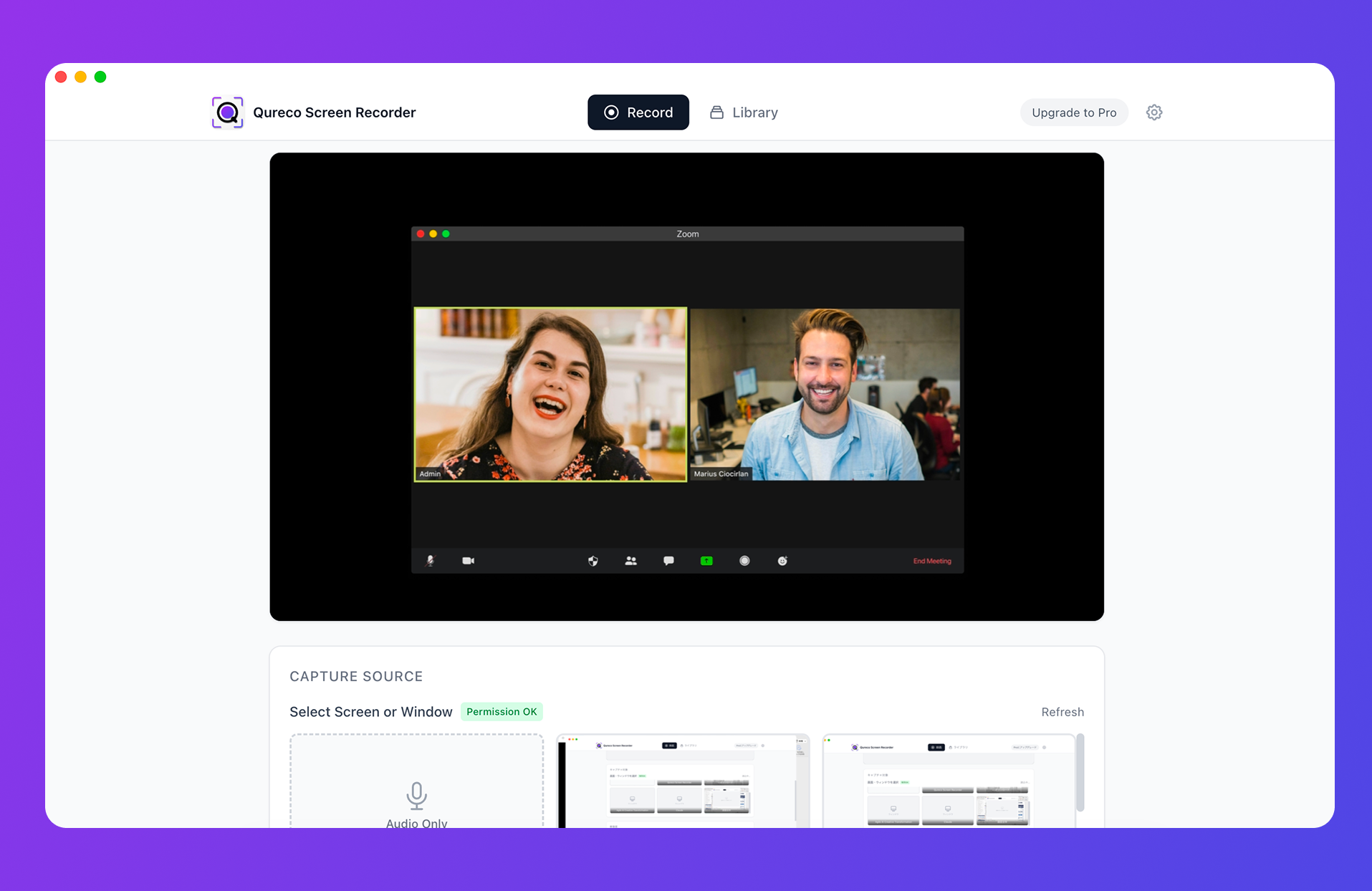
From install to recording in about two minutes
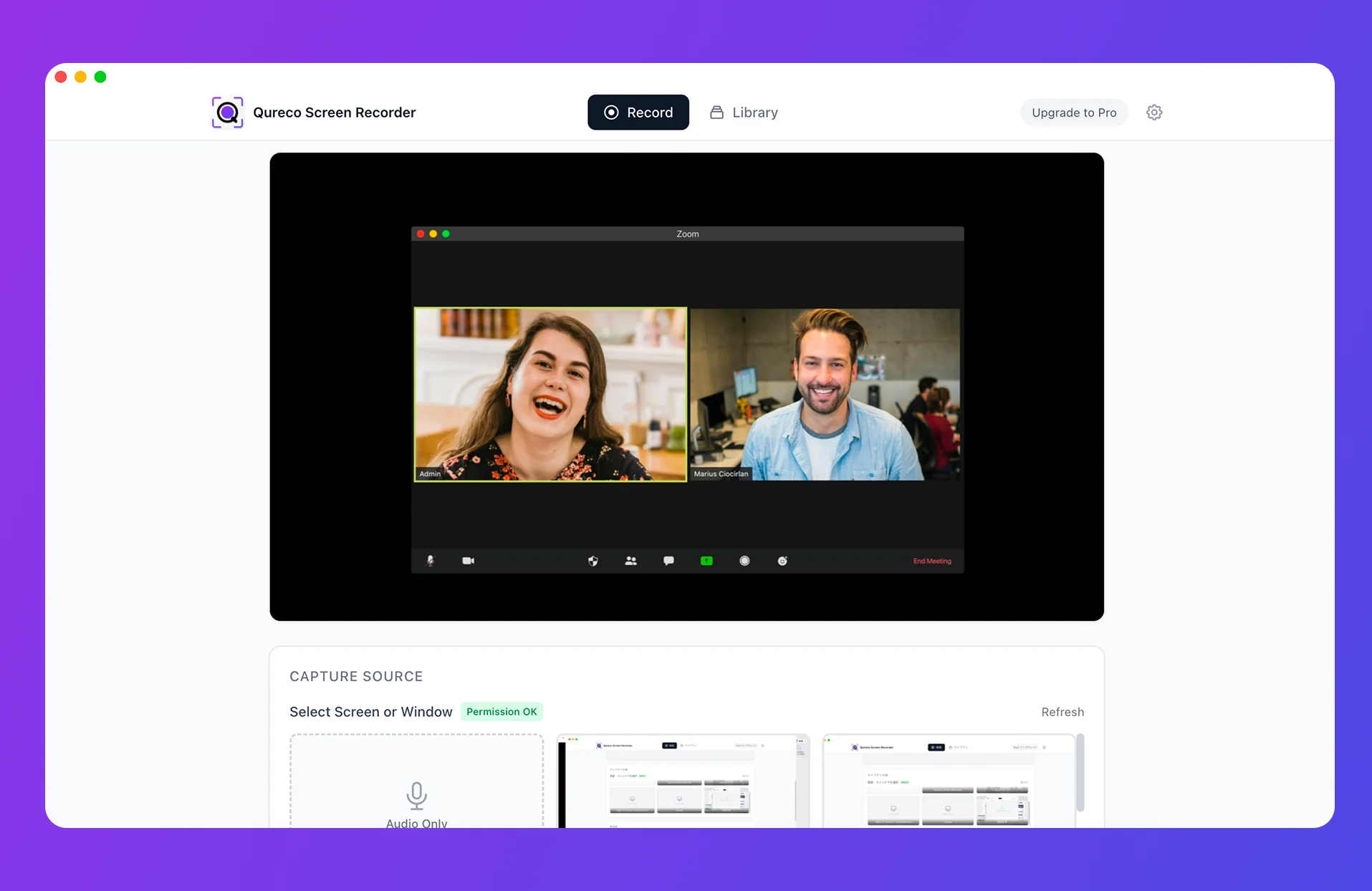
Unlike most screen recorders, Qureco is ready to use the moment you launch it.
- No virtual audio setup — system audio is captured out of the box
- Free tier with unlimited recording time and no watermark
Cmd+Shift+Rto start/stop, Space to pause- Recordings auto-organize in a built-in library
The classic "I installed a recorder, then spent thirty minutes fighting virtual audio drivers" experience just isn't part of the flow.
Once the meeting ends, notes land in Notion (Pro feature)
On the Pro plan, recordings become AI-generated meeting notes that sync straight into Notion.
- Speaker identification (you can tell who said what)
- Customizable note templates (decisions, to-dos, next agenda, etc.)
- Regenerate notes with extra instructions
- One-click export to a chosen Notion database
For people who feel awkward about inviting an AI bot to every meeting, the appeal is clear: recording and note-taking happen locally, with no extra "AI Notetaker" attendee on the participant list.
The six-step manual loop from earlier in the article shrinks to:
Cmd+Shift+Rto start recording- After the call, click "generate meeting notes"
- Send to Notion
Three steps. After a few meetings, the whole loop fits in a minute or two — and the part that used to consume 10 hours a month consumes essentially nothing.
Two free weeks, no card on file
The free tier alone is enough for everyday recording. To try the AI meeting notes and Notion integration, the Pro plan offers a two-week free trial with no card on file. "Run my next week of meetings on automation, then decide" is a low-cost experiment with a clean exit if it doesn't fit.
Choosing your "first step" for tomorrow
Match your biggest current frustration to the smallest useful change you can make.
| What frustrates you most | The first step to try |
|---|---|
| Forgetting to hit record | Turn on auto-record in your web meeting platform / commit to a shortcut |
| Transcribing and summarizing notes | Try an AI notes feature (Zoom AI Companion, Copilot, Gemini, or a screen recorder with built-in AI) |
| Recordings just sit there as files | Add a Notion (or wiki) sync to the end of the flow |
| You're rarely the host | Keep one good Mac screen recorder around |
Wrapping up
- The "six manual steps" of recording a web meeting can collapse into "the notes are already in Notion"
- Recording automation comes in three levels (start the recording / produce the notes / push the notes); start at the level that hurts most
- Native AI features in Zoom, Google Meet, and Teams are powerful but assume the right license and host privileges
- For meetings where you're not the host — or where AI bots aren't welcome — a Mac screen recorder is a clean alternative
- Pick one tweak for tomorrow's calendar. The hours you free up compound week over week
"Record the call, let AI write the notes, and just read them when they hit Notion." That's the world we're stepping into. Picture next Monday morning with no half-finished meeting notes left in your inbox — that future is closer than the current six-step routine suggests.
Qureco Screen Recorder
Powerful screen recording app for Mac
Record meetings, let AI handle the notes, just read what arrives in Notion.
Try all features free for the first two weeks.