On your Windows machine, Clipchamp recorded the screen and captioned the clip in one place. You sat down at a Mac to do the same thing and there's no app to open. That's usually what brings people here.
Recording your screen is the part Clipchamp obviously does. The part worth checking first is the three limits that come with doing it on a Mac: no desktop app, a hard cap on length, and an audio restriction that decides whether Clipchamp fits your use case at all.
Here's what Microsoft's own support pages and Clipchamp's documentation say, and what to do if you need the other side of a call in the recording.
The short version
| What you're checking | On a Mac |
|---|---|
| How it runs | Browser only (the desktop app is Windows) |
| Supported browsers | Chrome / Edge / Chromium-based. Safari and Firefox are not supported |
| What you can capture | One browser tab, one window, or the full screen |
| Recording length | 30 minutes total |
| Microphone audio | Only alongside browser-tab capture |
| System audio (the other person, app sound) | Not available |
| Export | Up to 1080p on the free plan, no watermark |
| Requirement | Sign-in with a Microsoft account |
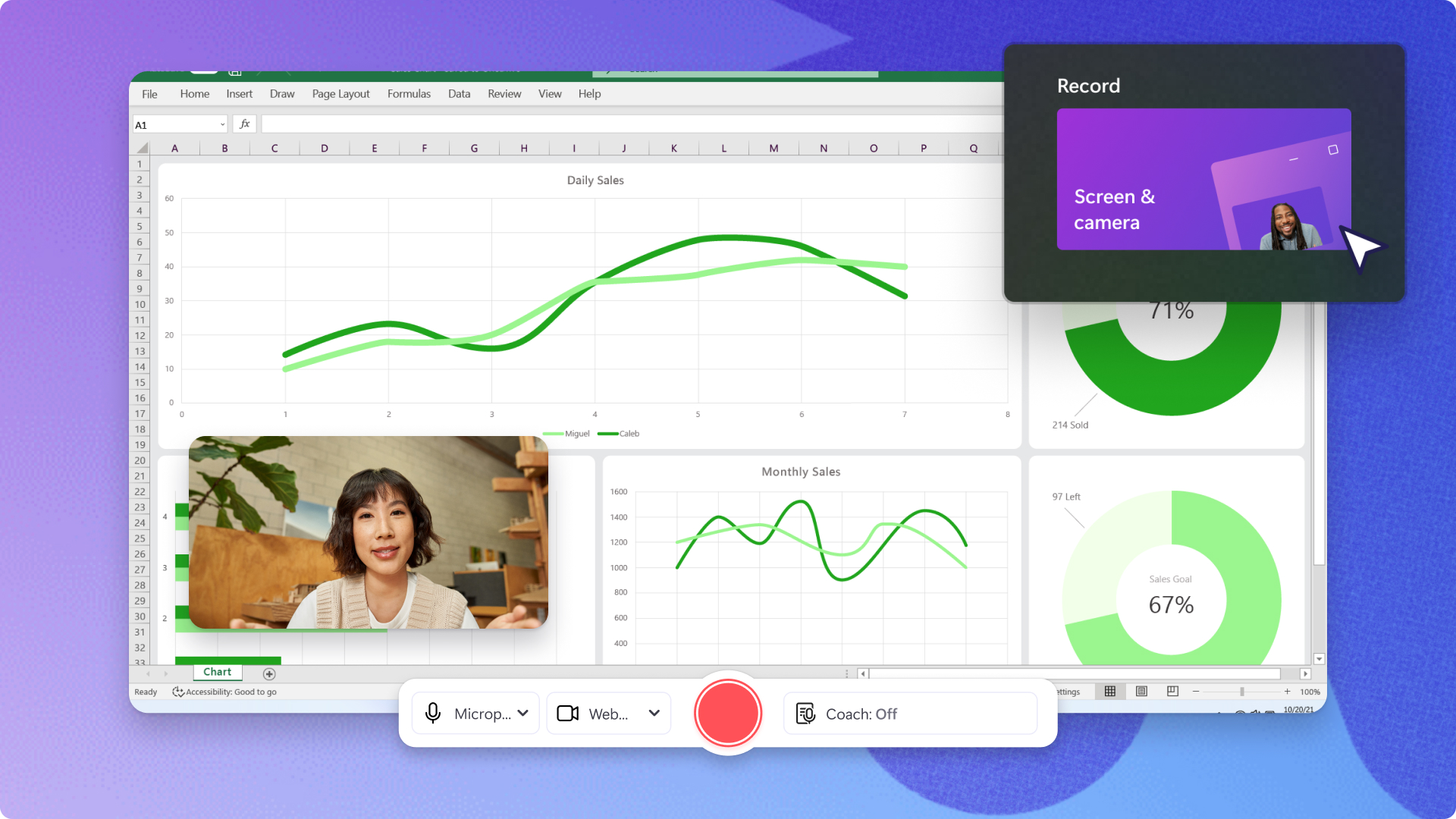
Limit 1: there is no Mac app, so you work in the browser
On macOS you open it in a browser, and the browser matters:
- Works: Microsoft Edge, Google Chrome, Chromium-based browsers such as Brave
- Doesn't work: Safari and Firefox. Microsoft states plainly that Clipchamp does not function in them at this stage
If Safari is the only browser on your Mac, step one is installing Chrome or Edge. Sign-in with a Microsoft account is also required, and your projects live in the cloud. It behaves like an account-based web service, not an app you install and immediately record with.
Limit 2: recordings cap at 30 minutes
Clipchamp's own guidance states there's "currently a 30-minute time limit on all screen recordings with audio," and the localized documentation puts the cap at 30 minutes in total.
Whether that's fine or fatal depends entirely on what you're recording.
| Use case | Does 30 minutes cover it? |
|---|---|
| Product walkthroughs, feature demos, bug repro clips | Yes, most run 5 to 10 minutes |
| Short-form social content | Yes |
| Meetings and sales calls | No, it cuts off |
| Webinars and online classes | No |
| Long working sessions | No |
For anything longer, the official advice is to record in multiple takes. Chasing a live meeting across several recordings isn't realistic, so this is where use cases split.
Limit 3: audio means microphone only, and system audio is never captured
This is the part worth reading twice. Clipchamp's documentation states that "microphone audio recordings are only compatible with the screen recording browser tab." If you're capturing a window or the full screen and you need audio, the guidance points you to the separate voice recorder feature instead.
System audio, meaning whatever your computer itself is playing, isn't offered as an option at all. In practice:
| The audio you want | Can Clipchamp's screen recorder capture it? |
|---|---|
| Your own voice (microphone) | Yes, when capturing a browser tab |
| Sound playing inside that browser tab | Handled as tab audio sharing |
| The other person's voice in the Zoom or Teams desktop app | No |
| Anything else your Mac is playing (music, alerts, app sound) | No |
Why the other person's voice never lands
Under the hood, browser screen sharing treats "audio playing inside this tab" and "audio playing on the whole machine" as two different things. Clipchamp's recorder reaches the microphone and tab audio. A colleague talking to you through the Zoom desktop app is producing sound outside the browser tab, so it falls outside what can be captured.
Where Clipchamp genuinely shines
- The free plan exports up to 1080p with no watermark (the pricing page lists watermark-free export on both tiers)
- Recording, trimming, captions, music, and titles all happen in the same place
- A Microsoft 365 Personal or Family subscription unlocks Premium features like 4K export and premium stock
For meetings and webinars, pick something that captures system audio
If recording calls is the goal, your requirements are these three:
- Capture the other person's voice, i.e. system audio
- Run past 30 minutes
- Record any app, not just a browser tab
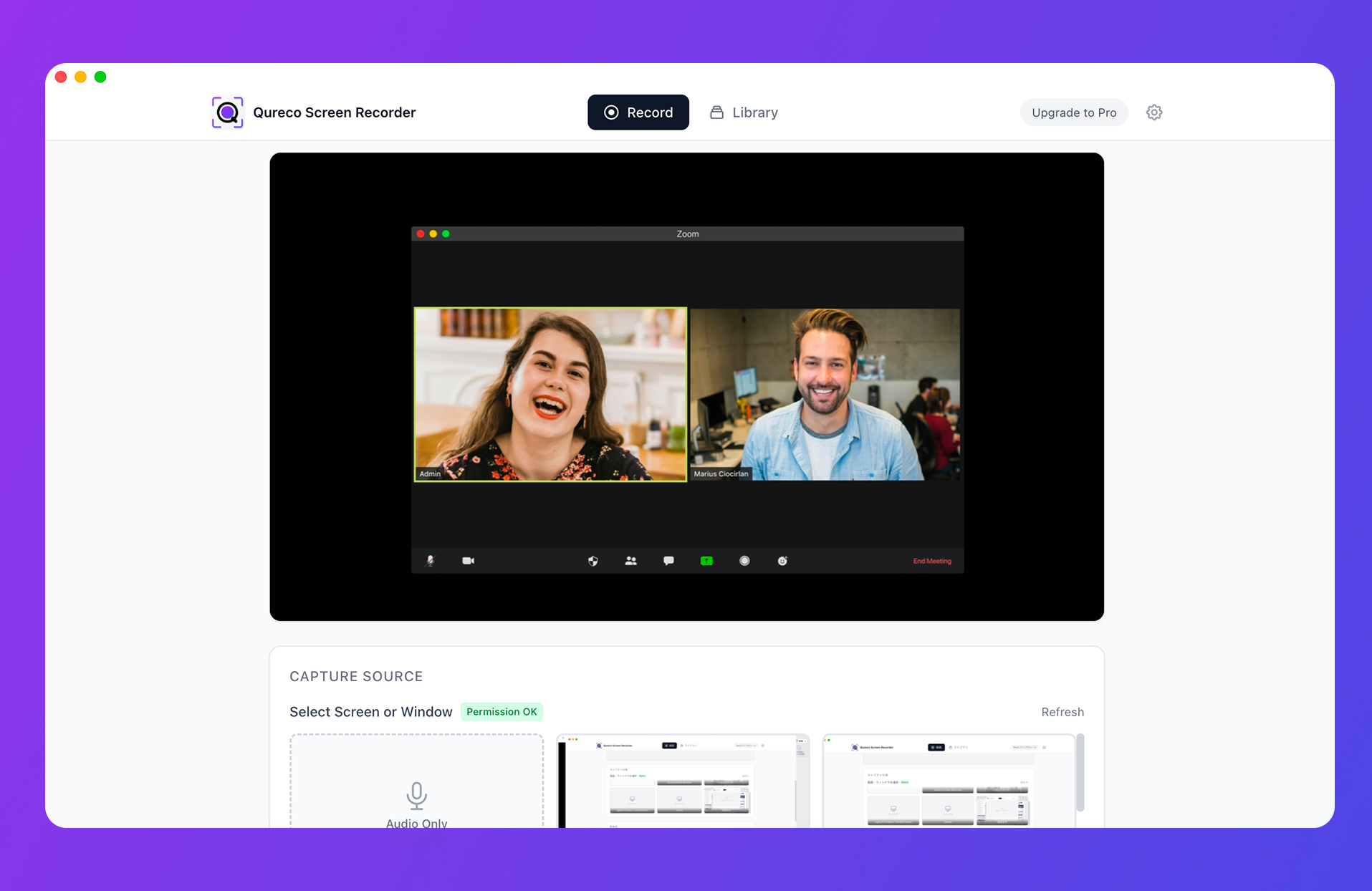
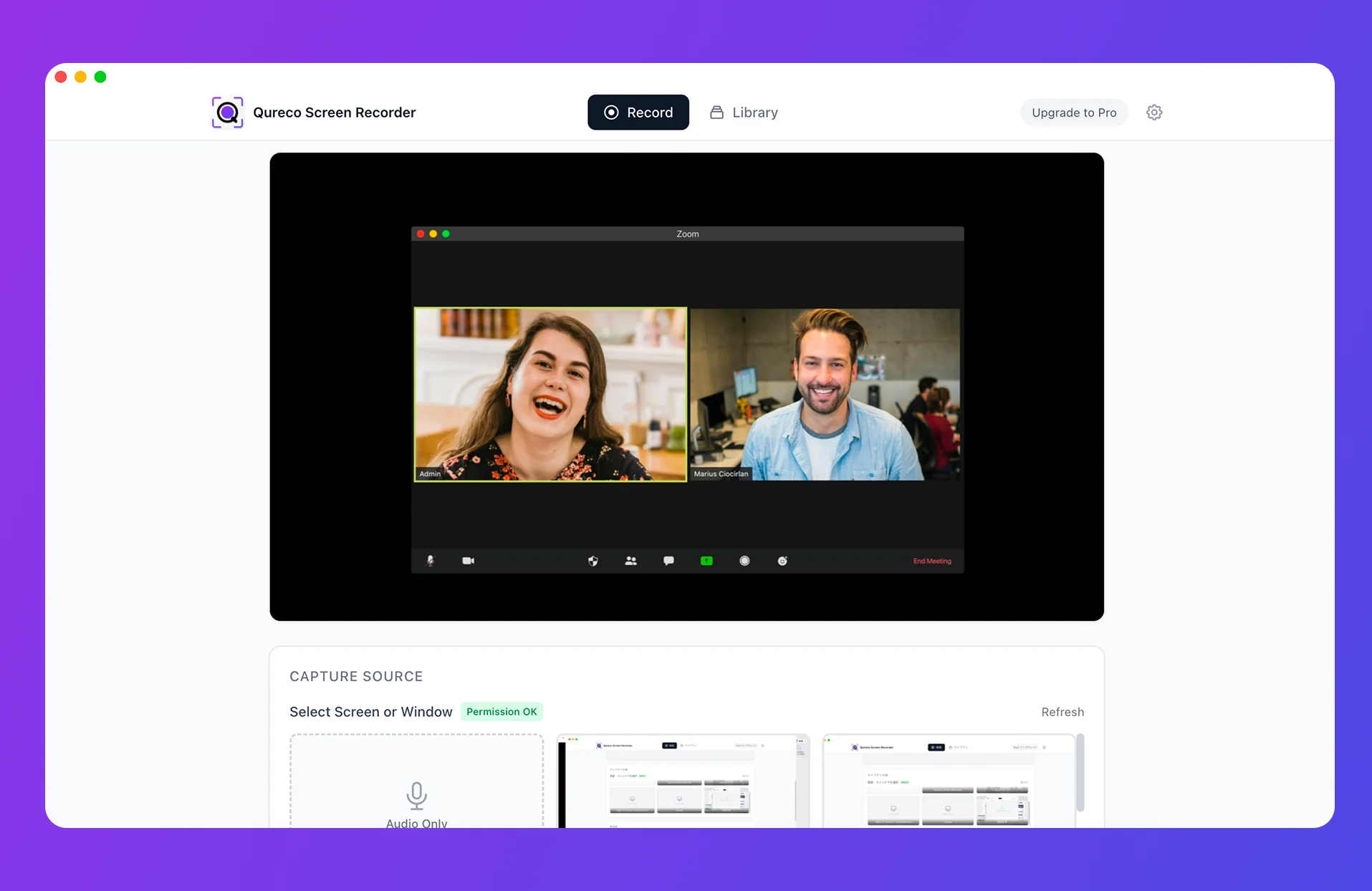
Mapped against the limits above:
| Clipchamp limit | With Qureco |
|---|---|
| Browser only, Chrome or Edge required | Native Mac app; browser choice is irrelevant |
| 30 minutes total | No time limit, including on the free tier |
| Microphone only during tab capture | Mic and system audio toggle separately, with level meters to confirm before you hit record |
| No system audio | System audio recordable with no setup |
Recording and audio capture are free, unlimited in length, and watermark-free. The Pro plan generates AI meeting notes from the recording and syncs them to Notion in one click, so if the reason you're recording is the write-up, that step is handled too. Pro is $9/month at launch pricing, with the first two weeks free and no credit card required.
One caveat: Qureco has no editing features. If you need captions and titles, record in Qureco and edit in Clipchamp or iMovie. It's also macOS-only today, with a Windows version in development.
Frequently asked questions
Wrapping up
- It works, but only in a browser: the desktop app is Windows-only; on a Mac you need Chrome, Edge, or another Chromium browser, plus a sign-in. Safari and Firefox are out
- 30 minutes total: fine for walkthroughs and short-form, short for meetings, webinars, and classes
- Audio is microphone-only, and only with tab capture: system audio isn't available, so anything playing outside the tab, including the other person on a call, doesn't get recorded
- Its real strength is editing: watermark-free 1080p export on the free plan, with editing in the same place
Qureco Screen Recorder
Powerful screen recording app for Mac
Record meetings, let AI handle the notes, just read what arrives in Notion.
Try all features free for the first two weeks.