
You finished recording a 25-minute training session, went to save it, and only the first three minutes would export. Nothing warned you while it was recording, and the product page does not make the limit easy to find.
The limit is stated in the FAQ further down that page, not in the feature list at the top. Independent coverage of FonePaw is thin as well, so it is hard to confirm what you are reading.
This article uses the figures published by FonePaw and checked in October 2026: what the free trial actually allows, whether a watermark is added, what the licenses cost, which features the Mac version does not have, and what your options are once you hit the cap.
The short version
| Free trial | Paid | |
|---|---|---|
| Recording length | Unlimited | Unlimited |
| Export / saving length | 3 minutes | Unlimited |
| Watermark | None | None |
| Supported OS | Mac OS X 10.12+ / Windows 11 through 7 | Same |
| Devices | ー | 1 (monthly, yearly) / 2 (lifetime) |
What the free trial does and does not do
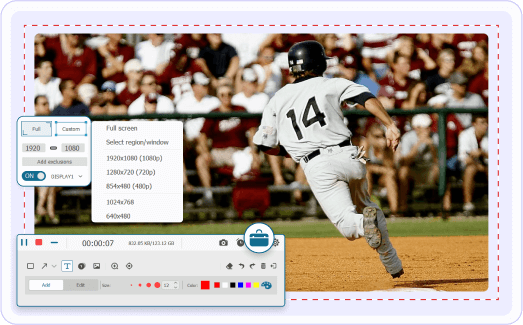
The three minutes apply to the export, not the recording
FonePaw's FAQ states that the trial can output and save up to three minutes of video or audio. Recording length itself is not restricted.
So you can record the full 25 minutes. What stops is writing the result to a file. The first three minutes are yours, and the rest arrives once a license is registered.
Because that statement sits in the FAQ rather than in the feature summary, most people meet it after recording rather than before downloading.
Official and hands-on accounts differ on feature limits
FonePaw says there is no clear restriction on features beyond the time cap.
That review is over three years old, so current builds may differ. If the post-recording editing is part of why you are considering the app, test it in the trial before paying rather than assuming it is included.
What does work in the trial
The capture side is complete. Full screen, region and window recording, system audio and microphone together, webcam, annotations and mouse highlighting while recording, screenshots, scheduled recording, and automatic stop after a set duration.
Maximum quality is 1080p, so this is not the tool for 4K capture.
Does the trial add a watermark?
Pages claiming the free version watermarks your recordings do circulate. The ones that appear in search results are published by a service that competes in screen recording and video editing, and they contradict the vendor's own FAQ, so the official statement is what this article goes by.
Either way, with exports capped at three minutes, you cannot finish a long video on the trial whether or not a watermark appears. For anyone weighing this up, the three minutes decide it.
What FonePaw Screen Recorder costs
The plan structure is the same everywhere. Below are the figures as shown on the Japanese store in October 2026, at the standing 30% discount, before tax, to show how the tiers relate to each other.
| License | Price | Regular | Devices | Renewal |
|---|---|---|---|---|
| One-month | ¥2,980 | ¥3,980 | 1 | Auto-renews, cancel anytime |
| One-year | ¥5,980 | ¥8,980 | 1 | Auto-renews, cancel anytime |
| Lifetime | ¥11,980 | ¥16,980 | 2 | Lifetime free upgrades |
| Media Bundle (Screen Recorder + Video Converter Ultimate) | ¥12,980 | ¥24,980 | 1 | Lifetime |
Two things carry over regardless of currency.
Monthly or lifetime
The crossover arrives quickly. Four months of the monthly license comes to ¥11,920, and two years of the yearly license comes to ¥11,960, both of which land within sixty yen of the ¥11,980 lifetime price. In other words, if you expect to use it beyond four months, the lifetime license is the cheaper path.
Both the monthly and yearly licenses auto-renew, with a reminder email before each renewal. If you are subscribing for one project, set your own reminder to cancel. There is a 30-day money-back guarantee if a technical problem cannot be resolved.
Features the Mac version does not have
The price matches across platforms. The feature set does not.
| Feature | Windows | Mac |
|---|---|---|
| Screen, audio and webcam recording | ◯ | ◯ |
| Scheduled recording and auto-stop | ◯ | ◯ |
| Post-recording editing (trim, split, compress, merge) | ◯ | ◯ |
| Game recording | ◯ | ー |
| Phone screen recording | ◯ | ー |
| Video format conversion | ◯ (64-bit only) | ー |
Buying on a Mac means game capture and phone mirroring are off the table, at the same price. Worth deciding what you need the app for before you pick a tier.
The Mac version requires Mac OS X 10.12 or later.
The setup step people get stuck on
If you granted permission and recording still will not start, this is usually why.
How to read FonePaw's reviews
There is not much independent coverage to go on.
- On the Japanese review site ITreview, the product scores 4.3, from two reviews. Bandicam has 24 on the same site
- The only independent hands-on account that turns up is the Mac OTAKARA piece from March 2023
- The English product page cites 4.6 out of 5 from over 700 reviews and more than 13 million downloads, which are the vendor's own figures
A small number of reviews is not a verdict on the software. It reflects how little coverage the product has picked up. It does mean you cannot lean on other people's experience to make the call.
What you can check yourself is the trial, which is free and will tell you within three minutes whether the capture and the audio behave the way you need, and the 30-day money-back guarantee after purchase.
Three options when you hit the three-minute wall
Paying is not the only way out.
| Option | Best when | Cost |
|---|---|---|
| Buy a license | You need the editing, scheduling or ProRes output | From $39.87 |
| Use macOS screen recording | Your own voice is enough and you need no editing | Free |
| Use a recorder with no export cap | You just need the full recording saved | Free |
Option 1: Buy a license
If the work continues after you stop recording, buying is the straightforward answer. Trimming, splitting, compressing and merging stay in one app, scheduled recording is there, and ProRes output on Mac has real value if the footage goes into an editor.
If two Macs are in play, the lifetime license is the tier to look at, since it is the only one that covers both.
Option 2: Use the macOS built-in recorder
Command + Shift + 5. No time limit, no watermark.Option 3: Use a recorder with no export cap
If the problem today is keeping all 25 minutes, pick a recorder that does not cap the export and the problem is solved this afternoon. An editor can come later, if it is ever needed.
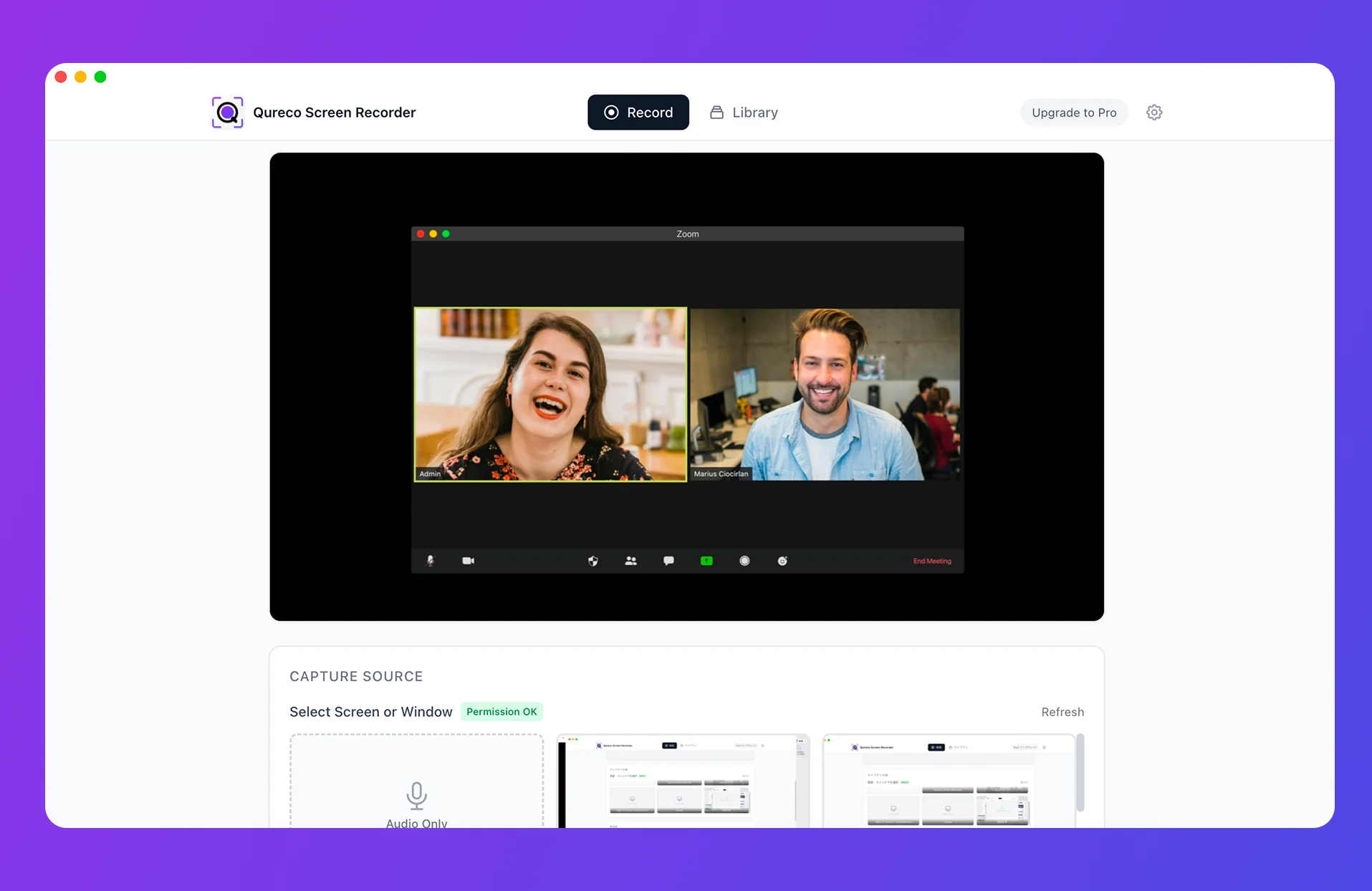
If you need the whole recording kept, there is Qureco
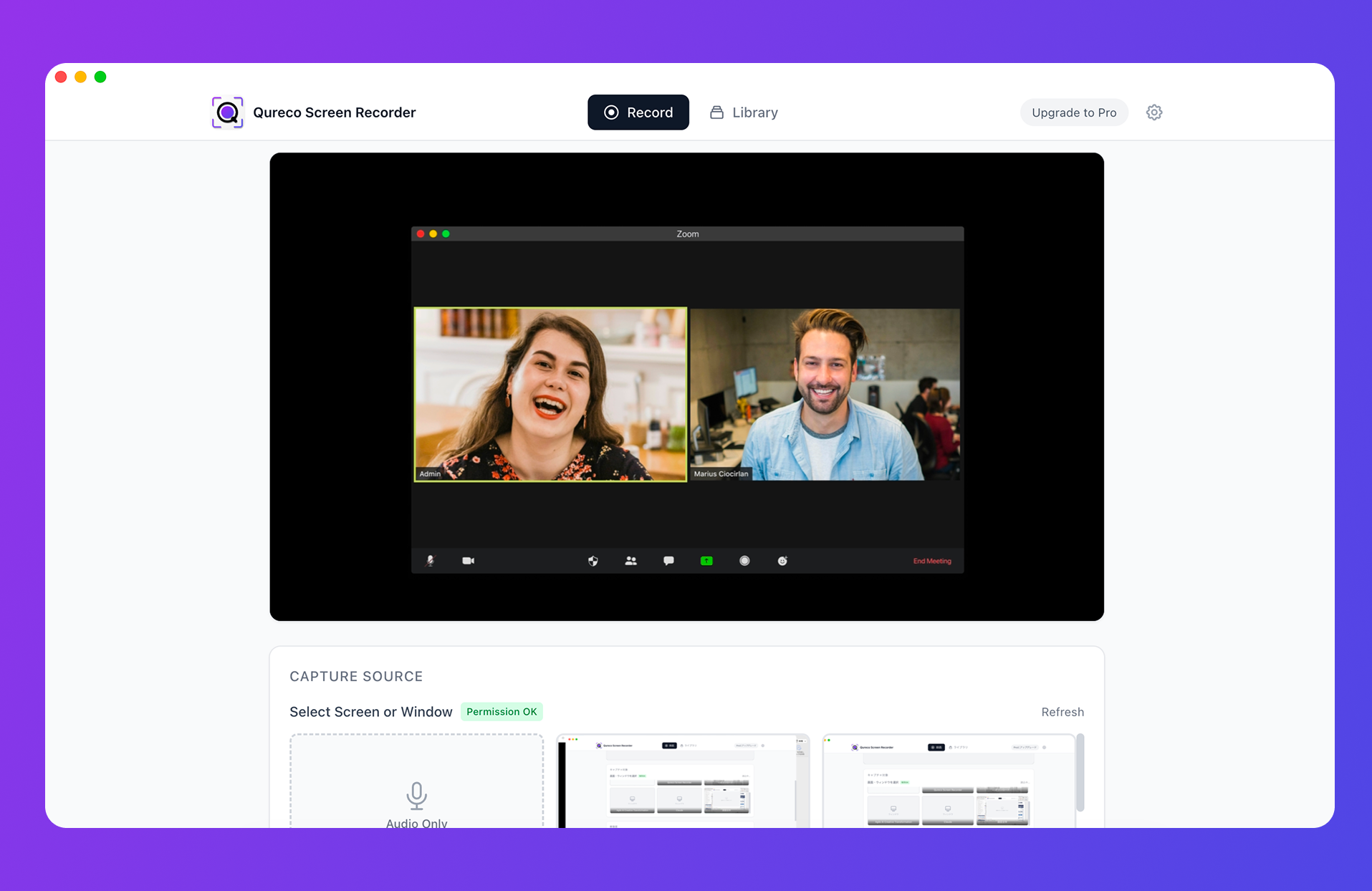
For training sessions and meetings, the Pro plan ($9/month) turns a recording into AI-generated minutes and sends them to Notion, so you end up with searchable text instead of a folder of video nobody reopens. Pro is free for two weeks and does not ask for a credit card.
Summary
Five things to take away about FonePaw Screen Recorder's free trial:
- Recording is unlimited, exports stop at three minutes. Record 25 minutes and you keep three
- No watermark, according to FonePaw's own FAQ. The pages claiming otherwise come from a competing service
- Pricing starts at $39.87, and only the lifetime license covers two machines. Mac and Windows cost the same
- The Mac version has no game recording, phone recording or format conversion, at the same price. ProRes output is the Mac-side advantage
- Three ways forward at the cap: buy a license, use the macOS built-in recorder, or use a recorder with no export cap
If the editing matters, buy it. If keeping the whole recording is the whole job, a recorder without a cap settles it today.

Qureco Screen Recorder
Powerful screen recording app for Mac
Record meetings, let AI handle the notes, just read what arrives in Notion.
Try all features free for the first two weeks.
Frequently asked questions
Does the free trial expire?
There is no stated expiry, so you can keep testing it. The three-minute export limit stays in place for as long as you use the trial.
Is the part past three minutes stored anywhere?
The recording runs until you stop it, but the trial exports three minutes. Saving the whole thing requires a license.
Does one license cover both Windows and Mac?
No. They are sold on separate pages as separate licenses, at the same price.
Does the lifetime license really cover two machines?
Yes. FonePaw's purchase pages list the lifetime license as covering two Macs or two PCs. The monthly and yearly licenses cover one.
Should I choose FonePaw or EaseUS RecExperts?
How can I record something long for free?
Command + Shift + 5) has no time limit and no watermark, but it will not capture system audio. For free options that do, compare 7 free Mac screen recorders that capture internal audio.