Duplicate last week's notes page, change the date, swap out the attendee list. It takes about 30 seconds. With three weekly recurring meetings, that's three times a week, roughly 150 times a year.
If you've started using Notion Calendar and heard that events can be linked to pages, you've probably wondered how much of this can be automated.
This article compares four routes along both axes.
Are you automating the container or the contents?
Decide which one you're actually trying to eliminate. Your answer changes which route makes sense.
Automating the container: creating a page per meeting
This is the duplicate-and-change-the-date routine. Roughly 30 seconds each time. Notion handles this on its own, at no extra cost.
Automating the contents: writing the notes
The four routes side by side
| Route | Container | Contents | Cost | Best for |
|---|---|---|---|---|
| 1. Recurring database template | Automatic | Manual | Free | Recurring meetings on fixed days |
| 2. Linking a page to a calendar event | Semi-automatic | Manual | Free | Mostly ad-hoc meetings |
| 3. AI Meeting Notes | Automatic | Automatic | Business, $20/member/mo | Teams with budget, rolling out broadly |
| 4. Zapier or Make with an external calendar | Automatic | Manual | Free tier available | Google Calendar is the source of truth |
Only route 3 fills in the contents. Here's how each one works.
Route 1: Recurring database templates (free, stays inside Notion)
The only route that needs nothing outside Notion. If your recurring meetings land on fixed days, start here.
Setting it up
- Create a database for your meeting notes (a list view is easiest to work with)
- Click the "∨" next to "+ New" and choose "New template"
- Build your notes structure inside the template (agenda, decisions, action items)
- Open the "..." menu on that template and choose "Repeat"
- Pick a frequency
You can repeat daily, weekly, monthly or yearly. Weekly lets you pick specific days, so "every Tuesday and Friday" works. Monthly covers every other month and quarterly intervals too.
What this actually automates
| Item | Automatic or manual |
|---|---|
| Creating the page | Automatic |
| The date | Automatic |
| Structure (headings, properties) | Automatic |
| Agenda | Manual |
| The notes themselves | Manual |
The catch: empty pages pile up
This comes up in real use but rarely in the setup guides.
Pages get generated on holidays and on weeks when the meeting was cancelled, too. After six months of this, your database is dotted with pages nobody wrote in. They clutter search results and make "where did that meeting go" harder to answer.
Decide on one of these before you turn repetition on:
- Add a status property ("Empty" / "Written") and filter the default view to show only written pages
- Clean up on a schedule: once a quarter, filter for untouched pages and delete them in bulk
The first takes less discipline and tends to survive longer.
Route 2: Linking a page to a calendar event (free)
Better suited to teams whose meetings are mostly ad-hoc rather than recurring.
Event details offer two paths
Open an event in Notion Calendar and the details panel shows:
- Add links and attachments: create a new Notion page, or link an existing one to the event
- Add AI meeting notes: generate notes from a recording (that's route 3)
For simply attaching a notes page, use the first.
The real payoff is before the meeting
It also pairs well with route 1: let the template generate the page, then attach that page to the event.
Why it's only semi-automatic
The linking itself is a manual click each time an event appears. Still far less work than building a page from scratch, but it isn't hands-off.
Route 3: AI Meeting Notes (fills in the contents, needs the Business plan)
The only one of the four that writes the notes for you. Let's start with what it costs.
Check the plan requirement first
| Team size | Monthly (annual billing) | Per year |
|---|---|---|
| 3 people | $60 | $720 |
| 5 people | $100 | $1,200 |
| 10 people | $200 | $2,400 |
Whether that's worth it depends on what else you'd use. If your team will also lean on the other AI features (writing, summarizing, translation, Notion Agent), it's reasonable. If meeting notes are the only reason, it's a lot of money for one feature.
What it does
- Transcribes and summarizes automatically from a recording
- Accessible from the calendar event via "Open meeting notes"
- Captures not just your microphone but the audio coming out of your speakers, so remote participants are included
One caveat worth planning around
Route 4: Zapier or Make with Google Calendar (free tier available)
For teams whose scheduling lives in Google Calendar and isn't moving to Notion Calendar any time soon.
An event created in Google Calendar triggers the creation of a page in your Notion meeting notes database.
Things to weigh
- It doesn't fill in the contents. Like route 1, it automates the container only
- You're adding a third-party service, so free tier task limits apply
- Your calendar data passes through an outside platform, which may need a security review
I'm deliberately not writing out the step-by-step setup here. Both Zapier and Make change their interfaces often enough that written steps go stale quickly, so check their official documentation when you build it.
All four routes leave the contents to you (except one)
To recap: routes 1, 2 and 4 automate the container. Route 3 is the only one that writes the notes, and it's gated behind the Business plan.
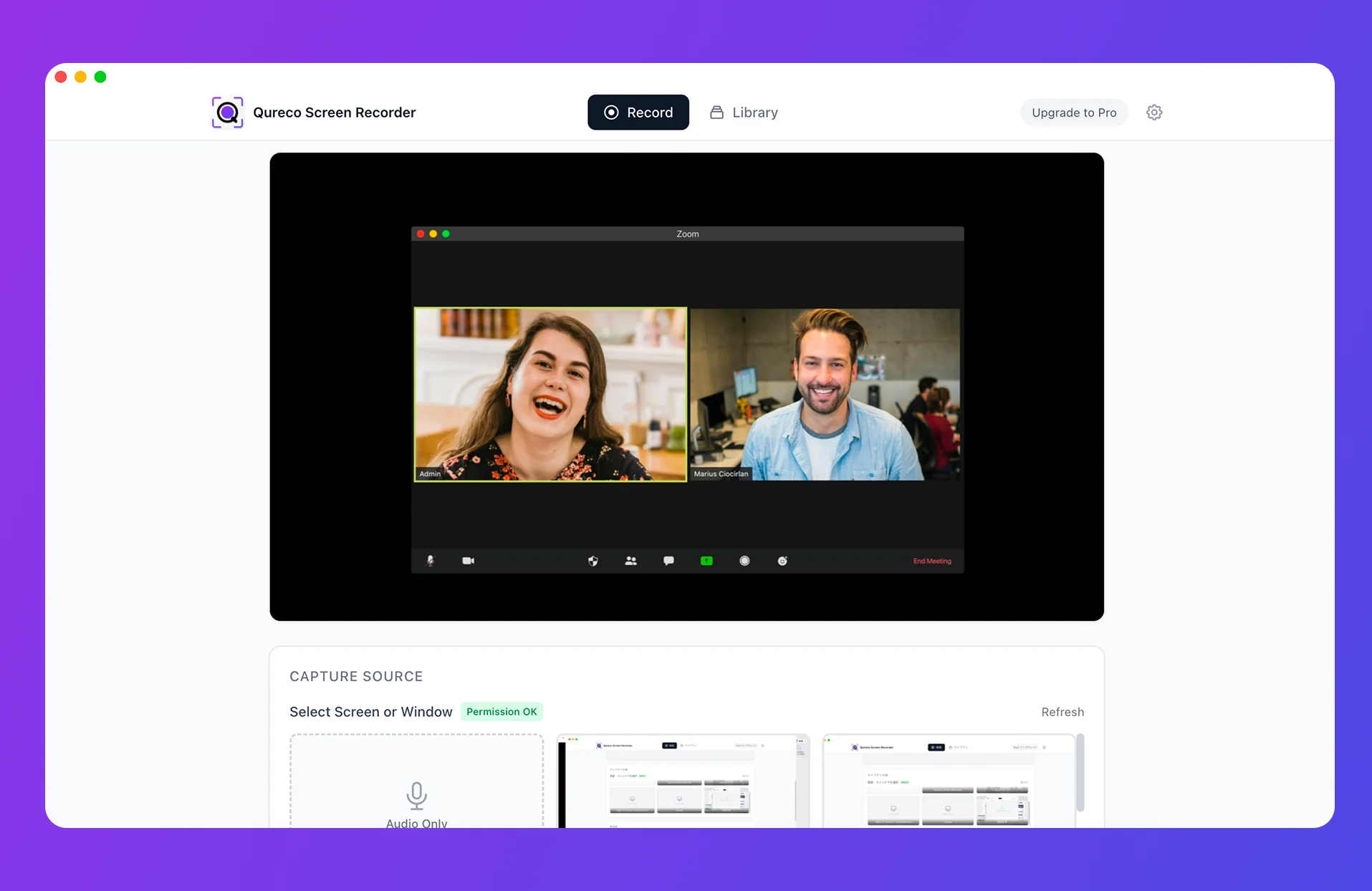
Flip that around and it points somewhere useful: if you can capture the audio, you can automate the contents without upgrading your Notion plan.
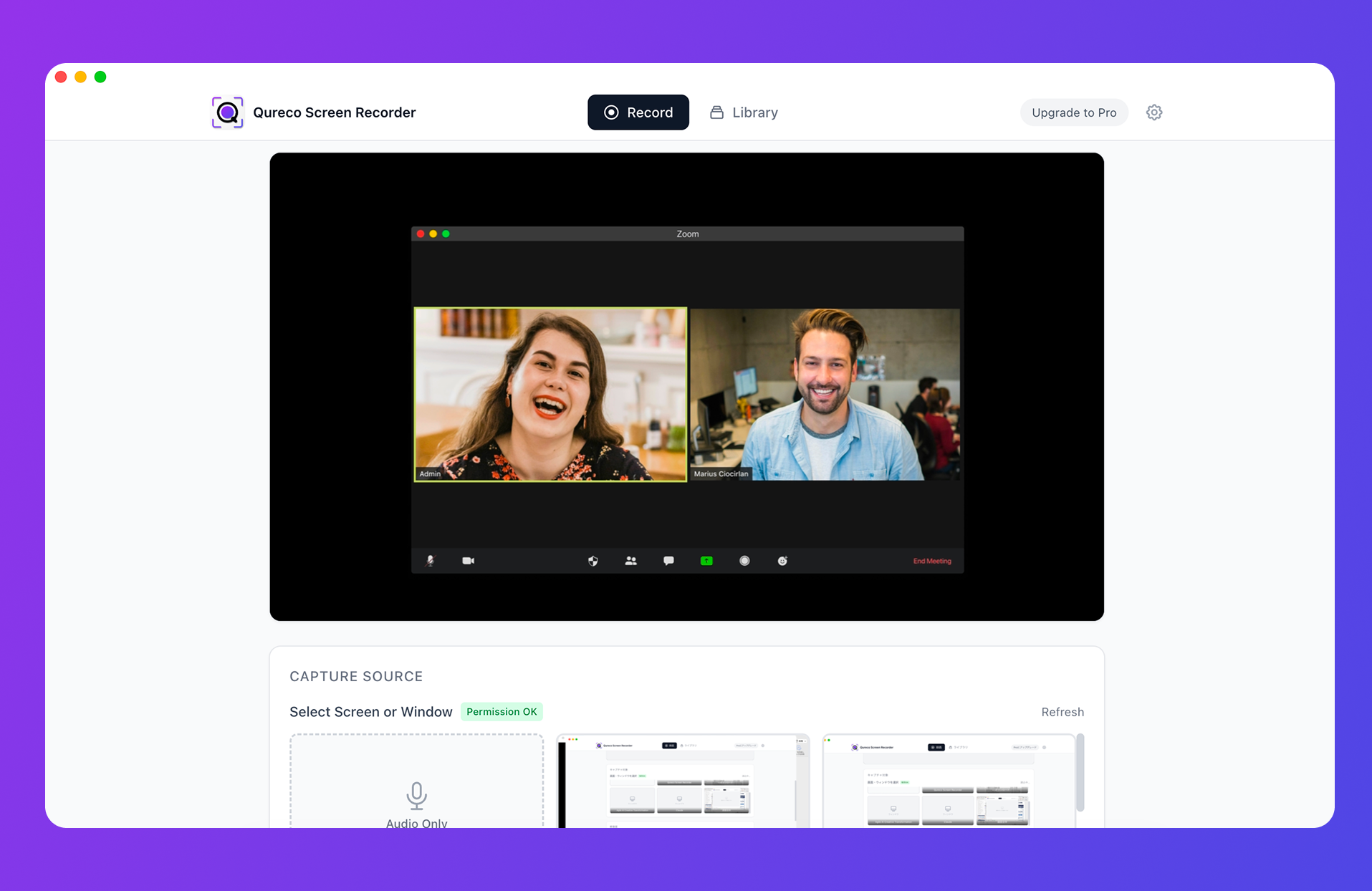
- Screen and audio recording are free, with no time limit and no watermark
- The Pro plan generates AI meeting notes from a recording and sends them to a Notion database
- No bot joins the call, so nobody sees a recording tool appear in the participant list
- The recording itself is kept, so a mangled company name is something you can go back and verify
Summary
- Two things can be automated: creating the page (about 30 seconds) and writing the notes (about 15 minutes)
- The container is free to automate. Fixed-day recurring meetings suit route 1; ad-hoc meetings suit route 2
- For the contents, you're choosing between the Business plan at $20 per member per month and capturing the audio yourself
- Recurring templates will leave empty pages behind. Add a status property before you switch repetition on
- AI transcription gets proper nouns wrong. Keep the source audio or recording so you can check
Start by deciding whether the 30 seconds or the 15 minutes is the part you actually want back. Once that's settled, the route picks itself.

Qureco Screen Recorder
Powerful screen recording app for Mac
Record meetings, let AI handle the notes, just read what arrives in Notion.
Try all features free for the first two weeks.