Have you ever spent three minutes hunting through your own meeting notes for what was decided last month?
It happens to the people who write the most notes. The content is there. Nothing is missing. But when you open the page, there is no way to tell where to look. Headings and bullet points run from top to bottom at exactly the same visual weight.
A readable meeting note is one you can scan in three seconds
Before touching colors, it helps to fix the goal. Skip this and every color you add makes the page harder to read.
When decoration becomes the point, the page gets worse
Notion lets you use any color and any icon, so it is tempting to use all of them. But open a page with five or more background colors a week later and you will not remember what each one meant. Scattering emoji across headings does not structure information either, so you still end up reading the whole page top to bottom.
There are only three things you need within three seconds
When you reopen a meeting note, what you want almost always falls into one of three buckets.
- Decisions: what was agreed
- Action items: who does what, by when
- Open questions: what got carried over
The discussion history and the transcript are rarely what you need in that moment. They only need to be reachable, not visible.
Which block to use, at a glance
Notion has a lot of block types, so here is the mapping up front.
| Block | Role in a meeting note | When to use it | How often it is read |
|---|---|---|---|
| Callout | Lifts decisions, action items, open questions | The three sections at the top | Every time |
| Toggle list | Folds away per-topic detail | Discussion history, side notes | Occasionally |
| Toggle heading | Folds away a whole section | Meetings with five or more agenda items | Occasionally |
| Column | Places information side by side | Date, attendees, and other header fields | Seen every time, but short |
| Table of contents | Navigates within the page | Long notes | When needed |
| Database | Moves across pages | The meeting notes database as a whole | When searching |
Use callouts to lift the decisions
A callout pulls one piece of information up out of the body text. In a meeting note, the three buckets above go here.
How to create one
/callout and press Enter. You can also pick it from the + menu to the left of the block.Once it exists:
- Change the icon: click the icon and pick a new one. Custom images work best at 280 x 280 pixels
- Change the background color: open the
⋮⋮menu and chooseColor, or typecmd + /(ctrl + /on Windows) followed by the color name, which is faster - Back to Default: the block becomes white with a light gray outline
Limit yourself to three colors
This is the part that matters most. Fix your callout colors at three.
| Color | Meaning | Icon |
|---|---|---|
| Green | Decisions | ✅ |
| Blue | Action items (owner and due date) | 📌 |
| Yellow | Open questions | ⚠️ |
Whenever you feel the need for a fourth color, the information usually belongs in one of the three already. If you want a red "FYI" callout, that content is either a decision (green) or something that did not need a callout at all.
Lock the color and icon pairing across your team and you will read other people's notes at the same speed you read your own.
The common mistake is putting everything inside
✅ Decisions
- Run the A/B test on the signup flow for two weeks starting 10/20
- 50% of new users; success metric is 7-day retention

📌 Action items
- [ ] Write the test spec (Owner: Sano / Due: 10/15)
- [ ] Request tracking tag implementation (Owner: Tanaka / Due: 10/17)

⚠️ Open
- How to handle the budget overage. Confirm with finance before the next standup (Owner: Sano)
The reasoning and the objections go in a toggle below.
Use toggles to fold away the transcript
Toggles hide the information you rarely reread. Meeting note pages get long mostly because nothing is folded.
Toggle lists versus toggle headings
- Toggle list: type
>followed by a space. Good for one-off collapsing - Toggle heading: a heading (levels 1 to 3) that collapses everything under it. Useful once a meeting has five or more agenda items
Three agenda items or fewer, use toggle lists. More than that, switch to toggle headings so you can fold section by section.
What belongs in a toggle
Four things clean up a page immediately when folded:
- The discussion behind each agenda item (who objected, what the alternatives were)
- Speaker-by-speaker notes
- The full AI transcript
- Reference links and attachments
The transcript especially. Pasted raw, it buries the page under thousands of words. In a toggle, it is there when you want it and invisible when you do not.
Putting a toggle inside a callout
Put a "discussion history" toggle inside the yellow open-questions callout, and the next time you pick that topic back up, you can open it on the spot to see where you left off. The page itself looks unchanged.
Use columns for decisions and action items, with one condition
Columns place content side by side. Instead of only scrolling down, you can spread information across, which does make a page look tidier.
How to create them
/2 columns. Drag the divider to adjust widths.On mobile, columns stack vertically
Meeting notes are a document people check on their phone right after the call. A page you carefully arranged into two columns on your laptop will render as "all of the left column, then all of the right column" on mobile, which is a genuinely awkward reading order.
Deciding in advance what may go in a column keeps you safe.
| Put in a column | Keep out of columns |
|---|---|
| Short fields like date and attendees | Long discussion text |
| Bullet lists of three lines or fewer | Wide tables |
| A list of related links | Steps where order matters |
The practical answer: header only
Left column: date, attendees, meeting type. Right column: related links (previous note, deck, project page). Even stacked on a phone, this section is short enough that nothing is lost.
Building the page, top to bottom, in seven steps
Here is everything above, reordered as the sequence you would actually follow. Work down the list and you will finish with a complete page.
2026-09-24 CS Standup). Fill in the date, attendees, and type properties first.At the top of the body, create two columns. Date, attendees, and the purpose of the meeting on the left; related links on the right.
Place the empty callout before the meeting even starts. The moment something is agreed, you add one line.
/todo) inside it. Keep each one to a single line with owner and due date.Whatever got carried over. Leaving it empty is fine. It becomes the thing you reread at the start of the next meeting.
Add a toggle heading per agenda item and write the discussion inside. During the meeting you can be messy here and clean it up afterward.
Add one toggle at the bottom of the page labeled "Full transcript" and paste it there.
Here is the finished shape as Markdown you can paste into Notion. Notion reads Markdown, so headings and bullets convert on paste (set up the callouts and columns by hand afterward).
## Meeting info
- Date: 2026-09-24 14:00-15:00
- Attendees: Sano, Tanaka, Yamamoto
- Purpose: Decide the direction for the signup flow redesign
- Related: previous note / requirements doc

## Decisions
-

## Action items
- [ ] (Owner:  / Due: )

## Open questions
-

## Agenda 1:
### Discussion
-
### Conclusion
-

## Agenda 2:

## Full transcript
Save the structure as a template
Rebuilding this by hand every week will not last. Make it a system.
Register it as a database template
▾ next to the "New" button and choose "+ New template", then build the structure there and save. From then on, one click gives you a page with the callouts, colors, and columns already in place.Use repeating templates for recurring meetings
For a weekly standup, turn on repeat in the template settings and an empty page appears on the day. No more hunting for where to create the note after the call has already started.
Add a table of contents to long notes
/toc block under the header so you can jump to a specific topic later. Combined with toggle headings, you can find your place in the contents and open only that section.Receiving AI-generated notes in this structure
Everything so far has been about tidying up after the fact. Even with a template, though, you are still typing the content in.
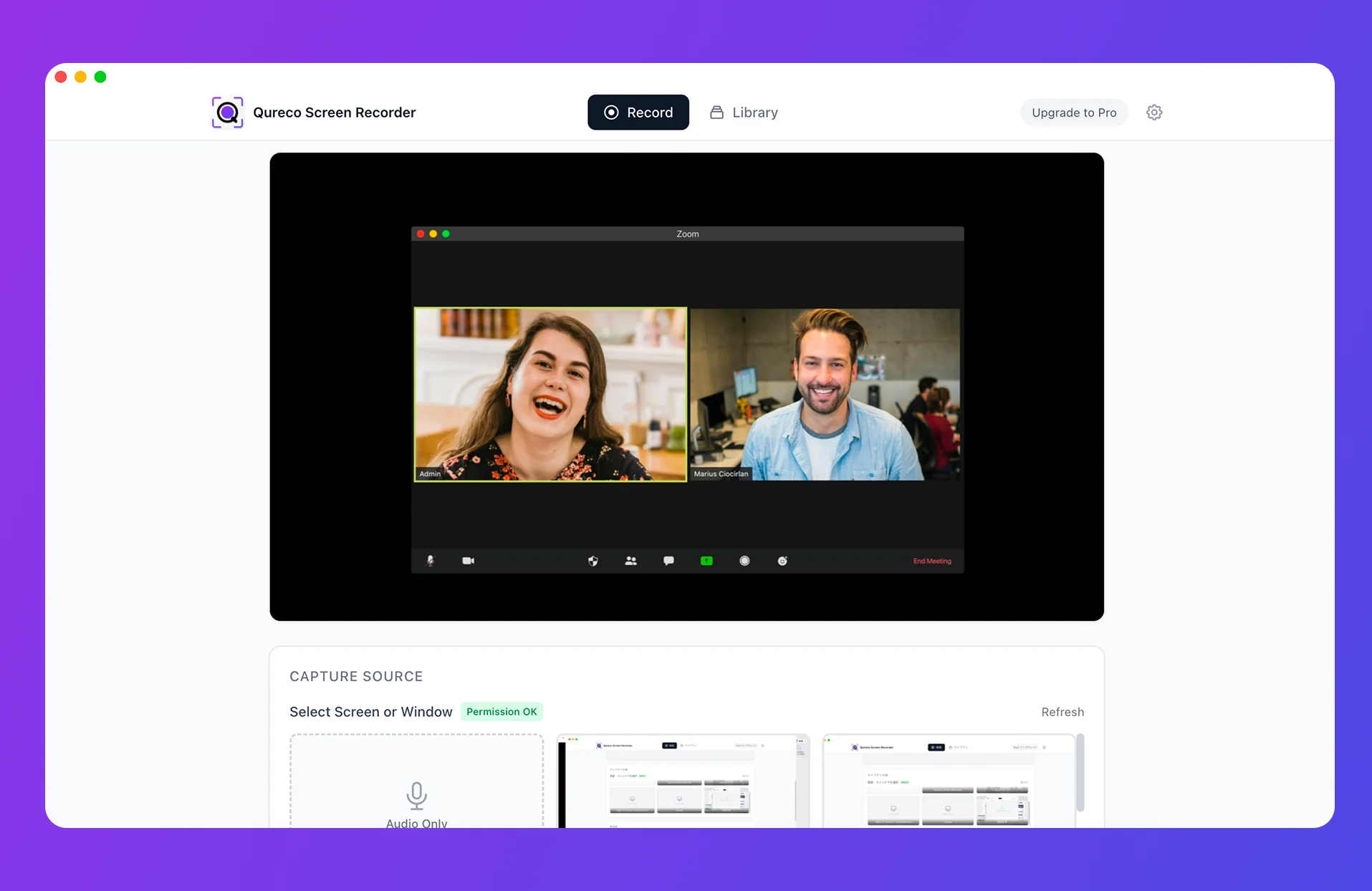
Qureco handles recording, AI notes, and Notion in one app
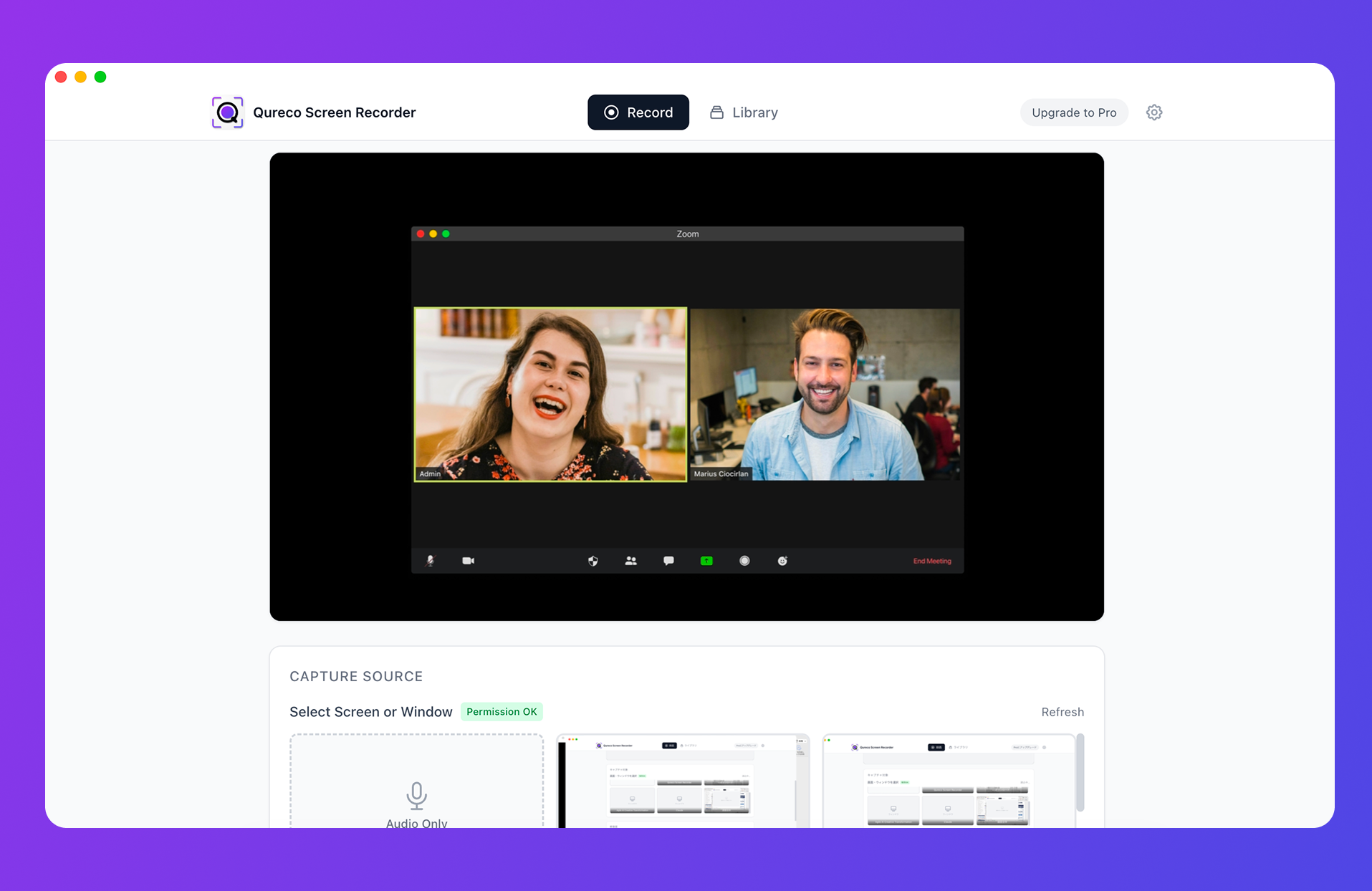
- The meeting note template is customizable, so you can set the three-section structure from this article as the output format
- Notion sync saves the generated note straight into your meeting notes database
- No virtual audio setup, so you can capture meeting audio without installing a driver like BlackHole
- Speaker identification is supported, so who said what is preserved
The free plan records with no time limit and no watermark. AI notes and Notion sync are part of the Pro plan ($9/month, first two weeks free, no credit card required).
One caveat: Qureco currently runs on macOS only. A Windows version is in the works, so if you want the whole team on the same workflow, you would start with the Mac users.
Wrapping up
The essentials for readable Notion meeting notes:
- Three things matter within three seconds: decisions, action items, open questions. Lift those, fold the rest
- Fix your callouts at three colors: green for decisions, blue for action items, yellow for open questions. Wanting a fourth means your categories need revisiting
- Fold the transcript and speaker notes into toggles: toggle lists up to three agenda items, toggle headings beyond that
- Columns for the header only: they stack on mobile, so keep the body in a single column
- Save the structure as a database template: for recurring meetings, turn on repeat so the page is created on the day
Before your next meeting, just place one green decisions callout at the top. Even that alone changes how long it takes to find things a month from now.

Qureco Screen Recorder
Powerful screen recording app for Mac
Record meetings, let AI handle the notes, just read what arrives in Notion.
Try all features free for the first two weeks.