You hit play, the screen moves, and the room stays silent. The important meeting you recorded yesterday has no audio. And that meeting can't be re-recorded.
The Short Answer: Recovery Is Only Possible When the Audio Was Actually Recorded
Let's start with the big picture. "My recording has no audio" breaks down into three distinct causes.
| Cause | What's actually happening | Can it be recovered? |
|---|---|---|
| ① Playback problem | Audio exists in the file | Yes: just change settings |
| ② Corrupted file | Audio exists but can't be read | Maybe: repair is possible |
| ③ Audio track never recorded | No audio data exists at all | No: recovery is impossible |
The three patterns explained
What "recovery software" can and cannot do
First, Diagnose Your File in Five Minutes
Three quick checks on your Mac will tell you which of the three patterns you're dealing with.
| Step | What to do | What it tells you |
|---|---|---|
| 1 | Play the file on another device or player | Whether it's ① a playback problem |
| 2 | Open QuickTime's inspector (Cmd+I) | A first read on whether an audio track exists |
| 3 | Check codec info in VLC | The final call between ② corrupted and ③ never recorded |
Step 1: Try another device or another player
Step 2: Check the audio track in QuickTime's inspector
Cmd + I to show the Movie Inspector. Look at the Format field: alongside the video codec (H.264, etc.), is there an audio format like AAC listed? If only video information appears, case ③ (no audio track) becomes likely.Step 3: Confirm with VLC's codec details
What to Do in Each Case
Once you know your pattern, here are the moves.
| Pattern | Action | Cost |
|---|---|---|
| ① Playback | Fix volume, output device, or player | Free |
| ② Corruption | VLC repair → dedicated repair tool | Free to ~$50 |
| ③ Never recorded | Recovery impossible: go to the next section | — |
① It was a playback problem
Check the output device and volume in System Settings → Sound, and try VLC or another player. If the file only goes silent inside your editing software, check that app's audio track settings.
② The file is corrupted
③ There was no audio track
We're sorry to say it, but the sound in this file can't be brought back. The microphone or system audio was off during recording, so the data simply doesn't exist anywhere.
The Audio Is Gone: Four Moves You Can Still Make
| Option | When it's possible | Action |
|---|---|---|
| The other side's recording / cloud recording | Meeting was on Zoom/Meet/Teams | Ask the host to share it |
| Other participants' records | More than two people attended | Ask about notes, recordings |
| Your memory, structured by AI | The meeting was recent | Dump key points, have AI format them |
| Honest follow-up with attendees | Decisions or numbers were involved | Confirm the essentials by email |
Check for a host-side or cloud recording
Collect records from other participants
If someone was taking minutes, those notes exist. Someone may have recorded for their own reference. If asking everyone feels awkward, just ask the most active participant about the one thing you need: "Did you note down that figure we discussed?"
Write down what you remember right now, and let AI structure it
For critical content, be honest and re-confirm
If the meeting covered contract terms or pricing (the kind of thing you can't leave ambiguous), the most reliable fix is an honest email: "Due to a recording issue, I'd like to confirm the key points so we're aligned." In our experience, that one candid sentence never costs you trust. Proceeding on a misremembered detail is what does.
Prevention: Never Feel This Way About a Recording Again
With the diagnosis and damage control done, the last step is making sure there's no next time.
The 30-second pre-recording checklist
| Check | Where | Detailed guide |
|---|---|---|
| Is the mic on? | Your recording tool's options | Fixing screen recordings with no audio |
| Mic & screen recording permissions granted? | System Settings → Privacy & Security | Why your mic audio isn't recording |
| Can you capture the other side's voice (system audio)? | Not possible with macOS's built-in recorder | Recording system audio on Mac |
| Does a 5-second test recording have sound? | Record, play back, confirm | — |
Better than "checking every time": a setup that can't silently fail
- You can see the audio before you record: real-time level meters for both mic and system audio let you confirm visually that sound is being captured, before you ever hit record
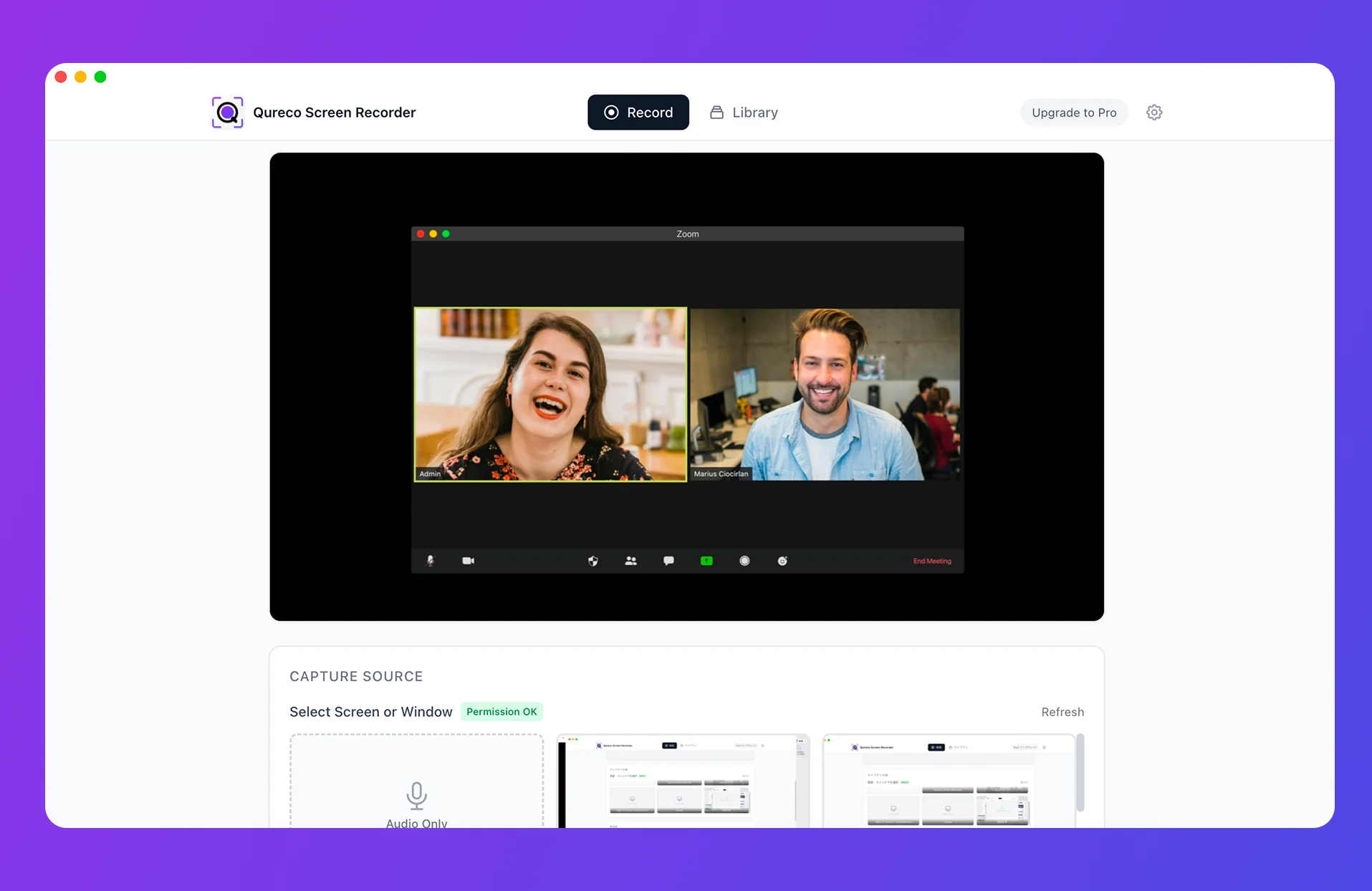
- Internal audio works out of the box: no BlackHole or virtual audio driver setup. It captures both the other side's voices (system audio) and your own (mic), so the "everything looked fine but the internal audio was silent" pattern is structurally unlikely
- The free version has no time limit and no watermark: try it on your very next meeting
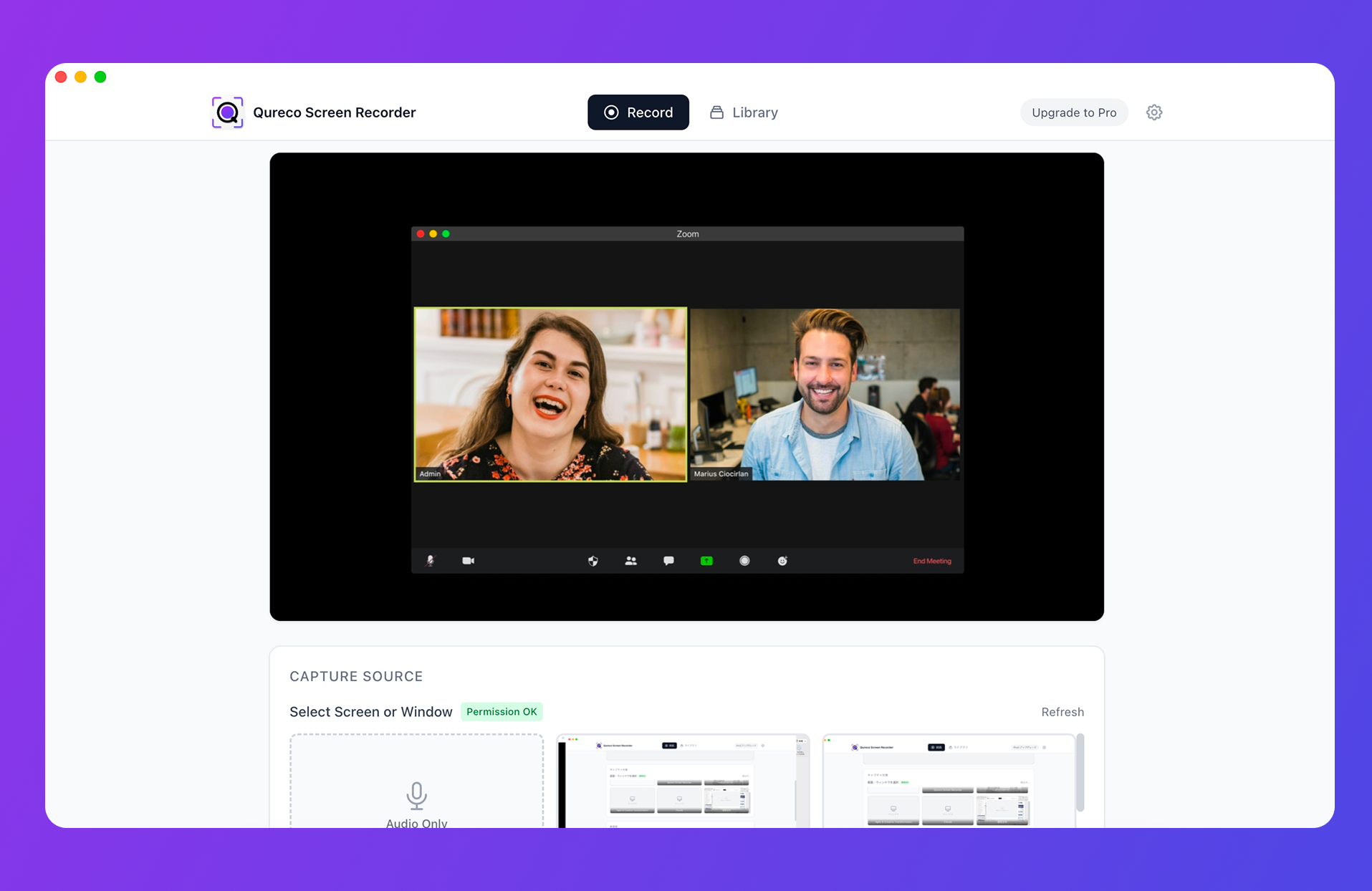
On the Pro plan, Qureco also generates AI meeting minutes from the recording's audio and sends them to Notion in one click. The "dump your memory and have AI format it" rescue you just did manually happens automatically, every time. Recordings are auto-backed up to the cloud as well, which doubles as insurance against corrupted or lost files. Pro is $9/month, with the first two weeks free and no credit card required.
Wrap-Up: Get a Clear Answer, Then Make the Next Recording Bulletproof
Here's everything in brief:
- The cause is one of three: ① playback problem, ② corrupted file, ③ audio track never recorded. Another device plus VLC's codec info settles it in five minutes
- Only ① and ② are fixable. Case ③ cannot be recovered by any software, so diagnose before you pay for recovery tools
- Even when the audio is gone, the host's cloud recording, other attendees' notes, and an AI-structured memory dump can preserve the meeting's content
- Real prevention isn't checking settings every time. It's a recorder with visible level meters and built-in system audio capture, so a silent recording can't sneak past you
Let this be the last recording you lose. Set up a workflow that captures audio reliably before your next meeting starts.

Qureco Screen Recorder
Powerful screen recording app for Mac
Record meetings, let AI handle the notes, just read what arrives in Notion.
Try all features free for the first two weeks.