Have you ever tried to take notes during a webinar and ended up doing both things badly?
Every time the slide changes you try to copy it down, and you miss what the presenter is actually saying. You fall behind and start catching only keywords. Afterward, the notes are a scatter of fragments and you cannot reconstruct why the presenter claimed what they claimed.
Record it and you can spend the session listening. The problem is that attendees usually have no record button. This article covers how to check whether recording is allowed, how to capture the presenter's audio on a Mac, and how to turn a two-hour recording into a ten-minute set of notes you will actually reread.
First, check whether you are allowed to record
Do not skip this part. Problems almost always trace back to somebody who never checked.
Three places to look
- The registration page and the confirmation email: "Please refrain from recording" is often stated there, and sometimes it is folded into the terms you agreed to at signup
- The opening announcement: hosts frequently address recording in the first minute
- Ask in the chat: if nothing is stated, asking before the start is the reliable option. Something like "I would like to review this afterward. Would recording for personal use be alright?"
If it is prohibited, do not record
A webinar is several layers of copyrighted work stacked together.
| Element | Type of work |
|---|---|
| The talk itself | Literary work |
| Slides and diagrams | Artistic or graphic work |
| The broadcast video | Cinematographic work |
You cannot record or redistribute without the presenter's permission. In formats where other attendees appear on camera or speak (workshop-style sessions, for example), there are privacy considerations on top of copyright. When a session is announced as no-recording, the right move is to take notes the old way.
Keep it to your own use
Even with permission, keep the scope to reviewing it yourself. Sharing the recording file with your team, or dropping it in shared storage where anyone can open it, is a separate thing that needs separate permission. When you want to share, share the notes you wrote in your own words, which the last section covers.
Why there is no record button in a webinar
Understanding the mechanics saves you from digging through settings that do not exist.
Webinar format and meeting format grant different permissions
Take Zoom. The same product behaves completely differently depending on the format.
| Format | Attendee recording | Notes |
|---|---|---|
| Zoom Webinar | Not available to attendees | Panelists can record locally |
| Zoom Meeting | Possible with host permission | The host can grant "Allow recording" per participant |
In webinar format, local recording simply is not exposed to attendees. The reason you cannot find the setting is not a permissions issue, it is that the feature is not there.
If the session is running as a meeting, the host can select you in the participant list and grant recording permission. Local recording is also desktop-app only, so it is unavailable if you joined through a browser.
Why hosts restrict recording
Hosts have their own reasons. They may plan to sell the archive later, their contract with the speaker may limit secondary use, or the session may include discussion between attendees. Knowing the reason changes how you ask.
Sometimes they just say yes
In practice, asking in the chat often gets you a "personal use is fine". If the answer is no, you do not record. That is the whole decision, and asking first is more comfortable than not asking.
What the built-in Mac tools can and cannot do
With permission in hand, on to the recording itself. macOS has screen recording built in.
What Shift + Command + 5 gives you
Shift + Command + 5 and the screenshot toolbar appears at the bottom of the screen. From there:- Record the entire screen or a selected portion
- Choose where the file is saved (Desktop, Documents, a folder of your choice)
- Set a timer (start after 5 or 10 seconds)
- Toggle microphone input
QuickTime Player's "New Screen Recording" does effectively the same thing. Either is fine.
The wall is the presenter's audio
Turn on the microphone and your own voice is recorded. But macOS is not designed to route system audio (sound an app is playing) into a screen recording. So you end up with video and silence. Almost every "there was no sound in my recording" story comes from this.
The usual workaround is installing a virtual audio driver such as BlackHole to create a path for the sound. It works, but it costs you:
- Installing the driver and restarting
- Creating a Multi-Output Device in Audio MIDI Setup
- Switching your output device, which means your normal speakers go quiet until you switch back
- Selecting the input source again for each recording
A few times a year, fine. Weekly webinars, that routine tends not to survive.
Getting ready so the audio is actually there
What to do between the day before and five minutes out.
Confirm which audio paths you need
Before you start, check that both are enabled in whatever app you are using. With only one on, you get either the presenter or yourself, not both.
Resolution and storage
Recording two hours at maximum quality eats a lot of disk. For a slide-driven session, legible text is all you need, so lowering the resolution is safe.
| Resolution | Roughly, for two hours | Best for |
|---|---|---|
| 1080p | Around 6GB | When you need to rewatch fine detail in a demo |
| 720p | Around 3GB | Slide-driven webinars (recommended) |
| 480p | Around 1.5GB | When the audio is all that matters |
The five-minute test recording
Doing this is the difference between having the session and not having it.
- Play the waiting-room screen or any video
- Record for 30 seconds
- Play it back and listen for the audio with your own ears
- Check free disk space (leave at least 5GB for a two-hour session)
"I thought it was recording" is the expensive failure. Thirty seconds prevents it.
Capturing presenter audio without any setup
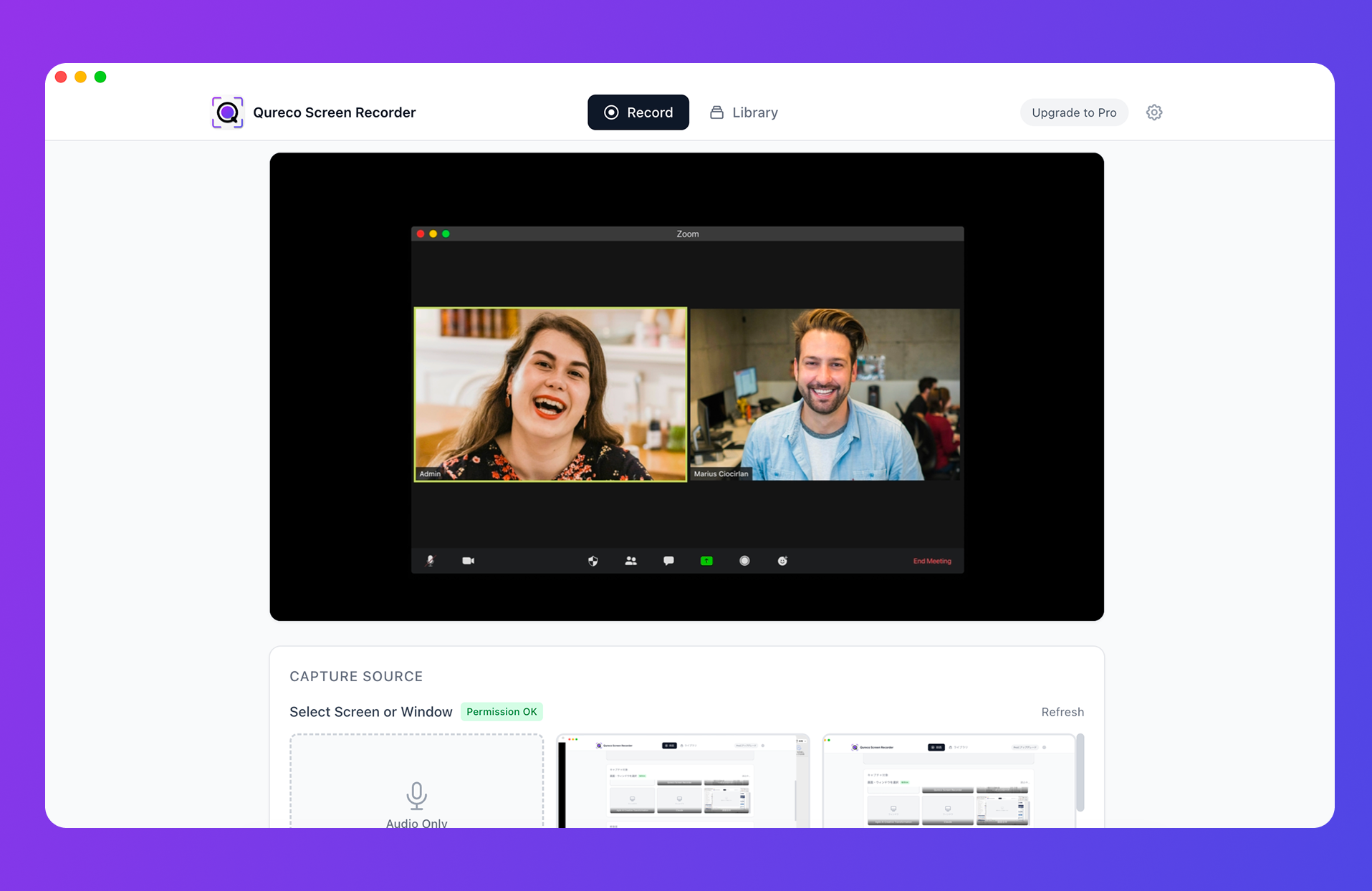
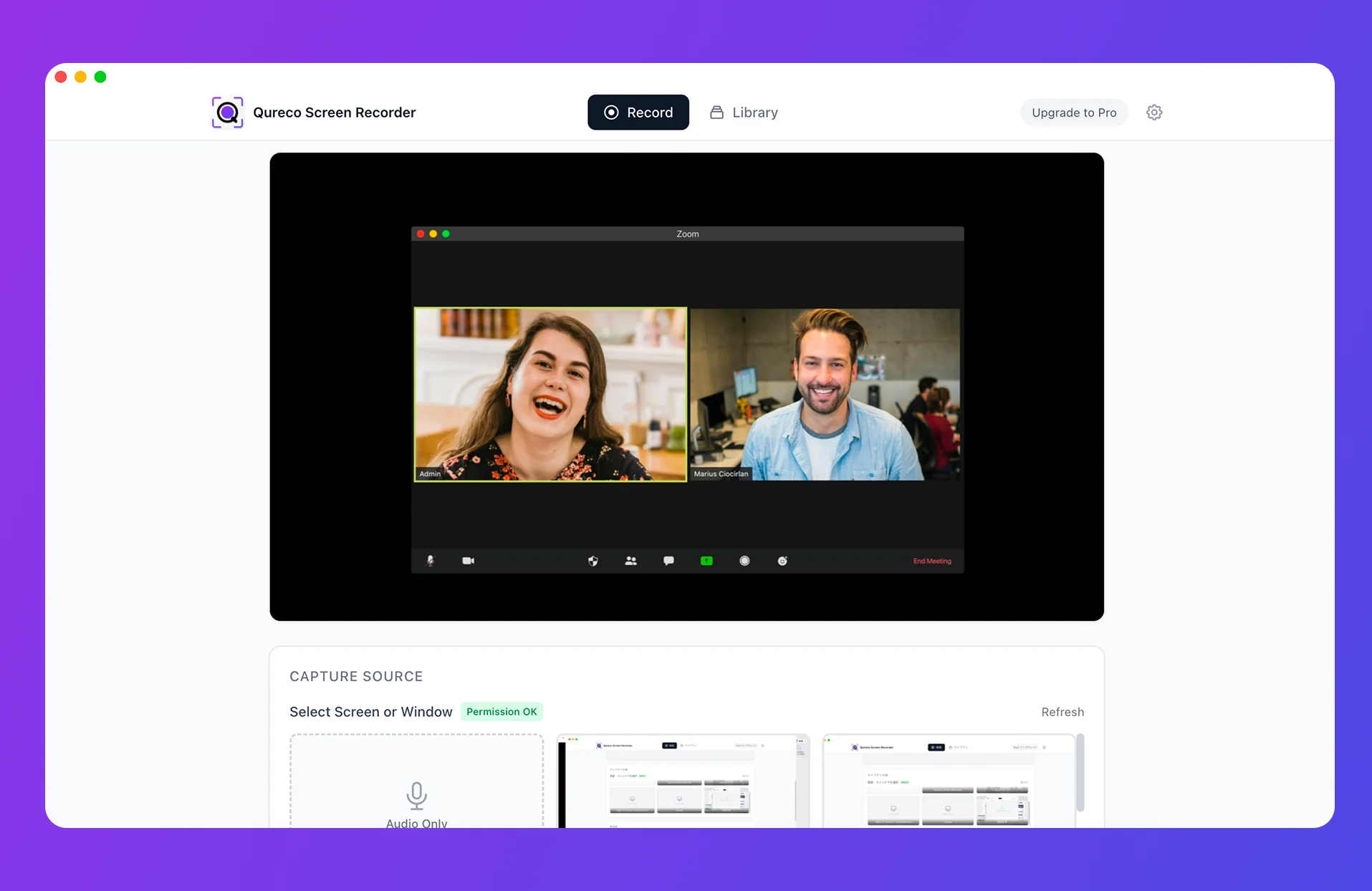
- Install and record. No Audio MIDI Setup, no switching output devices
- System audio and microphone toggle separately, so you can capture presenter audio only while listening, and both when you speak in Q&A
- No time limit and no watermark on the free plan, so a two-hour session will not cut off partway
- Resolution options of 1080p, 720p, and 480p, so slide-driven sessions can run at 720p and save disk space
- Because it records on your own machine, it is unaffected by the host's recording permissions
One caveat: Qureco runs on macOS only, with a Windows version in the works.
Turning two hours of video into ten minutes of notes
This is the part that decides whether recording was worth it. Stop at the recording and you will almost certainly never open it.
Video you keep is video you do not rewatch
Rewatching two hours takes two hours. At double speed, one. A folder of "I will watch this later" webinar recordings is functionally the same as not having recorded anything.
From transcript to summary
The flow is straightforward.
- Generate a transcript from the recording
- Hand the transcript to an AI and ask for a summary
- Cut the summary down in your own words
Step three matters. Leave the AI summary as-is and you have a well-organized piece of someone else's writing, which does not stick. Keep only what applies to you and delete the rest.
The four things worth keeping
Webinar notes only need these four to stay useful.
| Field | What to write |
|---|---|
| The core claim | The one thing the presenter most wanted you to take away (one or two lines) |
| Numbers and data | Statistics quoted, figures from the case studies, sources |
| What it means for us | What the claim becomes when translated to your own work or org |
| Next action | What to try tomorrow, what to look into |
The third one carries most of the value. Notes that copy the presenter are no different from what you could search for later. A single line translating it into your own situation is something only you can write.
During the session, capture timestamps only
0:18 opening statistic (verify later)
0:47 second case study, close to ours
1:12 the operations question in Q&A
That is enough to jump back to the right spots afterward, and it frees up the attention you were spending on writing.
Store the notes in Notion so you can find them again
Notes without a home get scattered. One database for webinar notes is enough.
A minimal database design
These properties cover it.
| Property | Example |
|---|---|
| Title | Webinar name |
| Date | Date |
| Host / speaker | Company, speaker name |
| Topic | Tags (SEO, org design, product, and so on) |
| Source URL | Registration page or archive link |
| Recorded | Checkbox |
After six months, "where did I see that number" becomes a tag search.
How to cite it
When you quote a webinar in an internal document, write the speaker's name, their organization, the webinar title, and the date together. It reads as a real source, and it helps you find your way back to verify it.
Where to draw the line on sharing
| Fine to share | Avoid |
|---|---|
| The notes you wrote yourself | The recording file itself |
| Quotes with the source stated | Reposting slide images |
| Mentioning that the webinar happened | Forwarding the archive link outside the company |
What you converted into your own words is your writing. The recording and the slides are not. Keep that line and you can share internally without worrying.
Wrapping up
The full path from webinar to retained learning:
- Check: registration page, confirmation email, opening announcement. Ask in the chat if nothing is stated. If it is prohibited, do not record
- Understand the mechanics: Zoom webinar attendees have no recording feature, so you record on your own machine instead
- Record: the built-in
Shift + Command + 5misses presenter audio. Either install a virtual audio driver or use an app that needs no setup. Always do a 30-second test five minutes before - Condense: transcript to summary, then cut it to the core claim, the numbers, what it means for you, and the next action
- Store: a Notion database with tags. Share the summary, not the recording
Recording is the means, not the end. Spend the session listening and build the notes afterward. That reordering alone changes how much you take away.
Qureco Screen Recorder
Powerful screen recording app for Mac
Record meetings, let AI handle the notes, just read what arrives in Notion.
Try all features free for the first two weeks.